How to Connect PS4 Controller to iPhone
A DualShock 4 pairs with an iPhone over Bluetooth with no app and no cable. Here is the button combination, the Settings path and the features that do not carry over.
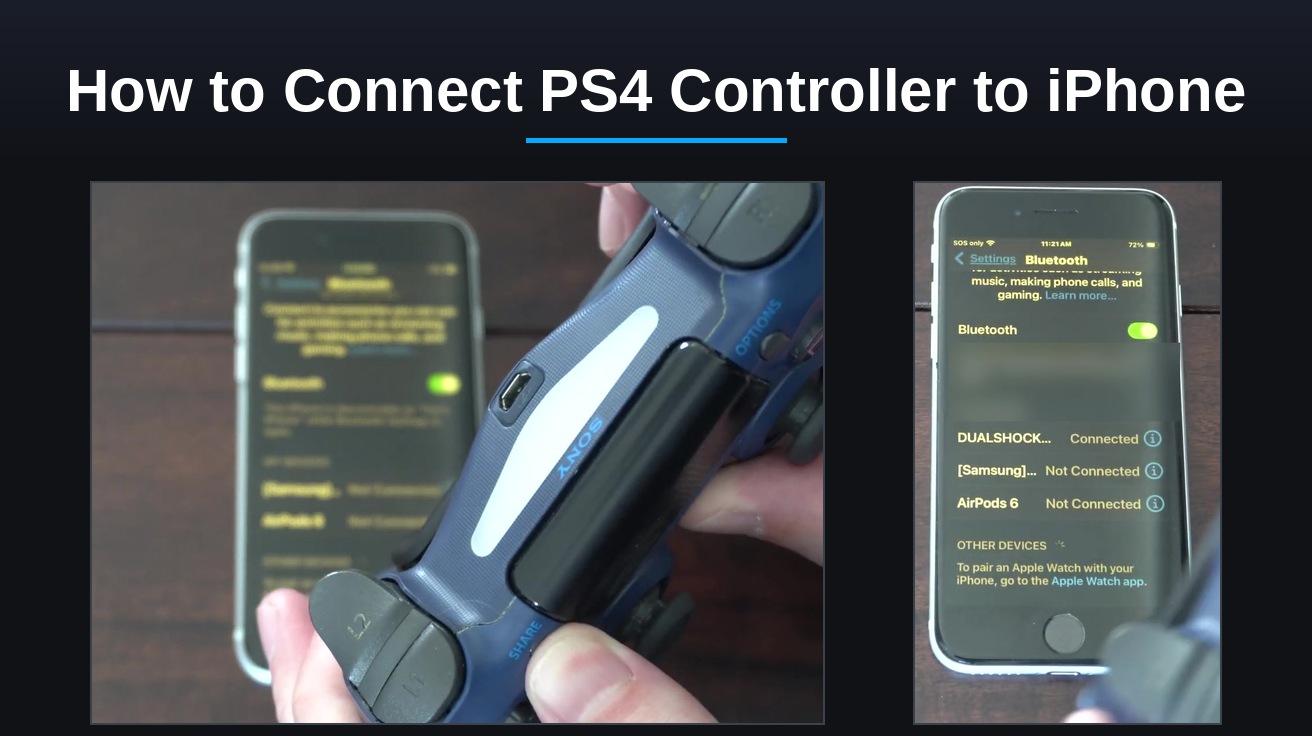
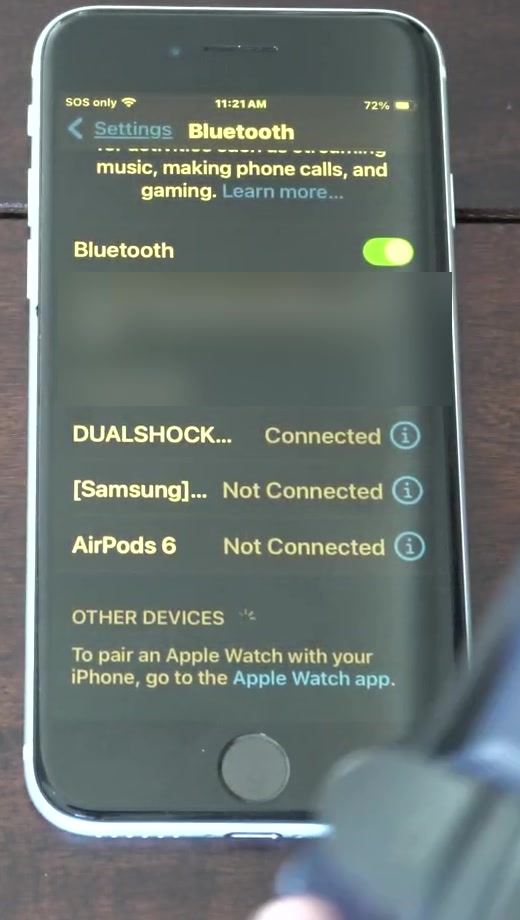
Power the PS4 controller down, then hold the Share button and the PS button together until the light bar flashes. On the iPhone, open Settings, tap Bluetooth, and tap DUALSHOCK 4 Wireless Controller when it appears under Other Devices. The light bar settles on a solid colour once the two are connected.
A DualShock 4 is an ordinary Bluetooth gamepad underneath, so you can connect a PS4 controller to an iPhone with no app, no cable and no PlayStation account. Apple added support for it in iOS 13 and has carried it in every release since.
The part people get wrong is the button combination. A short press of the PS button is a request to reconnect to whatever console the pad saw last, which is why nothing shows up on the phone. Share and PS have to be held together, on a controller that is fully powered off.
How to connect a PS4 controller to an iPhone
1. Open Settings on the iPhone and tap Bluetooth. Leave the switch on and stay on this screen while you pair, because the iPhone only advertises for new accessories while it is open.
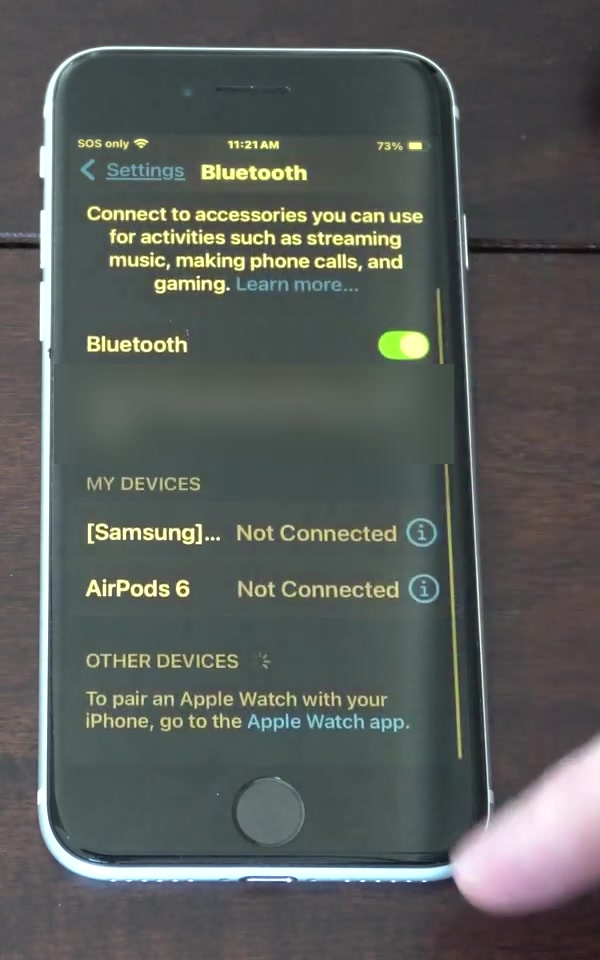
2. Turn the controller off completely. Hold the PS button until the light bar goes dark, and unplug any USB cable.
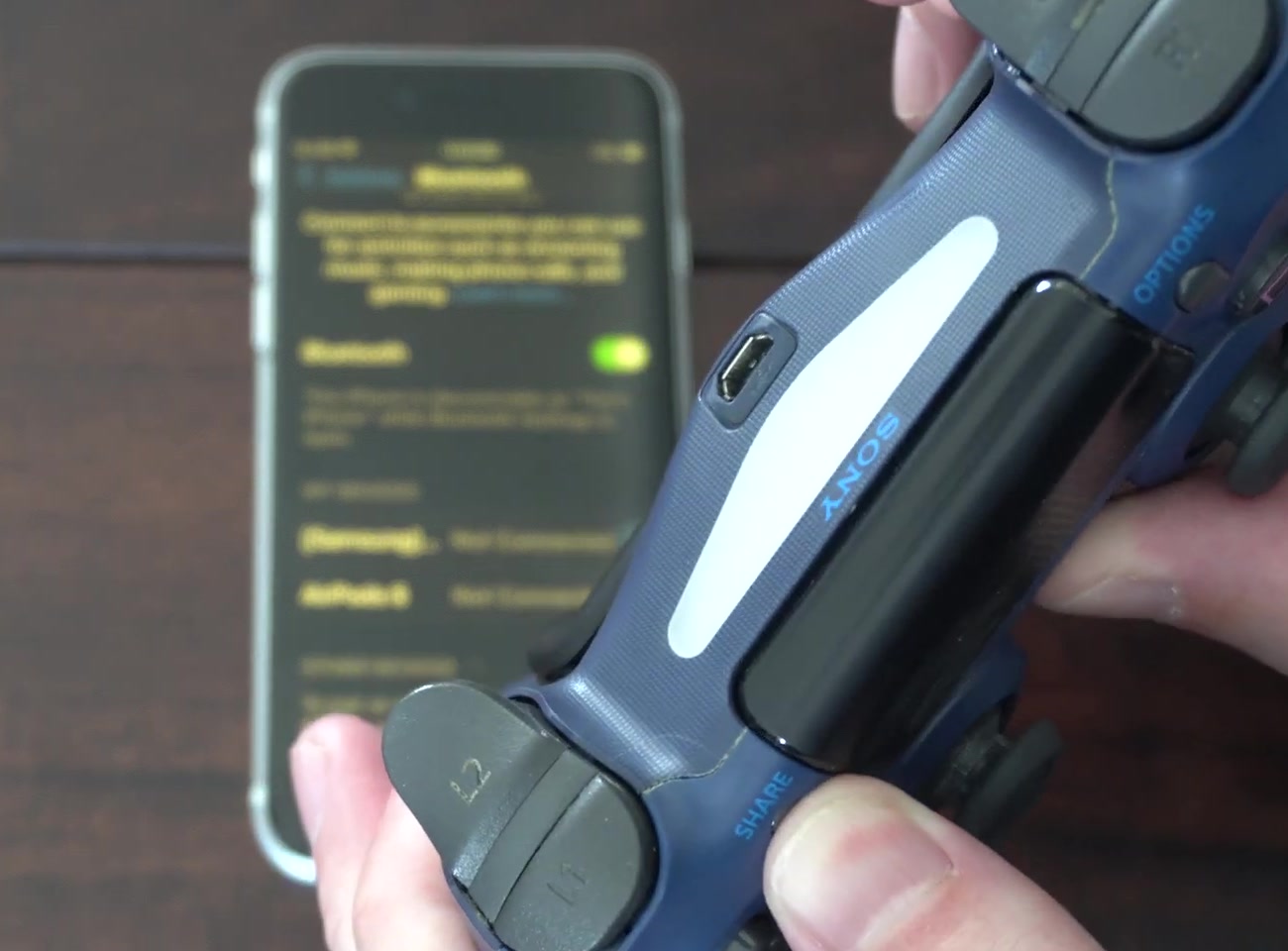
3. Hold the Share button, the small button to the left of the touch pad, and keep holding it while you press and hold the PS button in the centre.
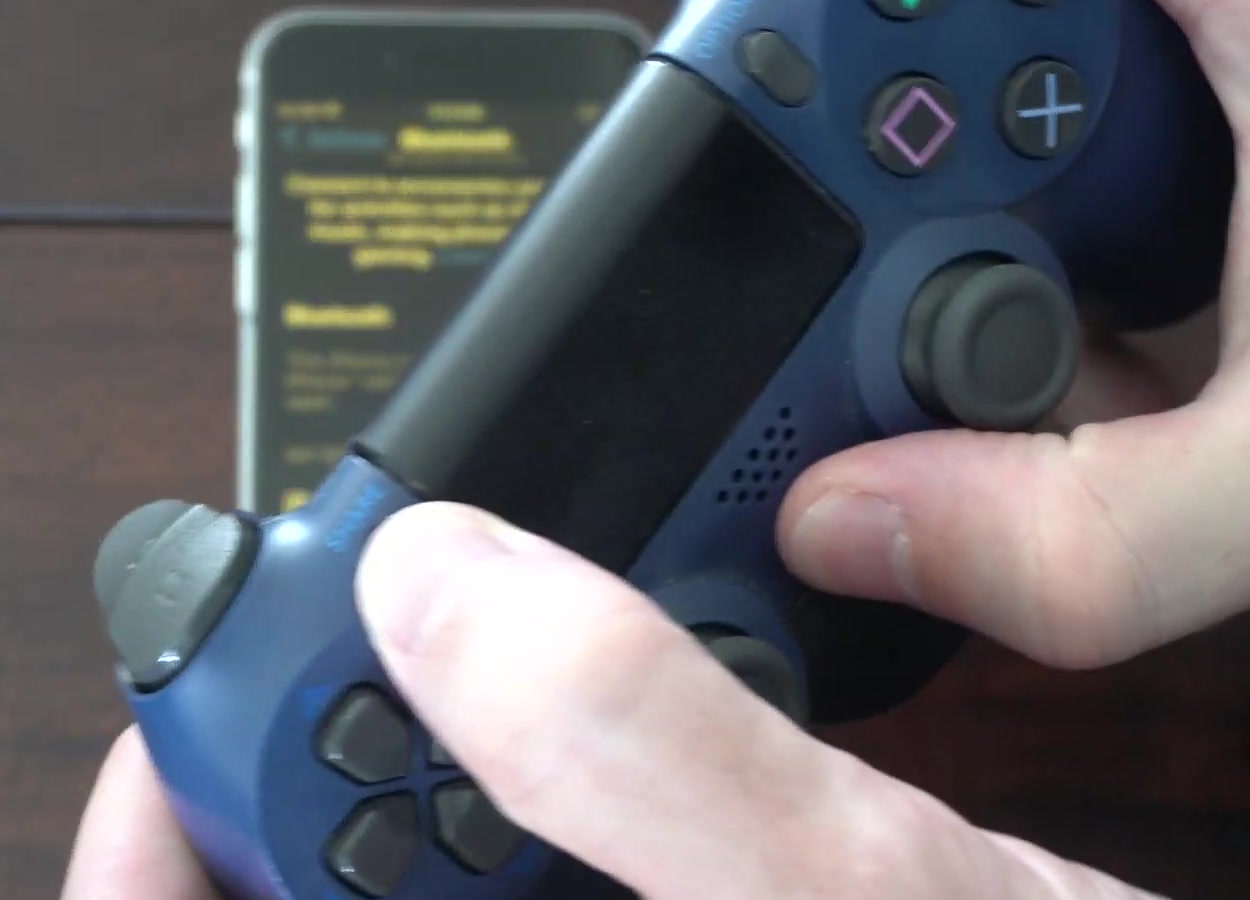
4. Let go of both when the light bar starts flashing. A quick white double-flash means the controller is in pairing mode and discoverable.
5. Back on the iPhone, wait for DUALSHOCK 4 Wireless Controller to appear under Other Devices, then tap it.
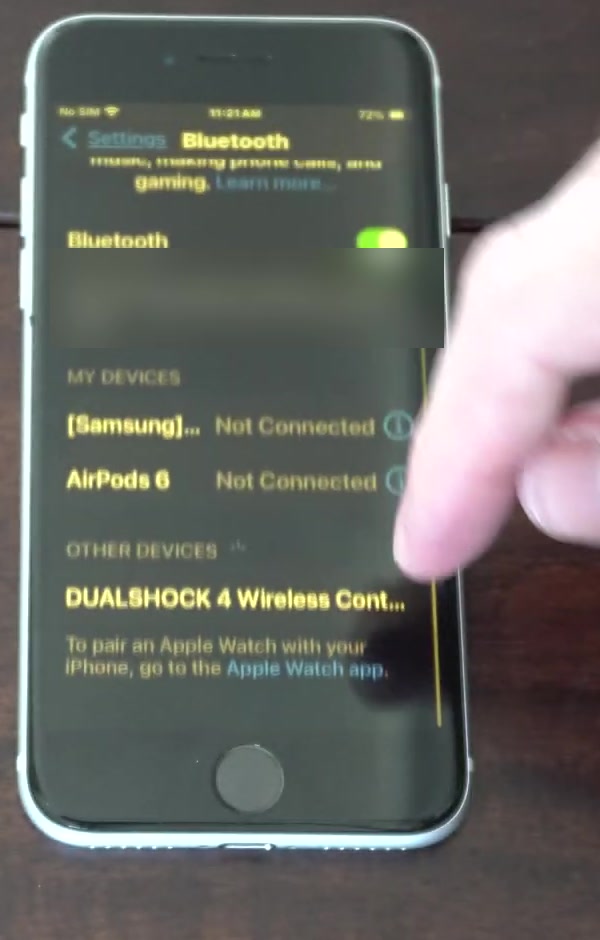
6. The entry moves up into My Devices and reads Connected. The flashing stops and the light bar holds a solid colour.
That pairing is remembered. Next time, a single press of the PS button reconnects the controller as long as Bluetooth is on.
Pairing over USB, and using other Apple devices
Apple says PlayStation controllers also pair automatically when you plug them into the device with a USB cable that carries data as well as power. On an iPhone that means a USB-C cable on recent models, or a Lightning adapter on older ones, so Bluetooth is usually the quicker route.
The same Share and PS combination puts the pad into pairing mode for an iPad, a Mac or an Apple TV. If the controller is going somewhere else instead, we have separate walkthroughs for pairing a DualShock 4 back to a PS4 and for using a PS4 controller on a PC.
What this does not do
Sony's own FAQ on using the DualShock 4 with Apple devices lists four features that do not carry across: the touch pad, vibration, the motion sensor, and audio through the controller's headphone jack. To an iPhone game, the pad reads as a standard controller rather than a PlayStation one.
Pairing also does not make every game playable with buttons. Controller support is decided game by game. Sony's PS Remote Play app on iPhone does accept the DualShock 4, which is what the iOS support was built around.
Common questions
Which iPhones can do this? Apple's current page on wireless game controllers lists iOS 16 or later for iPhone. DualShock 4 support itself arrived back in iOS 13, so a phone on an older release will often still pair, but Apple no longer documents those versions.
Can I change what the buttons do? Yes, on iOS 16 and later. Open Settings, tap General, then tap Game Controller and choose the controller by name.
How do I disconnect it again? Hold the PS button until the light bar goes out to simply switch it off. To remove the pairing, open Settings > Bluetooth, tap the information button next to the controller and choose Forget This Device.
If the PS4 controller never appears
Three things account for most of it. The light bar has to be flashing rather than glowing steadily, because a steady light means it has already connected to something else. The Bluetooth screen has to be open while the phone scans. And the controller has to be unplugged.
If it shows up in the list but will not finish connecting, press and release the PS button once. Apple's general advice when a controller refuses to connect is to install the latest updates on the device and try again.