
How to Insert Checkbox in Excel (Microsoft 365 Way)
In Microsoft 365, checkboxes are a built-in cell control: select your cells and click Insert > Checkbox. Each box stores TRUE or FALSE, so formulas can read it directly.
To insert a checkbox in Excel, select the cells where you want the boxes, then click Insert > Checkbox. Excel drops a clickable box into every selected cell. A ticked box holds the value TRUE and an unticked box holds FALSE, so you can point a formula straight at the cell.
Checkboxes used to be a chore in Excel. You had to switch on the Developer tab, drop in a floating Form Control, then link it by hand to a cell so a formula could read it. Those boxes sat on top of the grid rather than in it, and they drifted out of alignment the moment you inserted a row.
That is no longer how it works. In Excel for Microsoft 365 a checkbox is a cell value with checkbox formatting, which means it sorts, filters, copies and fills down like anything else you type. One thing to know before you start: the box replaces whatever is in the cell, so put your boxes in an empty column beside your list rather than on top of the text.
Where the checkbox setting lives in Excel
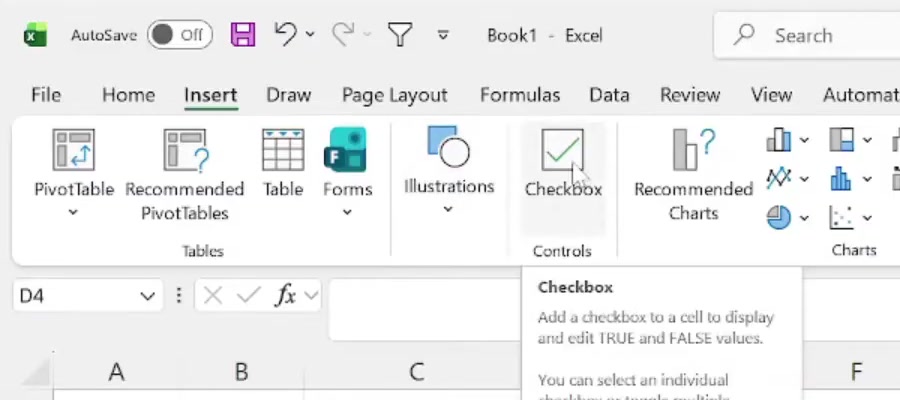
The whole procedure is two steps. It sits on the Insert tab, in the Controls group, not on the Developer tab.
1. Select the cell or the range of cells where you want the boxes. To put boxes in cells that are not next to each other, hold Ctrl while you select each one.
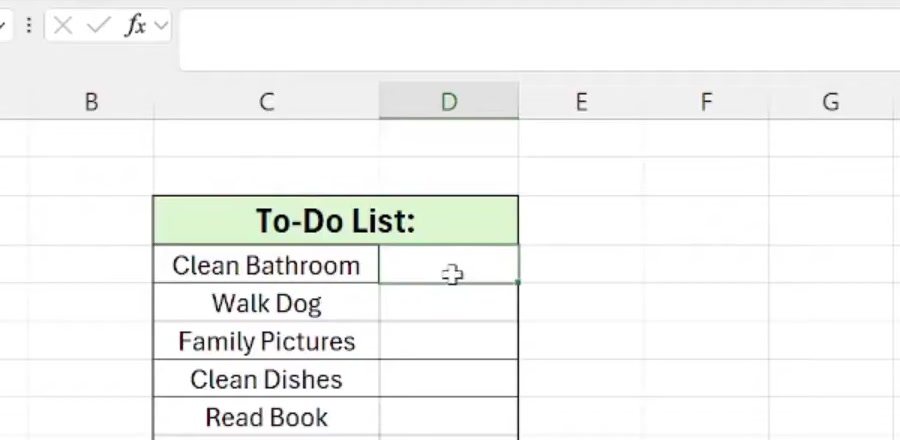
2. On the Insert tab, click Checkbox. Every selected cell gets an unticked box at once.
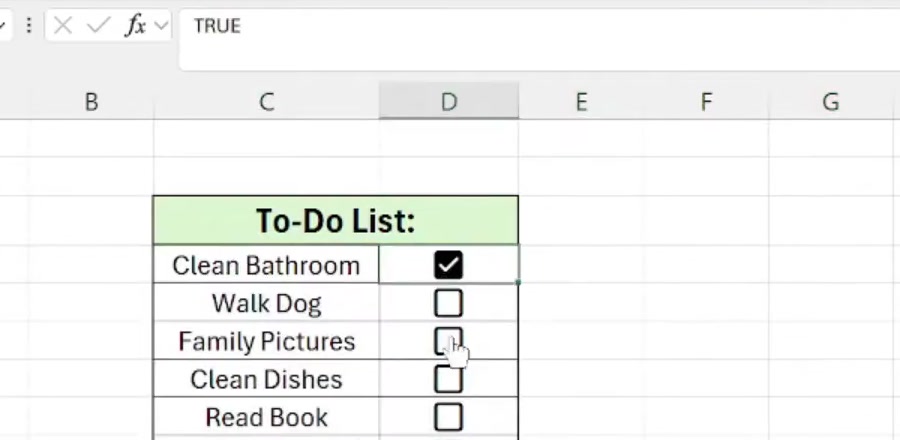
The boxes appear immediately, unticked. Click into one and the formula bar shows FALSE, because that is literally the cell's value.
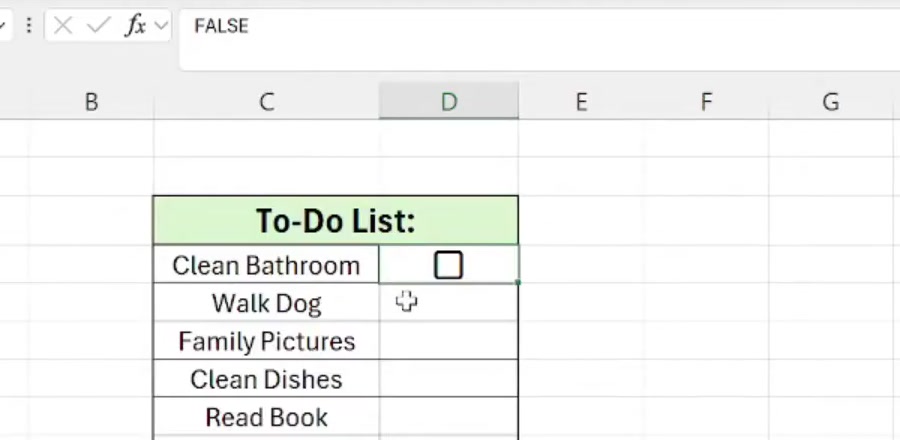
3. To tick a box, click it. To tick or clear several at once, select the range and press Spacebar. A ticked box reads TRUE in the formula bar.
Using the TRUE and FALSE values in formulas
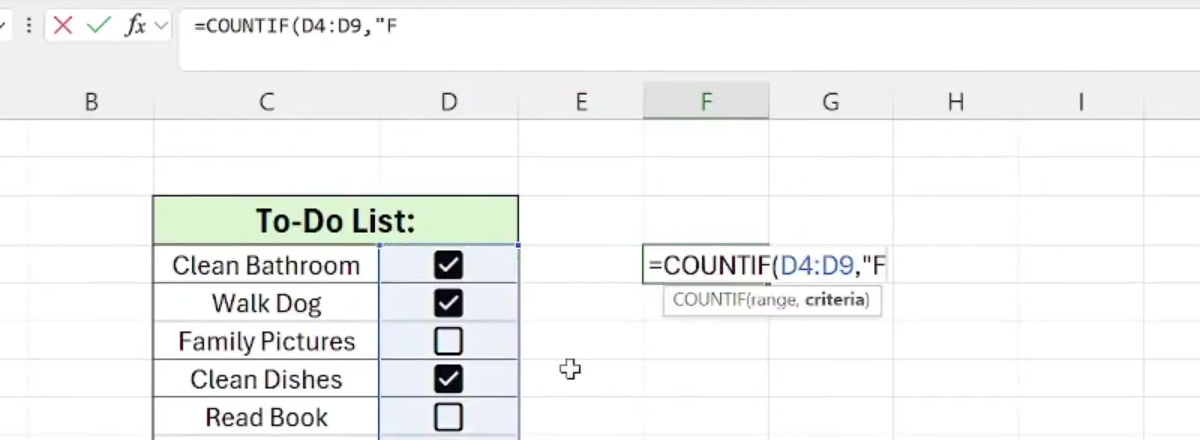
Because a checkbox is just a Boolean sitting in a cell, you do not need a linked cell or any setup to count it. To count the ticked boxes in D4:D9, use =COUNTIF(D4:D9, TRUE). Swap TRUE for FALSE to count what is still outstanding.
The same logic drives conditional formatting. A rule using the formula =$D4=TRUE will strike through or highlight a row the moment its box is ticked, and =IF(D4, "Done", "") will drop a label into a neighbouring cell. If you like your sheets tidy, our guide to keeping a header row visible while you scroll pairs well with a long checklist.
The older route, and what changed
If you are on a perpetual licence such as Excel 2021, 2019 or 2016, the Insert > Checkbox button does not exist. The in-cell checkbox is a Microsoft 365 feature, and it also works in Excel for the web and on Mac.
On those older versions you take the Developer tab route instead: File > Options > Customize Ribbon, tick Developer under Main Tabs, click OK, then go to Developer > Insert and pick the check box under Form Controls. You then draw the box onto the sheet and link it to a cell manually through Format Control. It is the same idea with considerably more steps, and the result is a floating object rather than a cell value.
What inserting a checkbox does not do
It does not create a drop-down. If you want a Yes/No picker rather than a tick, that is Data Validation, a separate feature on the Data tab.
It does not insert a tick symbol. A checkmark from the Symbol dialog or the Wingdings font is static text; a checkbox is interactive and carries a value. They look similar and behave nothing alike.
It also does not lock anything. A checkbox is not a permission or an approval, and anyone who can edit the sheet can tick or clear it.
Common questions
How do I delete a checkbox? Select the cells and press Delete. If any of the boxes are ticked, the first press clears the ticks and a second press removes the boxes. If none were ticked, one press removes them.
Can I remove the boxes but keep the TRUE and FALSE values? Yes. Select the cells and choose Home > Clear > Clear Formats. The checkbox formatting goes and the logical values stay behind.
Why can I not click one of my boxes? A checkbox placed over a cell whose value comes from a formula is read-only. The formula controls the result, so clicking the box does nothing. Boxes over typed TRUE or FALSE values behave normally.
If the Checkbox button isn't there
Check the version first. Go to File > Account on Windows, or Excel > About Excel on a Mac. If you are on a Microsoft 365 subscription and the button is still missing, run File > Account > Update Options > Update Now — the feature arrived in an update rather than a full release, so an app that has not checked in for a while will not have it.
If you are on a perpetual licence, no update will add it. Use the Developer tab and Form Controls route above, or open the file in Excel for the web, where the in-cell checkbox is available.