How to Pin a Row in Excel (It's Called Freeze Panes)
Excel has no button called Pin. The feature you want is Freeze Panes on the View tab, and it takes three clicks to keep your header row on screen while you scroll.

To pin a row in Excel, go to the View tab and select Freeze Panes > Freeze Top Row. Row 1 then stays on screen while everything below it scrolls. To pin more than one row, first select the cell in column A directly below the last row you want kept, then choose Freeze Panes > Freeze Panes.
If you have been searching for how to pin a row in Excel and finding nothing, that is because Excel does not use the word "pin" anywhere in its interface. The command is called Freeze Panes, it lives on the View tab, and it does exactly what you expect.
One thing to know before you start: freezing is a view setting, not a formatting change. It does not alter your data, and it does not change what comes out of the printer.
Where the Freeze Panes setting lives
1. Open the worksheet and select the View tab on the ribbon. Freeze Panes is not on the Home tab, which is where most people look first.
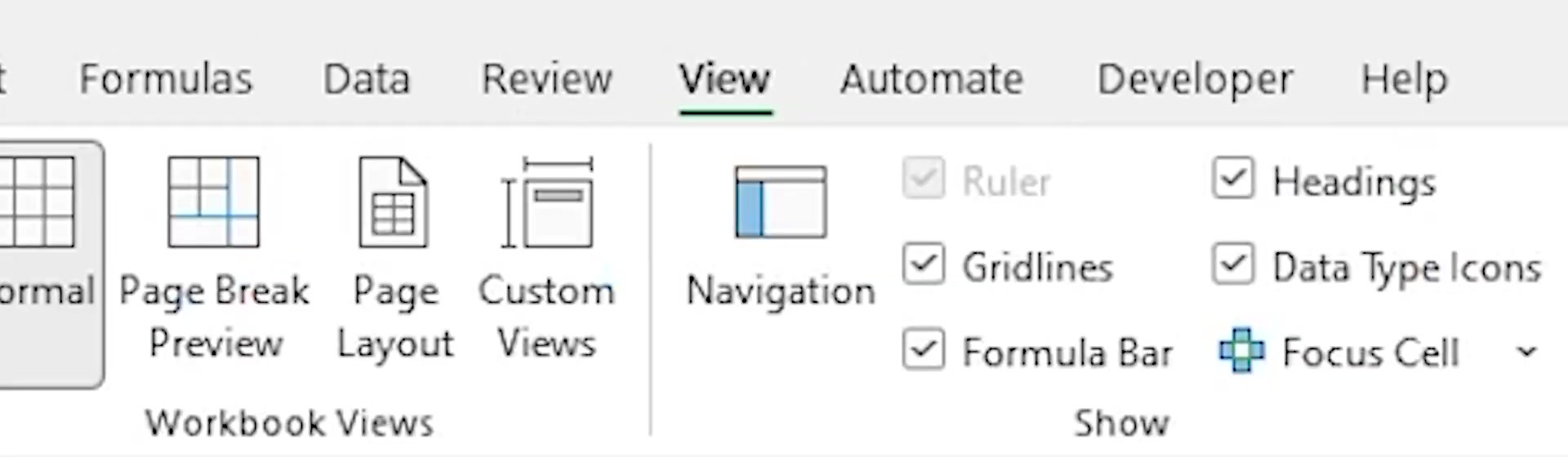
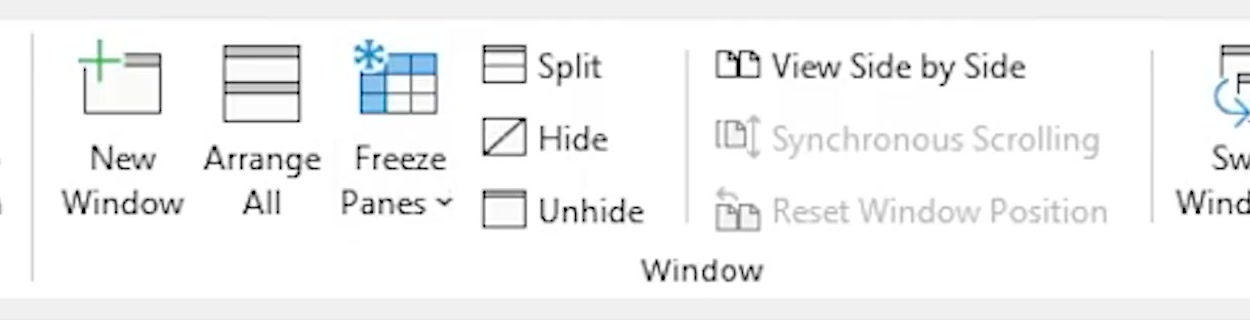
2. Look in the Window group for Freeze Panes. It sits between Arrange All and the Split checkbox.
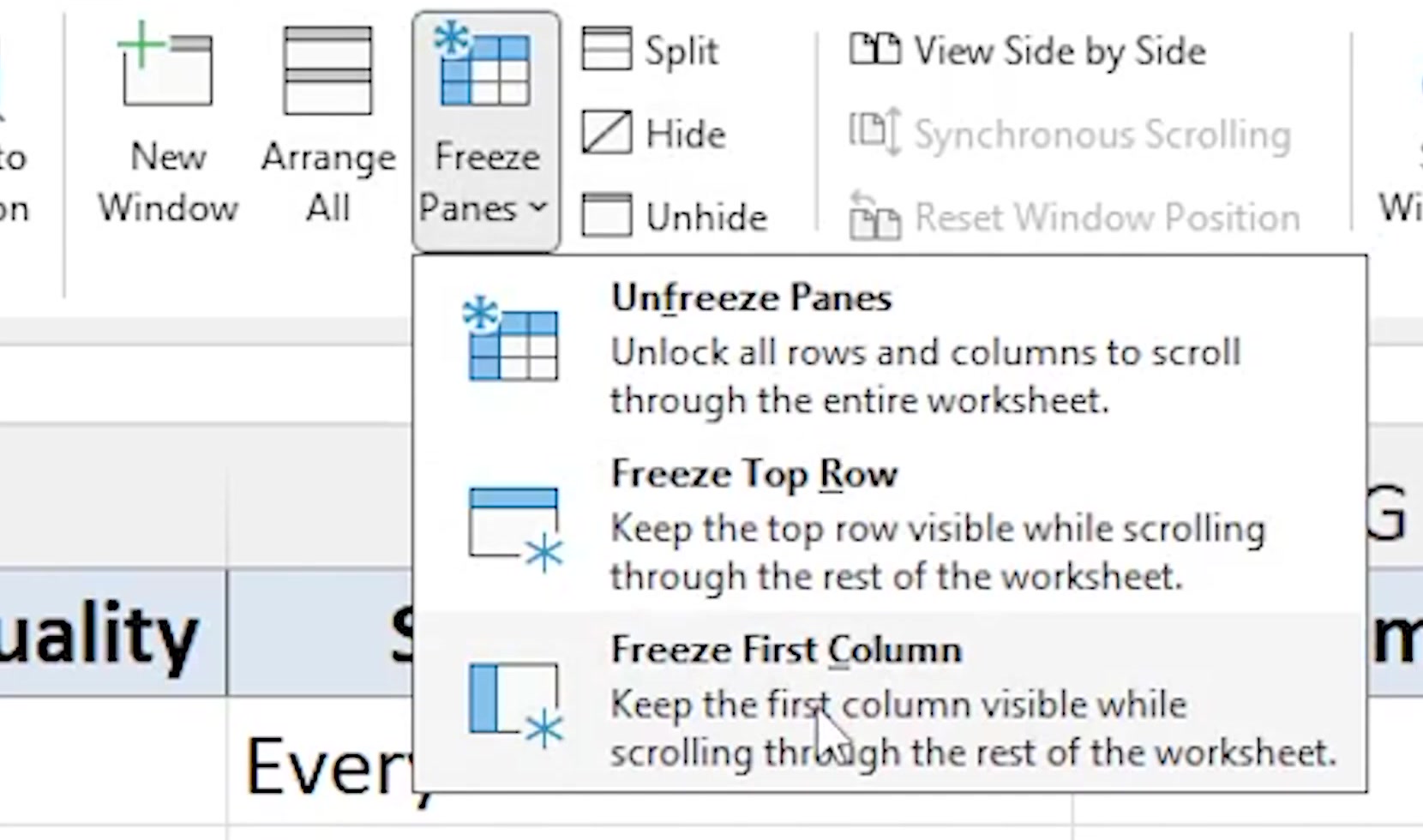
3. Click the arrow under Freeze Panes and choose Freeze Top Row. Microsoft describes this option as keeping the top row visible while you scroll through the rest of the worksheet.
4. Scroll down. Row 1 stays where it is, and the border underneath it turns slightly darker than the other gridlines. That darker line is how Excel tells you the freeze took.
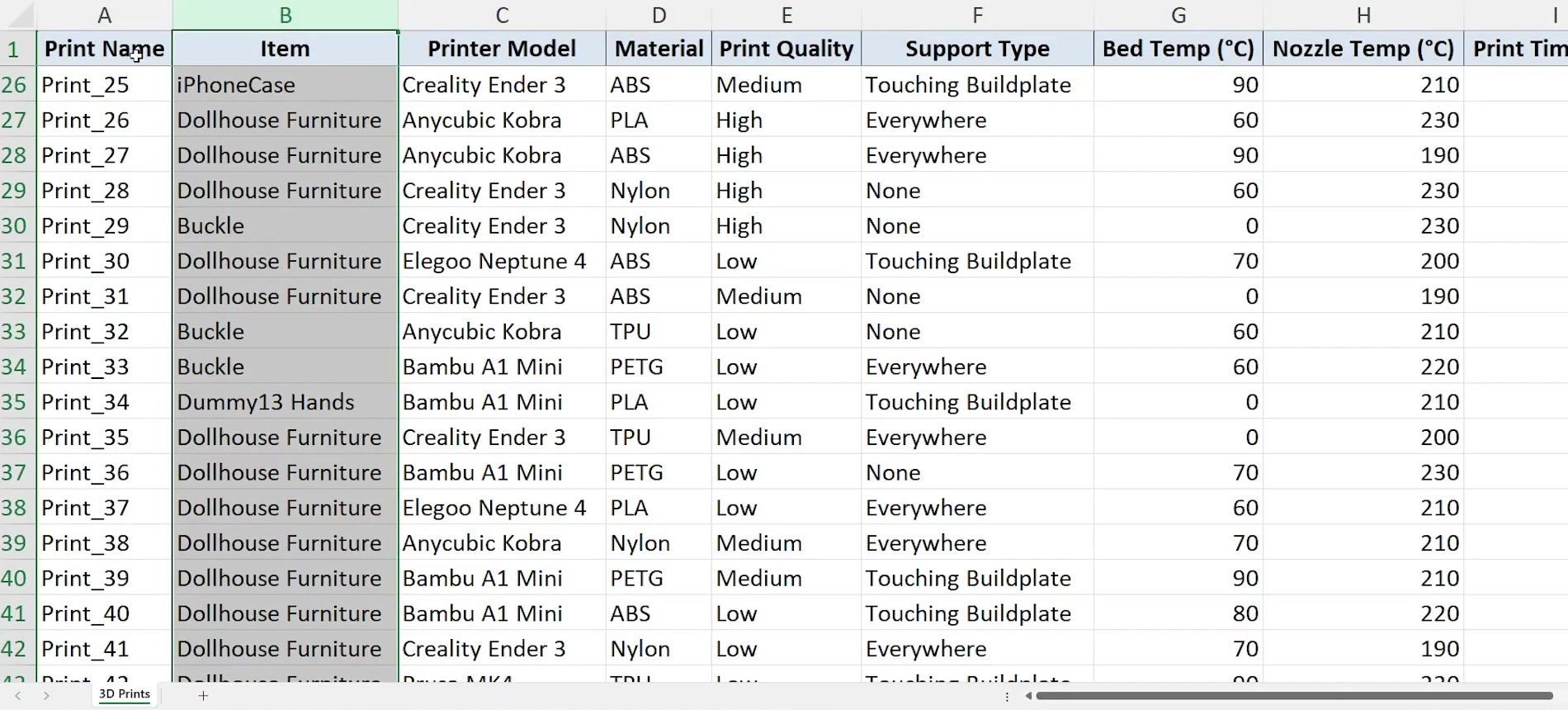
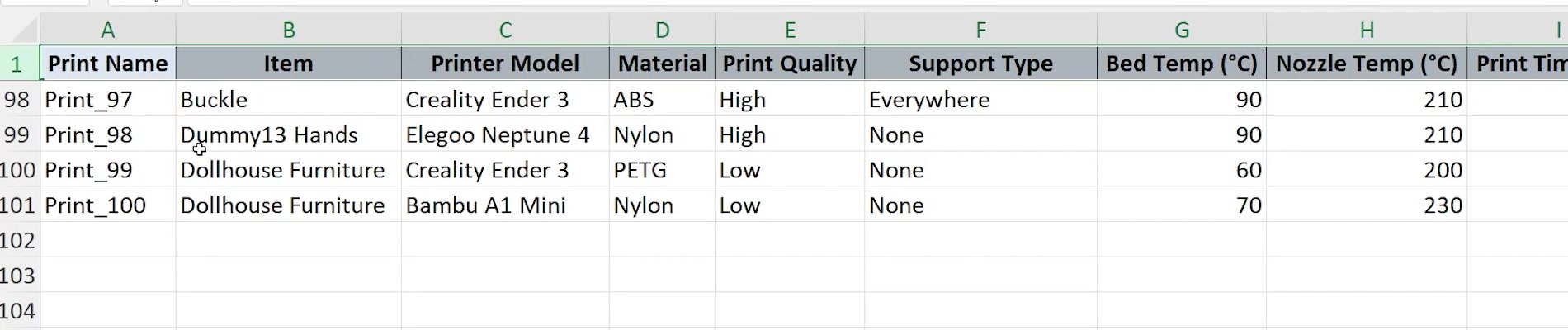
The freeze holds no matter how far you go. Scroll to the last row of a hundred-row sheet and the header is still there.
How to pin a row in Excel when it is not row 1
Freeze Top Row only ever freezes row 1. If your sheet has a title in row 1 and the real column headers in row 3, that shortcut will pin the wrong thing.
Use the general form instead. Freeze Panes freezes everything above and to the left of the cell you have selected, so select cell A4 to pin rows 1 through 3, then choose View > Freeze Panes > Freeze Panes.
There is no way to pin a row in the middle of a sheet on its own. A frozen block always starts at row 1, so pinning row 3 means pinning rows 1 and 2 with it.
Faster routes, and what changes on a Mac
On Windows the ribbon key tips reach the same command without the mouse: press Alt, then W, then F, then R, one key after another rather than all at once. This is a ribbon shortcut rather than a documented feature, so treat it as a convenience.
Excel for Mac puts the same three buttons on the View tab, named Freeze Top Row, Freeze First Column and Freeze Panes. To pin the top row and the first column together, Microsoft's Mac instructions say to select cell B2 and then choose Freeze Panes.
Microsoft's Freeze panes page covers Excel for Microsoft 365 and Excel 2016 through 2024; the Mac page covers Excel for Microsoft 365 for Mac and Excel 2021 and 2024 for Mac. Neither documents Excel for the web, so the browser version is outside what these instructions were checked against.
What pinning a row does not do
It does not repeat your header when you print. This is the one that catches people out. Printing a header on every page is a separate setting: Page Layout > Print Titles, then type $1:$1 in the "Rows to repeat at top" box.
It is not the same as Split. Split, sitting right next to Freeze Panes, divides the window into panes that each scroll independently. Freezing locks a region in place instead.
It does not lock the cells. A frozen row is still fully editable, and anyone can still type over it. Cell protection is a different feature entirely.
It applies to one worksheet. Microsoft's own wording describes the setting in terms of scrolling through the worksheet, so a second sheet in the same workbook needs its own freeze.
Common questions
How do I unpin the row? Go back to View > Freeze Panes and choose Unfreeze Panes. That releases every frozen row and column at once.
How do I check it actually worked? Look at the line under row 1. Microsoft's documentation says the border under the frozen row is a little darker than the other borders, and that is the only visual cue you get.
Can I pin a row and a column together? Yes. Select cell B2 and choose Freeze Panes, and both row 1 and column A stay put. The same logic scales up: select D5 to keep the top four rows and the leftmost three columns.
If Freeze Panes is greyed out
The usual cause is the view mode. Microsoft's guidance for both Windows and Mac is to go to the View tab, select Normal, and try again, because the freeze options are unavailable in Page Layout and Page Break Preview.
If there is no View tab at all, Microsoft notes that you are probably running Excel Starter, which does not support the full feature set.
Microsoft Support: Freeze panes to lock rows and columns
Microsoft Support: Freeze panes to lock the first row or column in Excel for Mac
Microsoft Support: Repeat specific rows or columns on every printed page