
How to Separate Names in Excel (Text to Columns)
Three ways to split a column of full names into first and last names in Excel, and how to pick the one that suits your sheet.

Select the column of full names, go to Data > Text to Columns, choose Delimited, tick Space, and set the destination to an empty column before you click Finish. For a one-off job with no formula, type the first name yourself and press Ctrl+E to let Flash Fill do the rest.
To separate names in Excel you split one column into two, and there are three ways to do it that behave quite differently. A column of full names is fine until you need to sort by surname, mail-merge a greeting, or match records against another list.
One point before you touch anything: Text to Columns writes over whatever is in its path. Its default destination is the cell you started from, so if you leave it alone your original full names are gone. Change that box, or copy the column first.
The fastest way to separate names in Excel: Text to Columns
This is a one-time conversion. It produces plain text, not formulas, so nothing updates if you add names later.
1. Select the column that holds the full names. Click the column letter to take the whole column, or drag over just the rows you want.
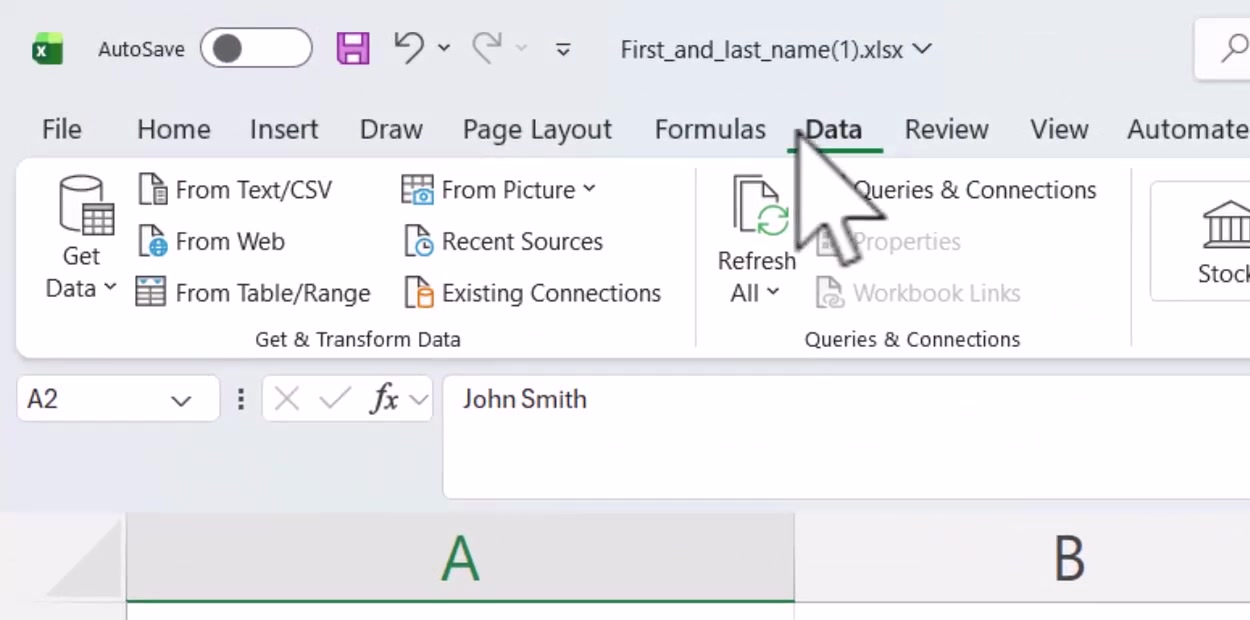
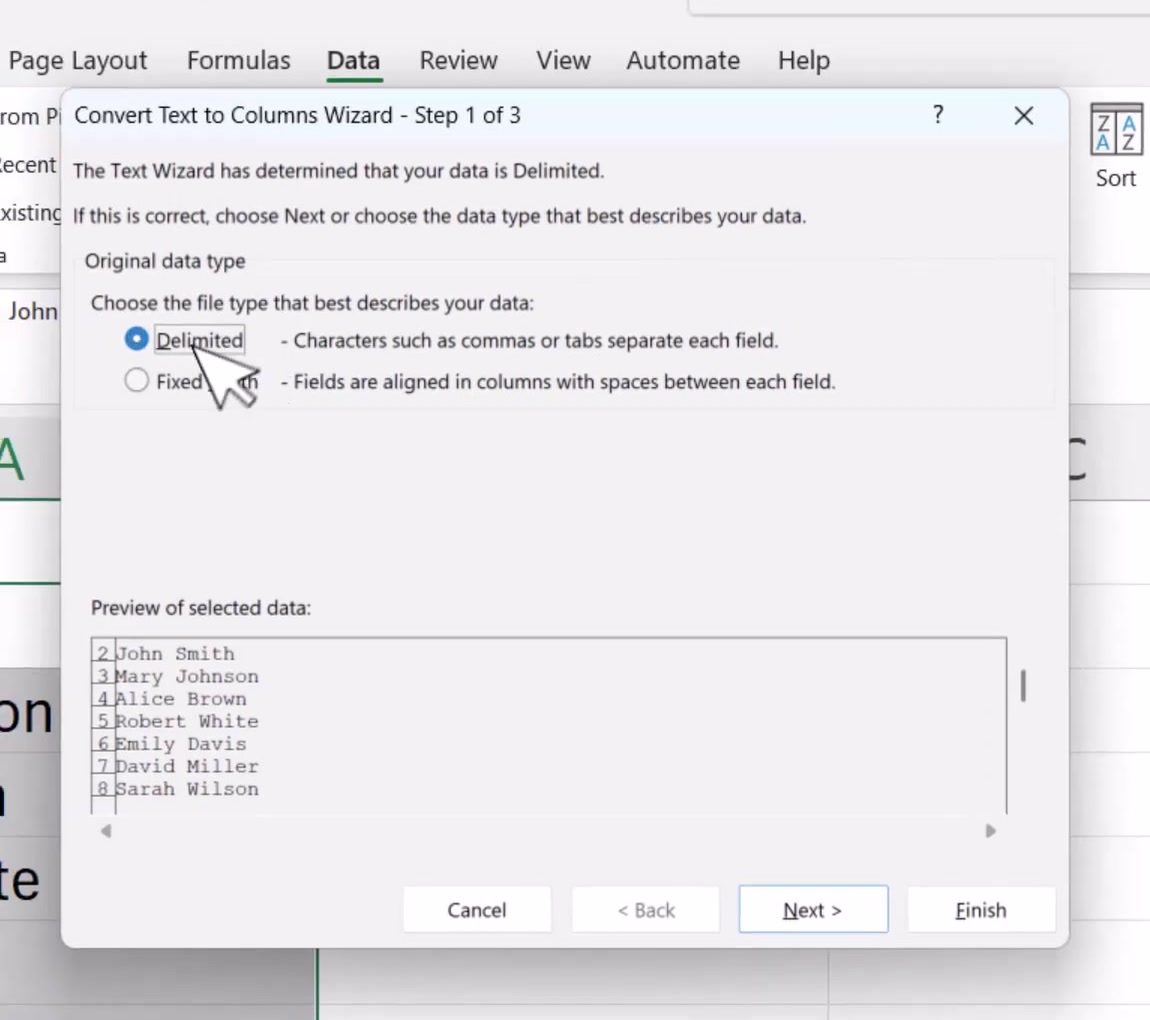
2. On the Data tab, in the Data Tools group, click Text to Columns. The Convert Text to Columns Wizard opens on step 1 of 3. Leave Delimited selected and click Next.
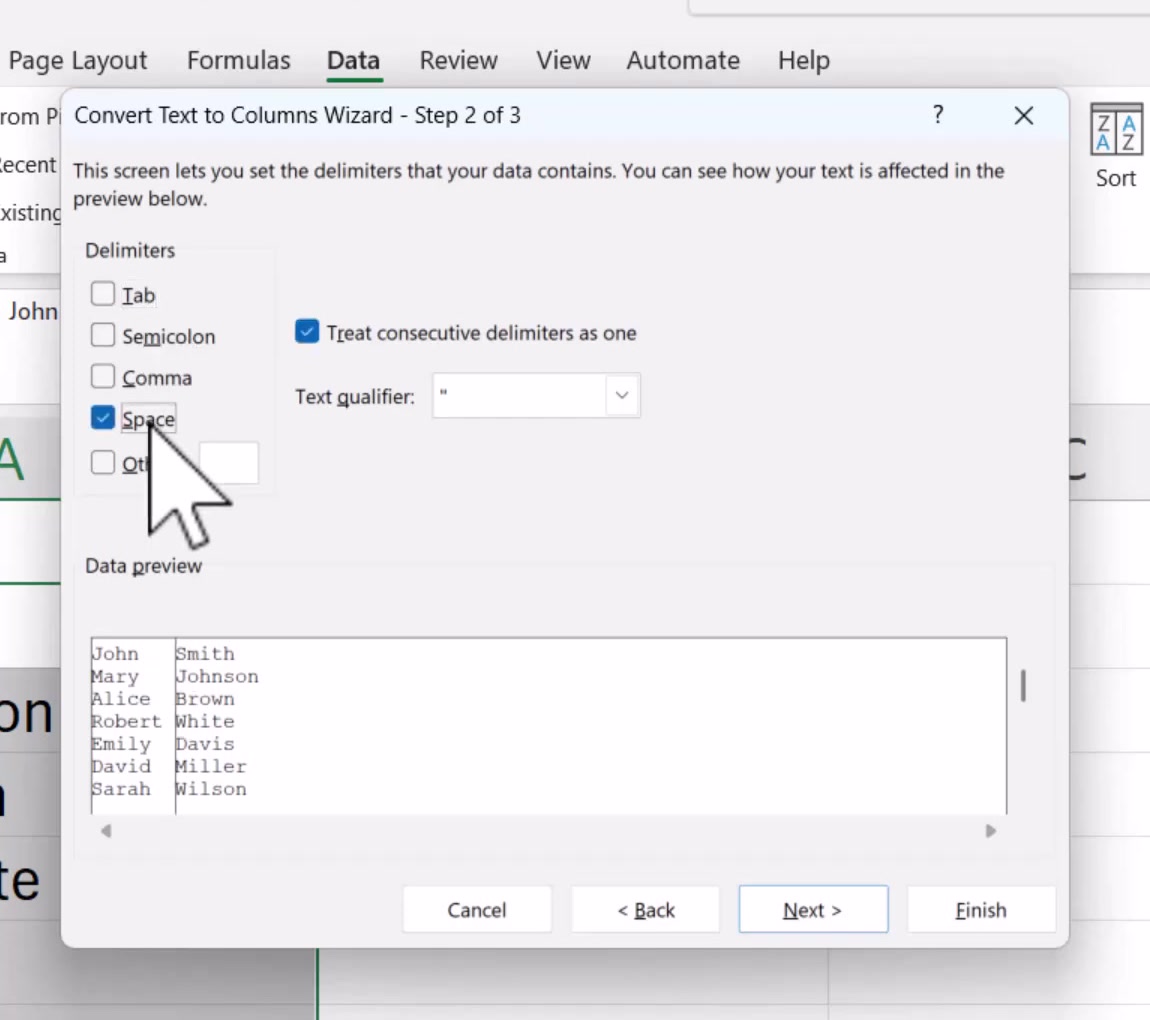
3. On step 2, tick Space and clear any other delimiter. The Data preview at the bottom redraws immediately, so you can see the split before you commit to it. Click Next.
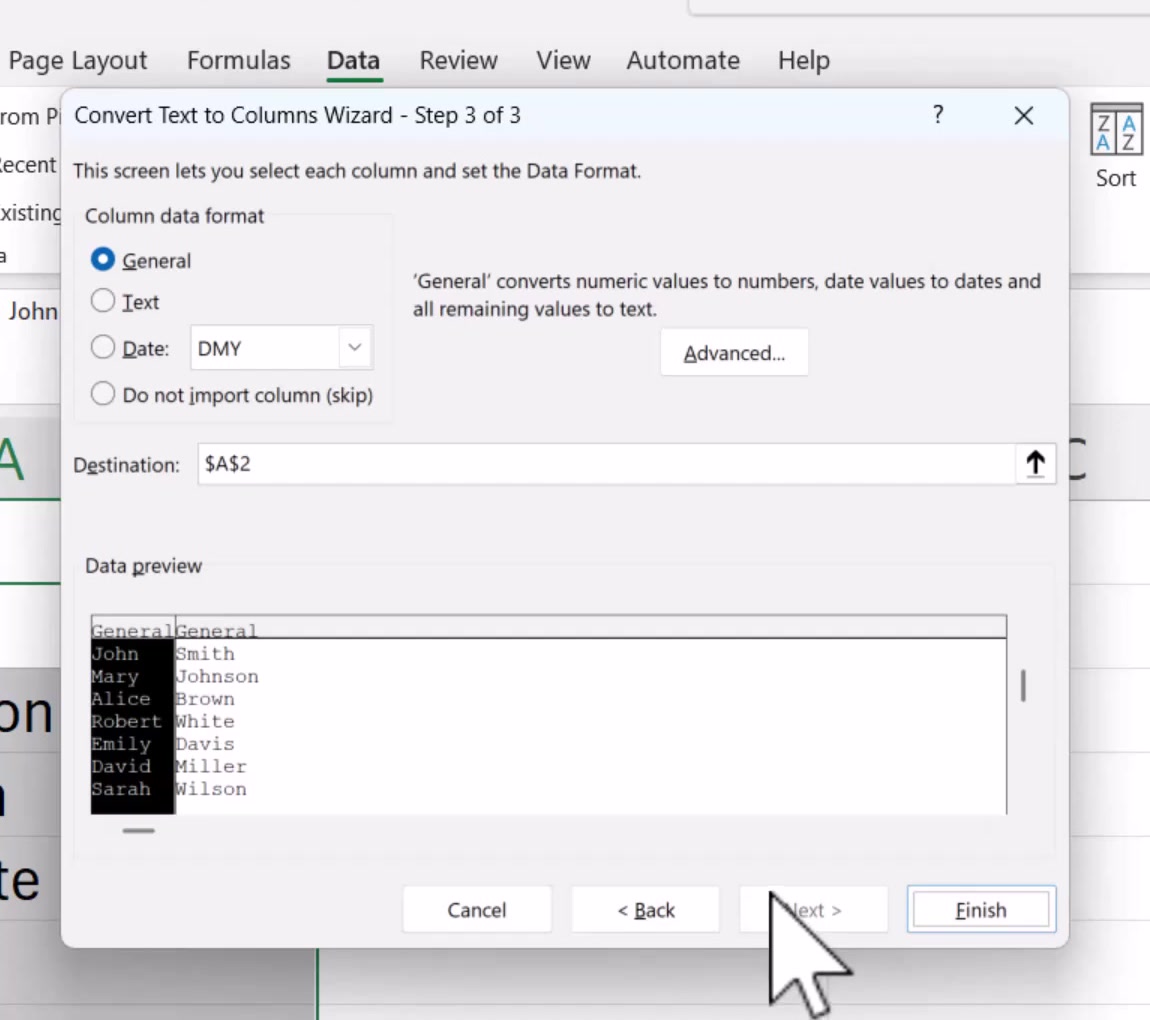
4. On step 3, leave the column data format on General and look at the Destination box. It points at the cell you started from. Change it to the first cell of an empty column if you want to keep the full names. Click Finish.
The names land in two columns. Add your own headers, because the wizard splits the header cell too if you included it in the selection.
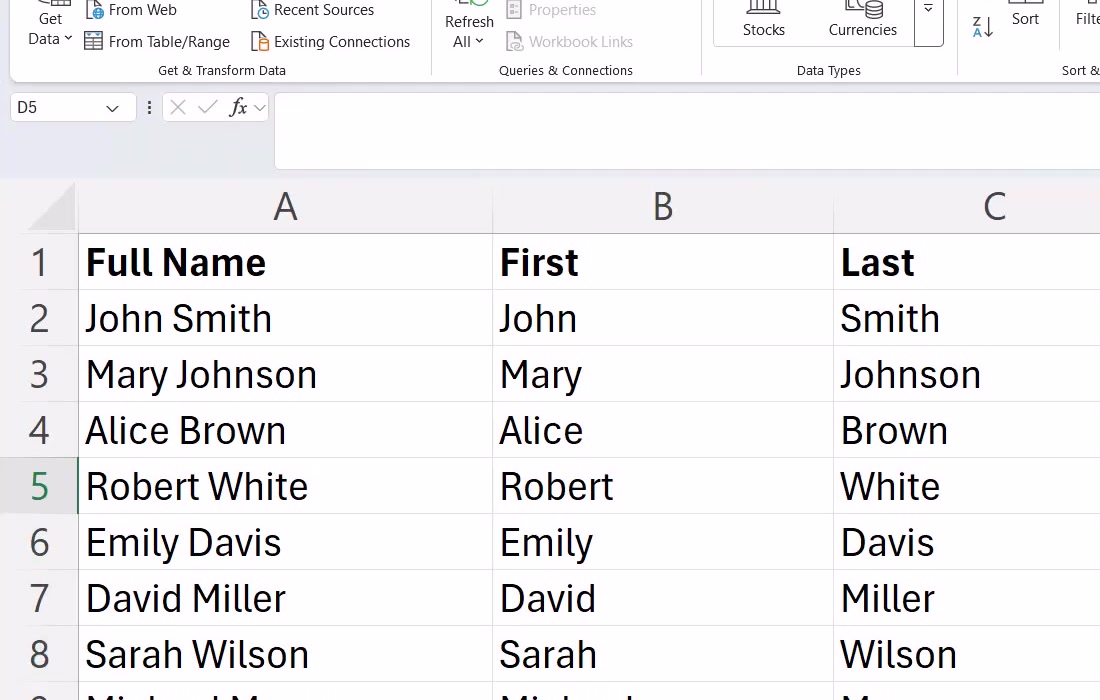
Flash Fill: show Excel one example
Flash Fill watches what you type next to your data and offers to finish the pattern. It is the quickest route when you only need this once and the names are not perfectly uniform.
Type the first name from row 2 into the column beside it and press Enter. Start typing the second one and a greyed-out preview of the whole column appears. Press Enter to accept it. If nothing appears, press Ctrl+E, or click Data > Flash Fill to run it by hand. Repeat in the next column for surnames.
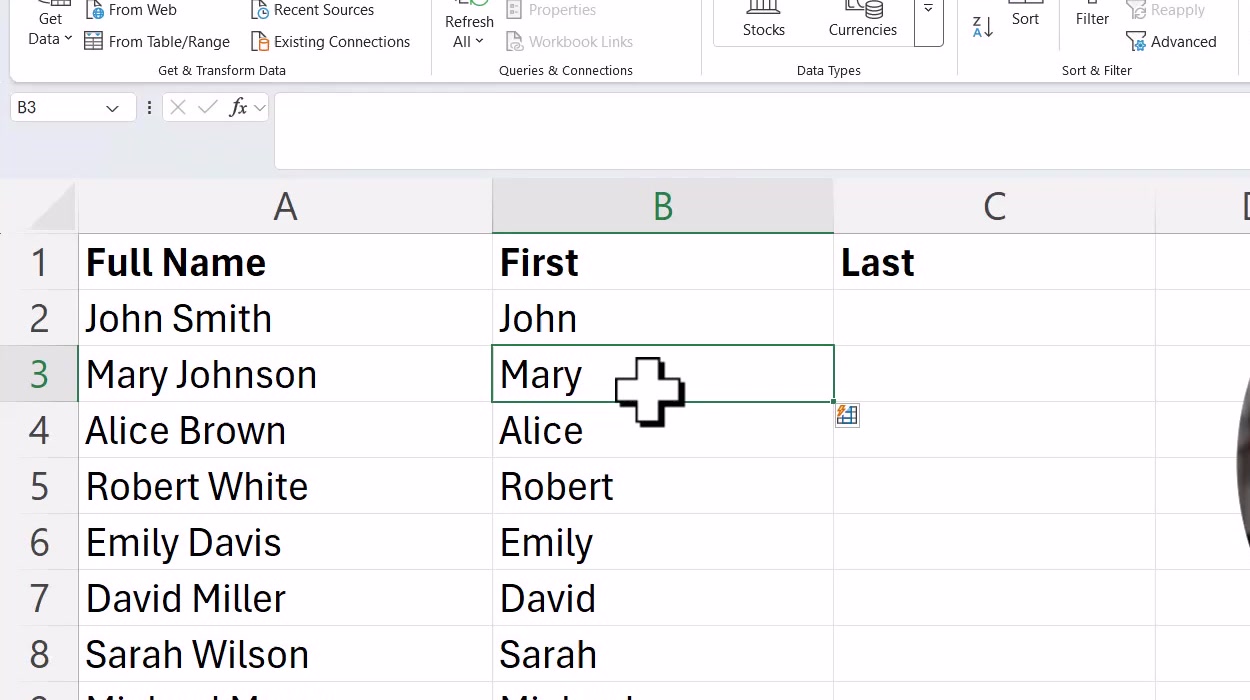
Flash Fill is case sensitive, so if your example is lower case the whole column follows suit. Like Text to Columns, it writes values rather than formulas.
A formula, if the list keeps growing
Use a formula when new names arrive and you want the split columns to keep up. On Microsoft 365 and Office 2024, =TEXTSPLIT(A2," ") splits the cell and spills the parts across two cells on its own. For a single part at a time, =TEXTBEFORE(A2," ") gives the first name and =TEXTAFTER(A2," ") gives the last.
These functions do not exist in Excel 2021, 2019 or 2016. On those versions the classic pair still works: =LEFT(A2,SEARCH(" ",A2)-1) for the first name and =RIGHT(A2,LEN(A2)-SEARCH(" ",A2)) for the last.
What this does not do
None of these methods understand names. They only find the space. A row containing "Mary Anne Johnson" splits into three pieces under Text to Columns, and TEXTAFTER returns "Anne Johnson" rather than the surname. Sort your list by length or scan it before you start, and handle the multi-part rows separately.
Suffixes and prefixes cause the same trouble: "Dr Alice Brown" and "Robert White Jr" land in the wrong columns. Flash Fill copes with some of this if your examples show it what you want, but it is guessing from a pattern, not applying a rule, so check the output rather than trusting it.
Text to Columns and Flash Fill are also one-shot. Paste in fifty new names tomorrow and neither column updates. Only the formula route does that.
Common questions
Can I undo it? Yes, Ctrl+Z reverses both Text to Columns and Flash Fill straight away. Once the file is saved and closed, an overwritten column is gone, which is the argument for pointing the destination somewhere empty.
The names are separated by a comma, like "Smith, John". Same wizard. On step 2, tick Comma as well as Space, and tick Treat consecutive delimiters as one so the gap after the comma does not create an empty column.
Why did my results turn into dates? That is the General format converting something that looks like a date. Set the affected column to Text on step 3 of the wizard.
If the option isn't there
Text to Columns sits on the Data tab in every desktop version of Excel, but it is missing from Excel for the web, where the formula route is the only option. If the button is greyed out, you have more than one column selected, or the sheet is protected.
Flash Fill needs Excel 2013 or later, and can be switched off. Turn it back on under File > Options > Advanced > Automatically Flash Fill. If you work in Excel a lot, it is worth knowing the neighbouring tricks too, like keeping your header row visible while you scroll and adding tick boxes to a sheet.