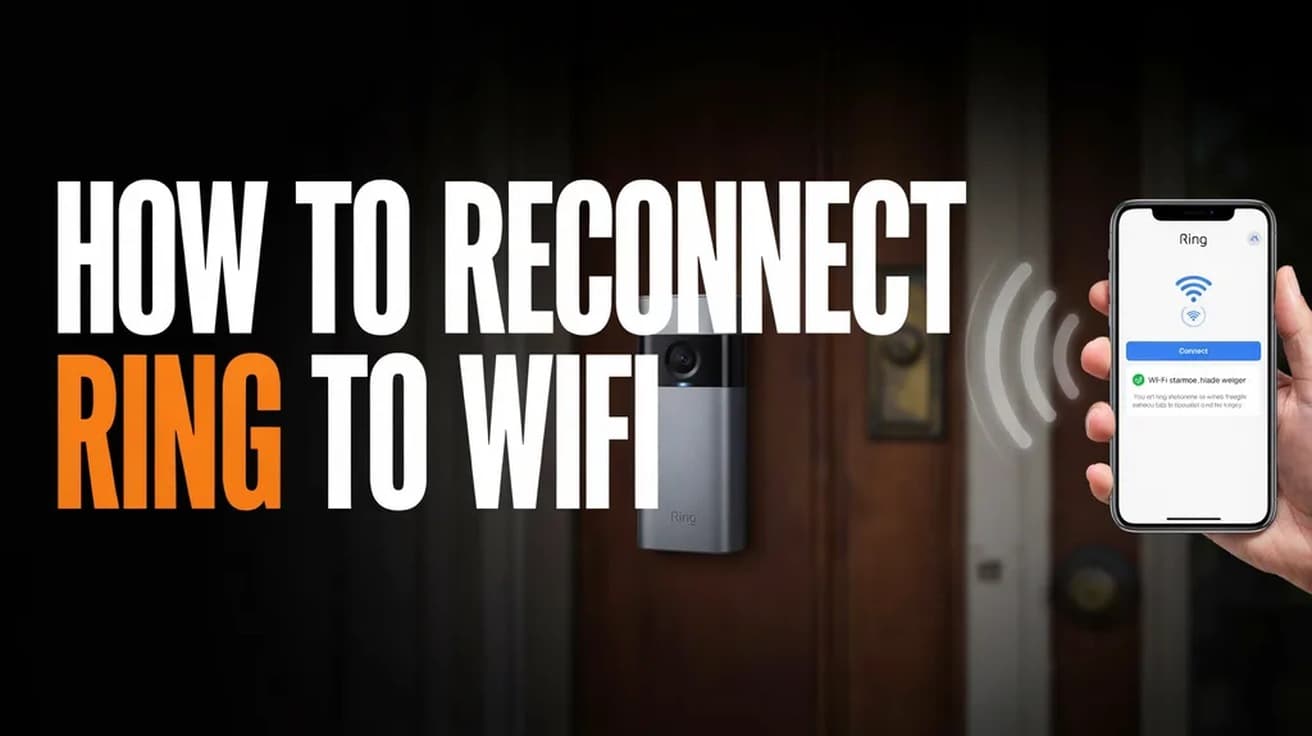
How to Reconnect Ring to WiFi (Device Health Steps)
A Ring doorbell or camera that has fallen off your wifi is almost always fixed from the Device Health screen in the Ring app. Here is the route, plus what to do when it fails.
 By Daniel ShuttleworthOct 15, 2026
Open the Ring app, tap the menu, tap Devices, choose the offline device, then tap the Device Health tile. Under the network section, tap the reconnect or change-network option and follow the prompts. If the app cannot find the device, press its setup button until the light spins white and run setup again.
A Ring that has dropped off your network stops doing the one thing you bought it for. Live View fails, motion alerts stop arriving, and the app shows the device as offline.
Knowing how to reconnect Ring to WiFi is mostly a matter of finding one screen, because this is rarely a broken device. The rest of this piece covers what to do when that screen is not enough.
What knocks a Ring off wifi
The most common cause is that the network itself changed. A new router, a new internet provider, or a changed wifi password all leave the device holding credentials that no longer work. It will keep trying the old network and keep failing.
Weak signal is the second cause, and it is the one people miss because the device worked fine for months. Ring's Device Health screen reports signal strength as an RSSI figure. Ring's own community guidance describes a reading of -40 or better as a very strong signal, -65 to -41 as sufficient, and -66 to -90 as critical — weak enough to cost you functionality or stop the device connecting at all. A router moved to a different room, or a new appliance between it and the door, can push a borderline device over that line.
The third is a plain outage. Power cuts, provider problems and router reboots can leave a device sulking after the network comes back. Those usually clear on their own, which is why a power cycle is worth trying before anything more involved.
How to reconnect Ring to WiFi from Device Health
1. Open the Ring app and tap the menu icon, then tap Devices.
2. Tap the device that is offline. You will usually see a red offline or disconnected notice on its tile.
3. Tap the Device Health tile.
4. Under the network section, tap the option to reconnect or change network, then confirm the warning that the device will go offline for a moment while it switches.
5. Follow the prompts. The app will ask you to put the device into setup mode, then to pick your network and enter its password.
A note on labels: Ring's own support page describes this control as Reconnect or Change Network, while several third-party guides report seeing Reconnect to Wi-Fi or Change Wi-Fi Network. The wording varies by model and app version. Look for the network row inside Device Health rather than hunting for an exact phrase.
Putting the device into setup mode by hand
If the app cannot reach the device at all, you will have to start setup mode yourself with the physical setup button. Press it and watch for the light to spin or pulse white — that is the device telling you it is listening.
Where the button is depends on what you own. On video doorbells it is typically an orange button on the back, which means taking the unit off its mounting bracket first; on some newer models it sits on the side under the faceplate. On Stick Up, Spotlight and Floodlight cameras it is generally on top of the camera or under the battery cover.
Once the light is spinning, the device broadcasts its own temporary network, named something like Ring-XXXXXX. The app walks you through joining that network from your phone, then hands over your home wifi details. When the light stops spinning and the app shows the device online, you are done.
If a battery doorbell will not power on at all, charge it before you try any of this. Ring advises giving it about 30 minutes on a USB wall charger first — a device with a flat battery cannot enter setup mode no matter how long you hold the button.
Check the band before you blame the device
Most Ring hardware connects on 2.4GHz, not 5GHz. Newer models such as the Doorbell Plus and Pro will use either band, but older ones will not see a 5GHz network at all. If your router broadcasts both bands under a single name, a 2.4GHz-only device can struggle to latch on.
Ring's own advice when a device keeps dropping is to try a different 2.4GHz network rather than 5GHz, and it suggests a guest network as another option worth testing. If your network does not appear in the list during setup, the first thing to check is that the 2.4GHz band is switched on at the router.
There is one more thing worth knowing, with a caveat. Third-party guides report that older Ring hardware can fail to connect to networks running WPA3 encryption, and recommend WPA2 or a mixed mode instead. Ring's own documentation does not address this, so treat it as something to try rather than something established.
If that didn't work
Power cycle both ends. Unplug the router, wait a minute, let it come fully back up, then restart the Ring device. Plenty of stubborn disconnections clear here and nowhere else.
If the signal reading in Device Health was in that critical range, no amount of re-running setup will hold. The fix is physical: move the router, or put a wifi extender roughly halfway between the router and the door.
Worth remembering if you have just changed routers — every connected device in the house is in the same position, not just the Ring. A streaming box will need its own trip through network setup on the Roku, and the same goes for anything else that stored the old password.
Still not working
The last step in the app is a factory reset, which wipes the device's settings and lets you add it again from scratch. This is done by holding the setup button down: 20 seconds is the duration most commonly given, though some guides say 30. Hold it, release, and wait — the light flashes for up to a minute before the device returns to setup mode.
Resetting and re-adding a small connected device is a familiar last resort, and the pattern is much the same as when an AirTag refuses to pair: clear what it has stored, then introduce it to your phone again as if it were new.
If a reset and a fresh setup both fail, and the signal reading is healthy, the problem is more likely the hardware or the account than the network. That is the point to contact Ring support rather than keep cycling through setup.