AirTag Not Connecting (Pairing and Reset Fixes)
An AirTag that refuses to pair is usually a settings problem, an iOS version problem, or a battery problem. Here is the order to check them in, and how to reset the tag.
 By Daniel ShuttleworthOct 14, 2026
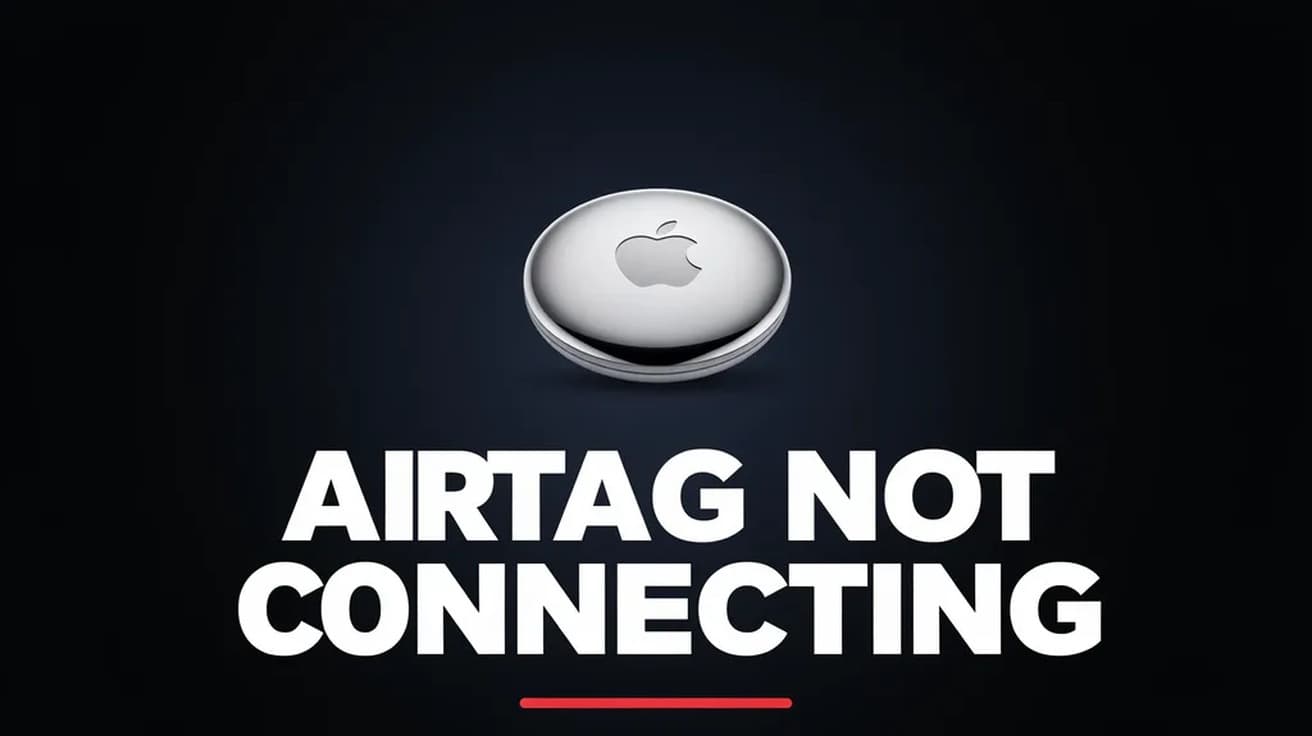
An AirTag not connecting almost always comes down to one of four things: Bluetooth or Location Services is switched off, your iPhone is running a version of iOS that is too old for that particular AirTag, the battery is flat, or the tag is still linked to another Apple Account. Work through those in that order, and if the tag still will not pair, reset it by removing and reinserting the battery until you hear five tones.
An AirTag has no screen, no buttons and no status light. When it refuses to pair there is nothing on the tag itself to tell you what is wrong, so every useful check happens on the iPhone.
Before you change any settings, work out which AirTag you are holding. Apple released a second-generation AirTag in January 2026, and it has stricter requirements than the original. That difference alone explains a lot of failed pairings.
Common causes of an AirTag not connecting
The iPhone is missing a required setting. Apple lists Bluetooth, Location Services and the Find My network as requirements for adding an AirTag, along with a completed Apple Account setup and iCloud Keychain. If any one of those is off, the setup card either never appears or fails partway through.
Your iOS version is too old for the tag. The original AirTag needs iOS or iPadOS 14.5 or later. The second-generation AirTag needs iOS or iPadOS 26.2.1 or later before it can be added to your account at all. On anything earlier, a brand new AirTag simply will not pair, and nothing you do to the tag will change that.
The battery is flat or seated badly. AirTag runs on a single CR2032 coin cell. A tag that has been in a bag for a year may have nothing left, and a cover that was not turned fully clockwise can leave the cell slightly loose.
The tag belongs to someone else's account. Apple is explicit that an AirTag can be associated with one Apple Account at a time. A second-hand or hand-me-down tag that was never removed from the previous owner's account will refuse to join yours.
How to fix an AirTag not connecting
Start with the settings, because they cost nothing and fix most cases.
1. Open Control Centre and confirm Bluetooth is on. Then go to Settings, Privacy and Security, Location Services, and check that Location Services is on and that Find My has an access level set. Turning on Precise Location gives the most accurate results.
2. Go to Settings, tap your name at the top, then Find My, then Find My iPhone. Two toggles matter here: Find My iPhone itself, and Find My network underneath it. The second one is what lets items be located when they are away from your own devices, and it needs to be on.
3. Still in Settings, look for an "Update Apple Account Settings" banner near the top and clear it if it is there. If you see a notice that some iCloud data is not syncing, tap "Resume data sync." An account stuck mid-update will block a pairing that otherwise looks fine.
4. Restart the iPhone, then hold a single AirTag a few centimetres from it and wait. If you get a "More than one AirTag detected" message, move every other tag out of range first. If the setup animation appears and then vanishes, Apple's advice is to lock the phone with the side button, unlock it again, and wait about 15 seconds for the card to come back.
5. If nothing has appeared yet, open the Find My app, tap the Items tab, tap Add, then AirTag, and follow the prompts. The manual route sometimes works when the automatic pop-up does not.
Check your iOS version matches your AirTag
This is the step people skip, and in 2026 it is the one that catches the most people out. Go to Settings, General, About and read the iOS version. If it is below 26.2.1 and your AirTag is a second-generation model, update the phone before trying anything else. Pairing a second-generation tag can only be done from an iPhone or iPad, and older devices cannot detect it at all.
The two generations look nearly identical. According to Six Colors, the surest way to tell them apart without pairing is the small regulatory text printed on the back of the tag, which differs between the two models.
Replace the battery
If the settings are right and the tag is still silent, the cell is the next suspect. Push down on the steel cover, turn it anticlockwise until it stops, lift it off and take the old battery out. Drop in a fresh CR2032 lithium 3V coin cell, positive side up. A sound confirms it has made contact. Line the cover's three tabs up with the three slots, press down and turn clockwise until it stops.
One thing worth knowing: Apple suggests a bitterant-coated CR2032 to discourage children swallowing it, but also notes that some bitterant coatings stop the battery working in an AirTag. If you have just fitted a coated cell and heard nothing, that may be the whole problem. Look for packaging marked "Compatible with Apple AirTag."
Reset the AirTag
A reset clears the tag's pairing state and is the right move for a second-hand tag or one that has failed every step above. Take the cover and battery off as described, then put the battery back and press down for about two seconds until you hear a tone. When the tone finishes, remove the battery, reinsert it and press again. Repeat until you have heard five tones in total. The fifth should sound different from the first four, which means the tag is ready to pair. If it does not, keep going.
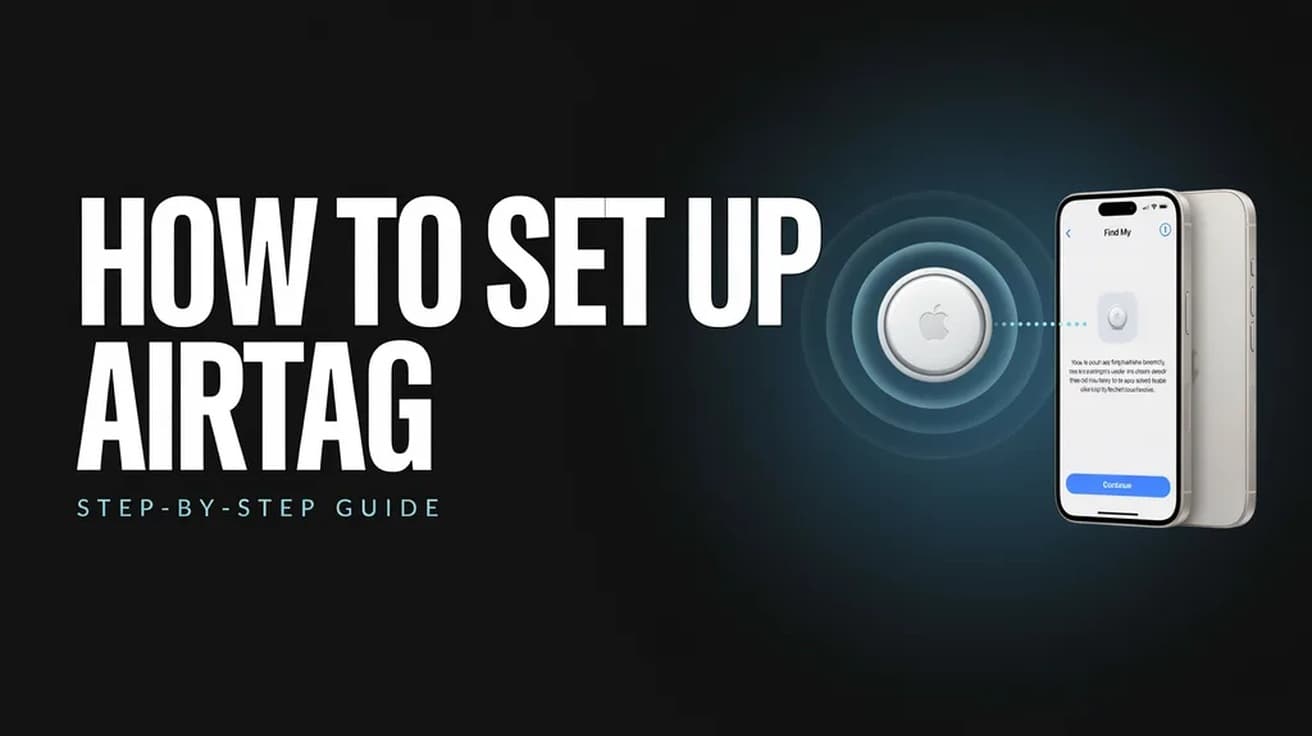
The second-generation tag is slightly different: keep pressing for two seconds after the first tone, wait 12 seconds between cycles, and expect the fifth press to need a longer hold. Once the tag is reset, bring it near your unlocked iPhone and the setup card should appear. If you are new to this, our guide on how to set up an AirTag covers the pairing flow in full.
If that didn't work
Check how many items you already have. Find My allows up to 32 items including shared ones and accessories, and an AirTag counts as one while AirPods Pro 2 and later count as three. If you are at the ceiling, remove something before adding the new tag.
If the tag is second-hand, the previous owner needs to remove it from their own account. If they have already done that but were out of Bluetooth range of the tag when they did, the reset above is what finishes the job. Apple does not document a way to force a tag off someone else's account from your end.
It is also worth confirming the rest of Find My is behaving. If your own devices are not showing up either, the problem is the service or the account rather than the tag, and locating an iPhone through Find My is a quick way to test that.
Still not working
A tag that stays silent through a fresh battery and a full five-tone reset is a hardware candidate. AirTag carries a one-year limited warranty, so check your purchase date before paying for anything. If the phone rather than the tag looks like the weak link, a full restart is the cheapest thing left to try, and the steps differ a little by model, which our walkthrough on restarting an iPhone covers.
Beyond that, Apple Support can check whether the tag is still registered to another account, which is the one diagnosis you cannot run yourself.