How to Set Up AirTag in About a Minute (iPhone)
Hold the AirTag near your unlocked iPhone, tap Connect, pick a name and tap Done. Here is the full path, the Find My route, and what an AirTag will not do.
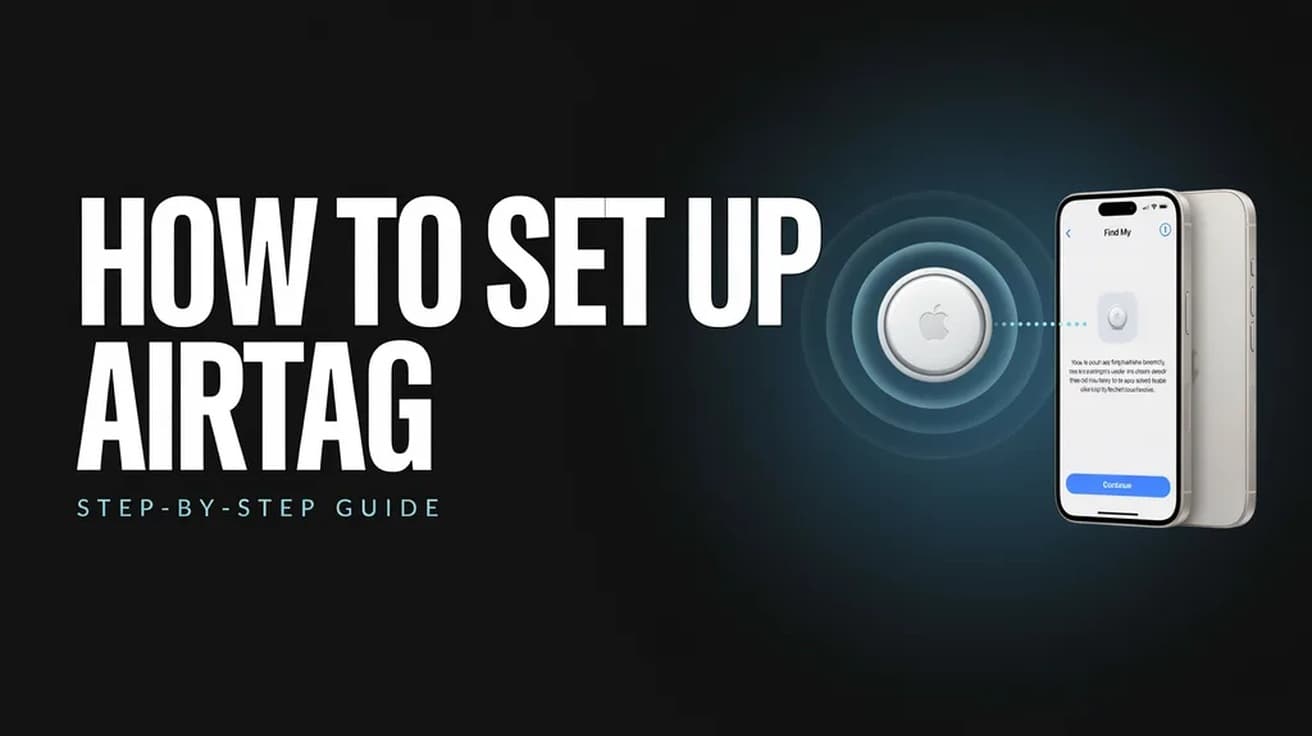
To set up AirTag, hold it near your unlocked iPhone and wait for the setup card to slide up from the bottom of the screen, then tap Connect. Pick a name such as Keys or Wallet, tap Continue to link the AirTag to your Apple Account, then tap Done. The whole thing takes about a minute, and the AirTag then appears under Items in the Find My app.
An AirTag has no buttons and no screen, so there is nothing to configure on the tag itself. Everything you need to set up AirTag happens on your iPhone, and the pairing card appears on its own the first time an unpaired AirTag comes within Bluetooth range of your unlocked phone.
Two things are worth knowing before you start. An AirTag can only be linked to one Apple Account at a time, so a second-hand one still registered to its previous owner will refuse to pair until that person removes it from their Find My. And Find My counts AirTags against a cap of 32 items per account, which includes shared items and your AirPods.
What you need before you set up AirTag
You need an iPhone or iPad running iOS or iPadOS 14.5 or later, signed in to an Apple Account, with Bluetooth on and an internet connection. Apple's setup page states that the second-generation AirTag, released in January 2026, needs iOS or iPadOS 26.2.1 or later — though its own tech specs page for that model lists iOS 26.0 as the minimum. If you are on iOS 26 and a new AirTag will not pair, updating to the latest release is the sensible first move.
Location Services also has to be on. Open Settings, tap Privacy & Security, tap Location Services, and make sure the switch is on. If you have not signed into your Apple Account on this phone yet, do that first — resetting an Apple ID password mid-setup is a detour you do not want.
Where the setup card lives
1. If your AirTag is new, pull the plastic tab out from around the edge of the battery. That connects the battery, and the AirTag plays a short chime.
2. Unlock your iPhone, stay on the Home Screen or Lock Screen, and hold the AirTag against the back of the phone or within a few centimetres of it. A card titled AirTag slides up from the bottom of the screen.
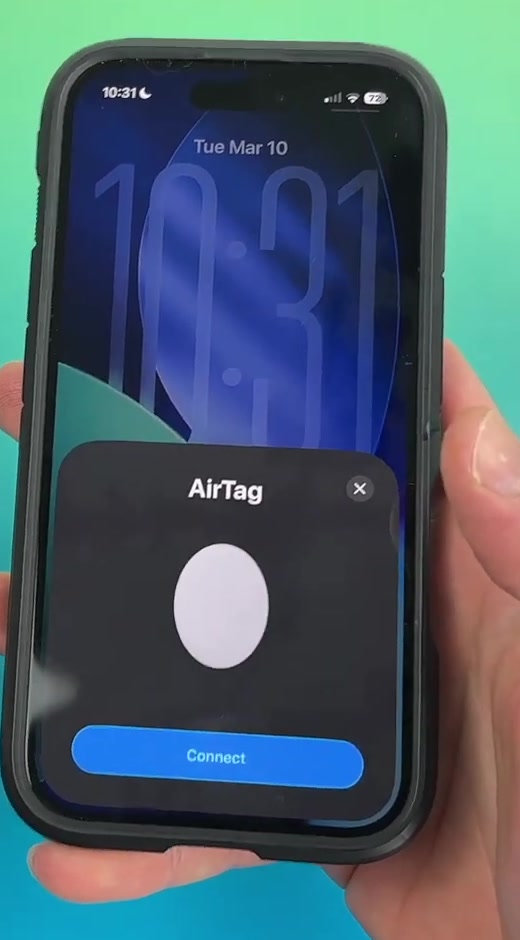
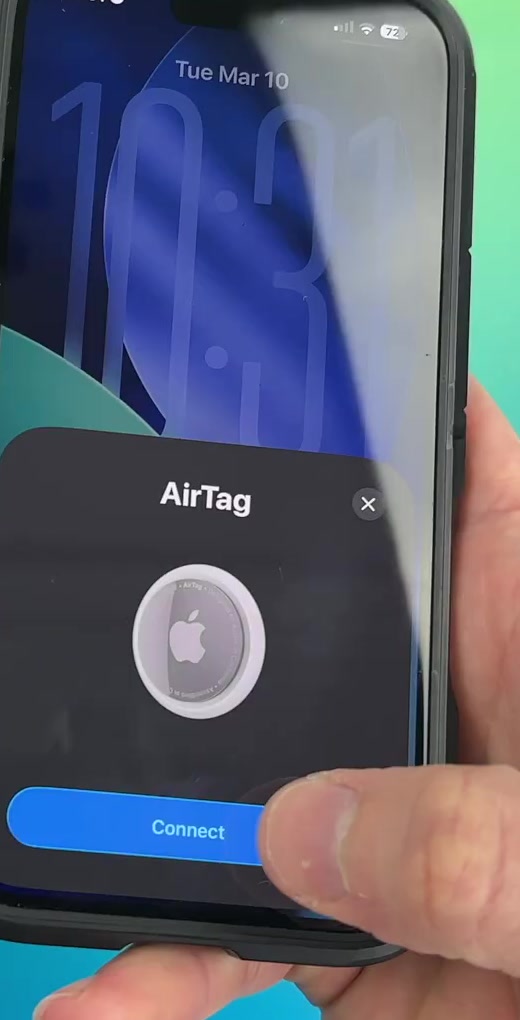
3. Tap Connect.
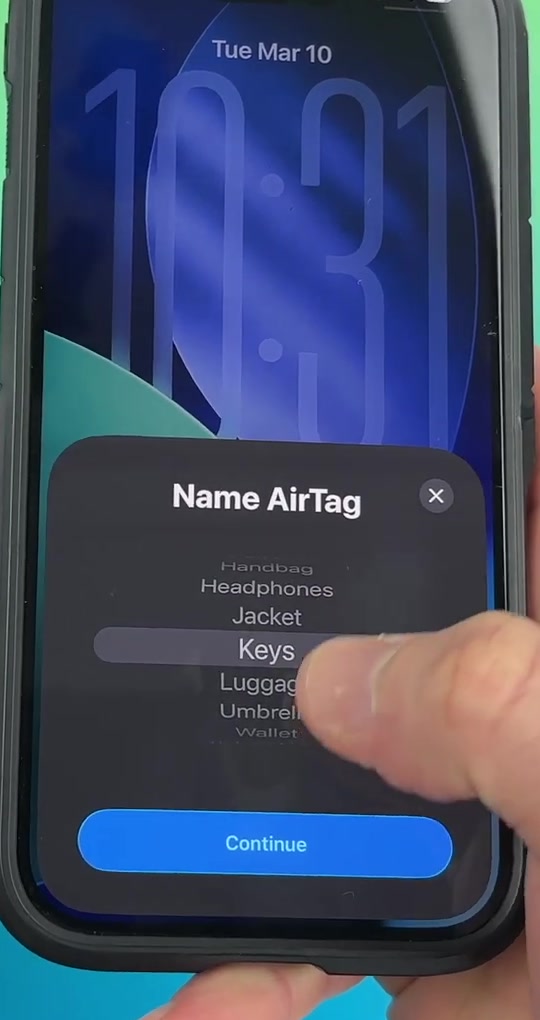
4. On the Name AirTag screen, scroll the wheel to a category — Keys, Wallet, Backpack, Luggage, Jacket, Handbag, Headphones, Umbrella and others are offered.
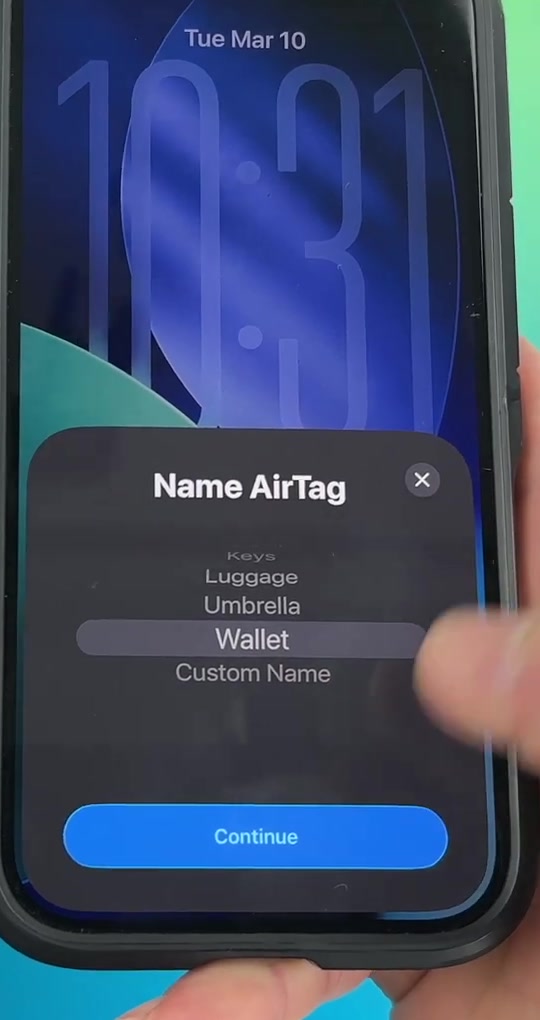
5. If none of the categories fit, scroll to the bottom and choose Custom Name instead, then type your own and pick an emoji. Tap Continue.
6. A screen headed AirTag is Linked explains that AirTag is meant for finding your own belongings and that using one to track a person without their consent is a crime in many places. Read it and tap Agree.
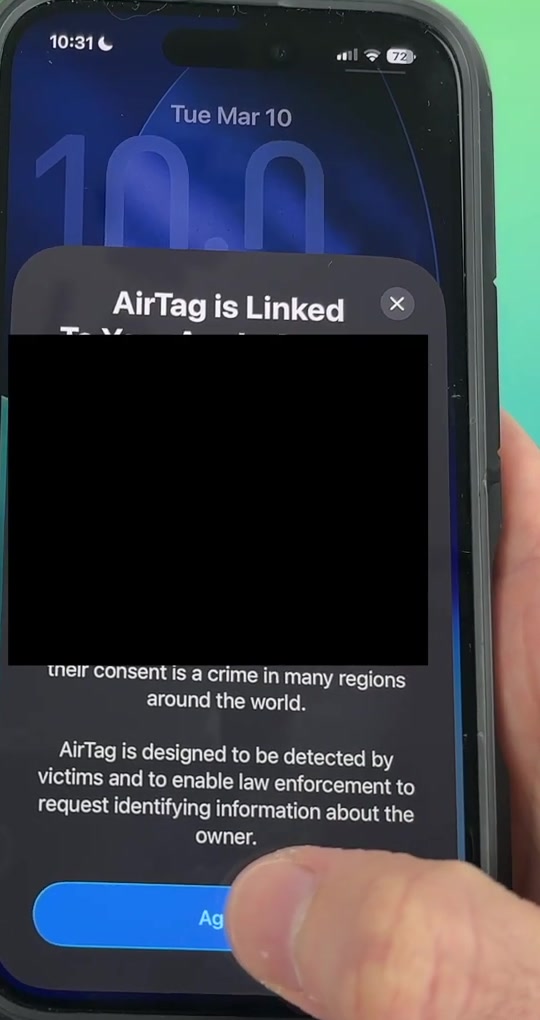
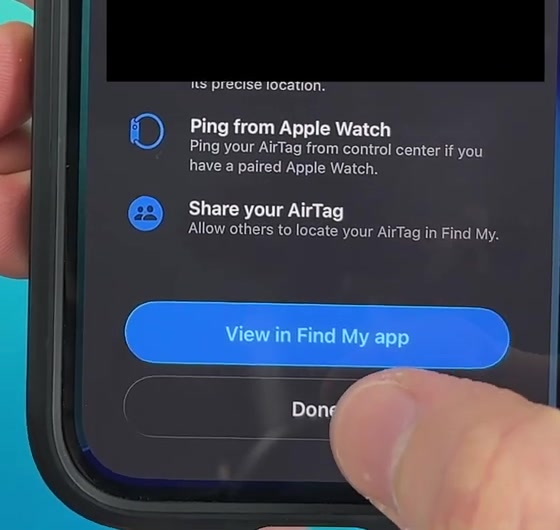
7. Tap Done. If you want to see the tag on a map straight away, tap View in Find My app instead.
The Find My route, and doing it on an iPad
If the card never appears, you can set up AirTag from the Find My app instead. Open Find My, tap Items along the bottom, tap the add button at the top right of the Items list, then tap AirTag and follow the same onscreen steps. This is also the route for non-Apple Find My network accessories, which appear under Other Item.
An iPad works exactly the same way on iPadOS 14.5 or later. A Mac cannot run the initial pairing — it can only view items that are already set up.
Once a tag is paired, you can share it with up to five other people. Open Find My, tap Items, tap the tag's name, then tap Add Person under Share This AirTag. Everyone involved needs an Apple Account with two-factor authentication and iCloud Keychain turned on, and iOS 17 or later. People you share a tag with do not get tracking alerts when it travels with them.
What an AirTag does not do
An AirTag is not a GPS tracker. It has no satellite receiver and no cellular radio of its own. It broadcasts a Bluetooth signal, and any passing Apple device that hears it relays an encrypted location back to you. In a busy street that is accurate and near-instant; in an empty field with nobody around, the tag simply reports wherever it was last seen.
It is also not a live tracker for people or pets. Apple is explicit that AirTags are for objects, and the Find My network actively works against misuse: an AirTag separated from its owner and travelling with someone else will alert that person's iPhone or Android phone, and will eventually start beeping on its own. Reports of the exact delay before an alert fires vary, and Apple does not publish a figure, so treat any specific number you read as an estimate rather than a specification.
Precision Finding — the arrow that points you to within a metre or so — is a separate thing from basic tracking. It needs an Ultra Wideband chip at both ends, so it works on recent iPhones but not on every model, and it only works when you are already close to the tag. Everything further away than that falls back to the map, the same way tracking an iPhone in Find My does.
Common questions
Does the AirTag need charging? No. It runs on a user-replaceable CR2032 coin cell that Apple rates for about a year. Your iPhone warns you when it is low, and swapping it takes seconds.
Can I set up AirTag with an Android phone? Not for ownership. Pairing requires an Apple Account and an iPhone or iPad. An Android phone can read a lost AirTag's contact details by tapping it via NFC, and will warn its owner if an unknown tag is travelling with them, but it cannot claim one.
What if the AirTag says it is linked to another Apple Account? The previous owner has to remove it from their Find My before you can pair it. Resetting the tag by hand does not clear that link — this is deliberate, and it is what stops a stolen AirTag from being quietly re-registered.
If the setup card never appears
Lock the phone with the side button, then wake and unlock it and wait about fifteen seconds with the AirTag held nearby — the animation usually reappears. Failing that, check Bluetooth is on, confirm Find My network is enabled for the iPhone itself, make sure iCloud Keychain is on, and restart the phone.
If the tag is still silent when you shake it, the battery tab may not have been removed or the cell may be flat; a fresh CR2032 rules that out. And if you get a message saying no new items can be added, you have hit the 32-item ceiling and will need to remove something from Find My first. Anything beyond that is a hardware fault, and an AirTag bought in the last year is covered by Apple's warranty.