How to Restart iPhone 14 (Buttons, Settings, Force)
The iPhone 14 has no Home button, so a restart takes two buttons at once. Here are Apple's documented steps for a normal restart, a Settings shutdown, and a force restart when the screen is frozen.
 By Daniel ShuttleworthOct 4, 2026
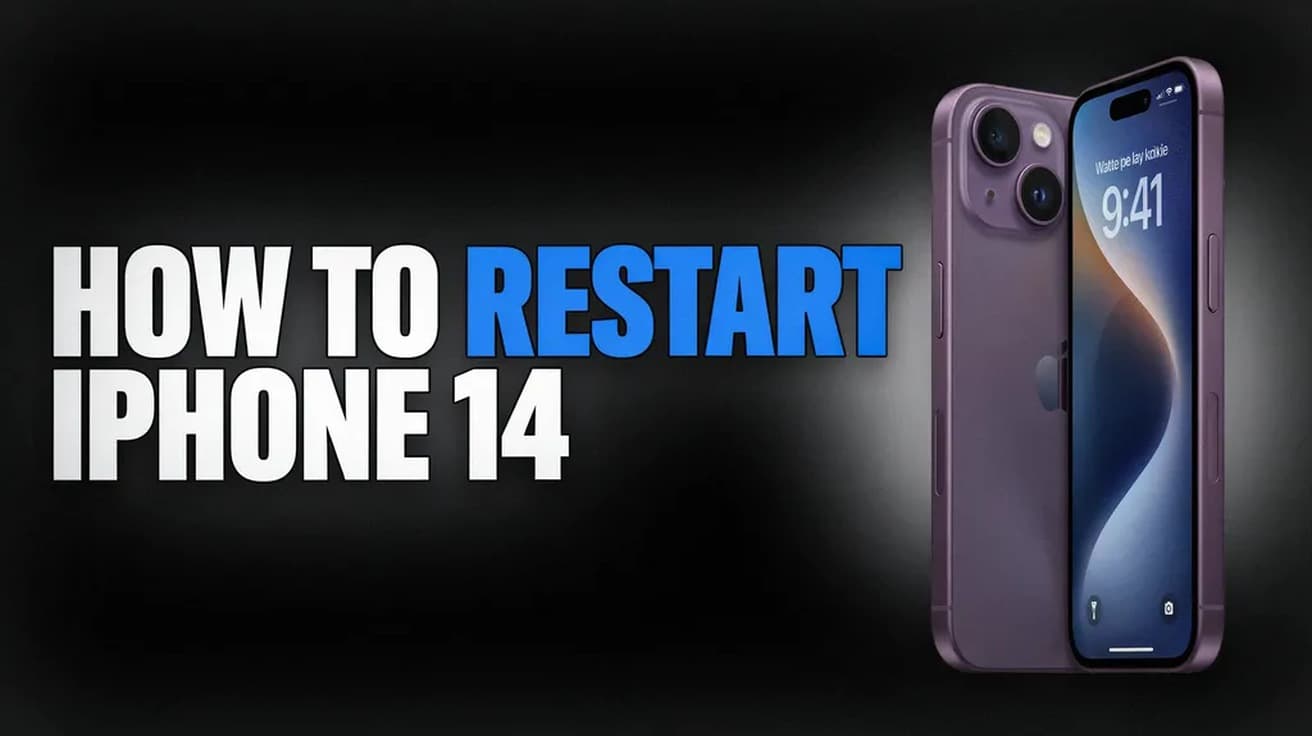
Here is how to restart iPhone 14 handsets: press and hold the side button and either volume button together until the power-off slider appears, then drag it to the right and wait about 30 seconds. Press and hold the side button on its own until the Apple logo shows. If the screen is frozen and will not respond, use the force restart sequence instead.
The iPhone 14 has no Home button, and holding the side button on its own does not shut it down. That press summons Siri. Powering the phone down takes two buttons at once, which is the step most people miss.
There are two answers to how to restart iPhone 14 handsets, and which one you need depends on whether the screen still responds. The normal restart is for a phone that still reacts to touch. The force restart is for a phone that is frozen, and it is the only route left when the screen will not react at all.
How to restart iPhone 14 with the buttons
This is Apple's documented method for every iPhone 8 and later, the iPhone 14 included.
1. Press and hold the side button on the right edge and either volume button on the left edge at the same time.
2. Keep holding until slide to power off appears near the top of the screen, then let go of both buttons.
3. Drag the slider all the way to the right.
4. Wait about 30 seconds. The screen goes dark well before the phone has finished shutting down, so give it the full half minute.
5. Press and hold the side button on its own until the Apple logo appears, then release.
If you only ever see Siri, you are holding one button rather than two. The volume button is what turns a side-button press into a power-off request.
Restart from Settings instead
If a button is damaged or awkward to reach, iOS can shut the phone down from the Settings app. Open Settings, tap General, scroll to the very bottom of that page, and tap Shut Down. The same power-off slider appears, and you drag it the same way.
One limitation worth knowing: there is no Restart button anywhere in Settings. The menu can only power the phone down. Turning it back on still means pressing and holding the side button until the Apple logo appears, so this route replaces one button press, not both.
Apple also documents AssistiveTouch, under Settings > Accessibility > Touch > AssistiveTouch, as a way to reach device functions including restarting without the physical buttons. It is the better option if the side button has stopped working altogether.
Force restart a frozen iPhone 14
When the screen is black, stuck on the Apple logo, or ignoring every tap, the slider will never appear and there is nothing to drag. The force restart is a button sequence the hardware responds to directly, so it works when iOS itself has stopped responding. Timing matters more than pressure here.
1. Press and quickly release the volume up button.
2. Press and quickly release the volume down button.
3. Press and hold the side button until the Apple logo appears, then let go.
The first two presses are taps, not holds. On the third step, Apple notes the wait can run longer than 10 seconds, so keep holding past the point where it feels like nothing is happening. If a power-off slider appears along the way, ignore it and carry on holding.
What a restart does not do
A restart is one of the least destructive things you can do to an iPhone. It does not erase photos, messages, apps, accounts or settings, and this is true of the force restart as well. Apple's instructions for an unresponsive iPhone involve no erasing step at all.
It is also not a storage fix. Restarting does not clear app caches or recover space, which is a separate job with its own set of steps per app. Readers often conflate the two because both are offered as general cures for a sluggish phone.
Finally, a restart is not a reset. Erase All Content and Settings wipes the device, and restoring from a backup replaces what is on it. Those sit much further along the escalation path, and nothing in this article touches your data.
Common questions
How often should I restart my iPhone 14? Apple does not publish a recommended schedule. Restart when something is misbehaving: an app that will not launch, Wi-Fi that will not reconnect, a keyboard that has stopped appearing. There is no documented benefit to doing it on a timer.
Is a force restart safe to use? Apple documents it as the step to take when an iPhone is unresponsive, and the procedure does not erase anything. It cuts power abruptly rather than letting iOS close down in order, so it is worth keeping for phones that are genuinely stuck rather than using it as your default restart.
The slider will not appear. What now? Either the buttons are not being held together long enough, or the phone has frozen hard enough that it cannot draw the slider. Try the two-button hold once more, deliberately, for a full five seconds. If nothing surfaces, go straight to the force restart.
If the iPhone 14 will not come back on
If the force restart produces nothing, Apple's guidance is to connect the phone to power and leave it charging for up to an hour before trying again. A phone that is flat enough will not boot no matter which buttons you press.
If a low-battery icon appears on screen, charge for at least 30 minutes and watch for the screen to wake on its own. If nothing appears at all after an hour on the charger, the problem may be the cable, the adapter or the port rather than the phone, and the charging side is worth ruling out before anything else.
A phone that stays dark after charging and a force restart has moved beyond what a restart can fix. That is the point to contact Apple Support or book a service appointment.