How to Clear Cache on iPhone (There's No One Button)
iOS has no single clear-cache button. Here is exactly where Safari's cache lives, how to offload an app's storage, and what neither one actually fixes.
iOS has no single "clear cache" button. To clear Safari's cache, go to Settings > Apps > Safari and tap Clear History and Website Data, then choose a timeframe. To clear one app's cache, go to Settings > General > iPhone Storage, tap the app, and choose Offload App.
Most people searching for how to clear cache on iPhone want one of two things: a browser that has stopped serving stale pages, or a phone that has stopped complaining about storage. Apple treats those as separate problems and gives you a separate control for each.
There is no Android-style cache button sitting behind every app icon, which is why how to clear cache on iPhone has no single answer. Apple's storage documentation is blunt about the part iOS manages itself: the system deletes cached and temporary files when it needs the space, and you cannot delete them by hand. What you can clear is Safari's data, and an individual app's installed files.
How to clear cache on iPhone in Safari
This is the route most people are after. It clears cache, cookies and history together, for whichever timeframe you pick.
1. Open Settings.
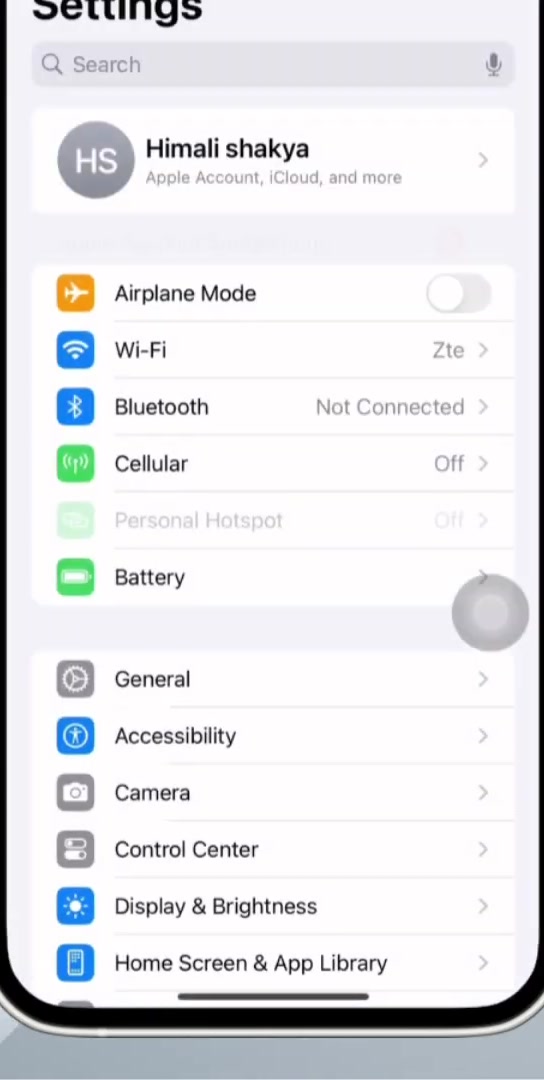
2. Scroll to the very bottom and tap Apps.
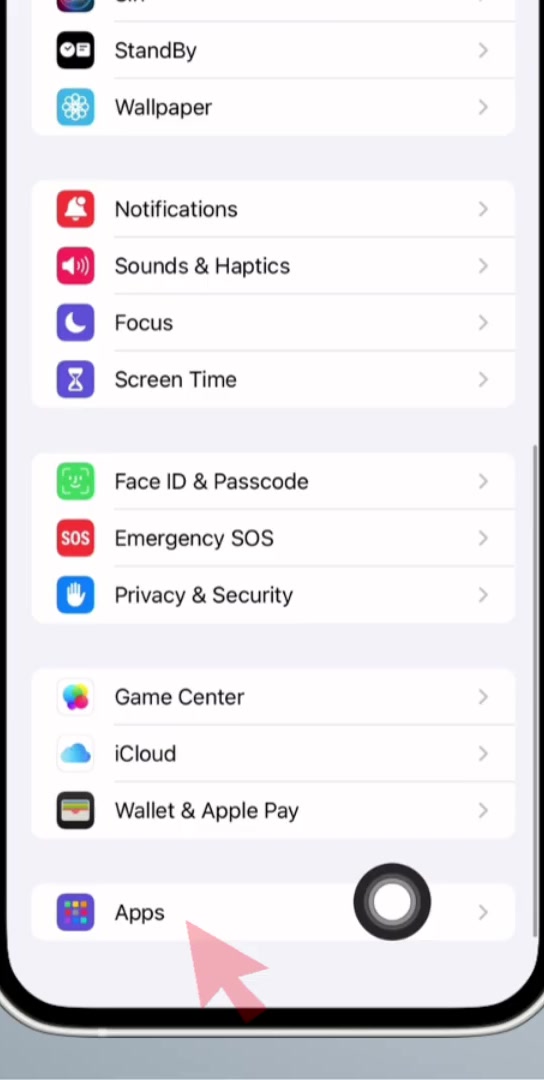
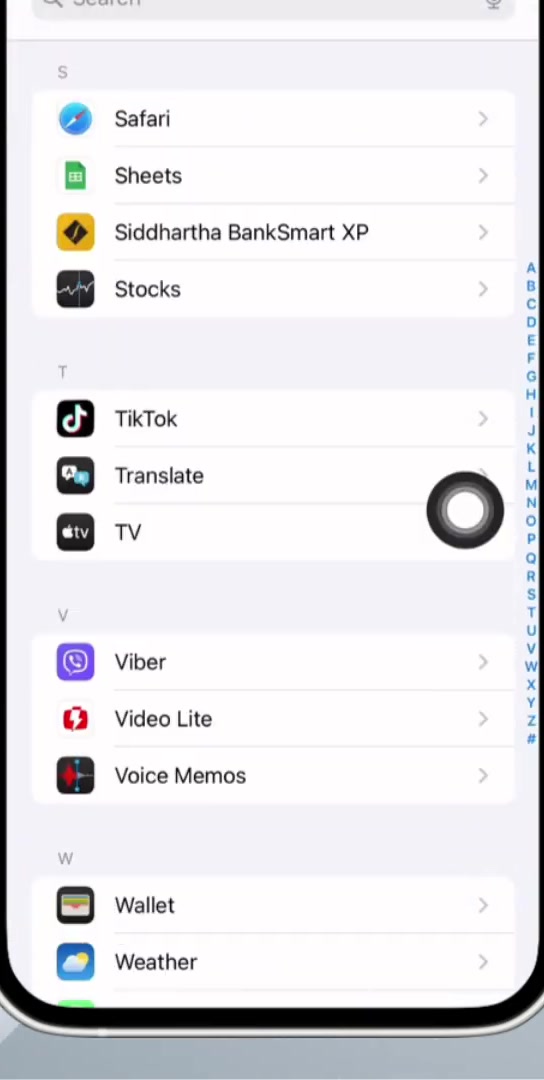
3. Find Safari in the alphabetical list and tap it.
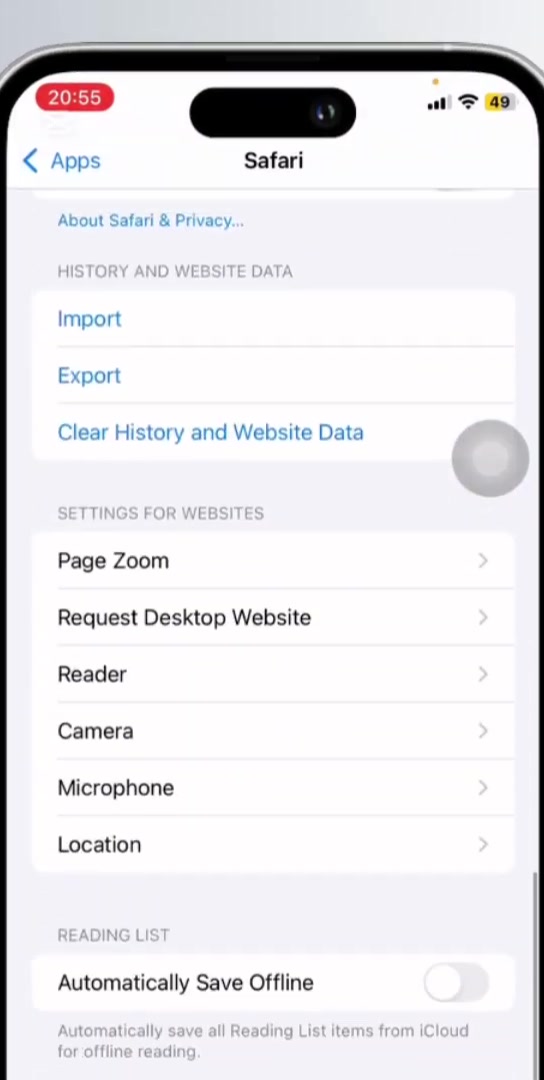
4. Scroll to History and Website Data, then tap Clear History and Website Data.
5. Pick a timeframe — Last hour, Today, Today and yesterday, or All history — then tap the red Clear History button.
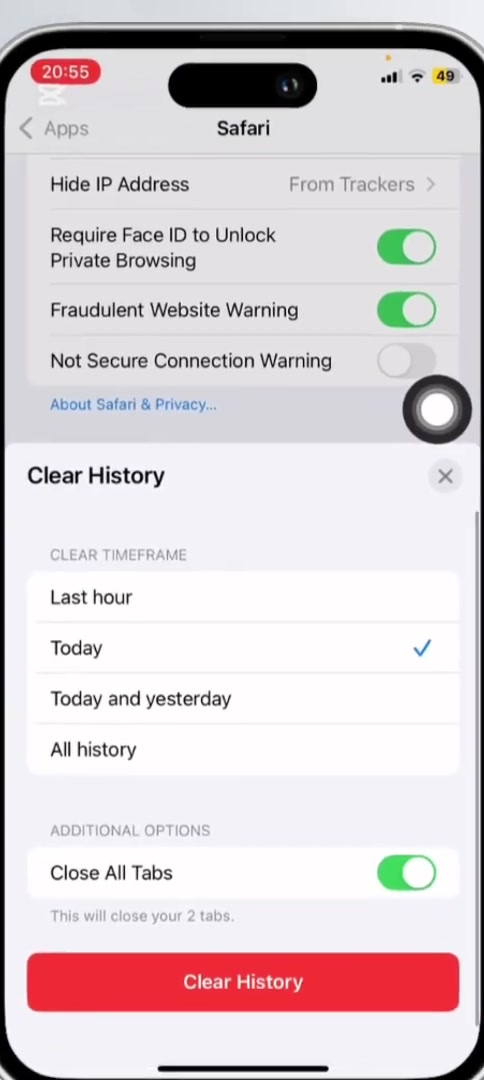
The timeframe picker is worth a second of attention. Choosing All history clears everything Safari has stored; the shorter options leave older data alone. Apple notes that clearing this does not change your AutoFill information.
On iOS 18.1 and earlier, Safari sits directly on the main Settings screen instead of inside Apps. The rest of the steps are the same.
Clear cookies and cache but keep your history
If you want the stale data gone but the history intact, there is a separate control one level deeper.
1. Go to Settings > Apps > Safari, then tap Advanced.
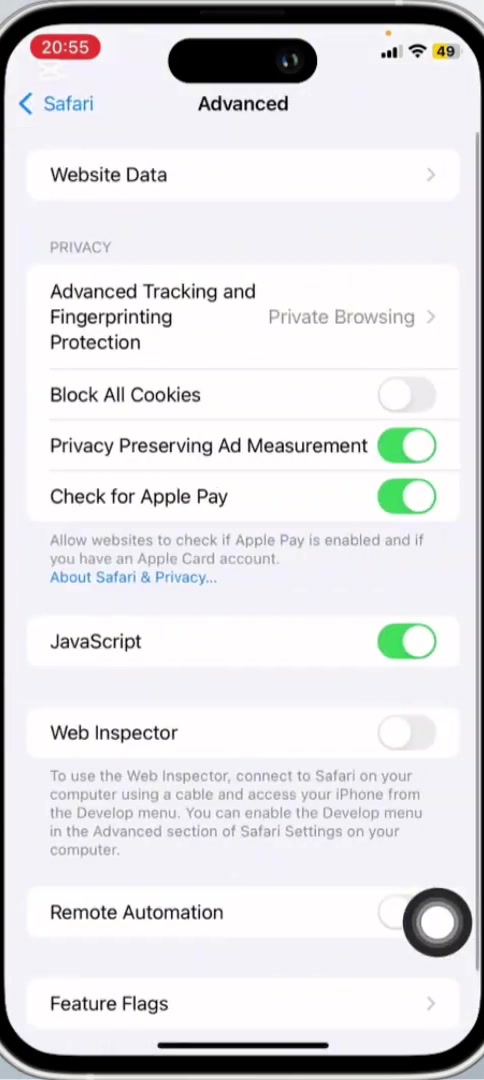
2. Tap Website Data.
3. Tap Remove All Website Data, then confirm with Remove Now.
Apple describes this as clearing the data used for tracking, plus the data websites save so you do not have to sign in again. Expect to be signed out of sites you were logged into.
Clearing an individual app's cache
Apps do not expose a cache button to iOS, so the nearest equivalent is offloading the app: iOS removes the app itself but keeps its documents and data.
1. Go to Settings > General > iPhone Storage.
2. Tap the app you want to deal with. You will see its app size listed separately from its Documents & Data.
3. Tap Offload App, then confirm. The icon stays on your Home Screen with a small cloud badge, and tapping it redownloads the app.
Offloading frees the space the app binary occupies, not the space its saved data occupies. Delete App removes both, and you start from scratch when you reinstall. Some apps also include their own clear-cache control in their in-app settings; where one exists, it is the more precise option.
What this does not do
It does not touch other browsers. Chrome, Firefox and Edge each keep their own cache, cleared from inside that app rather than from Safari's settings.
It does not clear the storage iOS files under Other or System. Apple states plainly that the system cannot be told to delete those cached files — it removes them when it needs room.
It does not reliably free much space. Apple's storage page notes that cached and temporary data might not count as app usage in the first place, so the number on screen may barely move after a clear.
It does not change privacy settings inside individual apps. Those are per-app controls — the sort of thing you set when you turn off active status on Instagram — and Safari's settings have no bearing on them.
Common questions
Will it sign me out of websites? Yes, for anything covered by the timeframe you choose. Apple describes website data as including the information sites save for faster sign-ins, so clearing it means signing in again.
Does it clear history on my other Apple devices? Apple's support page does not address this. Independent guides agree that if Safari is syncing through iCloud, clearing on one device propagates to the others after a few minutes. If you want to clear only one device, turn Safari off in your iCloud settings first.
Will it fix an app that keeps failing? Sometimes, but a browser cache and an app's own problem are different things. A stuttering stream, for instance, is usually a network or app issue rather than a cache one — that is a separate issue to troubleshoot.
If the option isn't there
If Clear History and Website Data is greyed out, Apple gives two reasons: there is no data to clear, or Screen Time web content restrictions are blocking it. Check Settings > Screen Time > Content & Privacy Restrictions.
If Safari is not listed under Apps, you are on iOS 18.1 or earlier. Go back to the main Settings screen and scroll to Safari there.