How to Lock Notes on iPhone (Passcode or Face ID)
Locking an Apple Note takes one menu and one decision: your iPhone passcode, or a separate Notes password Apple cannot recover. Here is the full procedure, plus the notes iOS will not let you lock.
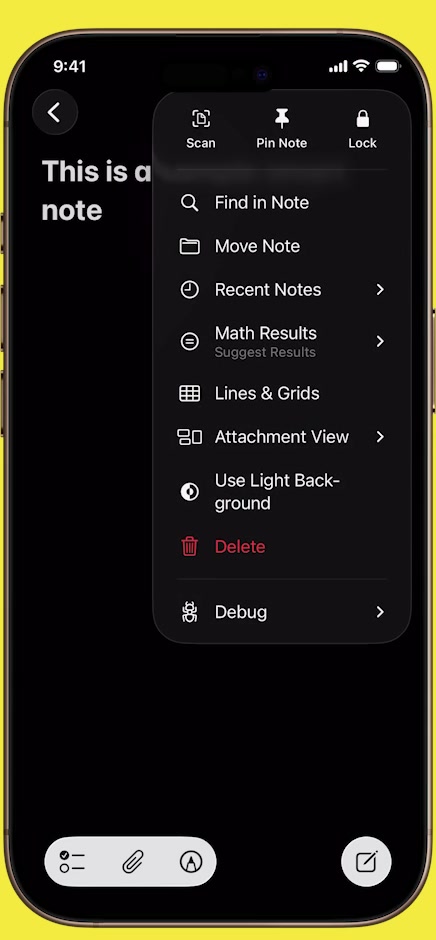
To lock notes on iPhone, open the note, tap the More button (the three dots) at the top right, then tap Lock. Choose Use iPhone Passcode rather than creating a separate password, and tap Enable Face ID when prompted. A lock icon appears at the top of the note — tap it to hide the contents.
That is the whole of how to lock notes on iPhone, and most of it is one menu. The part worth slowing down for is the choice Apple puts in front of you the first time: your device passcode, or a separate Notes password.
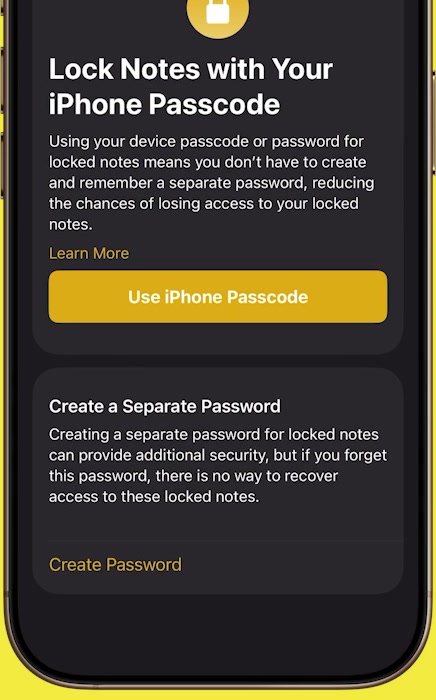
Pick the passcode. Apple cannot recover a separate Notes password, and notes locked with one that you forget are gone for good — resetting it gives you a new password for future notes and leaves the old ones shut. The passcode route needs iCloud Keychain turned on, which it usually already is.
One more thing before you start: a lock you add here follows the note to every device signed in to the same Apple Account, and so does removing it later.
How to lock notes on iPhone from inside the note
1. Open the Notes app and open the note you want to lock.
2. Tap the More button — the three dots in a circle at the top right — and tap Lock in the row of icons across the top of the menu.
3. The first time, Notes asks how you want to lock it. Tap Use iPhone Passcode. The alternative, Create a Separate Password, is the one with no recovery path.
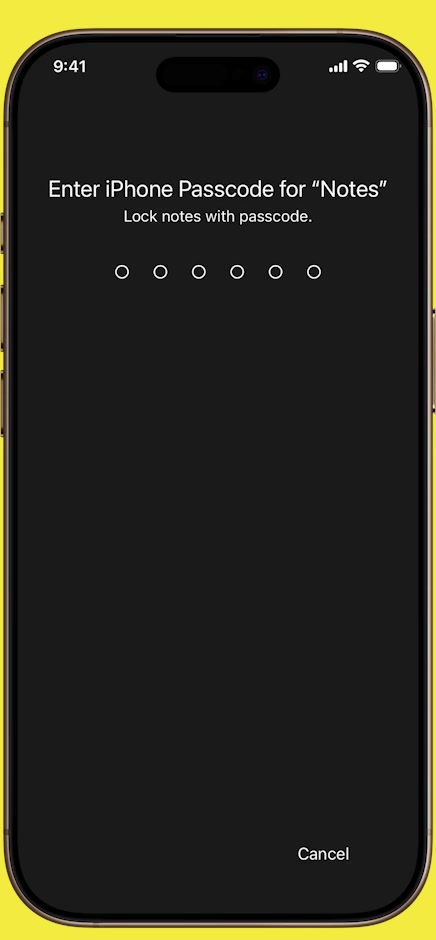
4. Enter your iPhone passcode when the Enter iPhone Passcode for “Notes” screen appears.
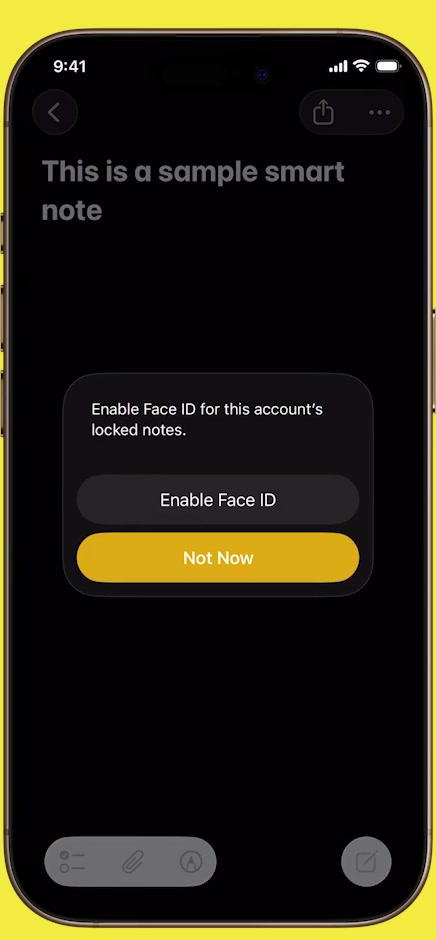
5. Tap Enable Face ID at the prompt. Tapping Not Now still locks the note; you will just type the passcode every time instead of glancing at the screen.
6. The note stays open with a lock icon in the toolbar. Tap that icon to close the contents straight away — otherwise the note stays readable for a few minutes.
Opening a locked note again, and taking the lock off
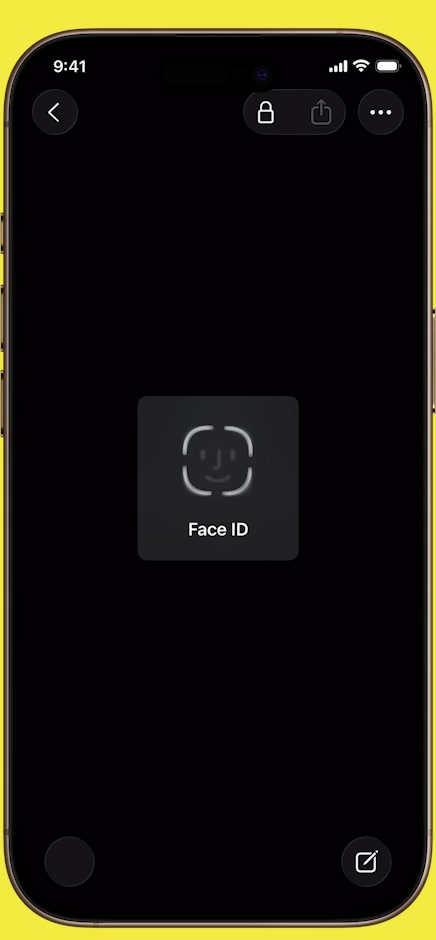
Tap the note in the list and it shows This note is locked with a View Note button. Tap it and authenticate with Face ID, Touch ID or your passcode. The note then stays unlocked for several minutes; closing the Notes app or letting the iPhone sleep shuts it again.
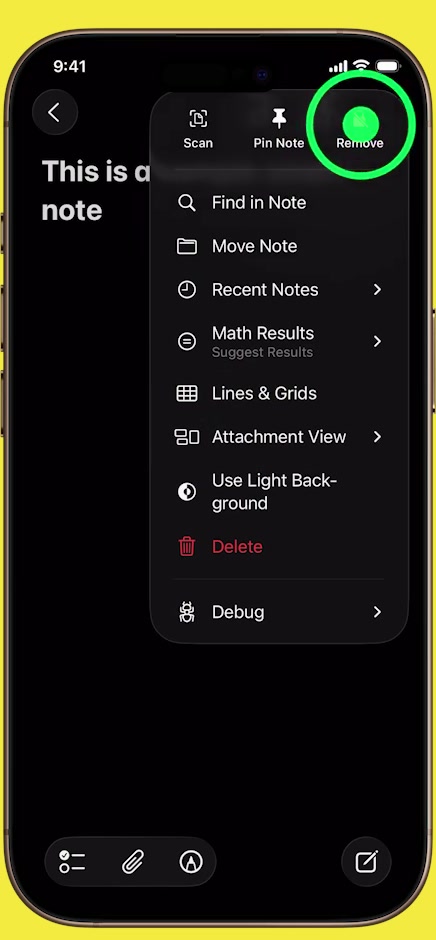
To take a lock off for good, open the note, authenticate, tap the More button, then tap Remove — the same slot in the icon row where Lock used to be. The note is unlocked everywhere you are signed in, not just on this iPhone.
Where the password setting lives in Settings
To change your mind later — switch from a separate password to your passcode, turn Face ID on, or reset a forgotten Notes password — the controls are in Settings rather than the Notes app.
On current iOS, Apple routes app settings through a single list: open Settings, tap Apps, tap Notes, then tap Password. Guides written for older iOS versions say Settings → Notes → Password, and on those versions that is correct — the Apps step was added when Apple reorganised Settings. If you have more than one notes account, you will be asked to pick one first; locks are set per account.
From there, Use Device Passcode switches you over to the passcode (confirm iCloud Keychain is on first), and Reset Password starts a fresh password after asking for your Apple Account password. Reset does not open notes locked with the old one. If you later remember the old password, open such a note and enter it, and you can move that note onto your current password.
What locking a note does not do
It does not hide the note. A locked note still appears in the list with its title visible, and search can still match that title — it just cannot read the body. If the title itself is the sensitive part, rename it.
It does not lock the Notes app. Every other note in the same folder stays open, and anyone holding your unlocked iPhone can read them.
It also does not protect a note from someone who knows your passcode, since the passcode is the key. That is the cost of the convenient option, and it is the reason Apple still offers a separate password for people who want one. If your passcode is the one you have used since 2019, this is a reasonable moment to change the passwords and passcodes on your iPhone.
Common questions
Can I lock a note that has photos in it? Yes. Photos are fine. What Apple blocks is notes containing PDFs, audio, video, or Keynote, Pages and Numbers documents.
Does locking sync to my iPad and Mac? Yes, for notes in your iCloud account. The lock, and the password it was set with, apply on every device signed in to the same Apple Account.
Where does my Notes password live if I use the passcode option? There is no separate password to store — authentication goes through the device passcode and iCloud Keychain. The passwords you do save are in the Passwords app, which has its own route if you need to find a saved password on your iPhone.
If the Lock option isn’t there
Apple lists several kinds of note that cannot be locked at all: notes with tags, notes containing PDFs, audio, video or iWork documents, notes shared with other people, and notes synced over IMAP from a Gmail, Yahoo or Hotmail account. If you are signed in to iCloud with a Managed Apple Account — a work or school account — locking is unavailable entirely.
For a shared note, open it, tap the share icon or Add People, then Manage Shared Note and Stop Sharing; it becomes lockable once it is yours alone. For an IMAP note, move it into your iCloud account first. For a note with an unsupported attachment, the fix is to move that attachment out — or keep the sensitive text in a separate note and lock that one.