How to Sync Contacts From iPhone to Mac (iCloud Steps)
Contacts move between an iPhone and a Mac through iCloud, not a cable. Here is the exact path on both devices, plus what the setting does not cover.
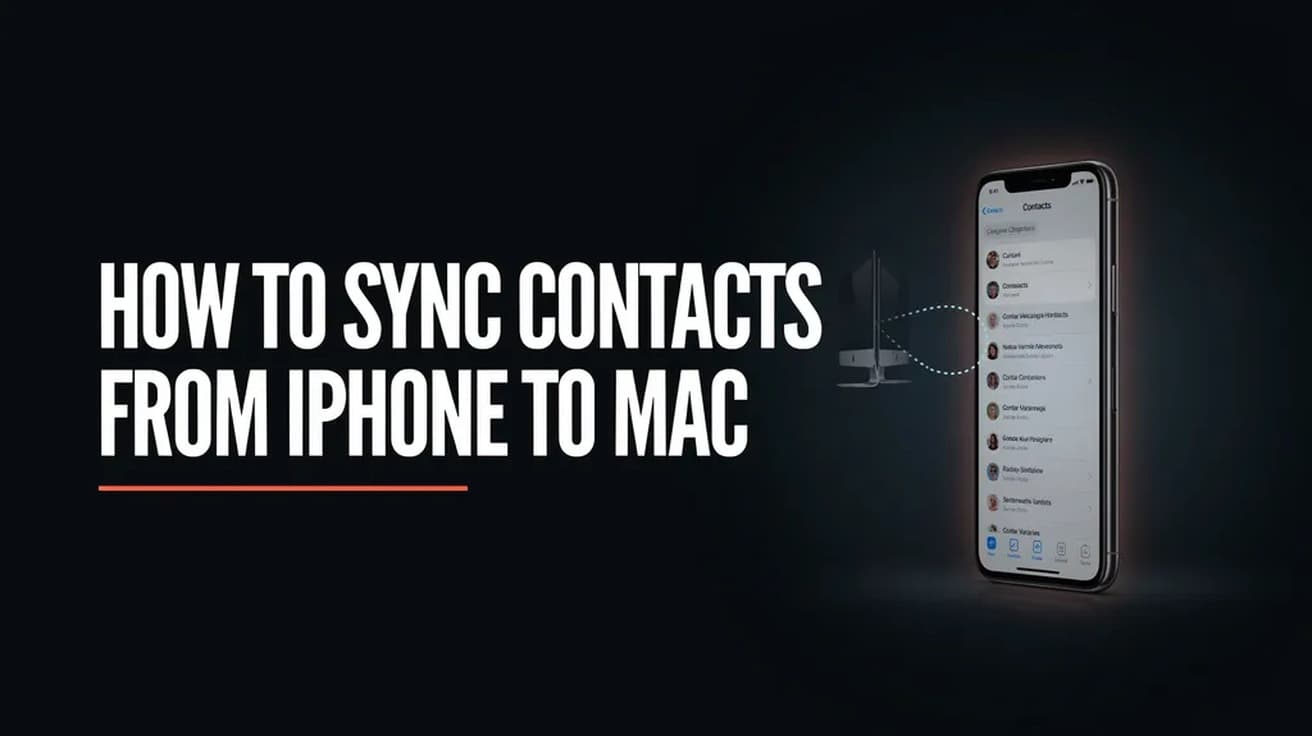
To sync contacts from iPhone to Mac, sign in to the same Apple Account on both devices, then turn on iCloud Contacts in two places. On the iPhone: Settings, your name, iCloud, See All, Contacts. On the Mac: System Settings, your name, iCloud, See All, Contacts. Open the Contacts app on the Mac and your iPhone contacts appear within a minute.
There is no cable step here, and that is what trips most people up. Apple removed contact syncing over USB back in OS X Mavericks, so plugging the iPhone into the Mac and opening Finder will not move a single card. The supported route is iCloud, and it is a setting rather than a transfer.
One thing to know before you flip it: iCloud Contacts is a mirror, not a one-way copy. Edit a contact on the Mac and the change lands on the iPhone. Delete one anywhere and it disappears everywhere. That is usually what people want, but it is not a backup.
How to sync contacts from iPhone to Mac
Both devices have to be signed in to the same Apple Account. Check that first, because a Mac signed in to an old account will happily sync a different and probably empty address book.
1. On the iPhone, open Settings and tap your name at the top of the screen.
2. Tap iCloud, then tap See All. Older software calls this Show All.
3. Turn on Contacts. If you are asked whether to merge what is on the phone with iCloud, choose Merge — that uploads the contacts already stored on the device.
4. On the Mac, open the Apple menu and choose System Settings, then click your name at the top of the sidebar. If you see "Sign in with your Apple Account" instead of your name, sign in with the same account you just used on the phone.
5. Click iCloud, then click See All next to "Saved to iCloud" and turn on Contacts.
6. Open the Contacts app on the Mac. In the sidebar, look under the iCloud section and click All Contacts.
Give it a minute with both devices online. A large address book takes longer the first time; after that, an edit on one device shows up on the other in seconds.
Older macOS versions and a faster route for one contact
Apple changed the wording of the iCloud screen more than once, so the Mac half of step 5 depends on which version you are running. Check the Apple menu, then About This Mac, if you are not sure.
- macOS 15 Sequoia or later, which includes macOS 26 Tahoe and macOS 27 Golden Gate: click See All next to "Saved to iCloud", then turn on Contacts.
- macOS 13.3 through macOS 14 Sonoma: click Show All or Show More Apps below "Apps Using iCloud", then turn on Contacts.
- macOS 13 to 13.2 Ventura: the Contacts switch sits on the iCloud screen already.
If you only need one person's details on the Mac rather than your whole address book, skip the sync entirely. Open the contact on the iPhone, scroll down, tap Share Contact, and AirDrop it to the Mac. It arrives as a card you can add to Contacts in a click, and nothing else changes.
What turning on iCloud Contacts does not do
It does not touch contacts that live in another account. If your numbers are held in a Google or Outlook account, they travel through that account's own connection, and they will only appear on the Mac once you add the same account there. On the iPhone you can see exactly which accounts feed the Contacts app under Settings > Apps > Contacts > Contacts Accounts, and switch each one's Contacts on or off.
It also does not decide where new contacts get saved. That is a separate setting at Settings > Apps > Contacts > Default Account. If that is pointed at a Gmail account, every contact you create from now on skips iCloud, and your Mac will keep looking short no matter how long you wait.
And it is not a backup. Apple is explicit that deleting a contact from an account removes it from every device signed in to that account. If you want a snapshot you can keep independently, export a vCard from the Contacts app on the Mac rather than relying on the sync.
Common questions
Will this create duplicates? Often, yes, particularly if the Mac already held contacts of its own before you signed in. Both devices offer a way to clean up afterwards, and it is worth doing once rather than letting the duplicates propagate. Our guide to merging duplicate contacts on iPhone covers the tidier side of this.
Does it work the other way round? Yes. The same switch is bidirectional, so a contact you add in the Contacts app on the Mac lands on the iPhone without any extra step. There is no separate "send to iPhone" command to look for.
What about an iPad? Identical idea, same Apple Account, same Contacts switch in iCloud. If you are setting several Apple devices up together, our walkthrough on syncing an iPad and iPhone runs through the rest of the iCloud list.
If Contacts isn't in the iCloud list
Work through three checks. Confirm the Mac is signed in at all — the top of the System Settings sidebar should show your name, not a sign-in prompt. Confirm it is the same Apple Account as the phone, not an older one. Then confirm Contacts is actually switched on rather than merely listed, since the See All screen shows apps in both states.
If the list is correct and the Mac still shows an empty address book after several minutes, sign out of iCloud on the Mac and sign back in, which rebuilds the local copy. If the account itself looks wrong — a sign-in that will not stick, or a verification loop — that is an Apple Account problem rather than a Contacts one, and Apple Support is the right next stop.