How to Sync iPad and iPhone (iCloud Settings Guide)
Syncing an iPad and an iPhone comes down to one Apple Account and one list of toggles in iCloud settings. Here is where that list lives and what it will not copy across.
 By Daniel ShuttleworthOct 10, 2026
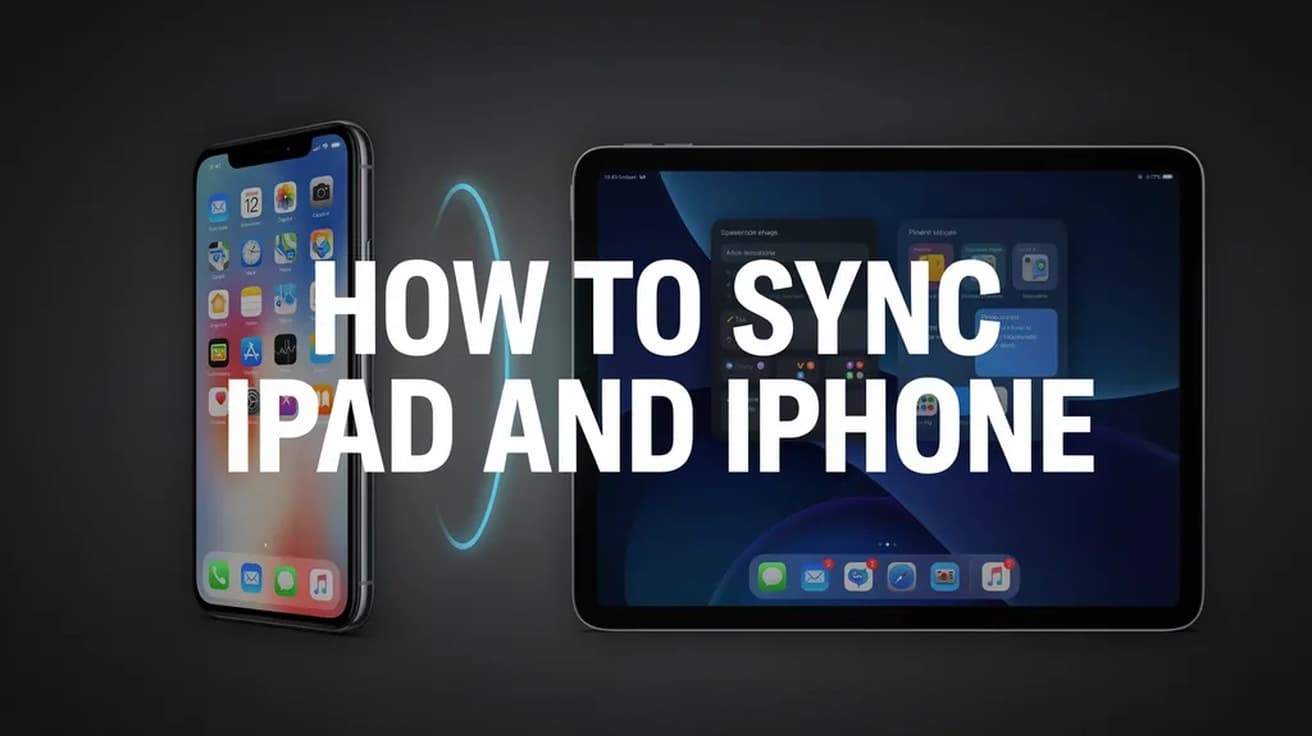
To sync iPad and iPhone, sign in to both with the same Apple Account, then open Settings > [your name] > iCloud and tap See All next to Saved to iCloud. Turn on the same apps — Photos, Contacts, Notes, Calendar — in both places. From then on, a change you make in one of those apps shows up on the other device.
There is no cable step and no pairing step. Two Apple devices sync because they are signed in to the same account and because the same apps are switched on for iCloud in both. Everything below is that one idea, applied twice.
Two things are worth knowing before you start. Every Apple Account comes with 5 GB of iCloud storage for free, and Photos will use that up quickly — if the iPhone is already warning you that storage is full, sort that out first or the sync will stall. And syncing is genuinely two-way: Apple states that when you delete photos and videos on one device, they are deleted everywhere you use iCloud Photos.
How to sync iPad and iPhone through iCloud
Start on the iPhone. These steps are the same on iPadOS, so you will run through them twice.
1. Open Settings and tap your name at the top of the list. That banner is your Apple Account, and the account it names is the one the iPad has to match.
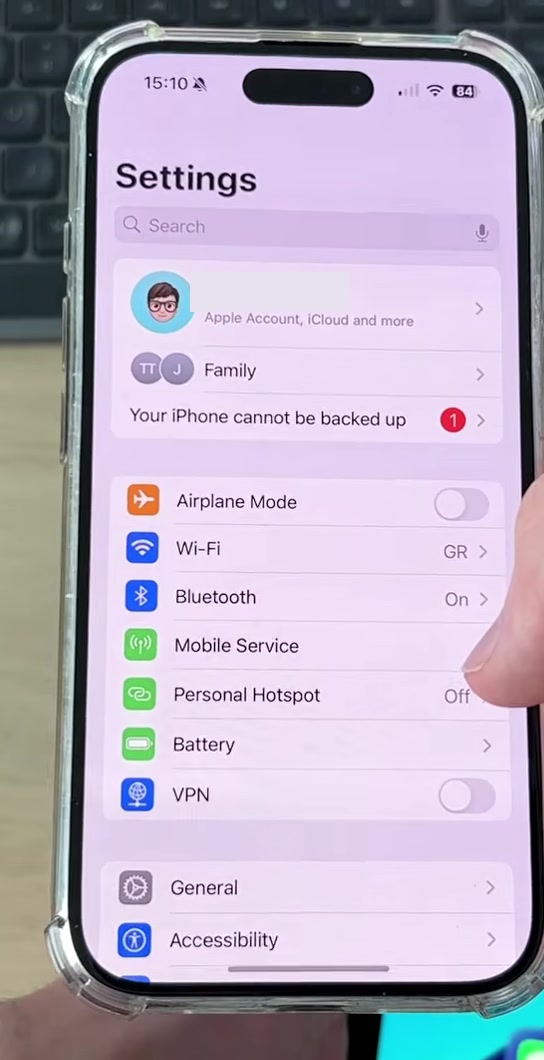
2. Tap iCloud. The figure beside it is how much of your iCloud storage is in use.
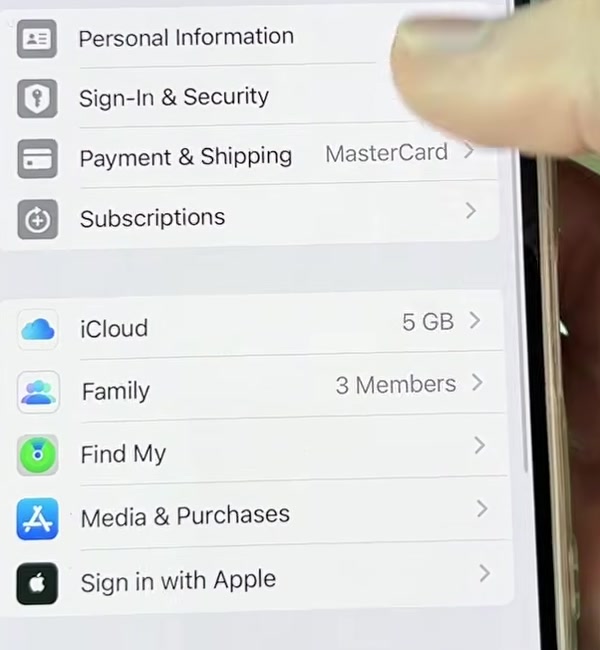
3. Under Saved to iCloud, tap See All. You will land on a list of every app that can store its data in iCloud, each one marked On or Off.
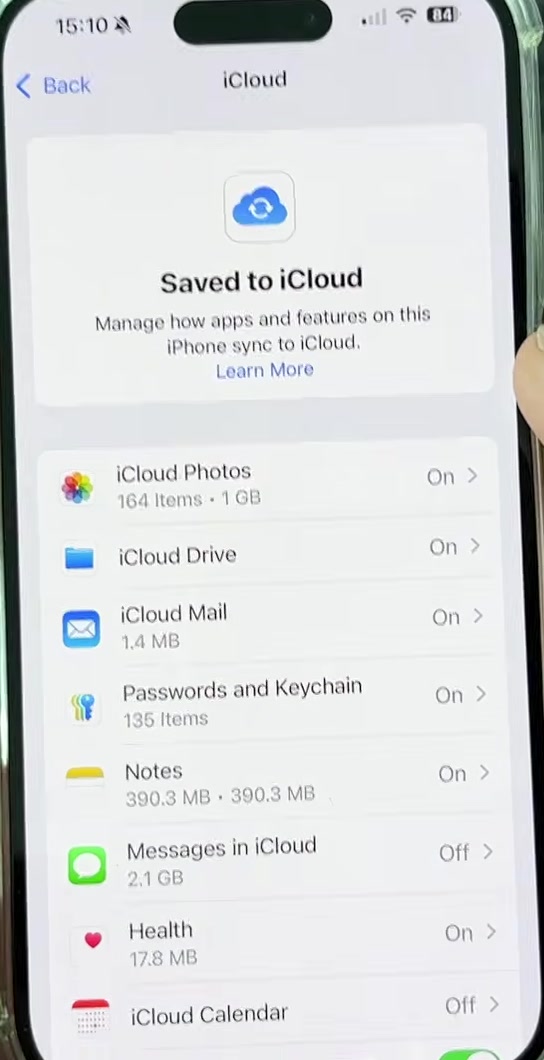
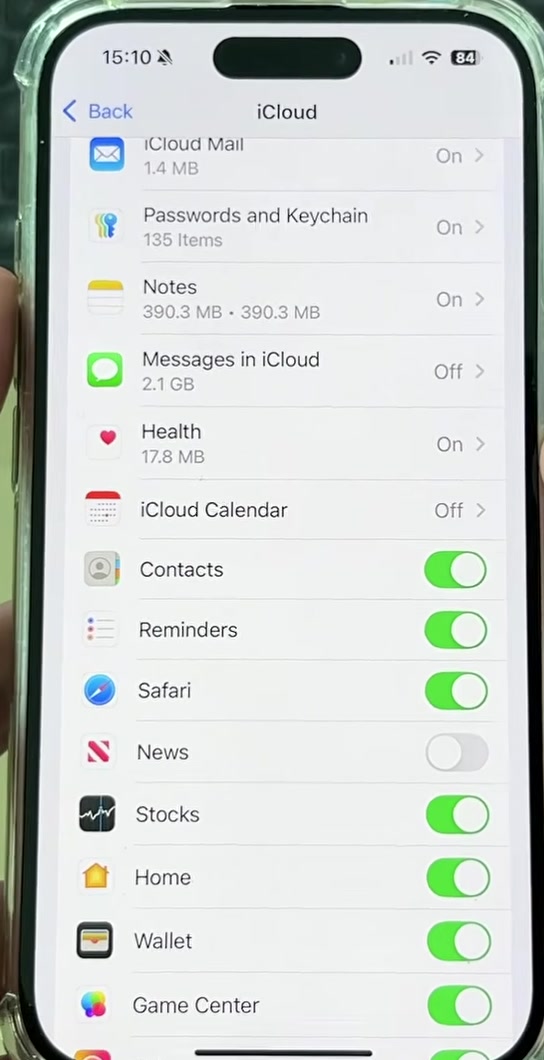
4. Tap an app and turn on its switch — the wording is Sync this device or Use on this device, depending on the app. Scroll the list and do the same for everything you want on both devices.
Now do the same on your iPad
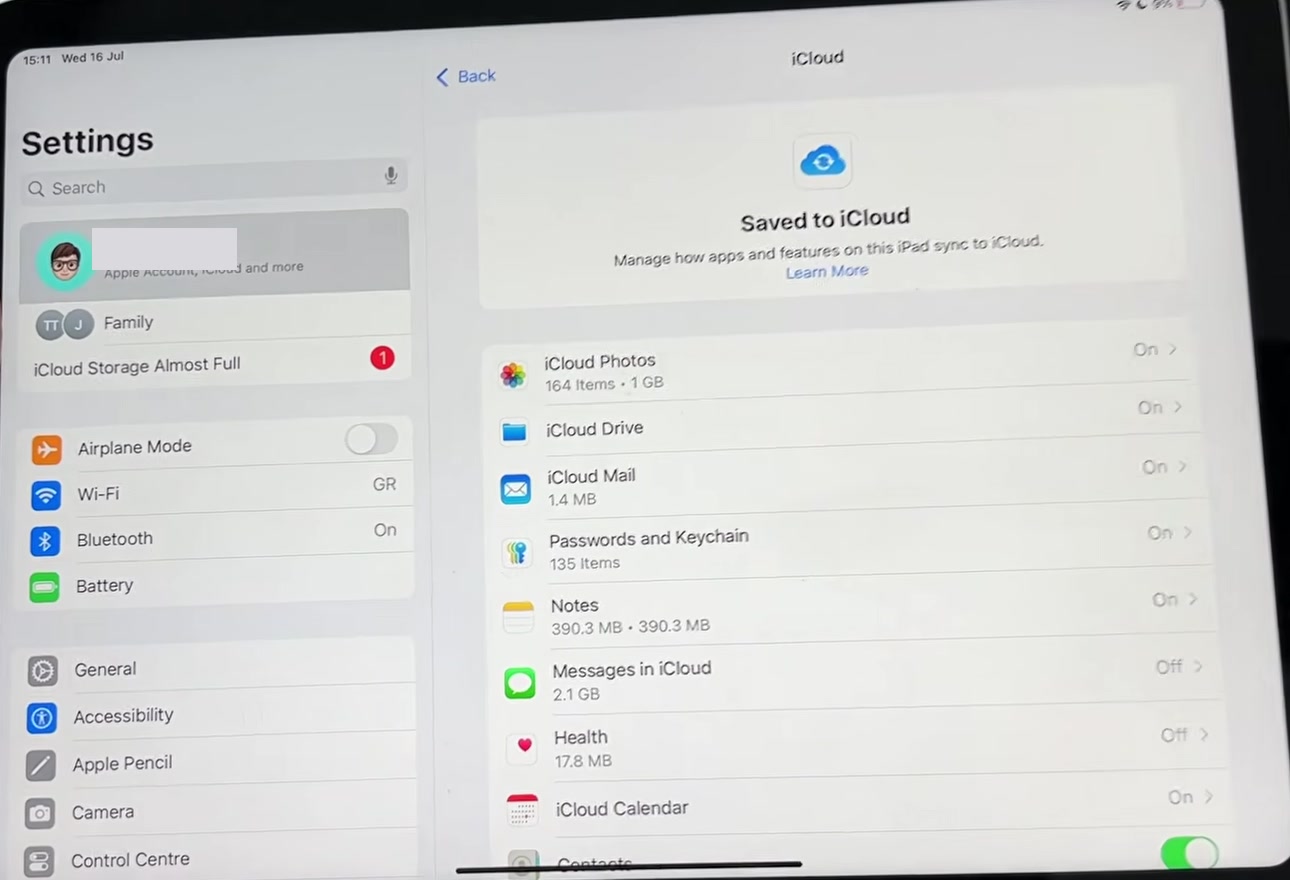
Open Settings on the iPad and check the name on the account banner first. If it is a different Apple Account, nothing you switch on will reach the iPhone — that single mismatch is behind most "it just won't sync" problems.
Once the account matches, the path is identical: tap your name, tap iCloud, tap See All under Saved to iCloud, and turn on the same apps you chose on the iPhone. The iPad lays it out in two columns rather than one, but the labels are the same.
Give it a few minutes on Wi-Fi. Photos in particular backfills in the background and will not finish instantly.
A faster route, and one setting people miss
You can skip the tapping: pull down on the Home Screen, type iCloud, and open the result. The search field at the top of Settings does the same job.
The other setting worth turning on is Handoff, which is what lets you start an email on the iPhone and pick it up on the iPad. It lives under Settings > General > AirPlay & Continuity — labelled AirPlay & Handoff on older versions — and Apple says it is on by default. Handoff also underpins Universal Clipboard, which needs both devices near each other, signed in to the same Apple Account, with Bluetooth and Wi-Fi switched on.
What syncing does not do
This is the part that trips people up, because "sync" sounds like "copy everything".
It does not mirror your devices. Your Home Screen layout, your wallpaper and your installed apps stay separate; iCloud syncs what is inside supported apps, not the arrangement of the device itself.
It is not the same as a backup. iCloud Backup is its own item on the iCloud screen, below the app list, and it does a different job — it is what you use when you restore an iPhone from a backup onto a new or erased device.
And it does not give you a second copy as safety. Because a deletion travels to every device, removing a photo on the iPad removes it from the iPhone too. Apple keeps deleted photos and videos in Recently Deleted for 30 days, which is your window to change your mind.
Common questions
Do I need both devices on the same Wi-Fi network? No. iCloud sync works over any internet connection the device has. Handoff and Universal Clipboard are different — those need the devices close together with Bluetooth and Wi-Fi on.
What if my iCloud storage is full? Syncing stops making progress rather than failing loudly. You can either prune what is stored or move up to a paid tier; there are also several ways to free up storage on an iPhone before you pay for more.
Can I sync some apps but not others? Yes, and that is the point of the per-app list. Turning Notes on and Photos off is a perfectly normal setup.
If the iCloud option isn't there
If tapping your name shows a sign-in prompt instead of an account, the device is not signed in at all — sign in with your Apple Account email or phone number and start again from step 1.
If an app you expect is missing from the list, it may simply not support iCloud sync; only apps that store data in iCloud appear there. And if a device is managed by a school or employer, the organisation can switch iCloud features off entirely, in which case the toggle will not be yours to change.