How to Get More Storage on iPhone (Free and Paid)
An iPhone's built-in capacity is fixed, but most full phones have several gigabytes sitting in offloadable apps, cached files and deleted photos. Here is where to look, in order.
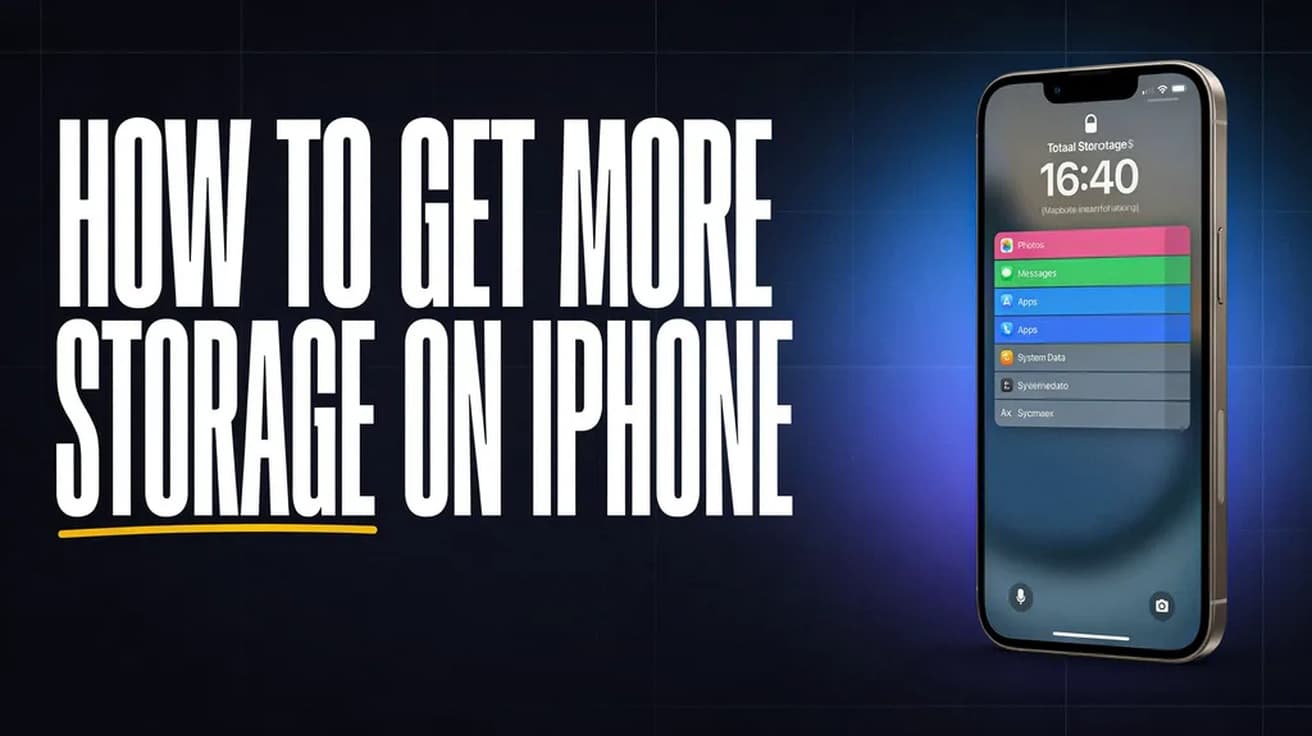
The short version of how to get more storage on iPhone: open Settings, tap General, then tap iPhone Storage, and work through the recommendations Apple lists at the top of that screen. Offload or delete the largest apps, then permanently empty the Recently Deleted album in Photos. If the phone is still full after that, the only way to add capacity is an iCloud+ plan — the storage soldered into the phone cannot be expanded.
An iPhone has no memory card slot and no upgradeable drive. The number on the box — 128GB, 256GB, 512GB — is the number you keep for the life of the device. So "more storage" means one of two things: reclaiming space that is being used badly on the phone you have, or moving the bulk of your library into iCloud so the phone only holds space-saving copies.
Most of the reclaiming happens on one screen, and it is worth going there before deleting anything by hand. iOS already knows which apps are large, which ones you have not opened in months, and how much is sitting in your deleted-photos album waiting to expire.
Where the storage setting lives
1. Open Settings and tap General. The entry you want is iPhone Storage, a few rows down from About and Software Update.
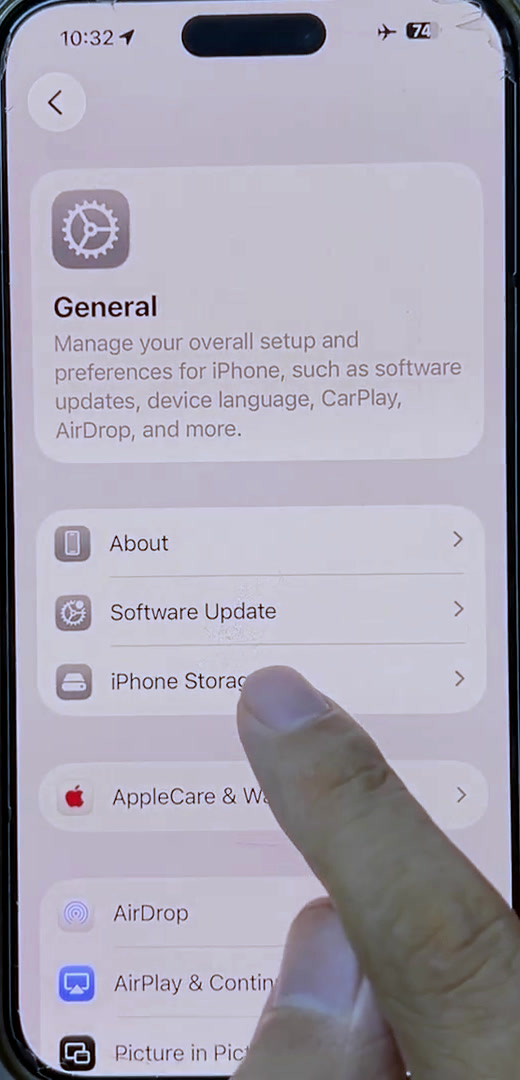
2. Tap iPhone Storage. At the top you get a coloured bar splitting your used space into Photos, Applications, iOS and System Data, and underneath it a Recommendations section. Tap Show All to see every suggestion Apple has for this particular phone.
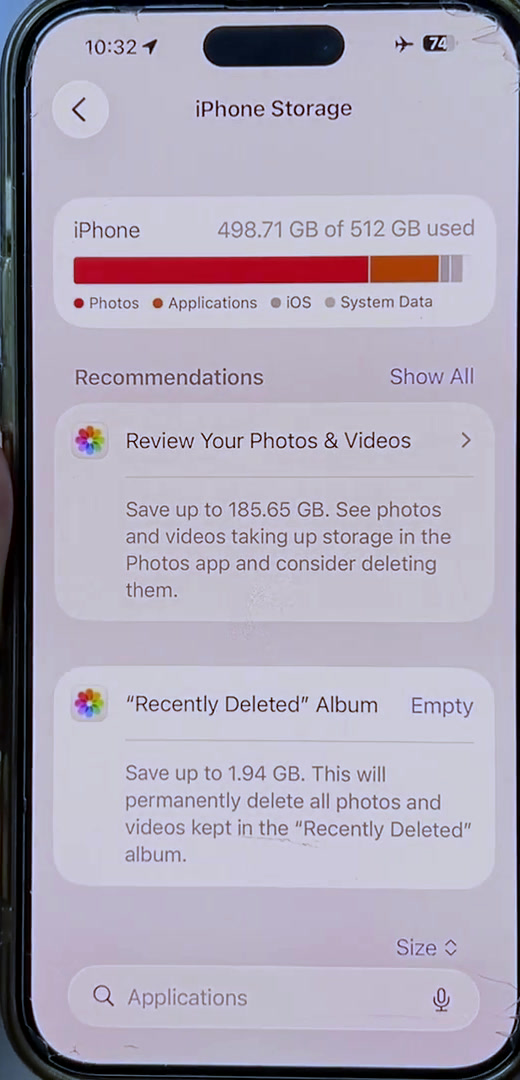
3. Read each recommendation, then either tap Enable to switch it on or tap the recommendation itself to review what would be removed. The two that usually free the most are Review Your Photos & Videos and emptying the "Recently Deleted" Album — deleted photos stay on the phone for 30 days and keep counting against your storage the whole time.
Offload or delete the apps at the top
4. Scroll past the recommendations to the app list. It is sorted by size by default, and each row shows when you last used that app. The first five or six entries are almost always where the space has gone.
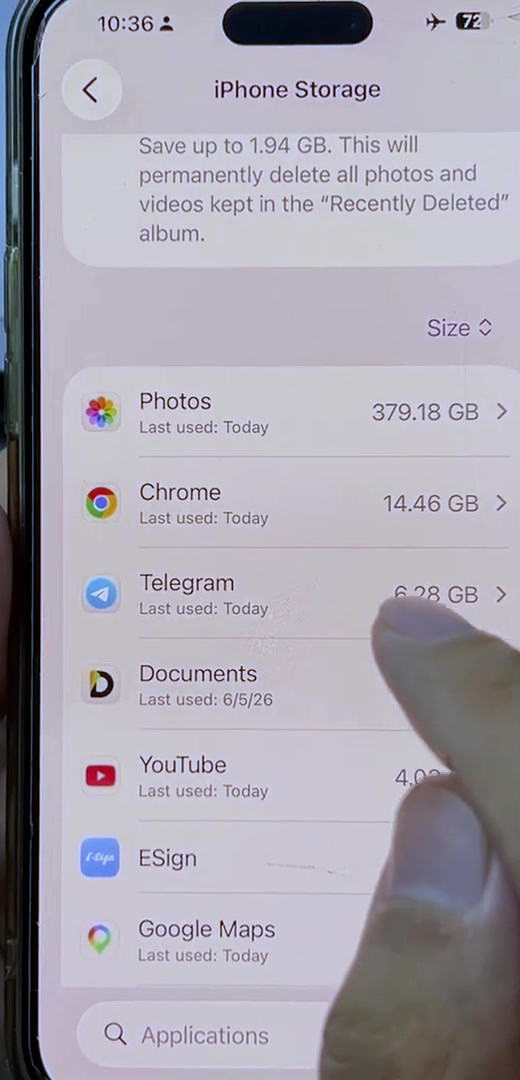
5. Tap an app to open its detail screen. Offload App removes the app itself but keeps its documents and data, so reinstalling puts everything back where it was. Delete App removes the app and all its data, and Apple's own warning on that screen is blunt: the action cannot be undone.
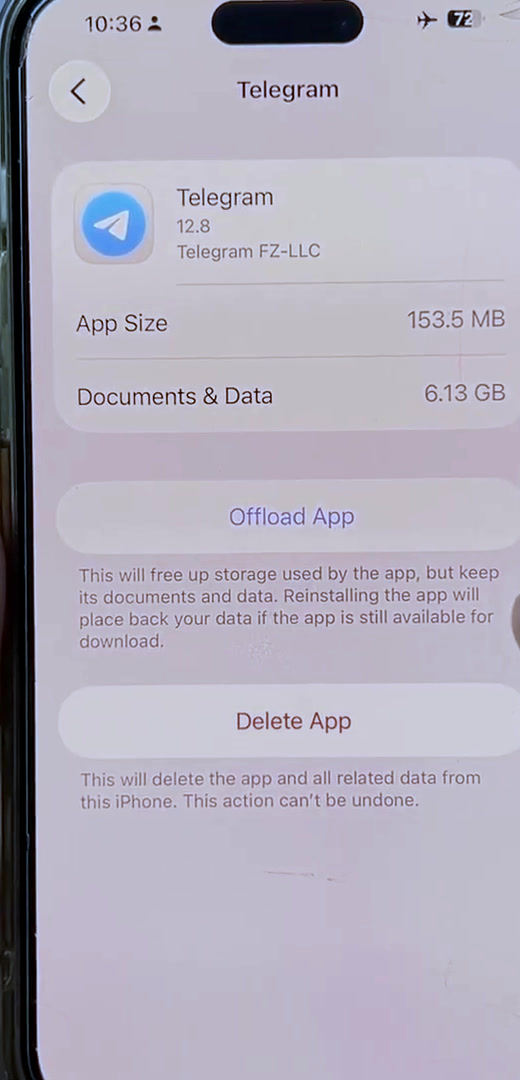
Offloading is the safer default for anything you might want back. For apps where the data itself is the problem — a messaging app holding several gigabytes of received video, say — offloading will barely help, because Documents & Data stays on the phone. Those need clearing from inside the app, which works differently in every app. There is no single cache button on iOS, which is why this step is fiddlier than it sounds.
How to get more storage on iPhone with iCloud+
Every Apple Account comes with 5GB of free iCloud storage, which is not enough for a photo library. Buying more does not add space to the phone directly — it adds space in iCloud, which then lets the phone keep smaller copies locally.
Turn that on in Settings > [your name] > iCloud > Photos: switch on Sync this iPhone, then select Optimize iPhone Storage. Full-resolution originals live in iCloud and the phone keeps space-saving versions, downloading the original when you actually open one.
To buy a plan on iOS 18.4 or later, open Settings, tap your name, tap iCloud, scroll down and tap Upgrade to iCloud+. If you already subscribe, the route is different: tap your name, tap Subscriptions, tap iCloud+ under Active, then See All Plans. Apple currently lists 50GB, 200GB, 2TB, 6TB and 12TB tiers in the US.
What this does not do
None of this changes the physical capacity of the phone. Optimize iPhone Storage reduces what photos occupy locally, but it does not remove them from your library, and it needs enough iCloud space to hold the originals — if iCloud is full, syncing stops and nothing is optimised.
Deleting an app from the Home Screen is also not the same as deleting it from iPhone Storage. And System Data — the slice that irritates people most — is not a category you can clear directly. It holds caches, logs and system files that iOS manages on its own, growing and shrinking without input from you.
One more thing worth knowing before you delete in bulk: if you later restore this iPhone from a backup, you get back whatever was in that backup, not whatever is on the phone today.
Common questions
Why is my storage still full after deleting photos? Because deleted photos move to Recently Deleted rather than disappearing. They occupy the same space for 30 days unless you open that album and remove them permanently.
Does offloading an app lose my logins? No. Offload keeps the app's documents and data, so reinstalling restores your place — provided the app is still available on the App Store.
Can I add a memory card to an iPhone? No. There is no card slot on any iPhone. External drives can be read through the Files app, but they do not extend the storage the system and apps use.
If the option isn't there
If iPhone Storage looks different from the screenshots above, check your iOS version under Settings > General > About — the recommendations block and the wording around offloading have both changed across recent releases. If a recommendation you expect is missing, it usually means iOS has calculated that it would save too little to be worth showing.
And if the phone is genuinely full — a few hundred megabytes free — some of these screens misbehave, because iOS needs working space to compute the figures. Delete one large app outright to get moving again, then come back and do the rest properly.