How to Share an Album on iPhone (iOS 27 and iOS 26)
iOS 27 rebuilt Shared Albums, so the steps and the menu names changed. Here is the current way to create and share an album, the iOS 26 version of the same job, and the storage cost that is new.
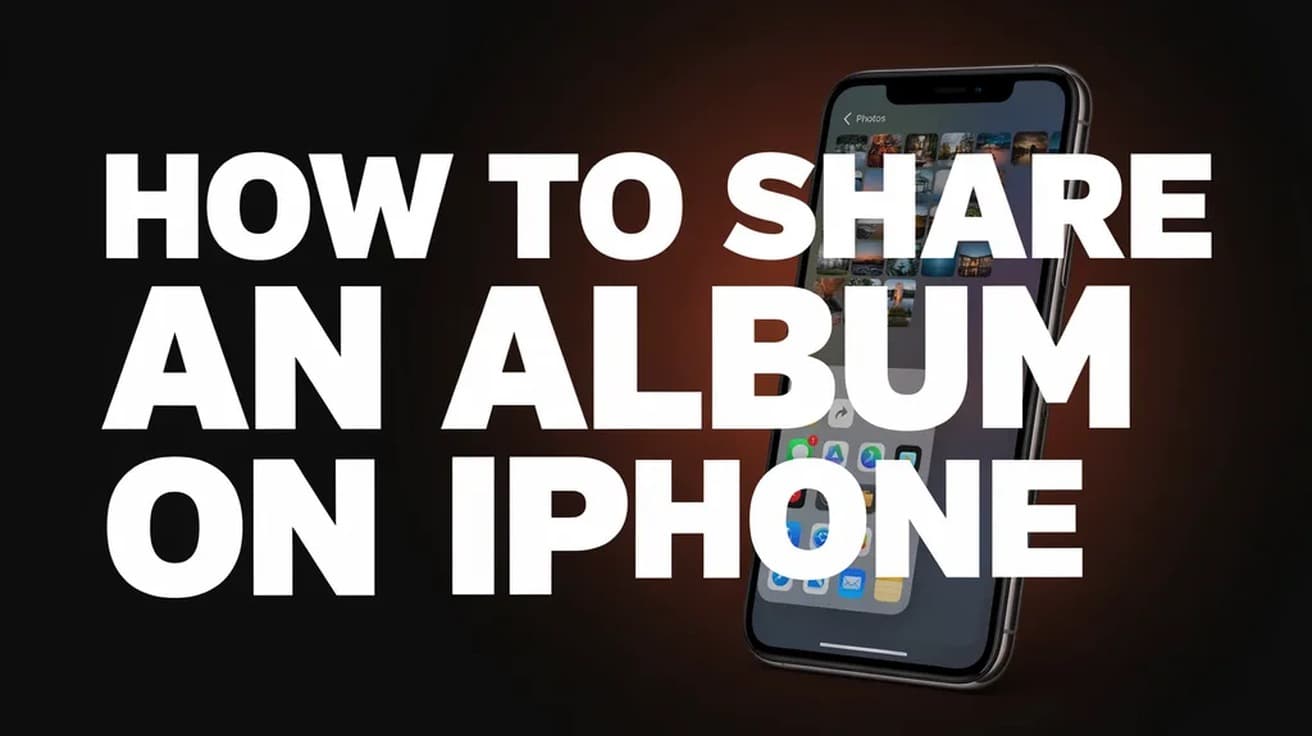
Open Photos, tap Collections, scroll down to Shared Albums and tap the + button. Name the album, pick your photos, choose who can join under Sharing Options, then tap the checkmark. Shared Albums has to be switched on first in Settings > [your name] > iCloud > Photos > Shared Albums.
Knowing how to share an album on iPhone got more complicated in September 2026, because iOS 27 rebuilt the feature from the ground up. The menu names moved, the invite options are new, and one change has a real cost attached.
That change is storage. An album you own now counts against your iCloud storage, which it never did before. In return, the photos in it stay at full resolution instead of being shrunk to a web-sized copy.
The steps below cover iOS 27 first, then iOS 26, which plenty of iPhones are still running.
Turn on Shared Albums first
The + button will not do anything useful until the feature is enabled on your Apple Account. This is the step most people miss.
1. Open Settings and tap your name at the top.
2. Tap iCloud, then under Saved to iCloud tap Photos.
3. On iOS 27, make sure iCloud Photos is on.
4. Scroll down, tap Shared Albums, and turn it on.
Do this on every device you want the album to appear on, signed in to the same Apple Account. There is one exception to the iCloud Photos requirement, covered further down: a temporary album works without it.
How to share an album on iPhone in iOS 27
1. Open Photos and tap the Collections tab.
2. Scroll down to Shared Albums and tap it.
3. Tap the + button at the top of the screen.
4. Give the album a name and select the photos you want in it. You can add more later, so an empty album is fine for now.
5. Tap Sharing Options. This is where you decide whether people have to be invited and approved, or whether anyone holding the link can open the album.
6. If you want the album to clear itself out later, turn on Make Album Temporary. Apple deletes a temporary album after 30 days.
7. Tap the checkmark to finish.
To add people after the album exists, open it, tap Manage Shared Album, then under Participants tap Invite Participants. You can pick a contact, send the link through another app, or tap Copy Album Link and paste it wherever you like. An album holds up to 100 participants, and that count includes you.
How to share an album on iOS 26
The older flow puts the people-picker inside the creation screen rather than behind a Sharing Options button.
1. Open Photos, tap Collections, scroll to Shared Albums and tap it.
2. Tap the + button.
3. Name the album and choose your photos.
4. Pick people from your contacts, or type an email address or an iMessage phone number. Tap Done.
5. Tap Create.
To invite more people later, open the album, tap the More (…) button, tap the album's name, then under Participants tap Add Participants.
Sharing with people who don't use an iPhone
On iOS 27, the album link is the answer. Someone on Android or Windows opens it in a browser and can view and download the originals without an Apple Account.
On iOS 26 the equivalent is a separate switch. Open the album, tap More (…), tap Shared Album Details, and turn on Public Website. That publishes a web page anyone with the address can open, so treat the address as the only lock on it.
If someone you invited is on much older software and the link does nothing for them, they can view the album at iCloud.com in a browser instead.
What sharing an album does not do
It does not hand over your whole photo library. A shared album contains only what you put in it, and the people you invite see nothing else.
On iOS 27 it no longer compresses your photos, and that is the part worth understanding before you fill one up. Albums created under iOS 26 or earlier reduced photos to 2,048 pixels on the long edge and capped videos at fifteen minutes and 720p, but cost you nothing in storage. Albums created under iOS 27 keep originals at full resolution and bill that to your iCloud storage — yours, not the other participants'. If your plan is already tight, clearing space or moving up a tier is worth sorting out first.
Temporary albums are the exception: they do not count against your storage, and they are capped at 5,000 items from all contributors combined. The old 5,000-item cap applied to every shared album on iOS 26 and earlier, along with a 200-album ceiling on how many you could share or subscribe to.
Deleting a temporary album, or letting it expire, removes the photos from the album only. Anything you put in it stays in your own library.
Common questions
Can people add their own photos? Yes. That is the point of a shared album rather than a one-off link — participants can contribute photos and videos, and on iOS 27 anything they add to an album you own is stored against your iCloud storage.
Can a child's account join? Only if an adult in the same Family Sharing group is also a participant in the album.
Do I need iCloud Photos switched on? For a normal shared album on iOS 27, yes. For a temporary album, no — and if iCloud Photos is off, Make Album Temporary switches itself on and cannot be turned off until you enable iCloud Photos. If you are trying to get the same library onto an iPad as well, that is a separate iCloud setting.
If the Shared Albums option isn't there
Nine times out of ten the toggle in Settings is off, so start there. If it is already on and the section still will not appear in Photos, check that the iPhone is actually signed in to iCloud under Settings and not just to the App Store, and that iOS is up to date under Settings > General > Software Update — the iOS 27 layout described above does not exist on older releases.
A managed or work iPhone can have Shared Albums disabled by a configuration profile, in which case the option is missing rather than greyed out, and whoever administers the device is the only one who can restore it.