How to Block Websites on iPhone (iOS 26 Steps)
Screen Time can block any website on an iPhone across every browser, not just Safari. Here is the exact path on iOS 26, plus what the setting does not cover.
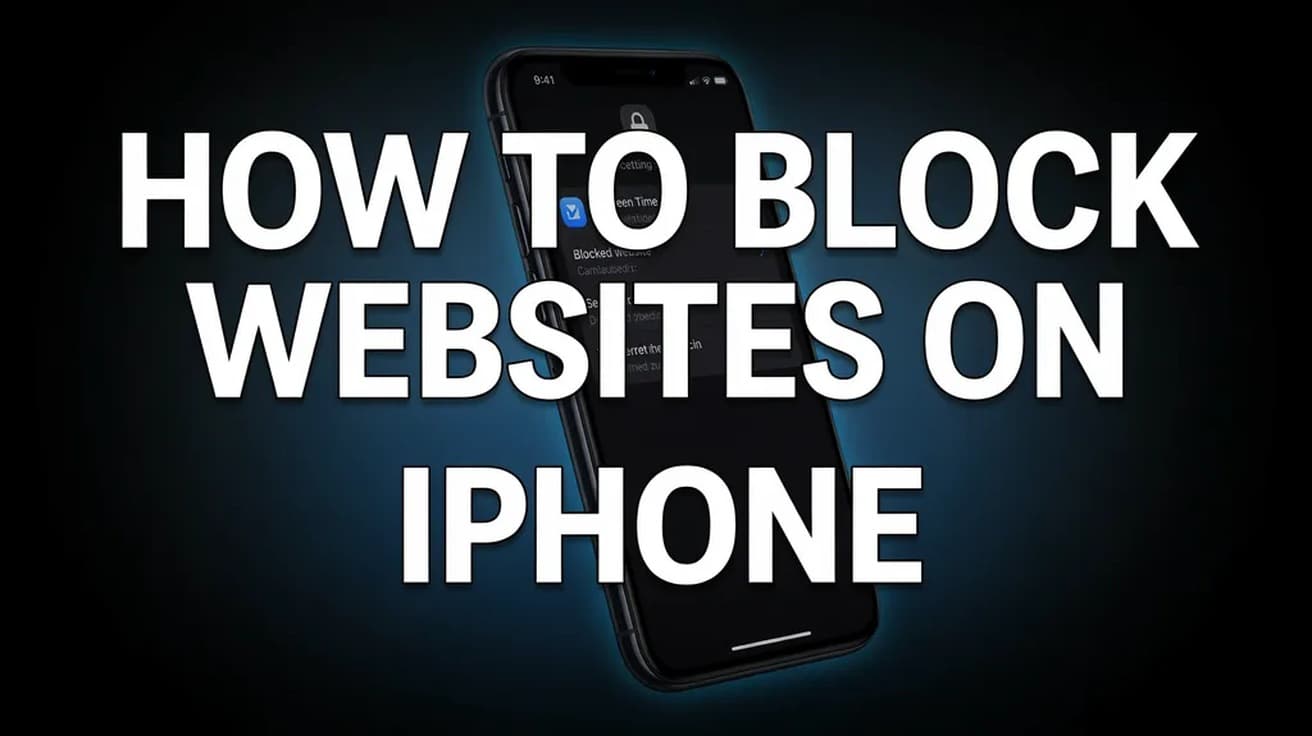
Open Settings, tap Screen Time, then Content & Privacy Restrictions, and turn the switch at the top on. Tap App Store, Media, Web, & Games, then Web Content, and choose Limit Adult Websites. Under Never Allow, tap Add Website and type the address you want gone.
People usually want to block websites on iPhone for one of two reasons: keeping a child away from adult content, or keeping themselves away from a site that eats an hour a day. Apple handles both with the same control, buried three levels down in Screen Time.
One thing to settle before you start. This restriction applies to every browser on the phone, not just Safari, so installing Chrome is not a way around it. But it is only as strong as your Screen Time passcode — anyone who knows that passcode can undo the whole thing in about fifteen seconds. Set one, and do not use your device unlock code.
Where the setting to block websites on iPhone lives
The path is the same on an iPhone you own and on a child's iPhone you manage through Family Sharing. On iOS 26 it runs like this.
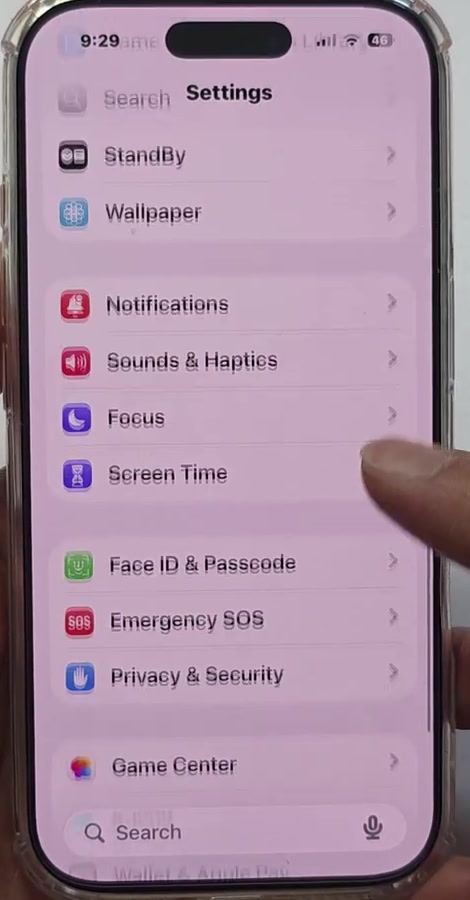
1. Open Settings and tap Screen Time. It sits below Focus in the main list.
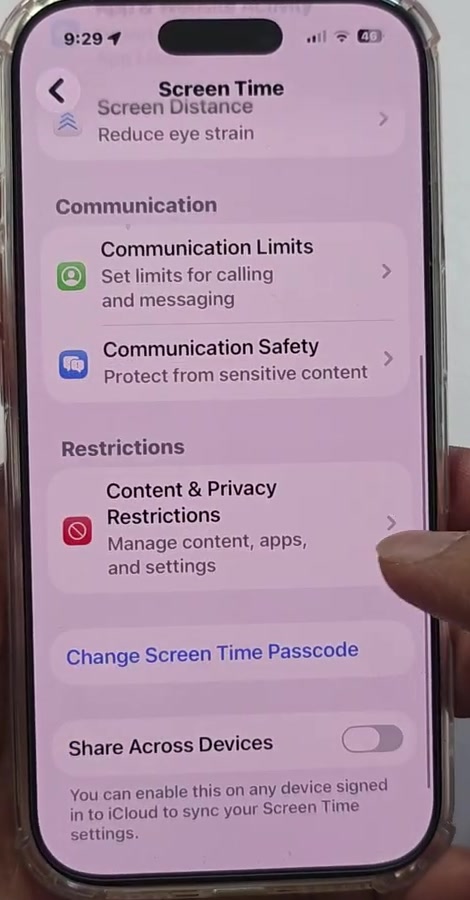
2. Scroll to the Restrictions heading and tap Content & Privacy Restrictions. If you have not set a Screen Time passcode yet, the Change Screen Time Passcode link on this same screen is where you do it.
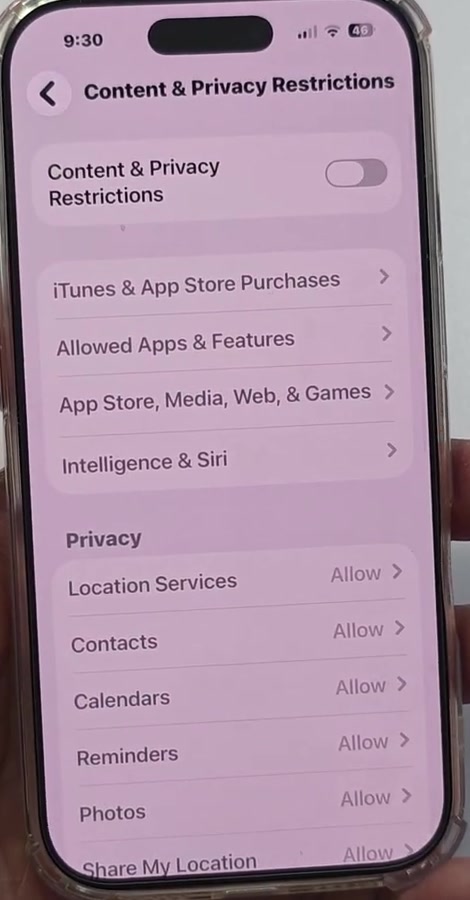
3. Turn on the Content & Privacy Restrictions switch at the top. Nothing below it does anything until that switch is on. Then tap App Store, Media, Web, & Games.
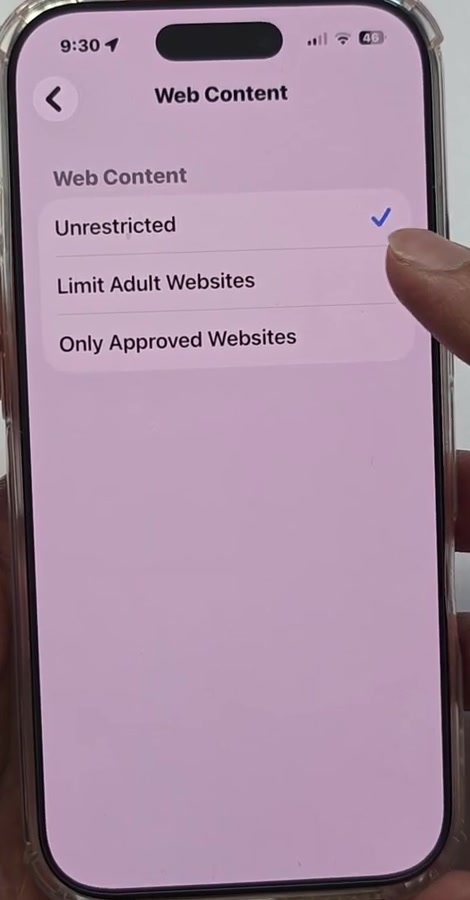
4. Tap Web Content. You get three choices: Unrestricted, Limit Adult Websites and Only Approved Websites.
Blocking one specific site with Never Allow
Choose Limit Adult Websites. Apple's own filter switches on, and two new lists appear underneath: Always Allow and Never Allow. Never Allow is your personal blocklist.
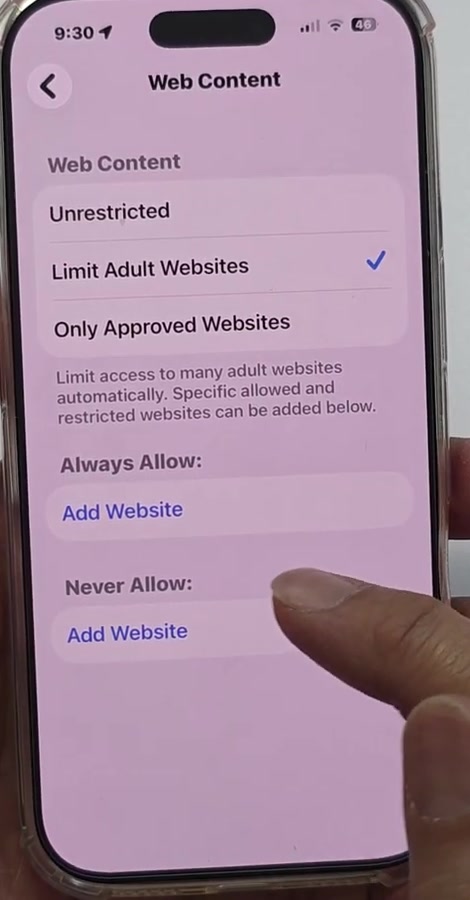
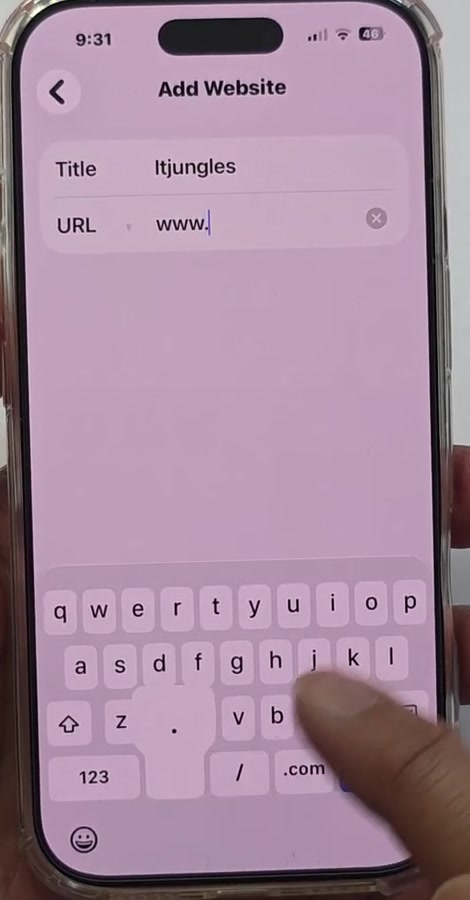
5. Tap Add Website under Never Allow, then type the address and tap back. Add the plain domain and the www version separately — the filter matches the address you typed, so example.com and www.example.com are not automatically the same entry.
Only Approved Websites, the stricter option
The third option flips the logic. Instead of blocking a list, iOS blocks the entire web and permits only the addresses you name. Apple seeds it with a starter set — Apple, Disney, PBS Kids, National Geographic and similar — and you add to it with the same Add Website button.
It is heavy-handed for an adult trying to break a habit, and it means fielding a request every time a school assignment needs a new site. For a young child's iPhone it is the only setting that actually holds.
What this does not do
It does not hide Safari. If you want the browser gone entirely, that is a separate control under Allowed Apps & Features.
On iOS 26 it no longer disables Private Browsing. On iOS 18.6 and earlier, filtering adult websites also switched Safari's private tabs off; that side effect is gone. Only Approved Websites still applies inside private tabs, but Limit Adult Websites no longer removes them, so a private tab is not the loophole it once was but the tab itself is back.
It also does not touch anything an app fetches through its own in-app browser unless Downtime is running, and it is not a security tool. A blocked address stops being reachable from that iPhone; it does nothing about what the site knows about you. If your problem is unwanted contact rather than unwanted content, the controls for that are elsewhere — see how to block spam calls on iPhone.
Common questions
Will this work in Chrome and Firefox? Yes. Screen Time's web filter operates below the browser, so every browser installed on the iPhone is covered.
Can I block a site only at certain hours? Not with this setting. Never Allow is permanent until you delete the entry. Time-based limits live under Downtime and App Limits, which work on apps and categories rather than individual URLs.
Does blocking a site clear what's already stored? No — the block stops new visits, it does not wipe history or cached pages. That is a separate job; see how to clear cache on iPhone.
If the option isn't there
If Web Content is greyed out, Screen Time is being managed by someone else — a parent through Family Sharing, or an employer through a configuration profile. Check Settings for a Profiles or Device Management row.
If the whole Content & Privacy Restrictions section refuses to open, you are being asked for a Screen Time passcode you no longer have. Resetting it needs the Apple Account email and password you supplied when you set the passcode, and if you skipped that step at the time, the only route left is erasing and setting the iPhone up again.