How to Change Autofill Address on iPhone (iOS 26)
Safari fills your address from one contact card, not from a setting of its own. Here is where to point it, and where to edit the address itself.
 By Daniel ShuttleworthOct 13, 2026
To change the autofill address on iPhone, open Settings, tap Apps, tap Safari, then tap AutoFill and turn on Use Contact Info. Tap My Info and pick your own contact card. The address itself is stored on that card, so you edit it in the Contacts app, not in Settings.
Safari does not keep an address book of its own. When it drops your street address into a checkout form, it is reading one contact card: the one set as My Info. Change the address on that card and every AutoFill suggestion follows.
That split is what catches people out after a move. They go hunting through Safari's settings for an address field, and there isn't one. Settings decides which card gets used. Contacts decides what is on it.
How to change autofill address on iPhone in Settings
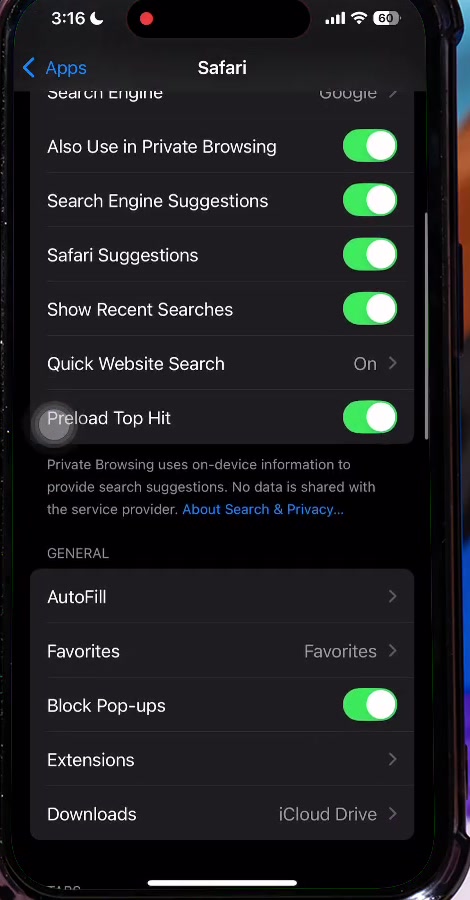
Start by confirming Safari is pointed at the right card. On iOS 18 and later, Safari's settings sit inside the Apps list rather than at the top level of Settings.
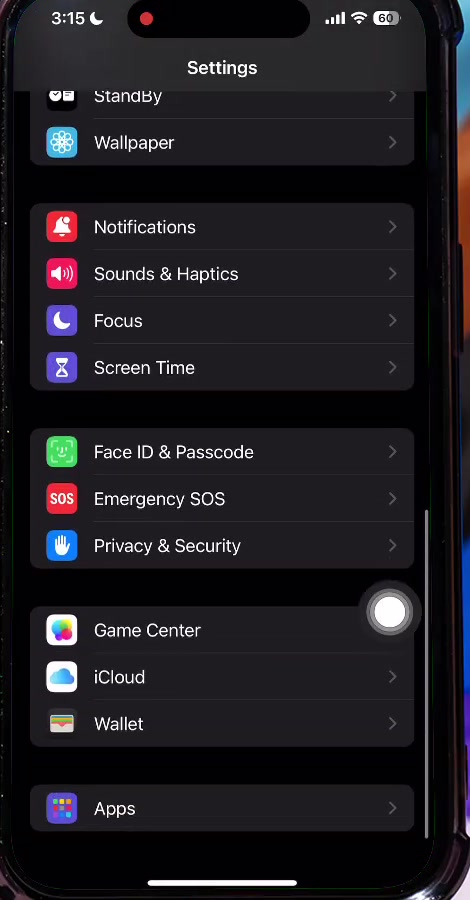
1. Open Settings and scroll to the bottom of the first screen. Tap Apps.
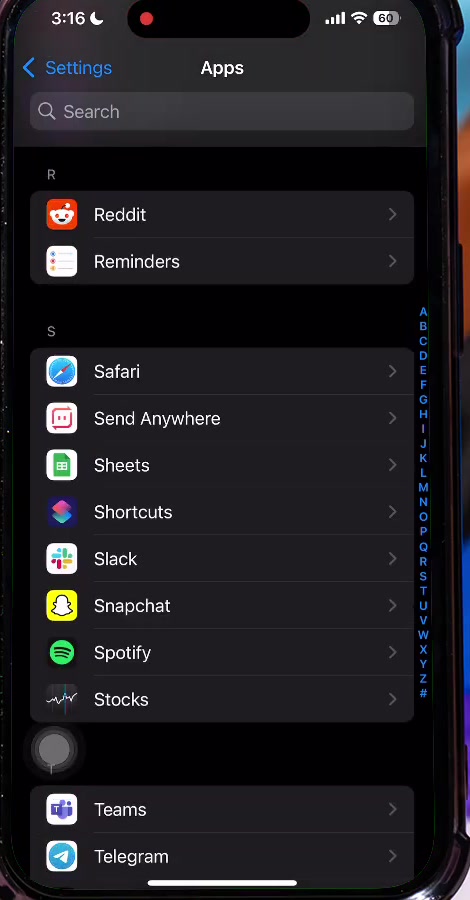
2. Scroll the alphabetical list down to S and tap Safari. Pulling down on this screen gives you a search box if you would rather type the name.
3. Scroll down to the General heading and tap AutoFill.
4. Turn on Use Contact Info. Then tap My Info and choose your own card from the contact list.
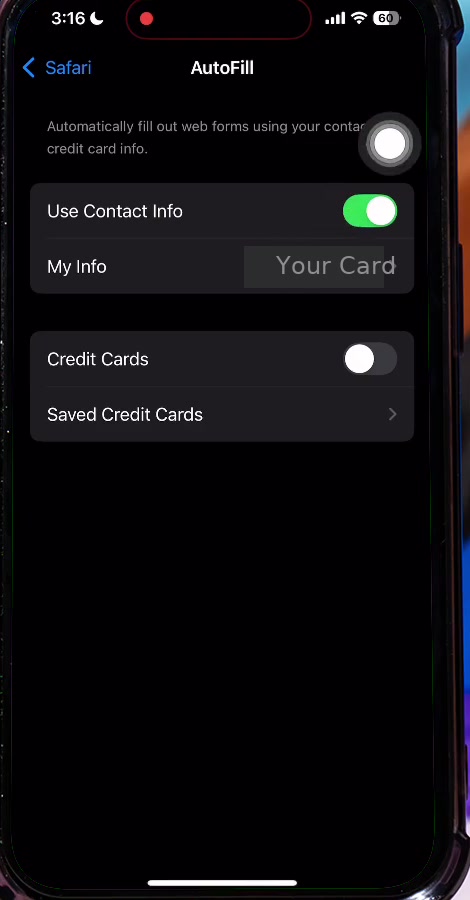
If My Info is blank, Safari has nothing to fill from and no address suggestion will ever appear. That alone fixes a surprising number of "AutoFill stopped working" complaints.
Change the address on your contact card
Now edit the card itself. This is the step that actually changes the address.
5. Open the Contacts app. Your own card sits at the very top, labelled My Card. Tap it.
6. Tap Edit in the top-right corner.
7. Scroll to the address block. Tap any line to correct it, tap the red minus to remove an address you have left behind, or tap add address to enter a new one. Tap Done to save.
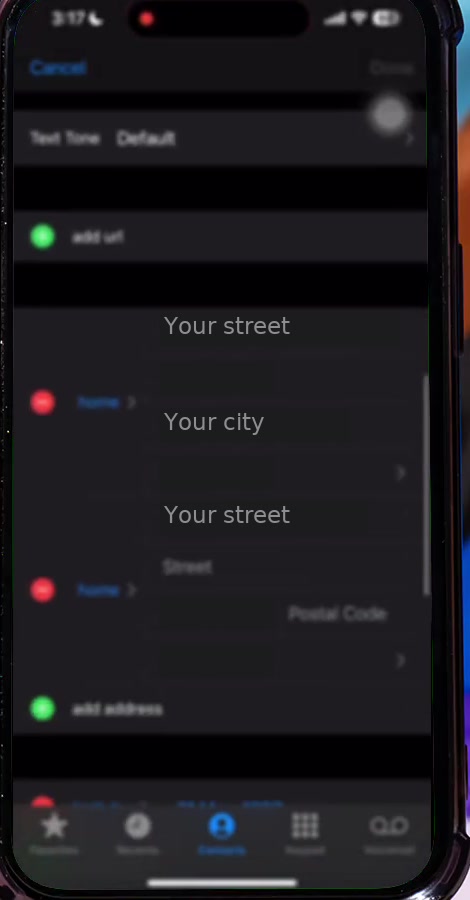
A card can hold several addresses. Safari will offer each of them, so deleting the old one is usually tidier than leaving both in place. If the same person appears twice in your list, it is worth merging those duplicate cards first so you are editing the one Safari actually reads.
A faster route, and older iOS versions
You do not have to navigate the whole tree. Pull down on the Settings home screen, type AutoFill, and the Safari AutoFill entry appears in the results.
On iOS 17 and earlier the path is shorter: Settings then Safari then AutoFill, with no Apps step in between. Guides still showing that two-step path are describing the older layout rather than a different setting, and the AutoFill screen itself is unchanged.
What this does not do
Changing your contact card only moves Safari. Chrome on iPhone keeps a separate list of its own under More, then Settings, then Addresses and more, and editing an entry there sends you to your Google Account rather than to Contacts. If you browse in both, you have two addresses to fix.
Saved cards are separate again. A card stored under Saved Credit Cards on that same AutoFill screen carries its own billing address, which does not update when your contact card does.
Your Apple Account shipping address is a third, unrelated store. So are the passwords Safari fills, which live in the Passwords app, not on your contact card — finding your saved passwords is a different job entirely.
Common questions
Will Safari keep suggesting my old address? Only if it is still on your card. AutoFill reads the card live, so an address you delete stops being offered. An address a website has saved on its own account page is that site's copy, and you change it there.
Can I keep a home and a work address? Yes. Add both to the card with the add address row and label them, and Safari offers both when a form asks.
Does turning off Use Contact Info delete anything? No. The toggle only stops Safari reading the card. Apple's documentation describes it as a fill setting, and your contact data stays where it is.
If the option isn't there
If Apps is missing from Settings, you are on iOS 17 or earlier and should use the shorter path above. If AutoFill itself is missing or greyed out, check Settings then Screen Time then Content & Privacy Restrictions, which can lock Safari's settings on a managed or family device.
If the card saves but Safari still fills nothing, close Safari from the App Switcher and reopen it, then try a form again. Where that fails on a device you do not administer yourself, the restriction is set by whoever manages it, and they are the ones who can lift it.