How to Find Passwords on iPhone (iOS 18 and Later)
Apple moved saved logins out of Settings and into a dedicated Passwords app in iOS 18. Here is where they live now and how to reveal one.
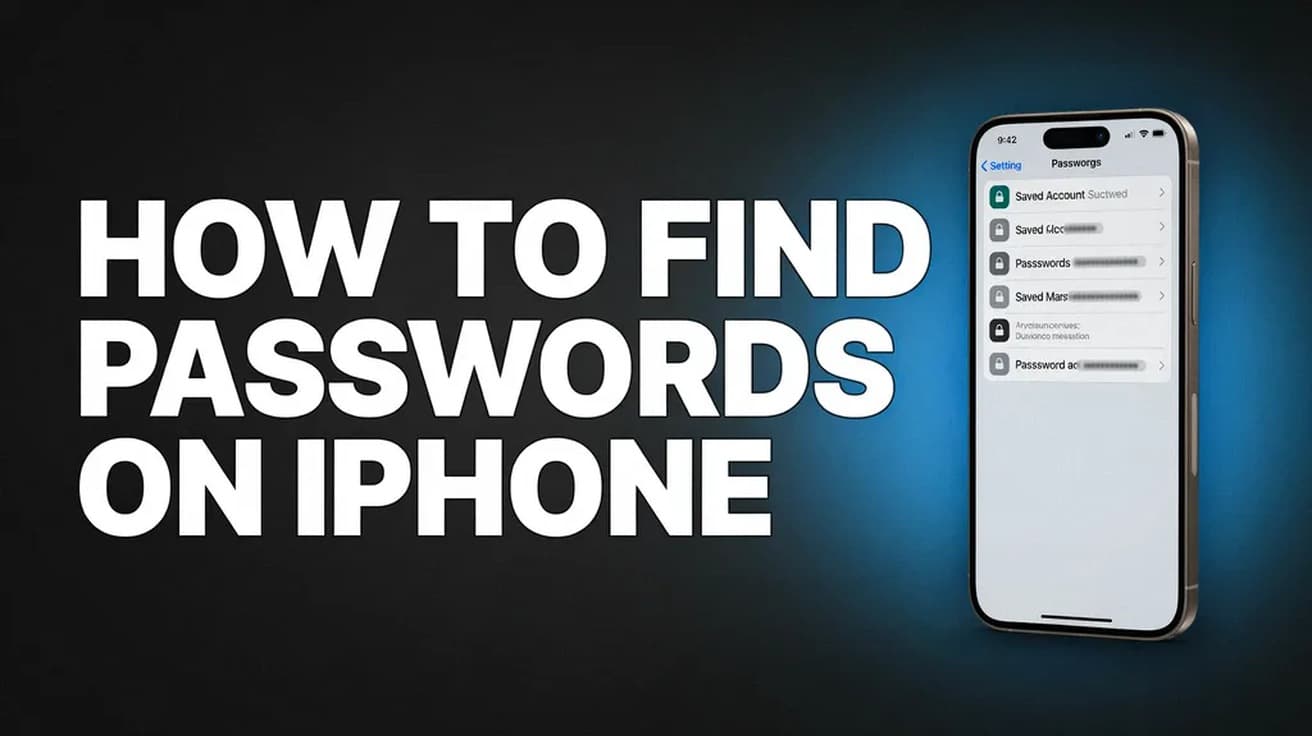
Open the Passwords app, unlock it with Face ID, Touch ID or your passcode, then tap All and choose the website or app you want. Tap the password field to reveal the characters. On iOS 17 or earlier there is no Passwords app — go to Settings, then Passwords, instead.
The question of how to find passwords on iPhone has a different answer than it did two years ago. Apple pulled saved logins out of Settings in iOS 18 and gave them their own app, called Passwords, backed by the same iCloud Keychain data as before.
Nothing was hidden or deleted in that move. But if you are still scrolling through Settings looking for a Passwords row that is no longer there, this is why.
Where to find passwords on iPhone
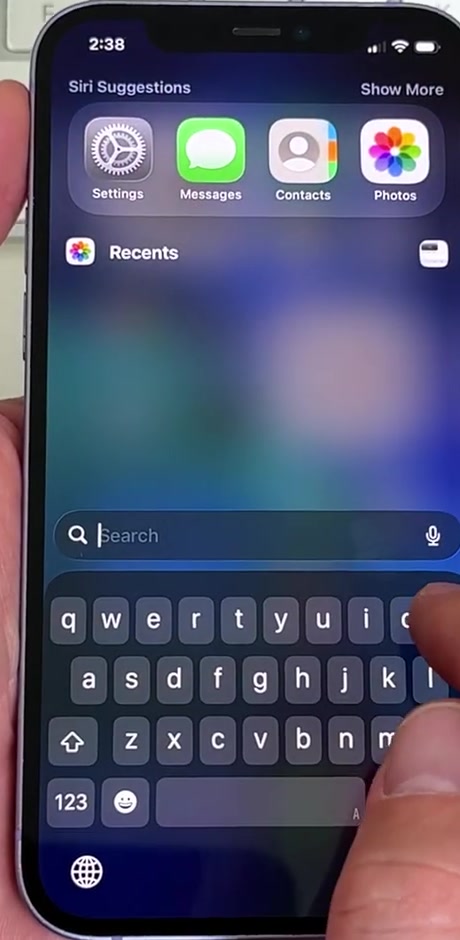
1. Swipe down on the Home Screen to open Search and type Passwords. The app ships with iOS 18 and later, so it is already on your phone even if you have never opened it.
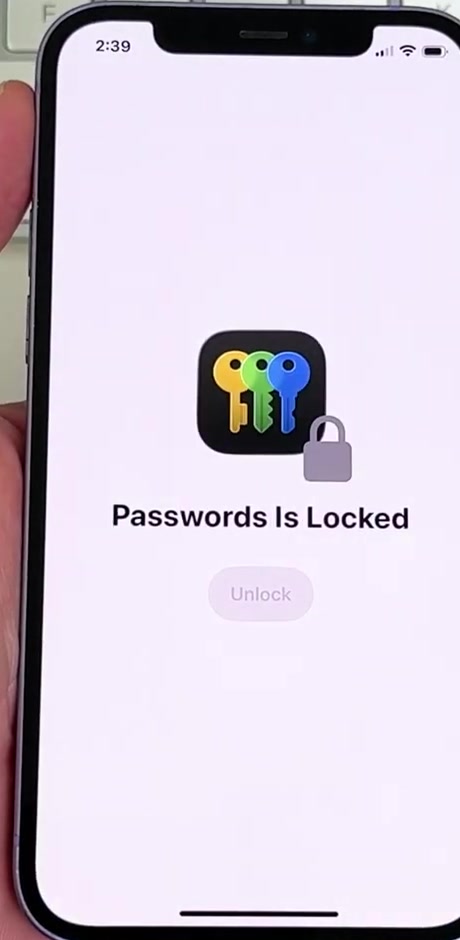
2. Open it and unlock. Passwords is locked behind Face ID, Touch ID or your device passcode every time you launch it, so you will see a lock screen before anything else.
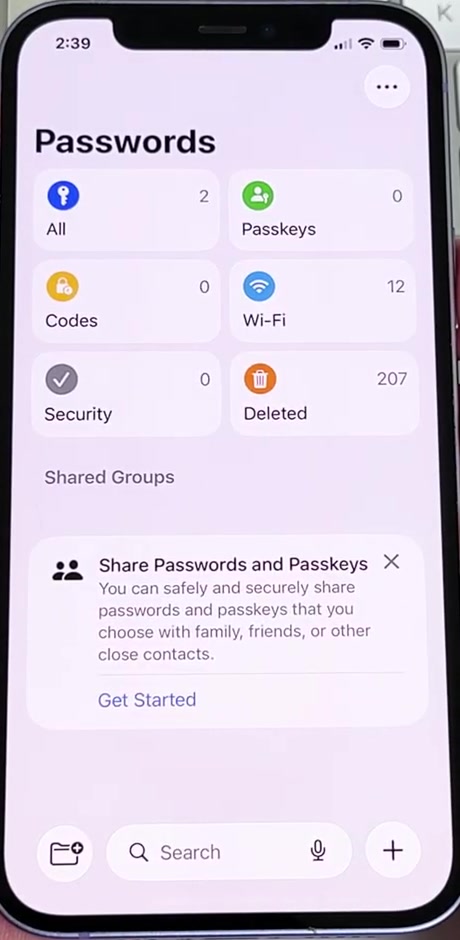
3. The main screen splits everything into categories: All, Passkeys, Codes, Wi-Fi, Security and Deleted. Tap All to see every saved login in one list. If a password seems to be missing, checking All rather than a Shared Group is the first thing Apple suggests.
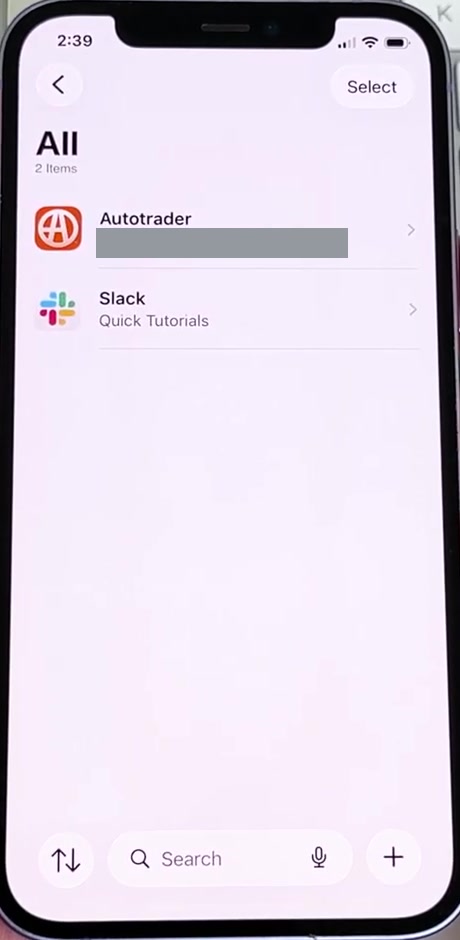
4. Find the entry you want. Scroll the list or use the search field at the bottom of the screen and type the name of the site or app.
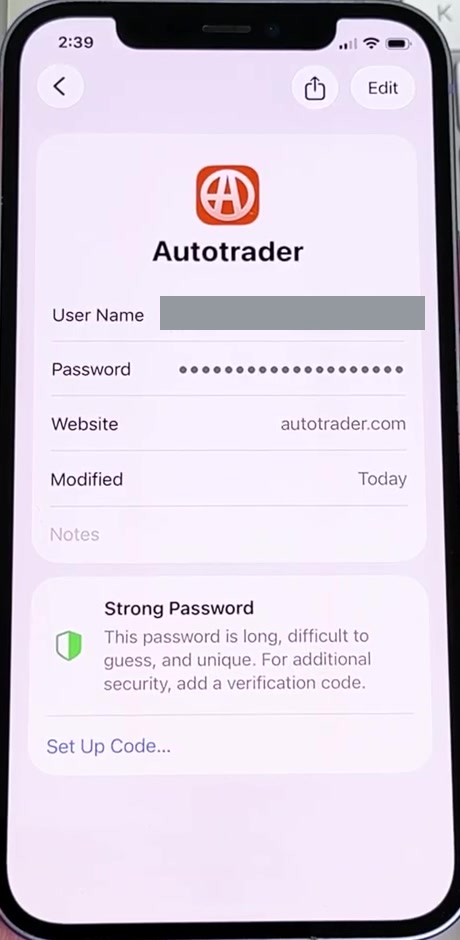
5. Tap the entry. You get the user name, the password shown as dots, the website it belongs to and when it was last changed. Tap the password field to reveal the characters.
Faster routes, and the iOS 17 version
Siri will do it without any tapping. Say "Show my passwords", or name the account directly — Apple's own example is "What is my Hulu password?" You still have to authenticate before anything appears.
On iOS 17 or earlier, the route is Settings, then scroll down to Passwords, authenticate, and select a website or app. Everything in this article works there too; only the location changed.
Wi-Fi passwords have a second route worth knowing. In Settings, tap Wi-Fi, tap the info button next to a network, then tap the Password field. For networks you are not currently on, tap Edit in the top right first. The Wi-Fi category inside the Passwords app covers the same ground.
What this does not do
Passwords holds credentials your iPhone saved for websites and apps. It does not hold your Apple Account password or your device passcode — neither is stored anywhere you can read it back, which is why recovering those means resetting them rather than looking them up.
It also has no view into a third-party manager. If your logins live in 1Password, Bitwarden, LastPass or Chrome's own password store, the Passwords app will show you nothing from them.
One consequence worth knowing before you tidy up: with iCloud Keychain turned on, deleting an entry here deletes it from every Apple device signed in to the same account. Deleted entries land in the Deleted category rather than vanishing, in much the same way deleted messages sit in a recovery list before they go for good.
Common questions
Can someone else open this on my phone? Only with your face, your fingerprint or your passcode. That last one matters more than people expect: anyone who watches you type your passcode can open Passwords on your unlocked phone. If that is a live concern, change the passcode.
A password I definitely saved is missing. Work through it in order. Make sure you are looking at All and not a Shared Group. Check the Deleted category. Then confirm iCloud Keychain is on, under Settings, your name, iCloud, Passwords and Keychain — if it was off on the device that saved the password, it never synced.
Does anyone get told when I look? No. Viewing your own saved password is a local action on your device and generates no notification to the site or to anyone else.
If the Passwords app isn't there
Check your iOS version first, under Settings, General, About. The app requires iOS 18, so anything earlier means using the Settings route above until you update through Settings, General, Software Update.
If you are on iOS 18 or later and the app still will not appear in Search, look in App Library, then check Screen Time restrictions in case it has been hidden. Passwords is also on the App Store, so it can be reinstalled if it was removed from the device outright.