How to Merge Contacts on iPhone (Duplicates Found)
iOS finds duplicate contact cards on its own and will combine them in two taps. Here is where the tool lives, what it keeps, and what to do with the pairs it misses.
 By Daniel ShuttleworthOct 7, 2026
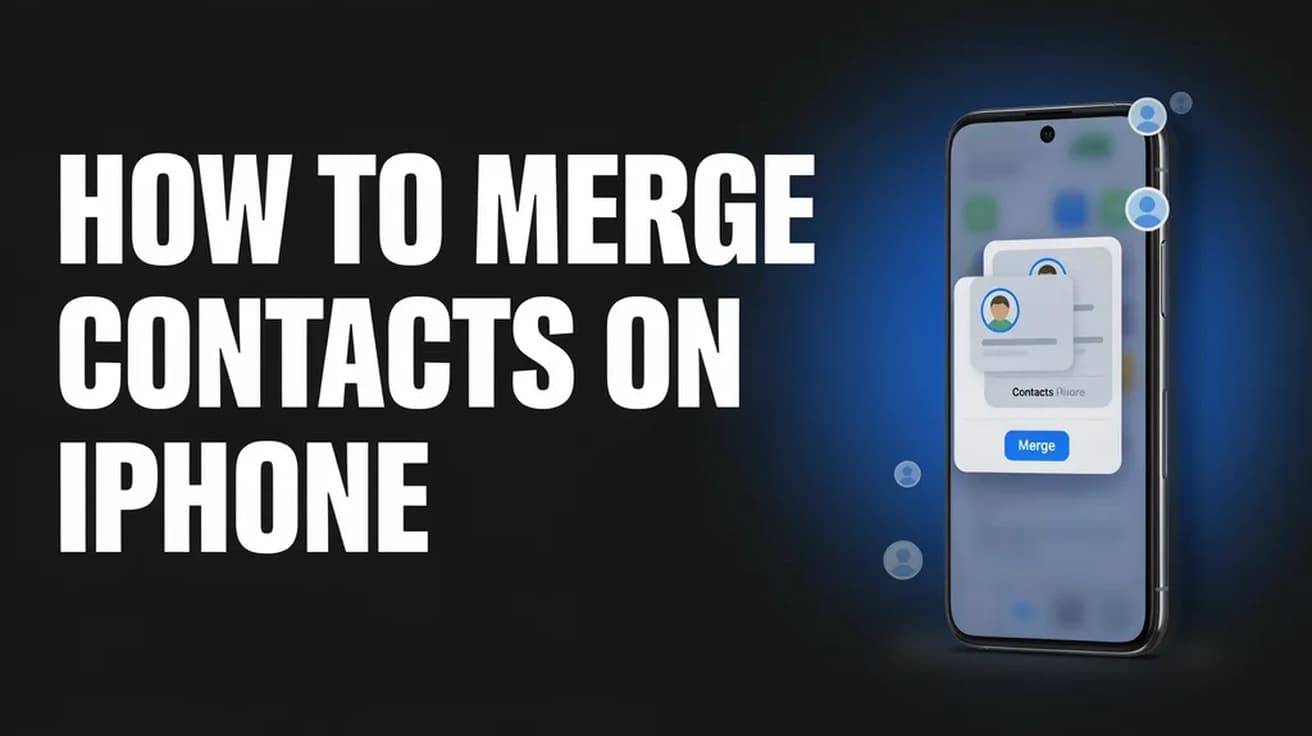
Here is how to merge contacts on iPhone: open the Contacts app, tap View Duplicates in the banner under your own card, then tap Merge All and confirm. iOS 16 and later finds the matching cards for you and folds each set into one card, keeping every unique number, email and address.
Duplicates rarely show up one at a time. They arrive in a batch, usually after you restore a phone, add a second account, or import a contact list that overlaps one you already had. The Contacts app notices them on its own and offers to clean them up.
The merge is additive, not destructive. Apple's own wording inside the banner is that merging "combines the cards, keeping all unique information in a single card for that contact" — so a work number on one card and a home address on the other both survive. There is no undo button, though, so it is worth opening one set first to see what you are about to combine.
How to merge contacts on iPhone in the Contacts app
1. Open Contacts (or the Phone app, then the Contacts tab). Under your own card at the top you should see a grey banner reading 1 Duplicate Found, or however many iOS has spotted.
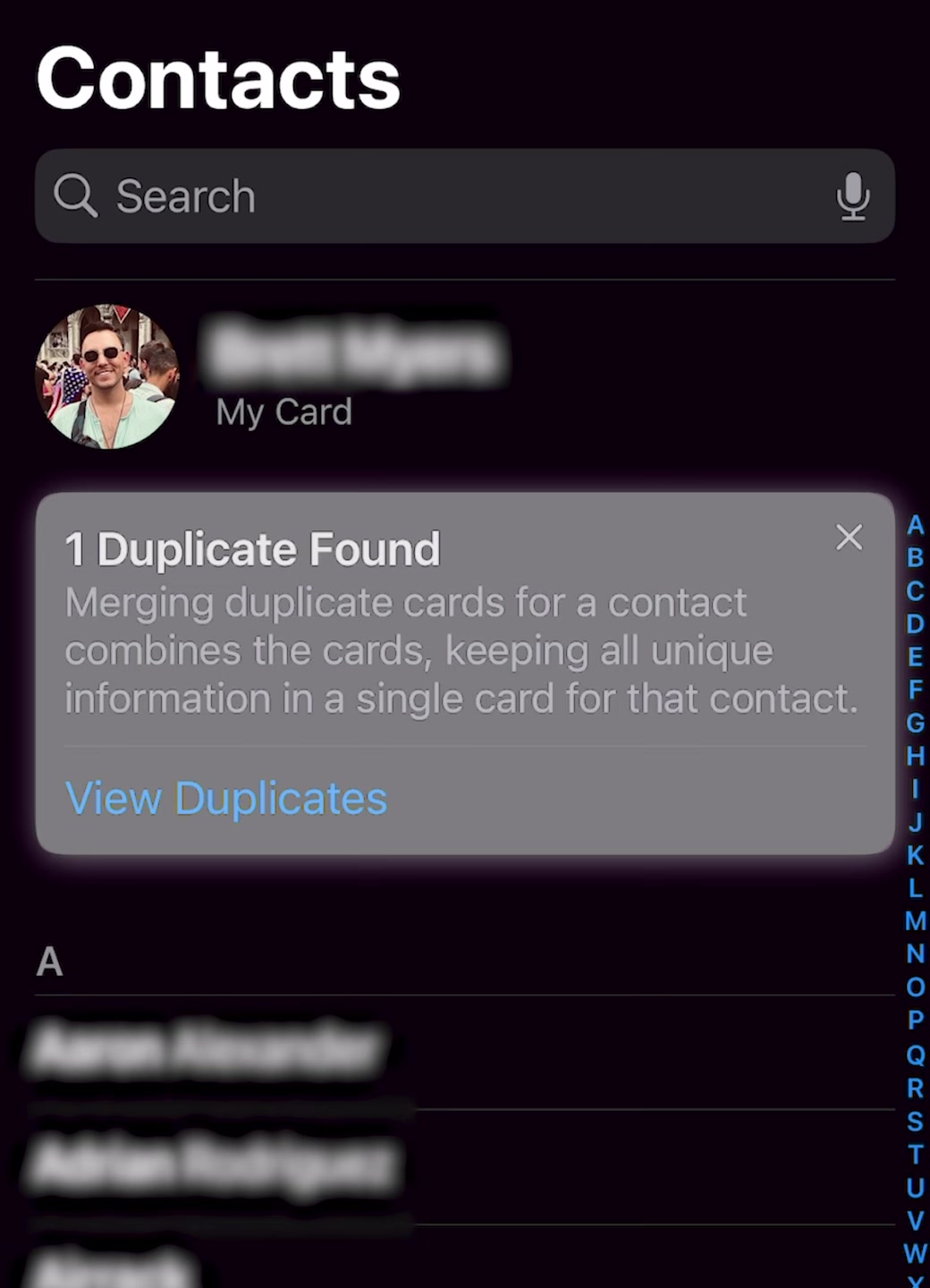
2. Tap View Duplicates. You get a Duplicates Found screen listing every set iOS wants to combine, with a card count under each name.
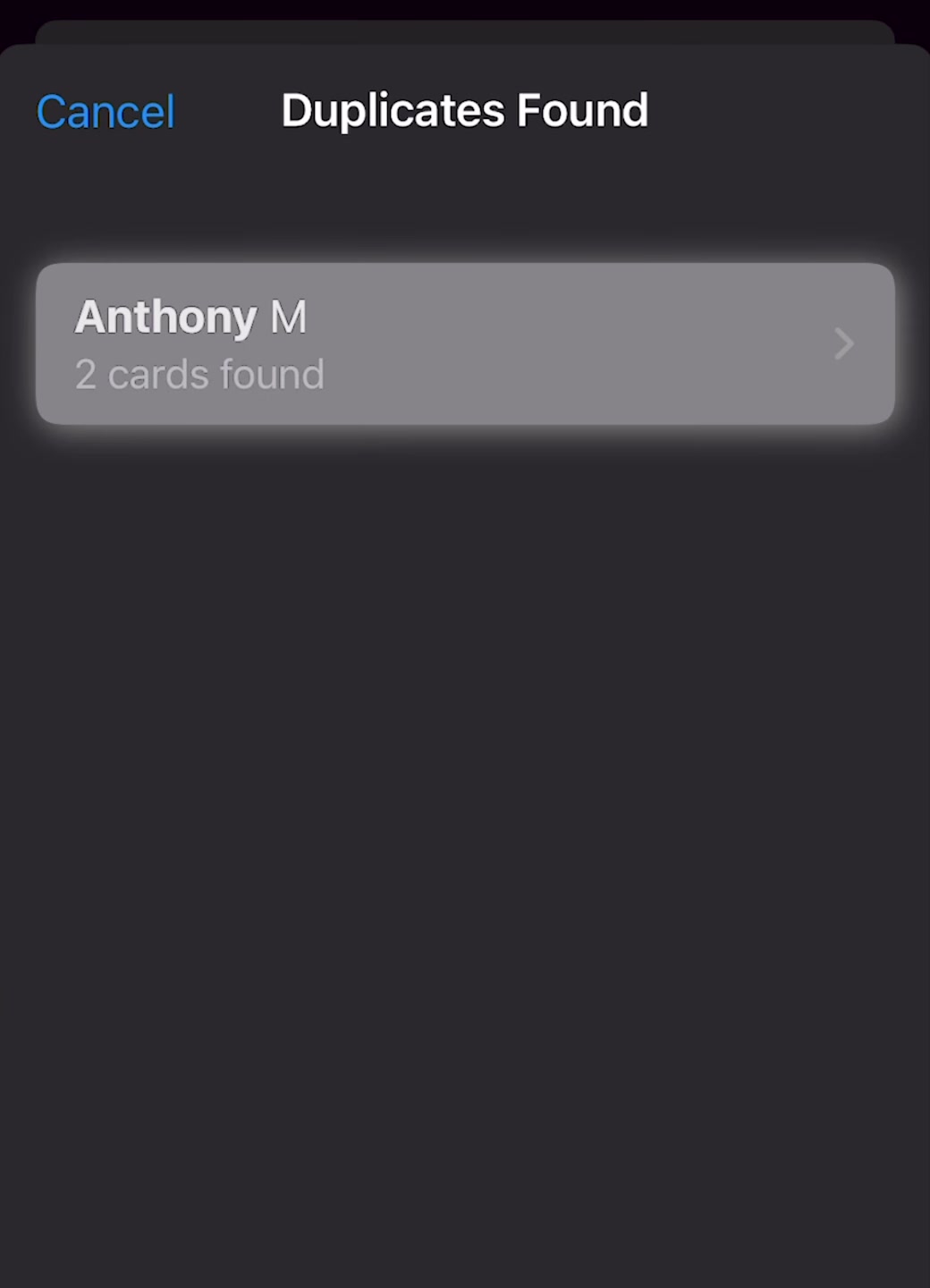
3. Tap a name to see the detail. The screen shows both source cards, which account each came from, and a Merged Contact Information preview of what the single card will contain.
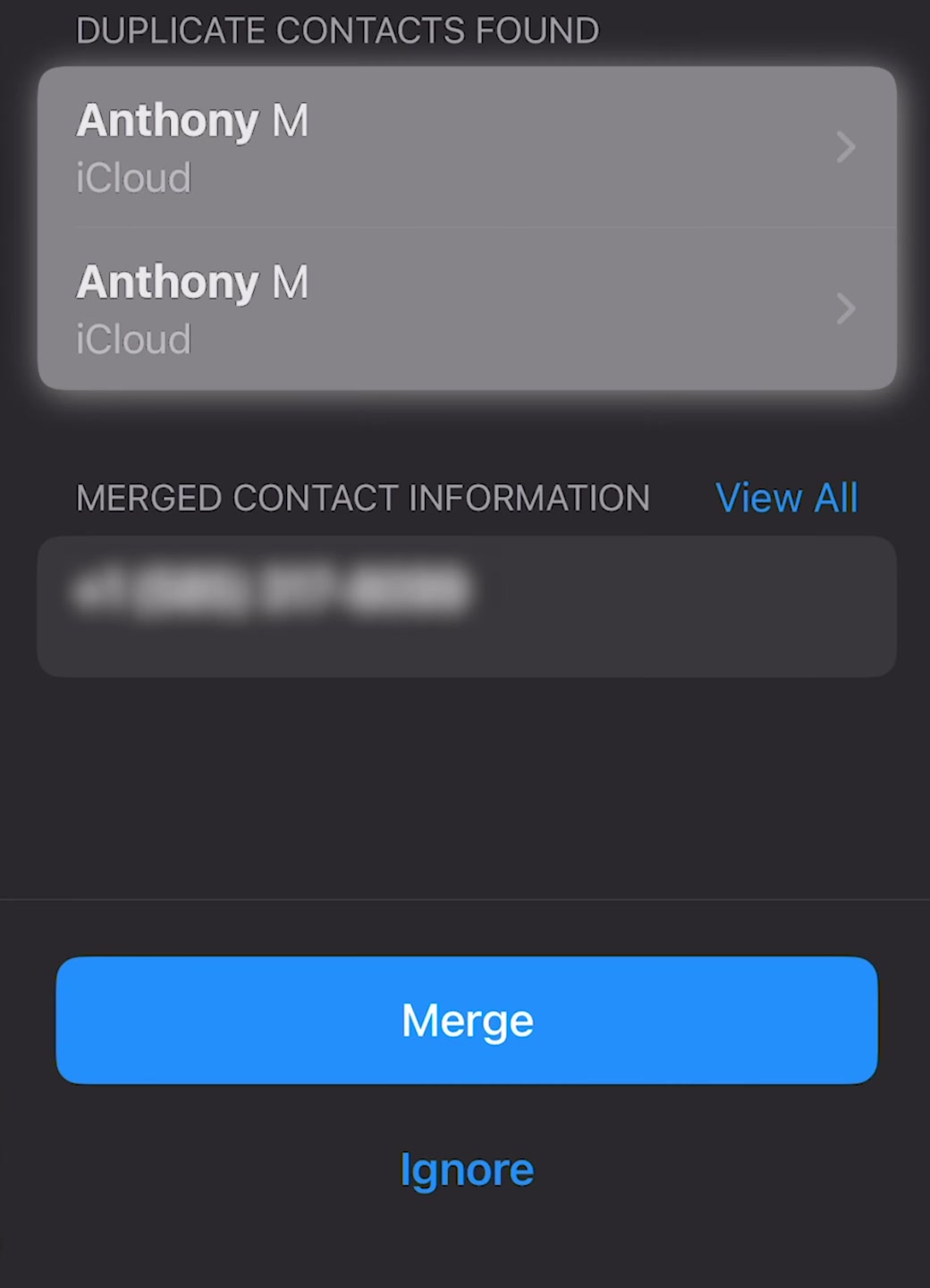
4. Tap Merge to do that one set, or go back and tap Merge All at the bottom of the Duplicates Found screen to do the lot in one go.

5. Confirm when iOS asks. The sheet repeats what will happen and gives you Merge Duplicates or Cancel.

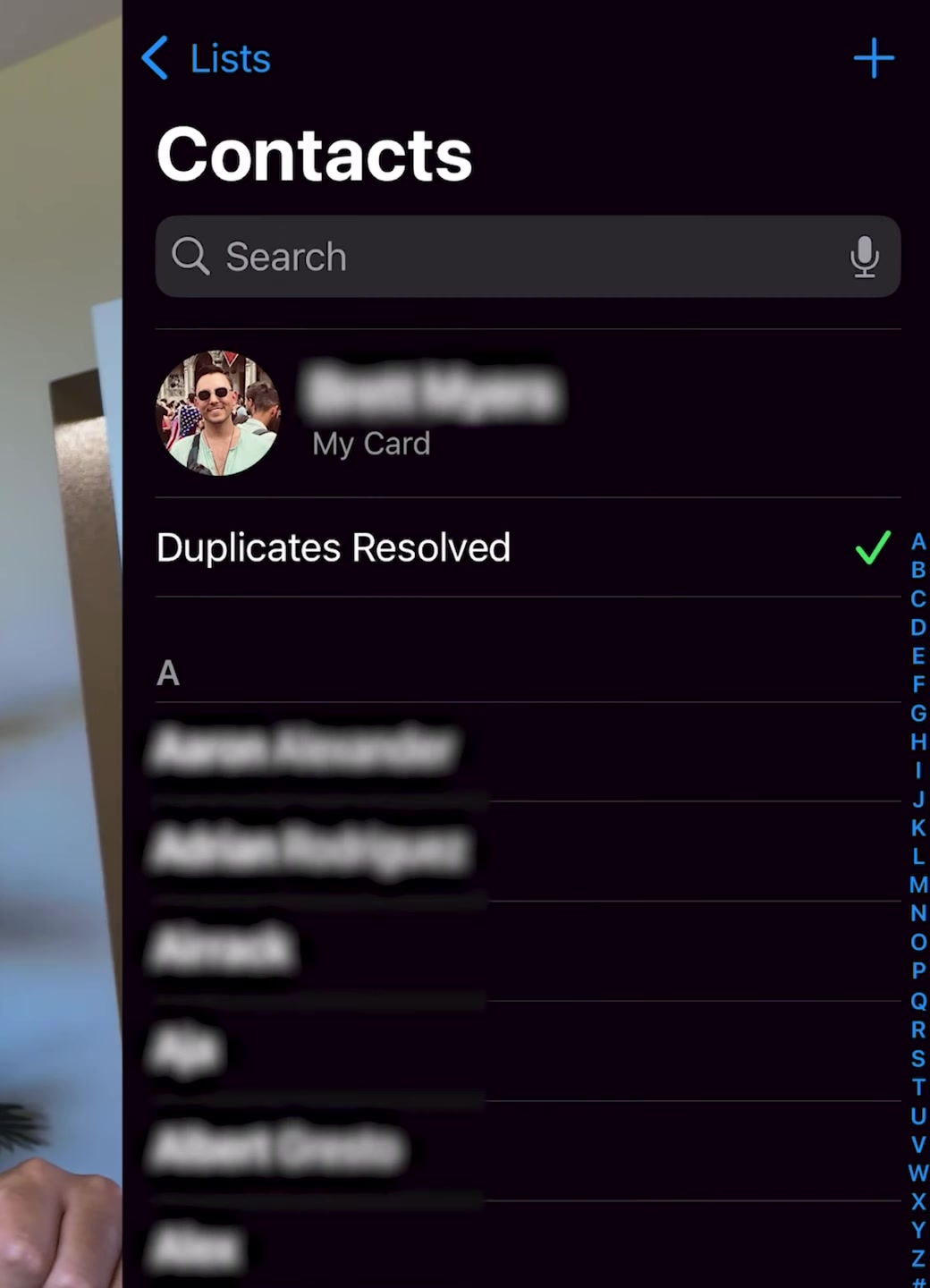
6. The banner is replaced by Duplicates Resolved with a tick. That is the whole job.
If the banner is not at the top
The banner has a small X on it, and tapping that dismisses it. The count does not disappear with it: scroll to the very bottom of your contact list and you will see the total number of contacts with Duplicates Found underneath it in blue. Tapping that line opens the same screen.
If neither the banner nor the bottom line appears at all, iOS has not found anything it considers a duplicate. That is usually not a bug — see the last section.
Merging two cards iOS did not flag
Detection is conservative, so "Bob Smith" and "Robert from work" will sit there untouched. For those, use Link Contacts instead: open one of the two cards, tap Edit, scroll down to Link Contacts, pick the other entry and tap Link, then Done.
Apple is explicit that this is a different operation: "When you link contacts, those contacts aren't merged." The two cards still exist in their accounts; your phone simply displays them as one unified card. If the linked cards carry different names, tap one of them, tap the name, and choose Use This Name For Unified Card to pick which one shows.
What this does not do
It does not clean up every account you own. A merge works on the cards your iPhone can see in the list you are looking at; a copy of the same person sitting in a Google or Outlook account you have not added to the phone is untouched and will still be there in that service. Add every account under Settings first if you want one pass to catch everything.
It also does not change how the cards are stored on the other end when you link rather than merge. Linked cards are a display convenience on the device, which is why the same person can look tidy on your iPhone and still appear twice in a webmail address book.
And it is not a delete tool. Merging leaves you with one card holding everything; it does not remove numbers, emails or addresses you no longer want. Those you prune by hand afterwards.
Common questions
Will I lose anything? Not from the merge itself. Unique information from each card is carried into the combined card. Conflicting entries, such as two different photos, are where you may notice a choice being made for you.
Why does iOS miss obvious duplicates? Sources disagree on the exact rule. Apple's guidance says duplicates are detected where the same information is listed, giving a phone number as the example; several how-to sites describe it instead as matching on identical first and last names. Either way the match has to be close, and near-misses are left for you to link manually.
Is there a faster way on a computer? On a Mac, Apple documents opening Contacts, choosing Card > Look for Duplicates, and clicking Merge, repeating until none are found. Apple's support page for duplicate iCloud contacts covers the Mac and Windows routes, not an iCloud.com one.
If the option isn't there
Check the iOS version first — the duplicate finder arrived in iOS 16, so anything older will not have it. Then give it time: the scan runs in the background and a batch of newly imported contacts may take a while to register.
If it still shows nothing, turn Contacts off and back on in your iCloud settings to force a resync, and make sure the account holding the duplicates is actually switched on for Contacts. A phone restored from a backup is a common source of a list that looks doubled but has only just finished syncing — let it settle before you go looking for the banner.