How to Turn On Roaming on iPhone
Data Roaming is the switch that lets your iPhone use another carrier's network abroad. It sits two taps deep in Settings, and dual-SIM phones need one extra step.
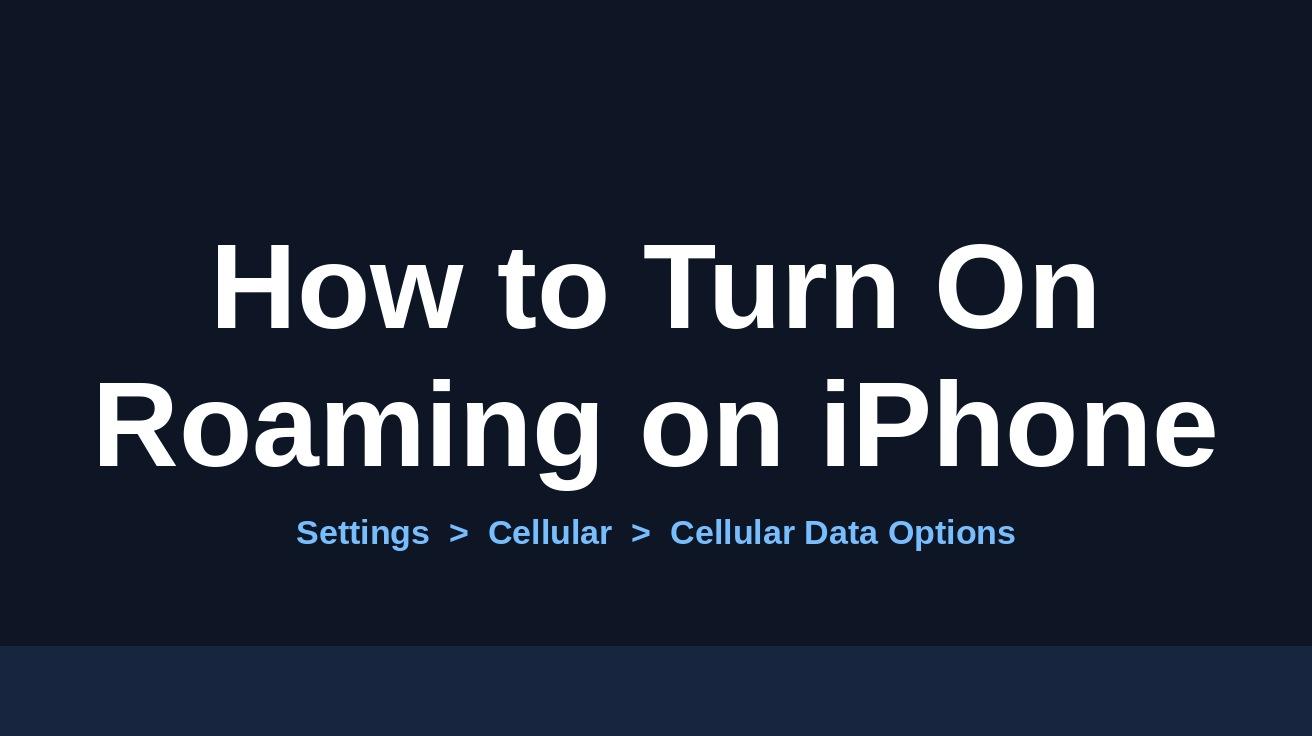
Here is how to turn on roaming on iPhone: open Settings, tap Cellular, make sure Cellular Data is on, then tap Cellular Data Options and switch on Data Roaming. On a dual-SIM or dual-eSIM iPhone, tap the line you want first, then open Cellular Data Options for that line.
Data Roaming is the switch that lets your iPhone use the internet over a cellular network that is not your carrier's own. Apple describes it as permitting internet access over a cellular data network in regions your carrier does not cover. With it off, your phone will still show bars abroad and can usually make calls, but data stops.
The setting is off by default on most plans, which is why mail and maps often go quiet the moment you land. The path below is the current one in iOS 26.
How to turn on roaming on iPhone in Settings
1. Open Settings on your iPhone.
2. Tap Cellular. On some regional versions this entry reads Cellular Data.
3. Make sure Cellular Data at the top of the screen is switched on. Data Roaming does nothing while cellular data itself is off.
4. Tap Cellular Data Options.
5. Switch on Data Roaming.
That is the whole sequence. The change takes effect straight away, and the status bar should pick up a data indicator within a few seconds once you are on a partner network.
Apple also notes that your carrier may suggest other settings alongside Data Roaming. If your carrier sent you a travel text or a settings page before your trip, follow that too.
If your iPhone has two SIMs or an eSIM
With more than one line, there is no single Data Roaming switch. Each line has its own.
1. Go to Settings and tap Cellular.
2. Under SIMs, tap the number or line you want to change.
3. Tap Cellular Data Options, then switch on Data Roaming.
This matters if you are travelling on a local travel eSIM while keeping your home number active. Turning roaming on for the travel eSIM and leaving it off for your home line is the usual arrangement, because the travel plan is the one meant to be used abroad.
What turning on Data Roaming does not do
It does not buy you a roaming plan. Apple's guidance is to contact your carrier before you travel to see what international roaming your plan includes or what you can add. Some plans bundle roaming at no extra cost; others bill it separately.
It does not cap your spending either. Apple's documentation warns that if you go past the data allowance of an international plan, you may run out of data or see slower speeds. The switch simply permits the connection.
And it is not only an overseas setting. Depending on your carrier, data roaming can also apply when you travel domestically and your phone picks up another network. Your carrier can tell you what its policy is.
Common questions
Will turning it on cost me money? That depends entirely on your plan, not on the switch. Apple's advice is to check with your carrier about possible charges before you rely on roaming.
Should I leave it on at home? If you are on your own carrier's network, Data Roaming is not used, so leaving it on changes nothing day to day. People who travel often tend to leave it on and watch their usage instead. You can keep an eye on that in Settings; here is how to see data usage on iPhone.
What about Voice Roaming? On some carriers you will also see a Voice Roaming switch in the same screen. Apple documents this for CDMA networks, and it controls calls rather than data.
If Data Roaming isn't there
The contents of Cellular Data Options vary by carrier and device, so the screen will not look identical on every phone. If the switch is missing, the usual causes are that cellular data is off, that no line is selected on a dual-SIM phone, or that your carrier does not offer roaming on that plan.
If the switch is on and you still see No Service or SOS only abroad, Apple suggests confirming Data Roaming is on for the right line, checking that Settings > General > Date & Time has Set Automatically enabled, and toggling Airplane Mode for about 30 seconds. If that fails, try a different SIM or contact your carrier.
Where roaming is expensive or unavailable, Wi-Fi is the fallback worth setting up first. If you are joining a hotel or cafe network and are not sure which one is which, this explains how to find the SSID of a Wi-Fi network.