How to Find SSID of Wifi on Any Device
Your SSID is simply the name of your Wi-Fi network. Here is where to read it on Android, iPhone, Mac, Windows and the router itself.
Your SSID is just your Wi-Fi network name. The short answer to how to find SSID of wifi: open your phone's Settings, tap Wi-Fi, and read the name sitting at the top of the list — that is the network you are joined to. If nobody has renamed the router, the same name is printed on the sticker on its underside.
SSID stands for Service Set Identifier. It is the label defined in the 802.11 wireless standard that your router broadcasts so nearby devices can list it, and it can be anywhere from zero to 32 octets long. In everyday use, it is the name you tap to connect.
You usually need it for one of two reasons: a new device is asking which network to join, or support staff want to know which network you are on. Either way, three places hold the answer — a connected phone, a connected computer, or the router itself.
How to find SSID of wifi on an Android phone
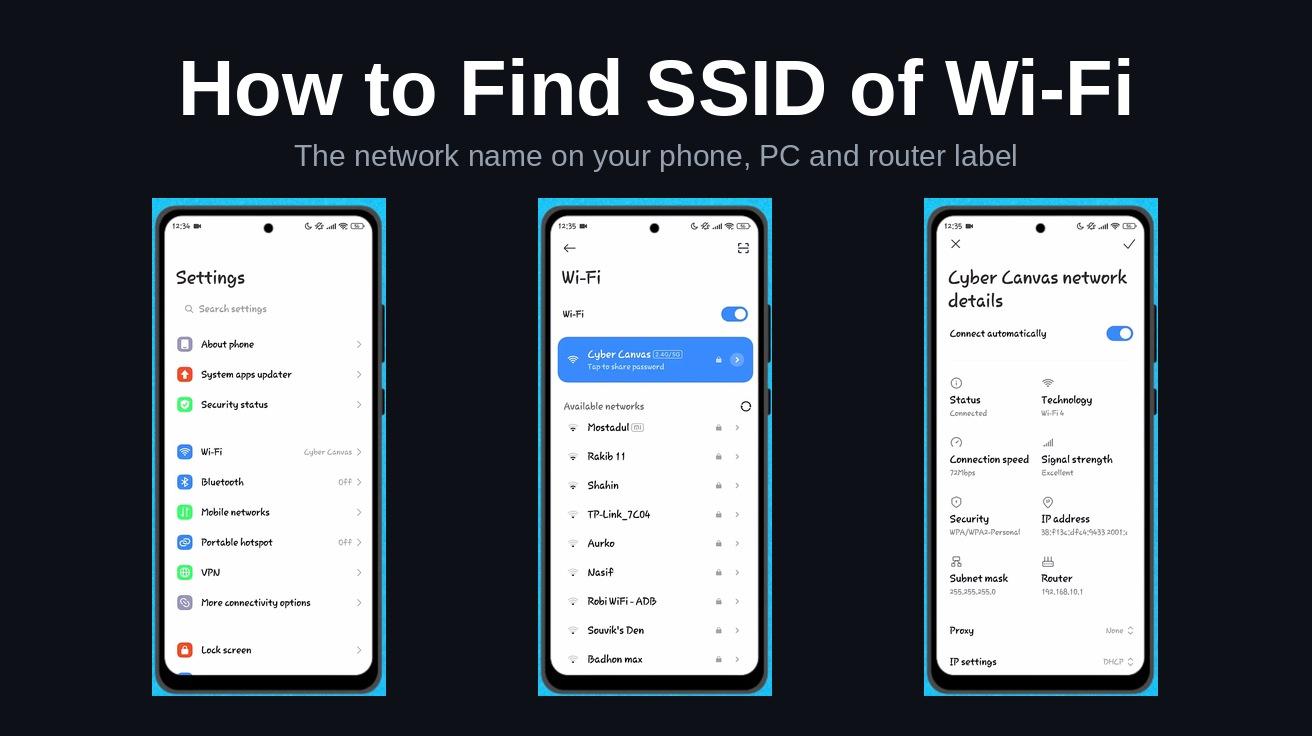
1. Open Settings. Google's own path is Network & internet, then Internet, but most manufacturers rearrange this — on the phone below, Wi-Fi sits on the first Settings screen.
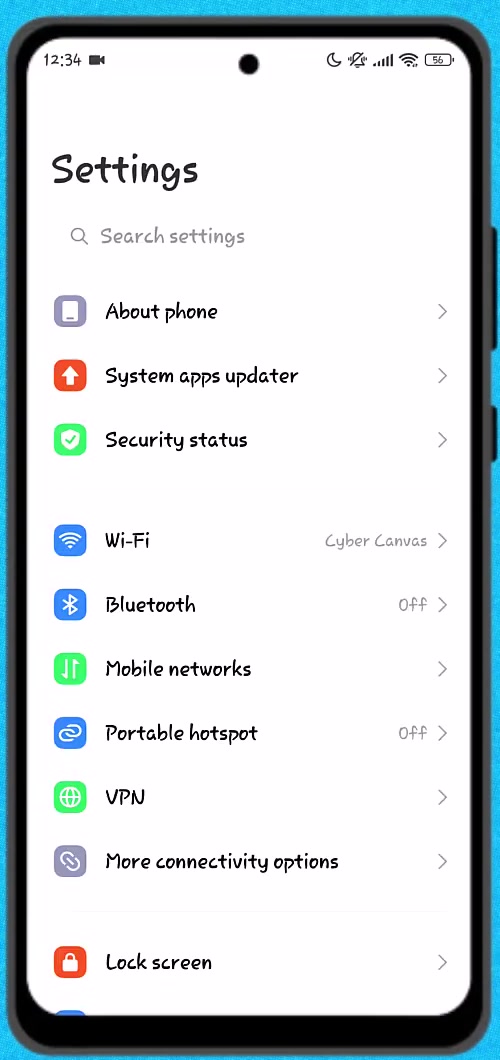
2. Look at the grey text to the right of Wi-Fi. On many Android skins the connected network name is shown there, so you can stop at this screen.
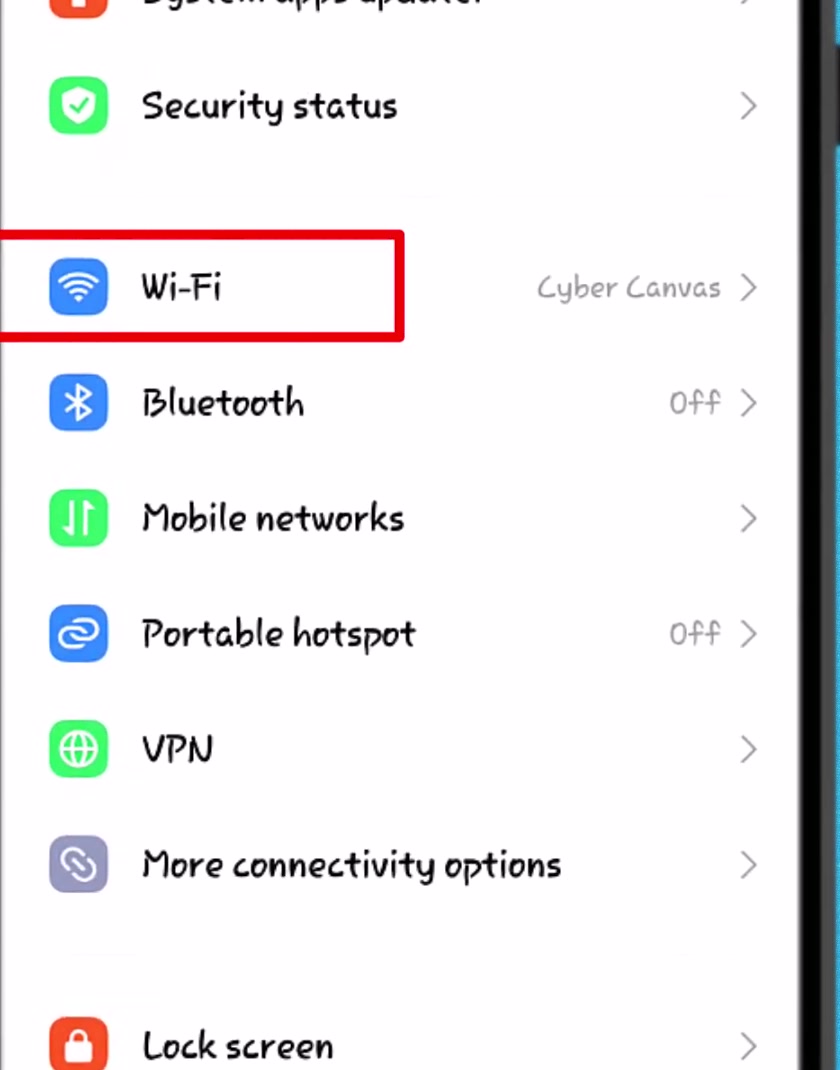
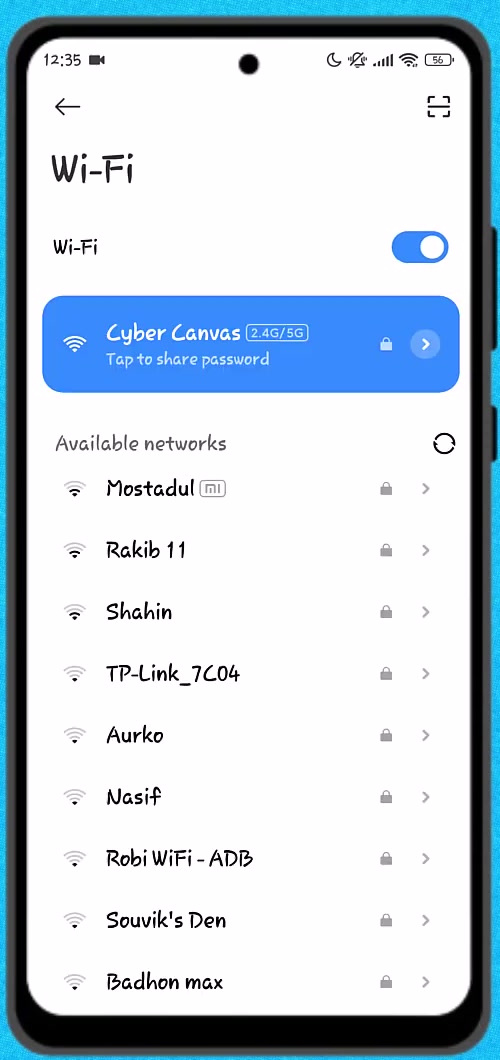
3. Tap Wi-Fi to open the full list. The highlighted entry at the top is your SSID; everything under Available networks belongs to neighbours and nearby businesses.
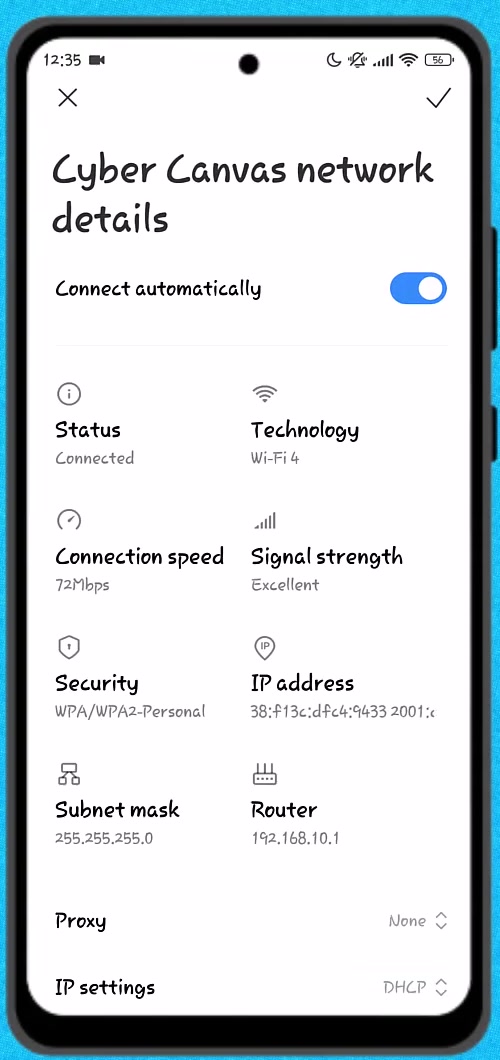
4. Tap the connected network to confirm it. The details panel repeats the name as its heading and adds the security type, signal strength and router address.
Faster routes on other devices
iPhone and iPad: open Settings, tap Wi-Fi, and look for the blue checkmark. The network it sits beside is your SSID.
Mac: click the Wi-Fi status menu in the menu bar. The connected network carries the Wi-Fi icon to its left; hold Option while clicking to see its channel, band and security standard as well.
Windows 11: click the network icon in the taskbar, then the arrow on the Wi-Fi button labelled Manage Wi-Fi connections. For the full picture, go to Settings > Network & internet > Wi-Fi > Manage known networks. Typing netsh wlan show interfaces in Terminal also prints an SSID line, along with the radio type and signal strength.
The router itself: turn it over. The sticker is labelled SSID, Network Name or Wi-Fi Name, often next to a barcode. TP-Link builds its recent default names from the last four characters of the router's LAN MAC address, which is printed on the same label.
What the SSID does not tell you
It is not the password. Reading the network name off a label or a settings screen gives you no access on its own, and the password is a separate line on that sticker.
It is also not fixed. If anyone has renamed the network, the label is out of date and only the router's admin page or a connected device will be right. Menu wording varies by brand — Netgear puts it under Basic > Wireless Settings, Linksys under Wireless > Basic Wireless Settings — so search for "SSID" or "Wireless Network Name" once you are in.
Common questions
Why do I see two names that look almost identical? Many routers broadcast the 2.4 GHz and 5 GHz bands as separate networks with a suffix on one of them. Both are yours.
Does changing the SSID break anything? Every device that remembers the old name has to be pointed at the new one, which means re-joining smart speakers, printers and cameras by hand. Our guides for connecting a Vizio TV to Wi-Fi and reconnecting a Ring device cover that step.
If the network name isn't there
A router can be set to hide its SSID, which keeps it out of the list of networks your devices can see. TP-Link's documentation is plain about the trade-off: with the name hidden, you have to type it and the password in by hand on every device. If you suspect that is the case, check the router's wireless settings page, where the same screen holds both the name and the broadcast switch.
If the list is empty instead, Wi-Fi is switched off or the router is down — neither of which the network name can fix.