How to Connect Vizio TV to WiFi (SmartCast Steps)
Vizio keeps WiFi in one place: Menu, then Network. Here is the full path with screenshots, what to do when your network is not listed, and the Walmart account change that now sits alongside it.
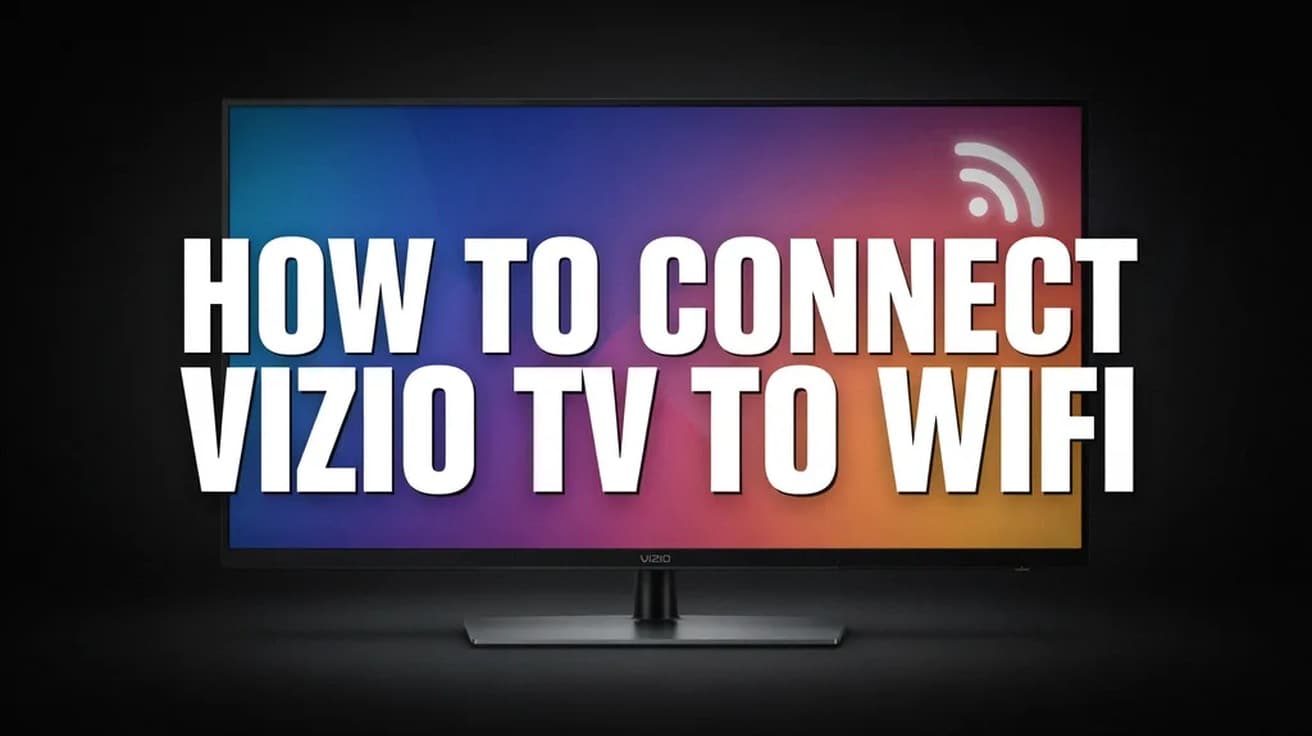
To connect a Vizio TV to WiFi, press Menu on the remote, select Network, highlight your network under Wireless Access Points, enter the password and select Connect. If an Ethernet cable is plugged into the TV, unplug it first — Vizio hides the wireless menu while a wired connection is attached.
Vizio keeps this setting in one place, and the path has stayed the same across SmartCast model years. Vizio's own manuals for the V-Series and the M-Series Quantum give the identical sequence, so if you have the remote and know your WiFi password, this takes about a minute.
One thing worth knowing before you start. Walmart, which now owns Vizio, says that new Vizio and Onn powered by Vizio TVs set up from mid-March 2026 onward ask you to sign in with or create a Walmart account. Joining your WiFi network is a separate step and still works on its own, but apps, streaming services and software updates sit behind that account.
How to Connect Vizio TV to WiFi From the Menu Button
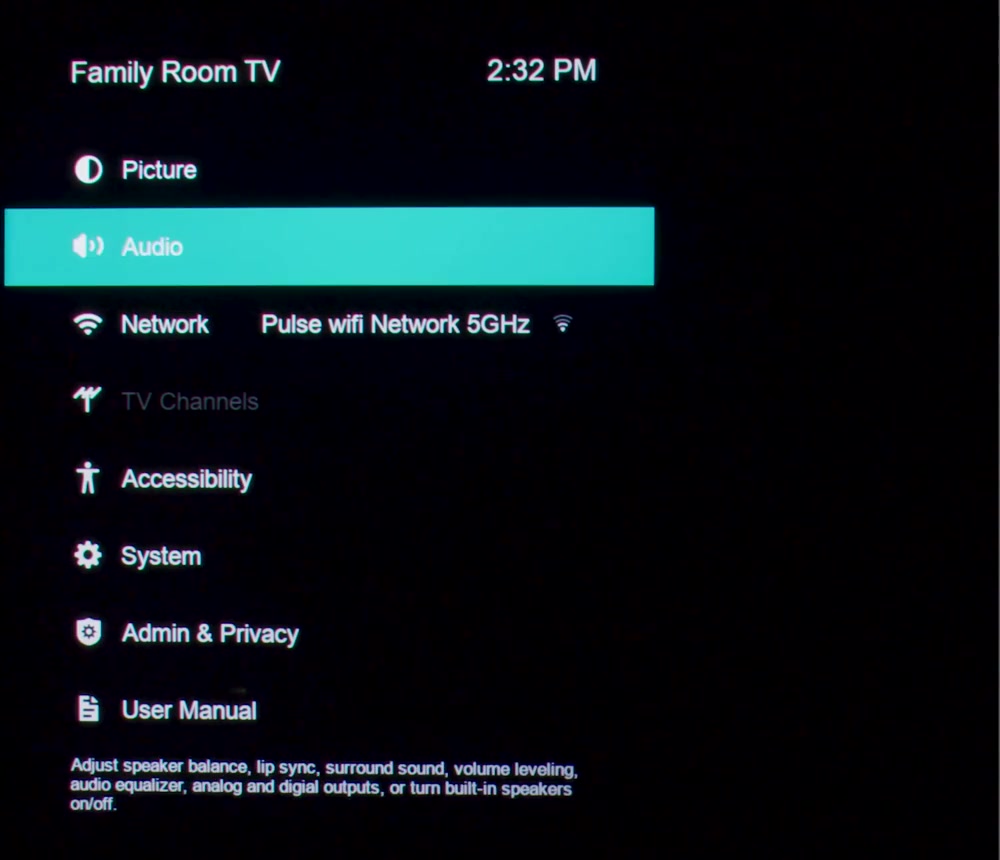
1. Turn the TV on and press the Menu button on the Vizio remote. Some remotes use a gear icon instead. On sets that have received the newer Vizio Home Screen, move left into the side navigation and open Settings from there.
2. Highlight Network and press OK. The row shows the name of the network the TV is currently using, which is the quickest way to tell whether it is already online and which band it joined.
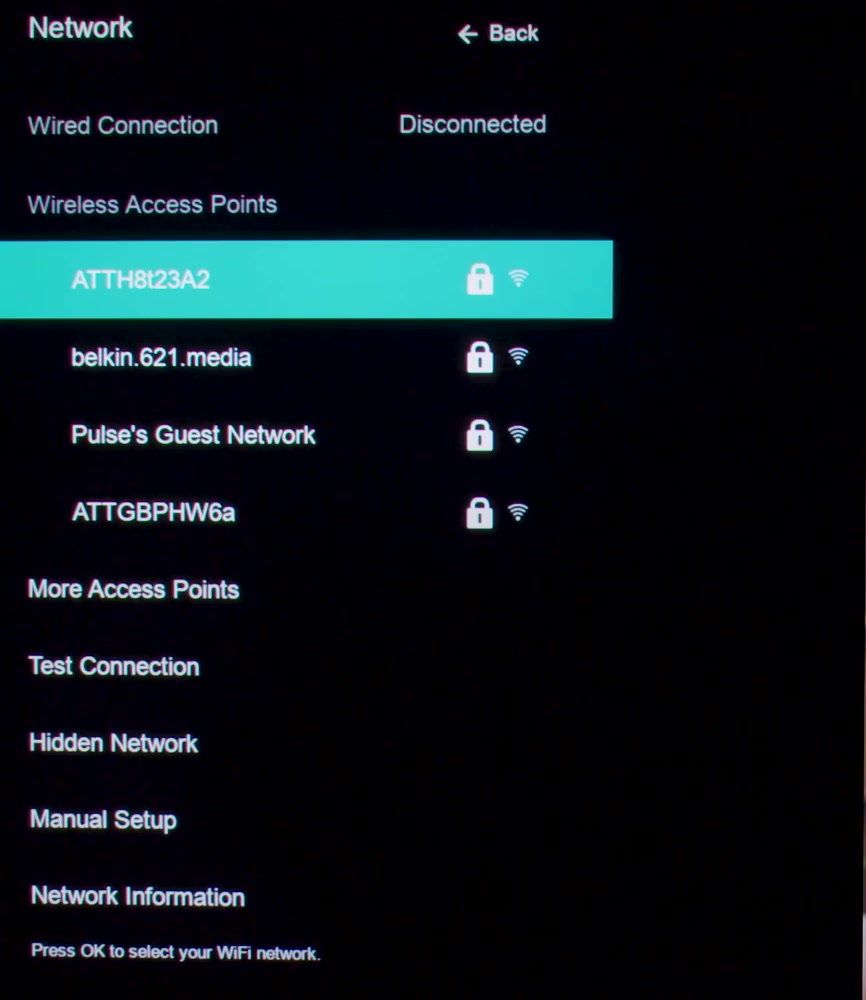
3. Under Wireless Access Points, highlight your network and press OK. A padlock means the network is secured and will ask for a password.
4. Enter the password. Vizio labels this screen Connect to Access Point and asks for your WPA passphrase, which is the same thing as your WiFi password. Capitals, numbers and symbols all have to match exactly — use the arrow key for uppercase and the .@# key for symbols.
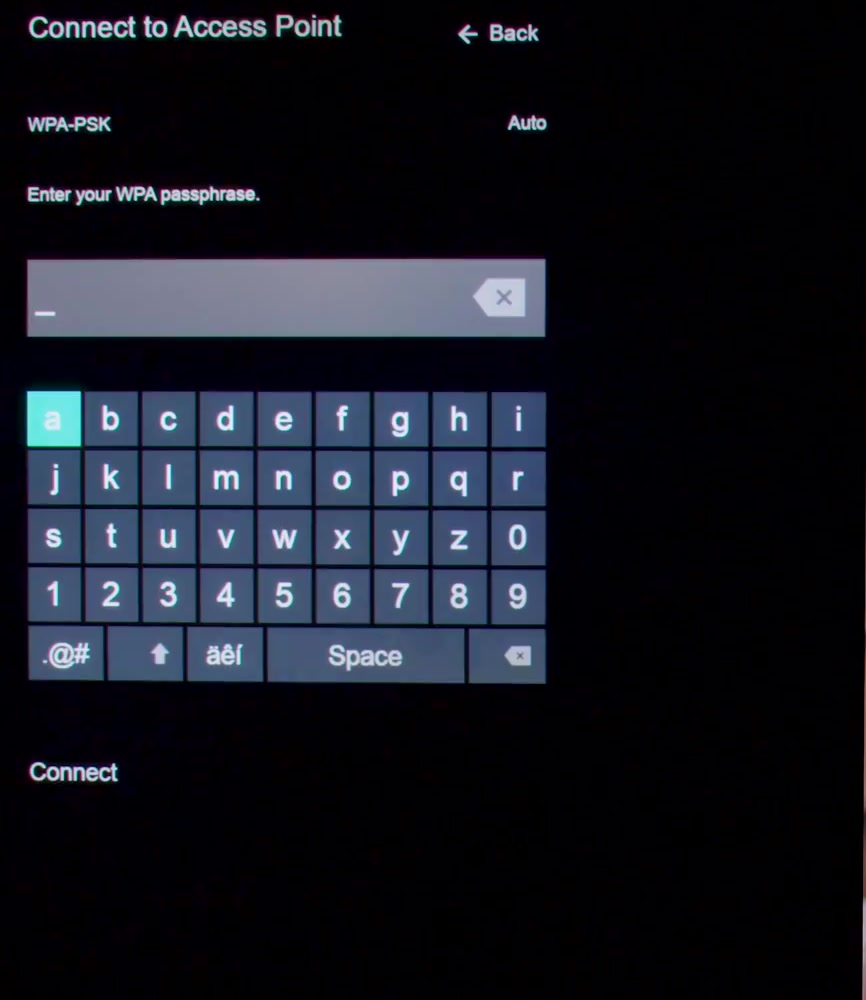
5. Highlight Connect and press OK. The TV returns to the Network screen once it has joined.
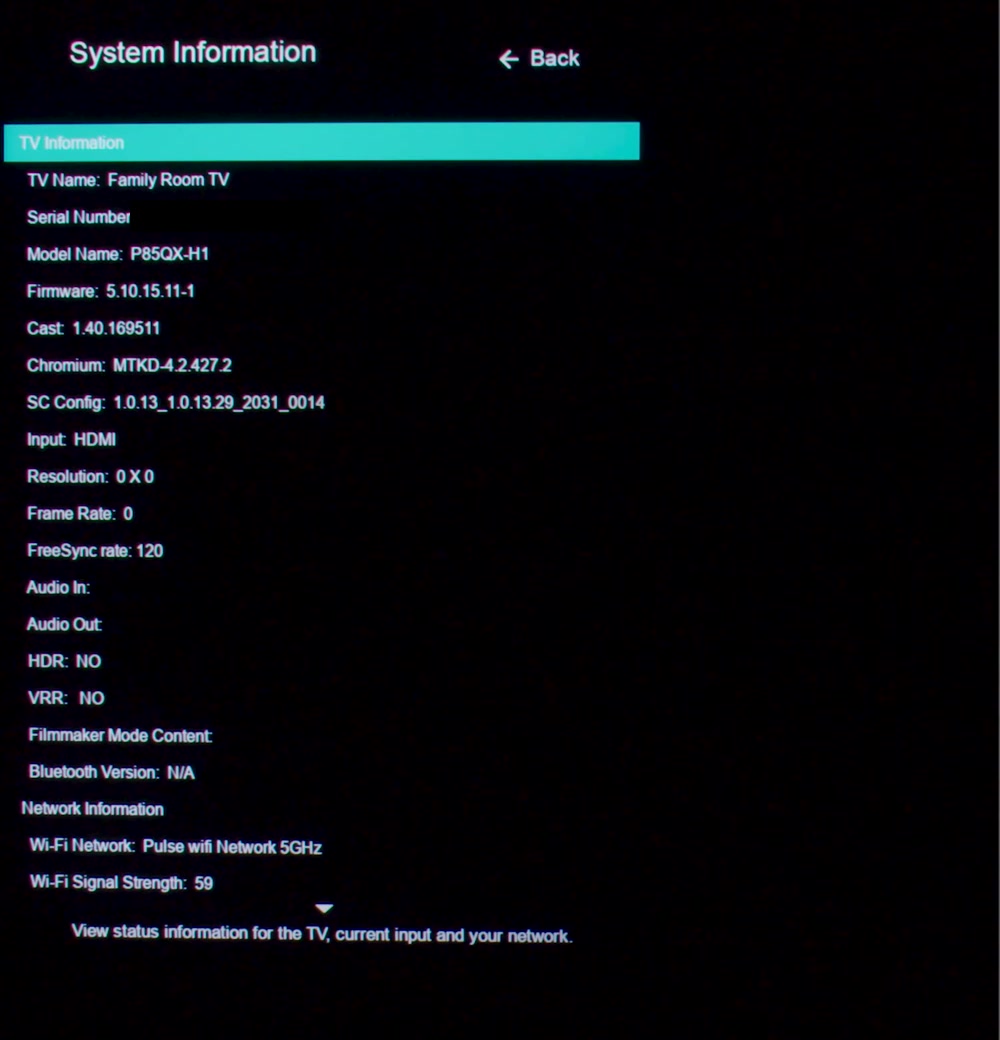
6. To confirm it worked, open Admin & Privacy > System Information and scroll to Network Information. It names the network the TV joined and gives a signal strength figure. Menu > Network > Test Connection does the same job in one step.
If your network isn't in the list
The first screen shows only the strongest few access points. Select More Access Points to load the full list before assuming your router is invisible.
If your router does not broadcast its name, use Menu > Network > Hidden Network instead. Vizio asks for the Access Point Name first, then Connect, then the password — the reverse of the usual order, which catches people out.
Band naming matters too. If your router publishes 2.4GHz and 5GHz under separate names, they appear as two entries, and an older TV may only see the 2.4GHz one. Newer Vizio sets list Wi-Fi 6E tri-band in their specifications, so both bands should show.
For a network that needs a fixed address, Menu > Network > Manual Setup turns DHCP off and opens fields for IP Address, Subnet Mask, Default Gateway and two DNS servers. Most home networks never need this.
What this does not do
Joining WiFi does not sign you in to anything. On new sets covered by the mid-March 2026 change, Walmart's help page says you can skip the account sign-in and still use basic functions such as HDMI inputs and an antenna — apps and streaming are what stay switched off until you sign in.
It does not update the TV either. Firmware is a separate trip to System > Check for Updates, which on some models sits under Admin & Privacy instead.
And it only moves this one device. If you joined a new network because you changed your router password, everything else in the house needs the same treatment — reconnecting a Ring doorbell to WiFi is its own procedure, as is every streaming stick and speaker you own.
Common questions
Can I do this without the remote? Sources disagree here, and it is worth knowing why. Several guides point you at Vizio's mobile app as a stand-in remote. The catch is that the app controls the TV over your network, so it cannot normally be the thing that puts the TV onto that network in the first place. Vizio's own manuals describe the on-screen menu reached with the remote. A universal remote, or the physical buttons on the TV's body or edge, are the realistic alternatives.
Why is the Network menu missing? Almost always an Ethernet cable. Vizio's manual is explicit: if the TV is connected to a network with an Ethernet cable, the wireless network connection menu does not appear at all. Unplug the cable and it comes back.
The TV says it is connected but nothing loads. Check another device on the same network first. If everything is offline, the problem is the router, not the TV. If only the TV is affected, power cycle both, then run Test Connection.
If the option isn't there
Unplug any Ethernet cable, then restart the TV from the power button rather than the remote. If the Network screen still will not load, check for a firmware update over a wired connection, since that path works even when WiFi does not.
A factory reset — Reset & Admin, then reset to factory defaults — is the last step before calling support, and it erases every setting on the TV, so treat it as a last resort rather than a quick fix. If the set's smart platform is the part that keeps failing, a separate streaming device plugged into HDMI sidesteps it entirely; setting up a Roku takes about the same time as this did.