How to Connect Brother Printer to WiFi
Brother printers join a wireless network through the control panel Setup Wizard, the WPS button, or the Brother Mobile Connect app. Here is each route, plus the 5 GHz band issue that quietly blocks all of them.
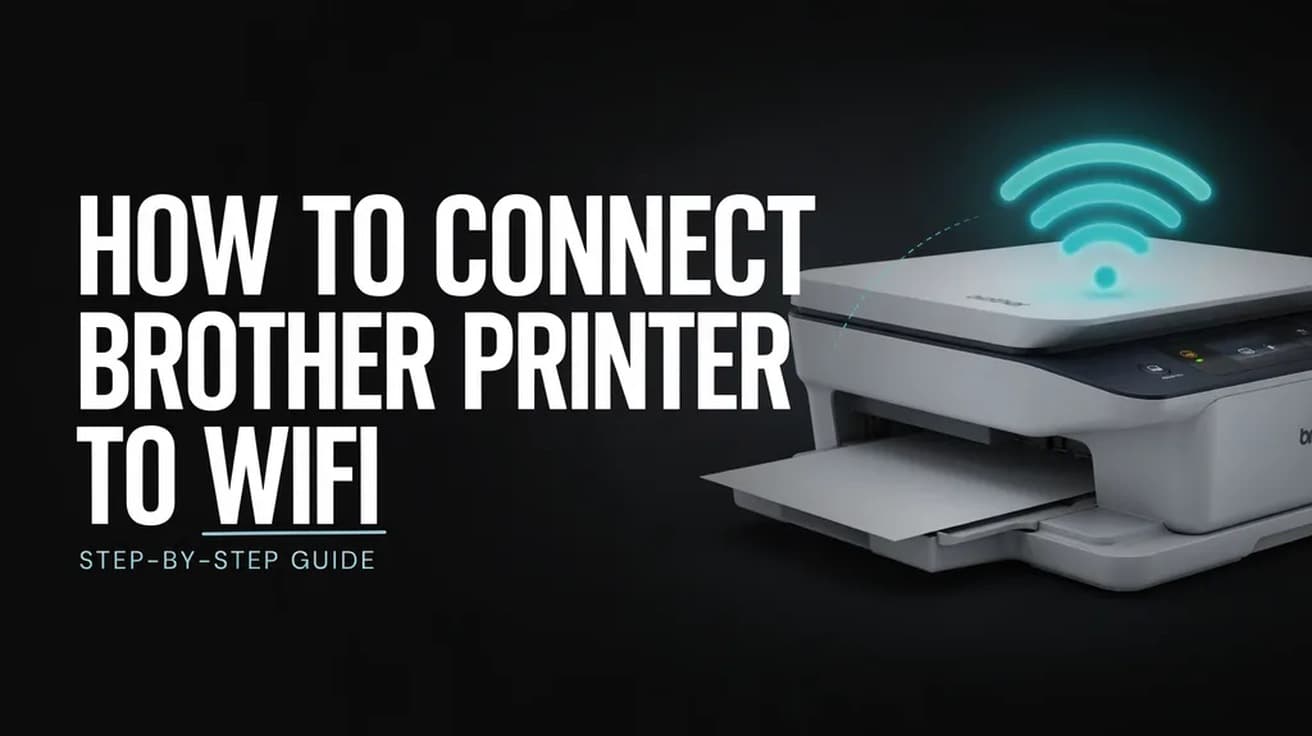
To connect a Brother printer to WiFi, press Settings (or Menu) on the printer, then choose Network → WLAN(Wi-Fi) → Setup Wizard — called Find Wi-Fi Network on newer touchscreen models. Answer On or Yes when it asks to enable WLAN, pick your network name from the list, and type your Wi-Fi password. The screen reads Connected when it has joined.
Before you start the wizard, write down two things: your network name (Brother calls it the SSID) and your Wi-Fi password (the Network Key). Brother's own setup documentation is blunt about this — without both, you cannot finish wireless setup, and Brother Customer Service cannot look them up for you. Both are usually printed on a label on the side or underside of your router.
It is also worth knowing what this process is and is not. Joining the printer to your Wi-Fi puts it on the network. It does not install anything on your computer or phone. That is a separate step, and skipping it is the most common reason a printer that says Connected still does not appear when you go to print.
How to connect a Brother printer to WiFi from the control panel
This is the route that works on the widest range of models, from basic mono laser units with a two-line screen to inkjet all-in-ones with a colour touchscreen. The menu names below are Brother's; where a touchscreen model words things differently, both versions are given.
1. Check the wireless settings on a computer or phone already on the network and write down the SSID and Network Key exactly as they appear, including capitals.
2. On the printer, press Settings or Menu.
3. Use the up or down arrow to select Network, then press OK. On a touchscreen, tap it instead.
4. Select WLAN(Wi-Fi) and press OK.
5. Select Setup Wizard and press OK. On newer touchscreen machines this entry is labelled Find Wi-Fi Network instead.
6. The screen asks WLAN Enable? Press the down arrow to choose On, or tap Yes. This starts the wizard. The up arrow, or No, cancels it.
7. The printer scans and lists the networks it can see. Use the arrows to highlight your SSID and press OK.
8. Enter your Network Key and press OK, then press the down arrow to apply the settings. If your network is genuinely open — Open System authentication with no encryption — the printer skips this step.
9. The printer tries to join. When the display shows Connected, it is on the network.
10. Install the driver and software for your model from the Downloads page at support.brother.com. Until you do, the printer is on Wi-Fi but your computer has no way to send jobs to it.
One quirk worth knowing if you are on an old network: a router may hold several WEP keys, but Brother machines only use the first one.
Two faster routes: the WPS button and the phone app
If your router has a WPS button, you can skip typing the password entirely. On the printer, go to Network → WLAN → WPS and press OK, then choose On at the WLAN Enable? prompt. When the screen reads Press Key on rtr, press the WPS button on the router and then press the up arrow on the printer. It finds the router and connects on its own.
Two conditions apply. The router has to support WPS, and only one WPS-active router should be within range while you do it — otherwise the printer can latch onto the wrong one.
The other shortcut is Brother's own app. Install Brother Mobile Connect from Google Play or the App Store, open it, and follow the prompts to pair your phone with the machine and hand it the network details. On recent inkjet models this is the method Brother documents first, and it saves you entering a long password with arrow keys.
If your network runs on 5 GHz
This is the single most common reason the wizard runs correctly and still fails, and it catches people whose Wi-Fi has worked fine for years. Brother's wireless setup guidance states plainly that a Brother machine "may not support a 5 GHz SSID/ESSID", and tells you to set the router to 2.4 GHz, or to 2.4 GHz / 5 GHz mixed mode.
In practice that means: if your router broadcasts both bands under one name, the printer may simply not see the network in step 7, or may see it and fail to join. The fix is to give the 2.4 GHz band its own network name in the router settings and point the printer at that. The same band limitation bites other household hardware, which is why the steps to reconnect a Ring device to Wi-Fi hinge on the same distinction.
Brother's wording is deliberately hedged, and so is ours: some newer Brother models do list 5 GHz support. The documentation does not give a definitive model list, so check your specific model's specification page rather than assuming either way.
What connecting to Wi-Fi does not do
It does not install the driver. A printer can sit happily on your network and remain invisible to your laptop until the Full Driver & Software Package is installed from your model's Downloads page.
It does not get around a hidden network. If the router has Stealth Mode on, the SSID will not appear in the printer's scan list; Brother's guidance is to turn Stealth Mode off to connect.
It does not get past MAC address filtering. If your router only admits approved devices, you need to add the printer's MAC address, which is printed on the Network Configuration Report.
And it has no effect on your computer's firewall. If the printer is on the network but jobs never arrive, Brother suggests allowing UDP ports 54925, 137 and 161. Brother also notes that if you disable a firewall to test this, turn it back on afterwards.
Common questions
Do I need a USB cable? Not for the control panel method above — the printer joins the network by itself. Some older Brother setup routines used a USB cable temporarily to pass the network details across, but the Setup Wizard does not need one.
Why isn't my network in the list? Most often it is a 5 GHz-only network, a hidden SSID, or distance. Move the printer closer to the router and rerun the wizard before changing any settings.
Where do I find my network key if the label is gone? Check the router's documentation, or ask whoever set it up — your Internet provider, your system administrator, or the router manufacturer. Brother cannot retrieve it, and the wizard cannot be completed without it.
If the Wi-Fi option isn't there
First, confirm the model is wireless at all. Some Brother machines are Ethernet and USB only, and on those no WLAN entry will appear under Network.
If the option is there but the connection keeps failing, print the WLAN Report: press Settings, choose All Settings, then Print Reports and WLAN Report, and confirm with Yes. The report carries an error code, and Brother publishes a Wireless LAN Report Error Codes page that gives a specific fix for each one. That code is the fastest thing to quote if you do end up contacting support.
If the report will not print, check the machine for any displayed error, wait a minute, and try again.