How to Turn Off Sleep Mode on iPhone
Sleep mode on iPhone is two separate things: the Sleep Focus that runs on a schedule, and Auto-Lock dimming your screen. Here is how to turn off each one.
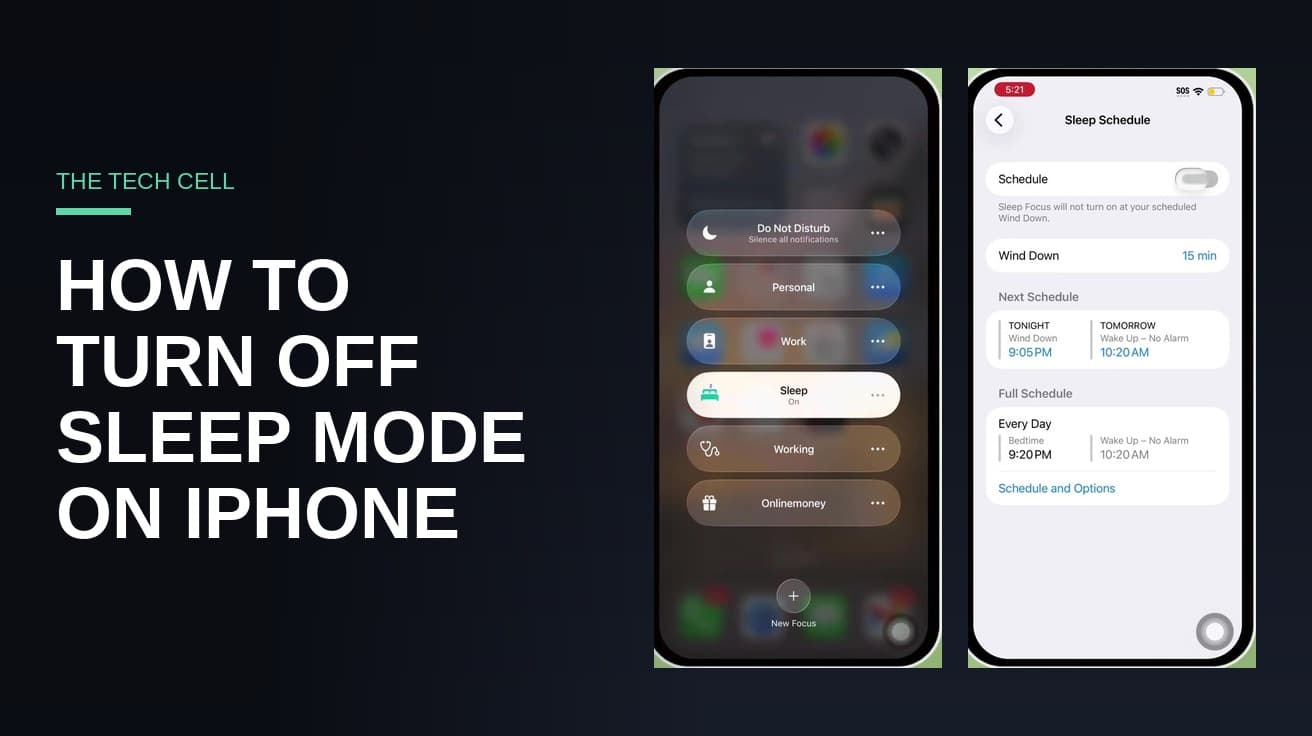
To turn off sleep mode on iPhone right now, open Control Center, tap Focus, then tap Sleep so it is no longer highlighted. To stop it coming back every night, go to Settings > Focus > Sleep, tap the schedule row, and turn off the Schedule toggle. If you meant the screen going dark, that is a different setting: Settings > Display & Brightness > Auto-Lock.
"Sleep mode" is not one feature on an iPhone. It is two, and people search for both using the same words. Sorting out which one is bothering you takes about ten seconds and saves you changing the wrong setting.
Sleep Focus is the one Apple actually calls Sleep. It silences notifications, simplifies your Lock Screen, and switches itself on at the bedtime in your sleep schedule. Auto-Lock is the timer that dims and locks your screen after a minute or two of no touching. If your phone goes quiet overnight, you want the first. If your screen keeps going black while you are reading a recipe, you want the second.
Turn off sleep mode right now
This is the fix if Sleep Focus is on at this moment and you want your notifications back.
1. Swipe down from the top-right corner of the screen to open Control Center.
2. Tap Focus. You will see your Focus modes listed, with the active one highlighted.
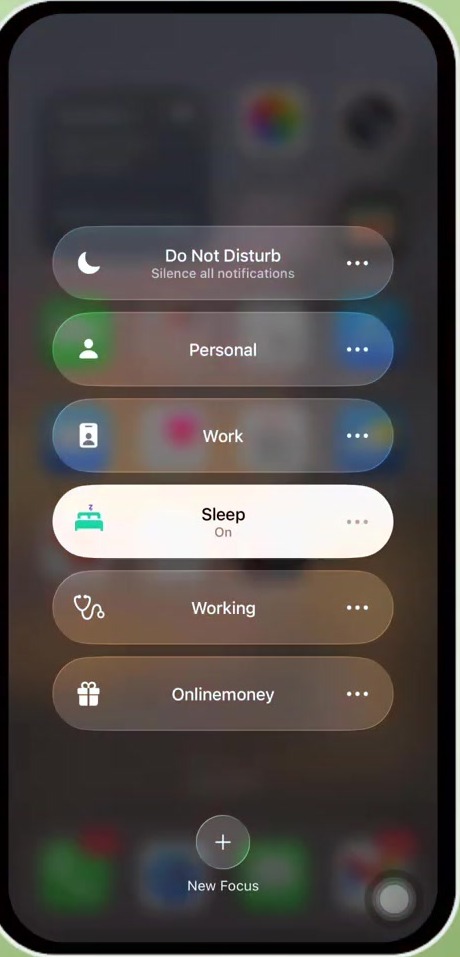
3. Tap Sleep. The highlight disappears and Sleep Focus stops.
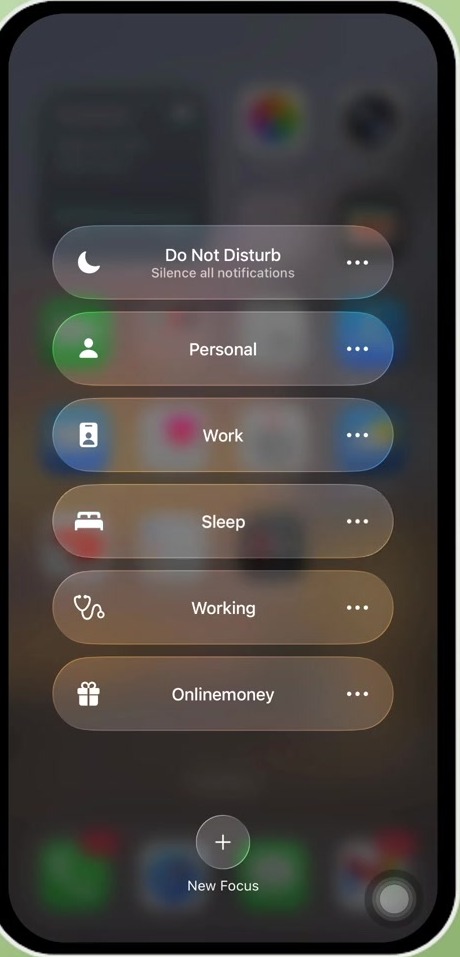
That is a temporary fix. Sleep Focus will switch itself back on at your next scheduled bedtime, which is why most people end up doing this every single morning. The next section stops that.
Stop Sleep Focus turning on by itself
The schedule is what brings Sleep Focus back. Turning it off leaves the Focus in place but stops it running on a timer.
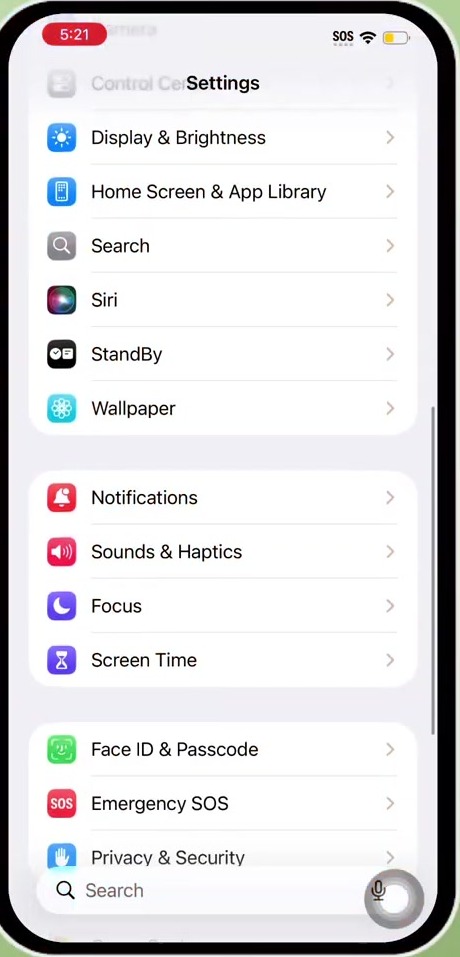
1. Open Settings and tap Focus.
2. Tap Sleep. This screen controls who can reach you during Sleep Focus, and it carries the schedule.
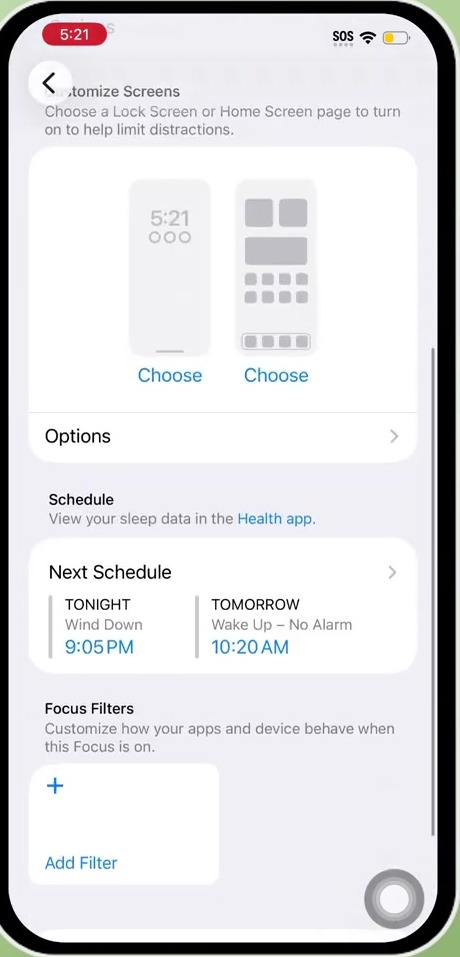
3. Tap the schedule row to open the Sleep Schedule screen, then turn off the Schedule toggle at the top.
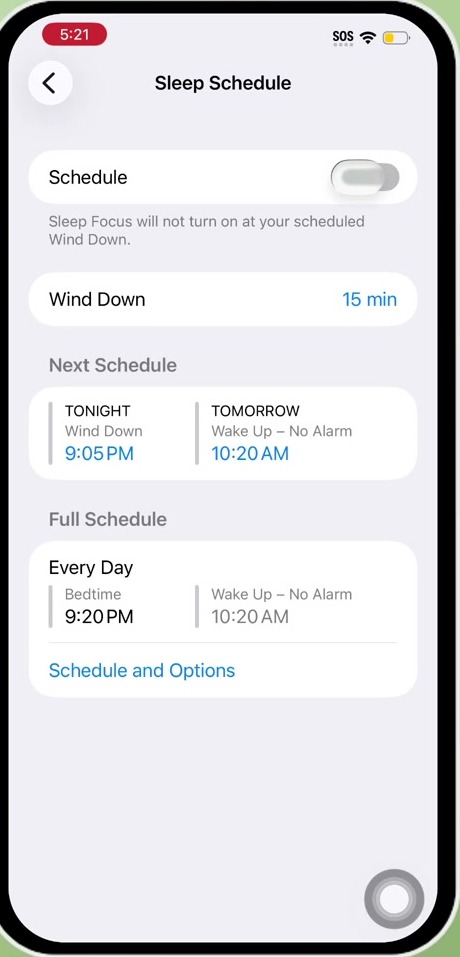
The confirmation line under the toggle is the thing to read. Once it says Sleep Focus will not turn on at your scheduled Wind Down, you are done. You can still switch Sleep Focus on by hand from Control Center whenever you want it.
One caveat worth knowing before you flip it: turning off the sleep schedule also turns off the wake-up alarm attached to that schedule. Alarms you created yourself in the Clock app are separate and keep working. If you rely on the Health app's wake-up alarm, set a normal Clock alarm before you do this.
The Health app route, and why it is the same switch
Apple documents this setting through the Health app, and plenty of guides send you there instead: open Health, tap Browse, tap Sleep, then find Full Schedule & Options and turn off Sleep Schedule.
That is the same underlying setting reached through a different door, so use whichever you find first. The labels differ slightly depending on which iOS version you are running — the screen is titled Sleep Schedule while the toggle on it just says Schedule, and older releases worded it as "Use Schedule for Sleep Focus". If the wording on your phone does not match a guide exactly, look for the first toggle on the sleep schedule screen rather than hunting for an exact phrase.
The other sleep mode: your screen going dark
Auto-Lock has nothing to do with Sleep Focus. It is in Settings > Display & Brightness > Auto-Lock, and you can set a longer interval or choose Never.
If Auto-Lock is stuck at 30 seconds and you cannot tap anything, Low Power Mode is on. It forces the shortest interval and locks the setting while it is active. Turn Low Power Mode off in Settings > Battery, then change Auto-Lock.
Choosing Never means your screen stays lit until you lock it yourself. That is useful for recipes and sheet music and hard on your battery, so it is worth switching back afterwards.
What turning off sleep mode does not do
Turning off Sleep Focus does not turn off Do Not Disturb. They are separate Focus modes that look almost identical in Control Center, and if your phone is still silent after you switch Sleep off, check whether Do Not Disturb is the one that is actually on.
It also does not stop your Apple Watch tracking sleep, does not delete the sleep data already in Health, and does not change your Clock alarms. And it does not affect Auto-Lock, which is the separate setting covered above.
Common questions
Why does Sleep Focus keep turning itself back on? Almost always the schedule is still active — the Control Center toggle only lasts until the next scheduled bedtime. If you have turned the schedule off and it still returns, check Settings > Focus and turn off Share Across Devices, which lets an iPad or Mac on the same Apple Account switch the Focus on for everything.
Should I just delete the Sleep Focus? You can — the Sleep screen in Focus settings has a Delete Focus option at the bottom. It is more than most people need, and it throws away any per-app and per-contact exceptions you have set up. Turning off the schedule gets the same quiet result and is easy to undo.
Will my alarm still go off? Clock app alarms are unaffected. The wake-up alarm built into your sleep schedule turns off along with the schedule, so set a Clock alarm if that was the one waking you.
If the option isn't there
If the schedule row or the Auto-Lock setting is missing or greyed out, check Screen Time first: content and privacy restrictions can hide Focus settings entirely, and a managed or work-issued iPhone may have them locked by a configuration profile you cannot change yourself.
A sleep mode that refuses to switch off at all is usually a software fault rather than a setting. Restart the iPhone, and if it survives that, check for an iOS update in Settings > General > Software Update. iOS 27 is the current release and iOS 26 is still supported, so an older release is worth updating before you spend longer on it.