How to Turn Off Read Receipts on iPhone (All or One Chat)
The Send Read Receipts switch moved into Settings > Apps > Messages. Here is where to find it, how to turn it off for one contact only, and what it does not hide.
To turn off read receipts on iPhone, open Settings, tap Apps, tap Messages, then switch Send Read Receipts off. From that moment on, people see "Delivered" under your messages instead of "Read". You can also leave the setting on and switch it off for a single conversation instead.
Read receipts are the small "Read" line that appears under a message once you have opened it. Apple turns them off by default on a new iPhone, but plenty of people switch them on years ago and forget, then wonder why every unanswered message looks like a snub.
Two things are worth knowing before you change it. The switch only affects what you send out, so you will still see other people's read receipts if they have theirs on. And it is a per-device setting, not an account setting — turning it off on your iPhone does not turn it off on your Mac or iPad.
Where the Send Read Receipts setting lives
The path moved in recent versions of iOS. Messages settings are no longer in the main Settings list; they sit inside a dedicated Apps section near the bottom.
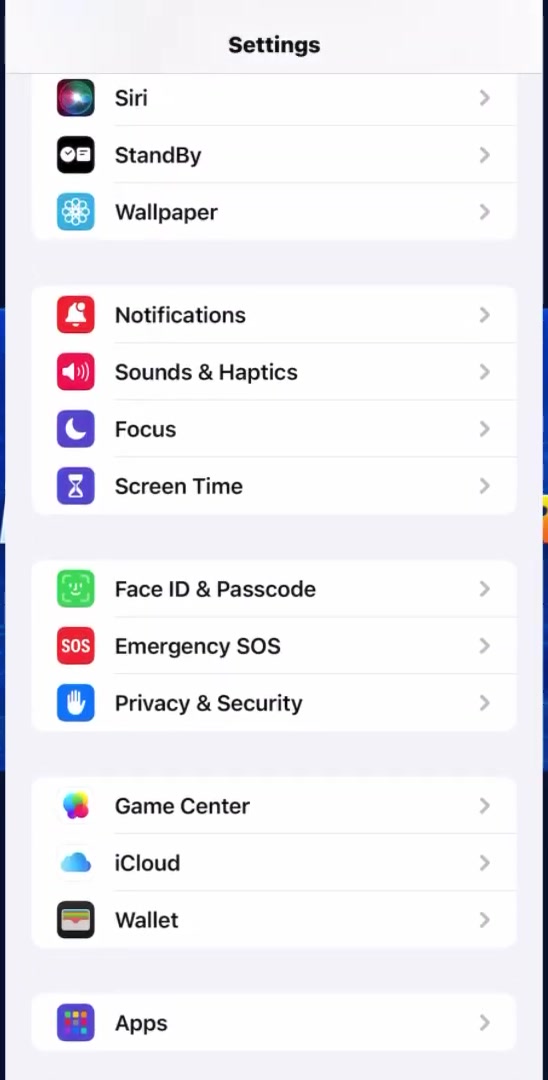
1. Open Settings and scroll to the bottom of the list, past Game Center, iCloud and Wallet, until you reach Apps. Tap it.
2. The Apps screen is an alphabetical list of every app on the phone. Scroll to M and tap Messages. If the list is long, drag the letter index down the right edge instead.
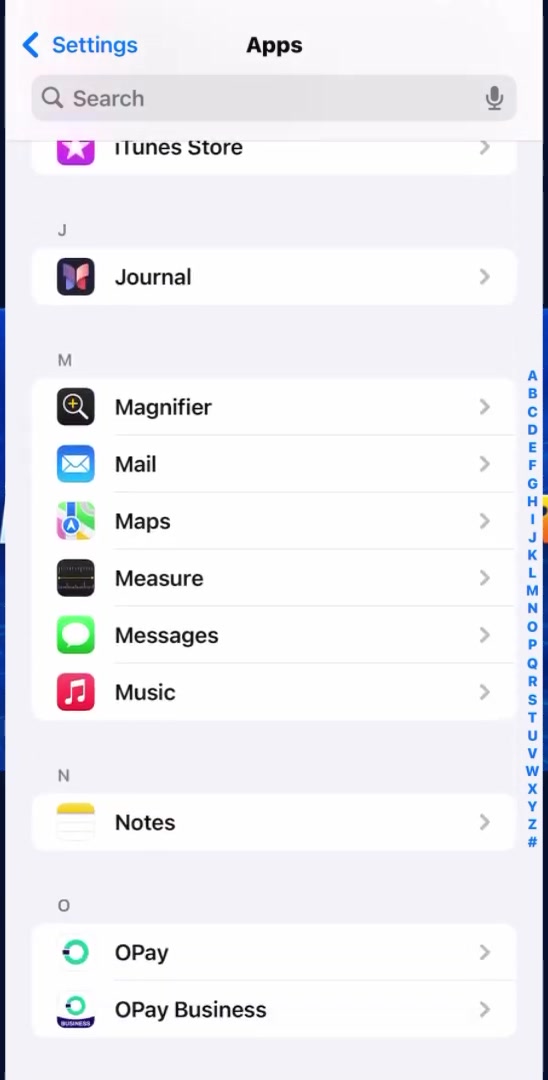
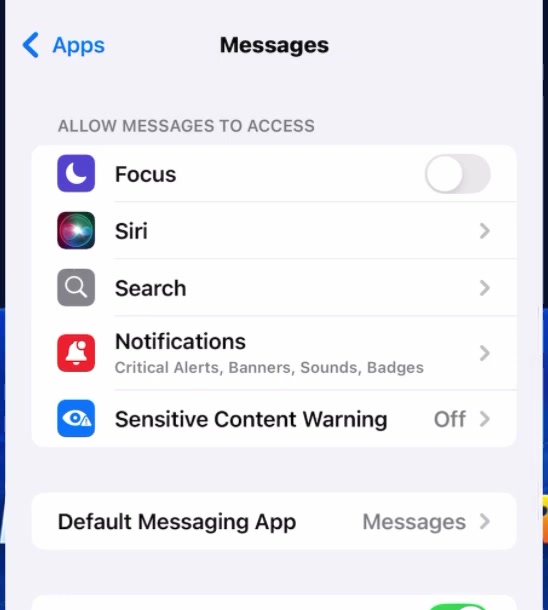
3. You are now in Messages settings. The top of this screen deals with permissions and your iMessage account; the switch you want is further down.
4. Scroll until you find Send Read Receipts. Apple's own description underneath is the giveaway: "When this is on, people are notified when you have read their messages."
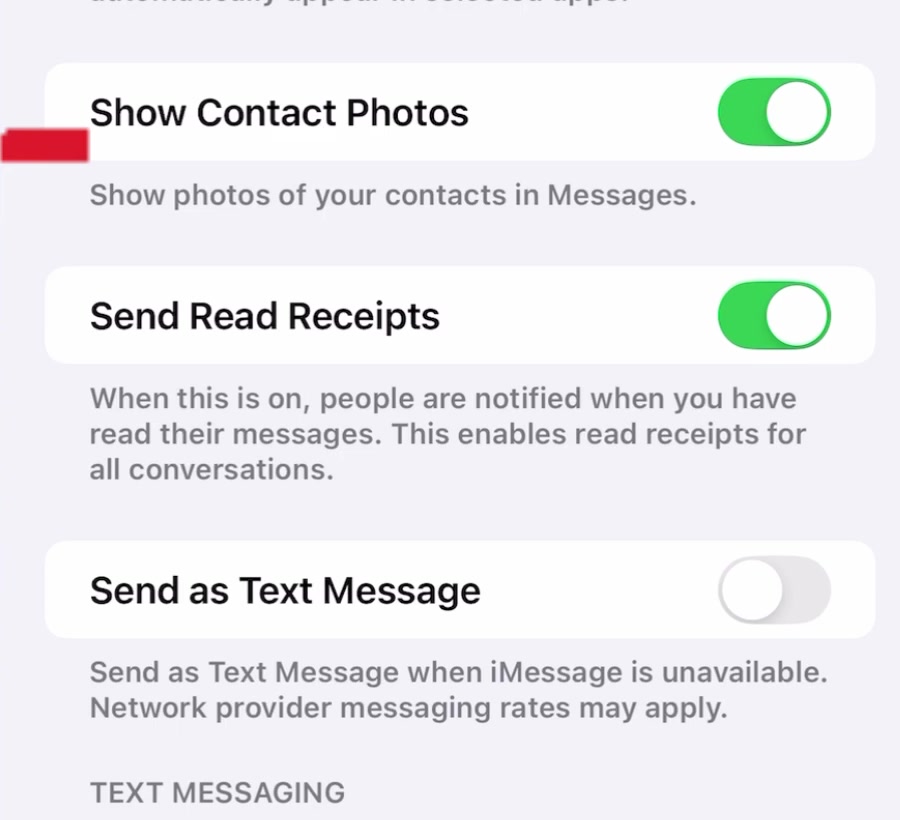
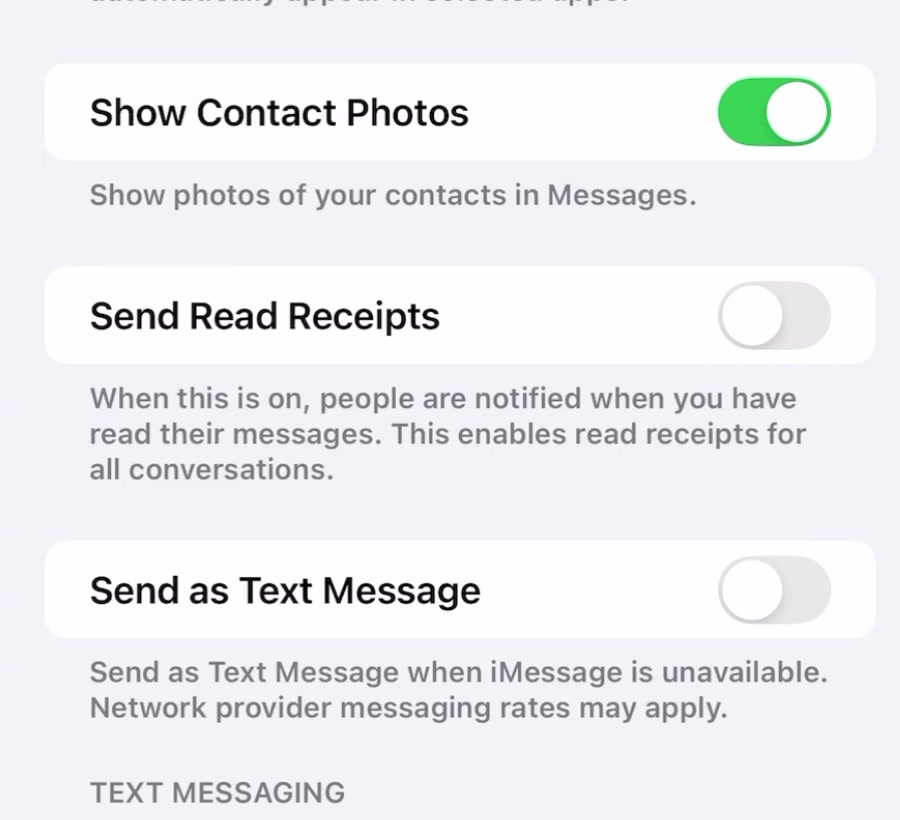
5. Tap the switch so it turns grey. That is the whole job — there is no confirmation to accept and no restart needed.
How to turn off read receipts on iPhone for one person
The global switch is blunt. If you want to keep receipts on for most people but not for one particular contact, Apple lets you override the setting per conversation.
Open Messages, tap the conversation, then tap the contact's name or photo at the top of the screen. Turn Send Read Receipts off there. The reverse works too: with the global setting off, you can switch receipts back on for a single chat.
Two caveats. A per-contact setting overrides the global one, so if you turned receipts off for someone individually, flipping the global switch will not bring them back for that person — you have to go into that conversation and turn it on again. And you cannot turn on read receipts for anyone but yourself; there is no way to force someone else's phone to report back.
What this does not do
Turning the switch off does not hide the Delivered line. Delivery status is not a read receipt, and there is no setting to suppress it short of blocking the sender or going offline.
It does not stop typing indicators either — the three dots that appear while you are composing a reply are a separate behaviour with no user-facing switch in Messages.
It does not apply to plain SMS or MMS. Those formats have no read receipt to send, so the green-bubble messages you exchange with people who are not on iMessage were never reporting anything back in the first place. RCS, the newer standard that replaced SMS on many carriers, does carry read receipts. Apple documents a single Send Read Receipts control rather than separate iMessage and RCS ones, but reports on whether switching it off fully suppresses receipts in RCS threads are not consistent, and Apple's documentation does not spell the behaviour out. If it matters to you, test it with someone you trust before assuming either way.
Finally, it does not travel. Messages on Mac has its own Send read receipts checkbox in the app's own settings, and an iPad has its own copy of the toggle. Turn it off on each device you use.
Common questions
Does the other person get told I turned it off? No. There is no notification. From their side the "Read" line simply stops appearing and "Delivered" stays put.
Does it apply retroactively? No. Messages you had already opened and reported as read stay marked read in the sender's thread. The change only affects what happens from the moment you flip the switch.
Can I read a message without triggering the receipt at all? Reading the preview from the Lock Screen or Notification Centre without opening the thread does not mark it read. That is a workaround rather than a setting, and it is easy to trip up on — turning the switch off is the reliable version.
If the option isn't there
If you cannot find Send Read Receipts at all, check that iMessage itself is switched on at the top of the same Messages screen. With iMessage off, the read receipt controls are hidden because there is nothing for them to govern.
If Settings has no Apps section, you are on an older version of iOS where Messages sits directly in the main Settings list — scroll for Messages there instead. Either way the switch is called the same thing and does the same job. While you are in these settings, it is worth knowing how long you have to unsend a message on iPhone, and what actually happens to messages you delete.