How to Turn Off Parental Controls on iPhone
Turning off parental controls on an iPhone comes down to one toggle in Screen Time, plus the Screen Time passcode. Here is where it lives and what it leaves running.
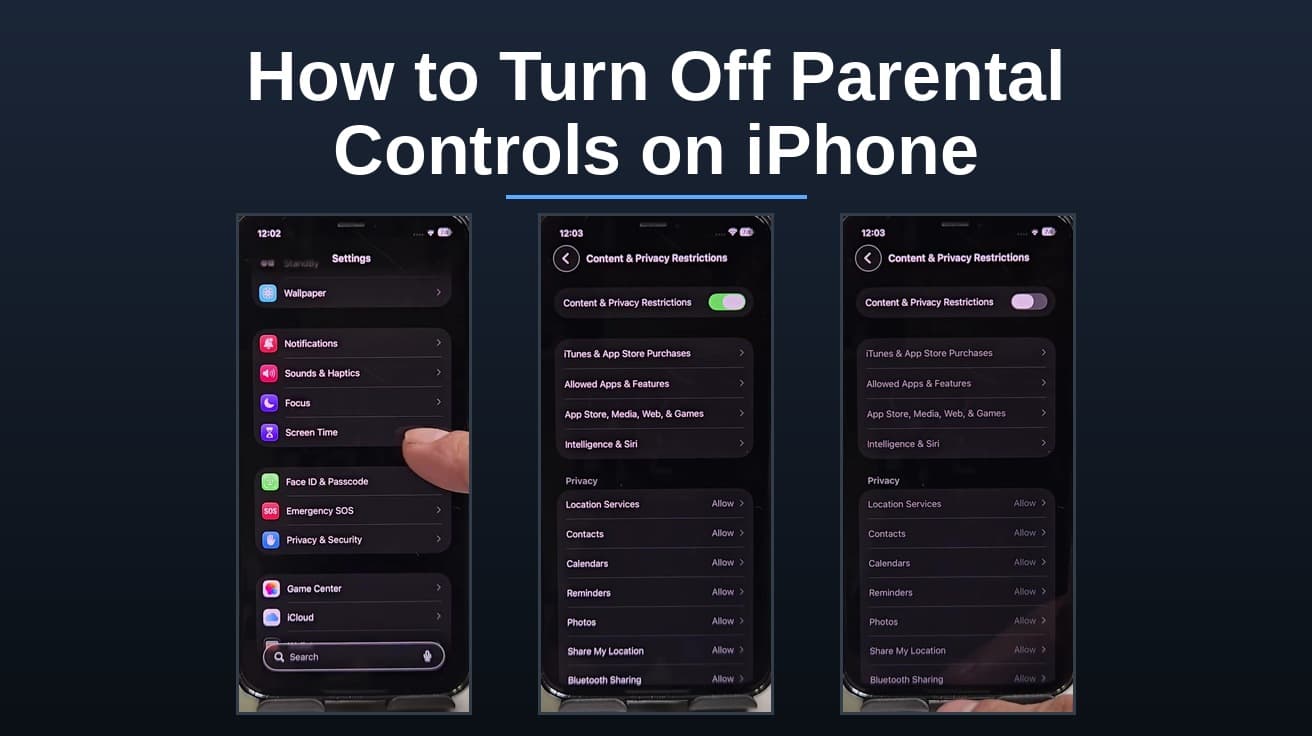
To turn off parental controls on an iPhone, open Settings, tap Screen Time, tap Content & Privacy Restrictions, and switch off the toggle at the top of that screen. You will need the Screen Time passcode to confirm. If the iPhone is a child's device in a Family Sharing group, a parent has to make the change from their own phone under Settings > Family.
The short version of how to turn off parental controls on iPhone is a single toggle, but it helps to know which of two things you are switching off. Content & Privacy Restrictions is the part that blocks apps, websites, purchases and settings changes. The rest of Screen Time — Downtime, App Limits, Communication Limits — is separate, and turning off restrictions leaves all of it running.
One thing to sort out before you start: the Screen Time passcode is not your lock screen passcode. It is a separate four-digit code set when the restrictions were first turned on, and iOS will ask for it before it lets you change anything. If you do not have it, skip to the last section. This guide is written for your own iPhone, or for a device you manage as the parent — on a child's account the passcode requirement is the point of the feature, not an obstacle to work around.
Where to turn off parental controls on iPhone
1. Open Settings and scroll down to Screen Time. It sits in the group with Focus and Sounds & Haptics, above Face ID & Passcode.
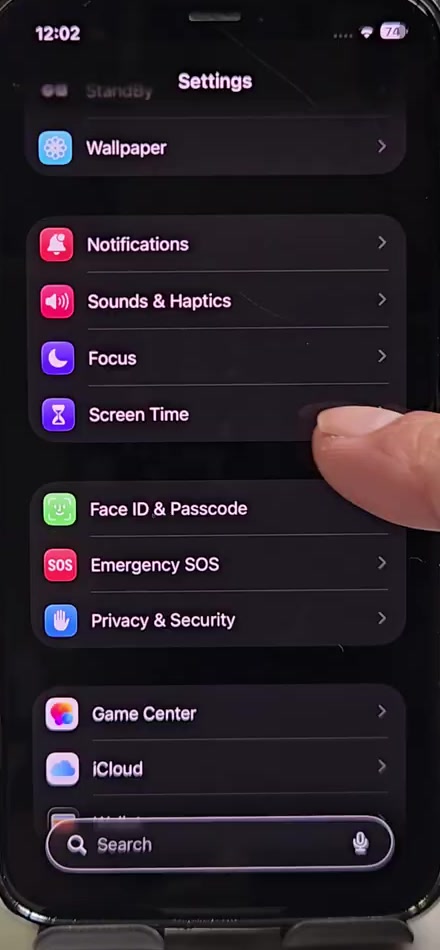
2. Tap Content & Privacy Restrictions, listed under the Restrictions heading on the Screen Time screen.
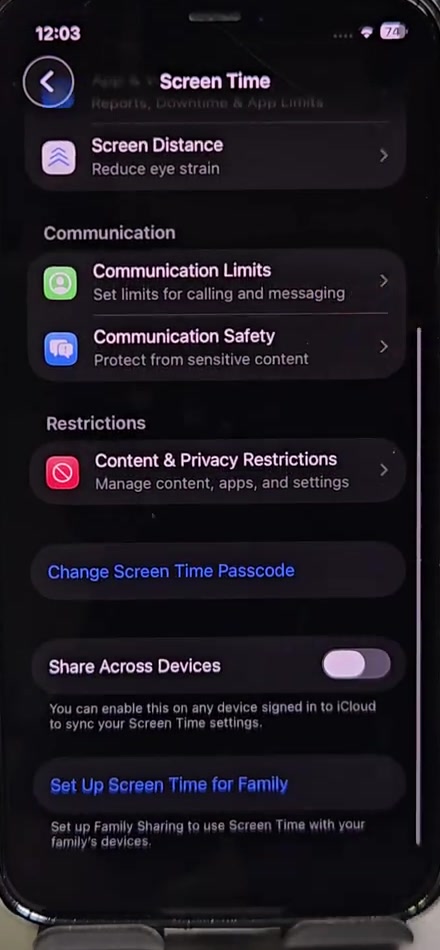
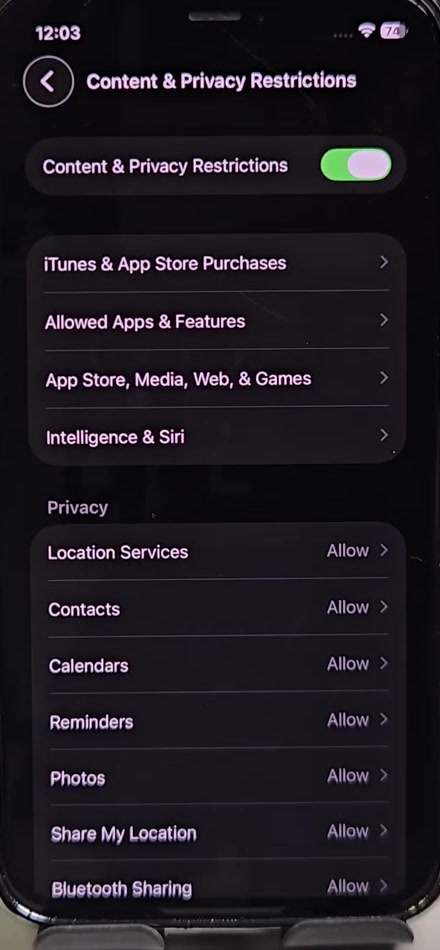
3. Switch off the toggle at the very top of the screen. Apple's current support documentation calls this switch All Restrictions; on the iOS version shown here it is labelled Content & Privacy Restrictions, matching the screen title. It is the same switch either way — the one above the iTunes & App Store Purchases row.
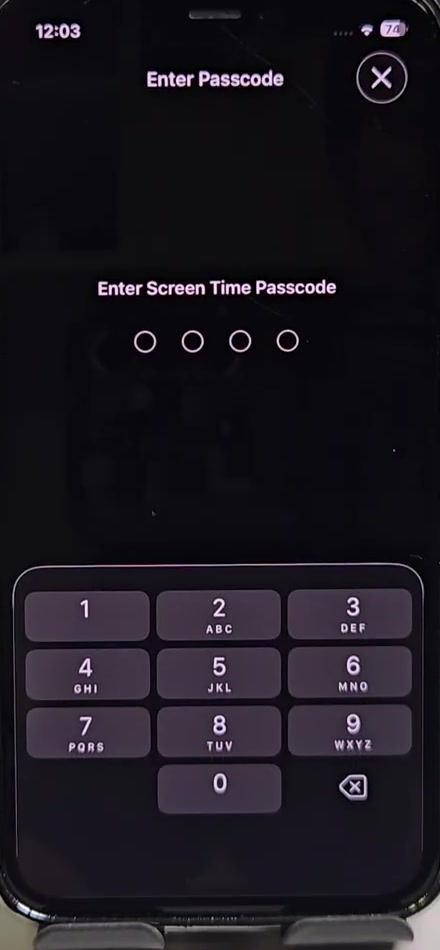
4. Enter the Screen Time passcode when the Enter Screen Time Passcode prompt appears.
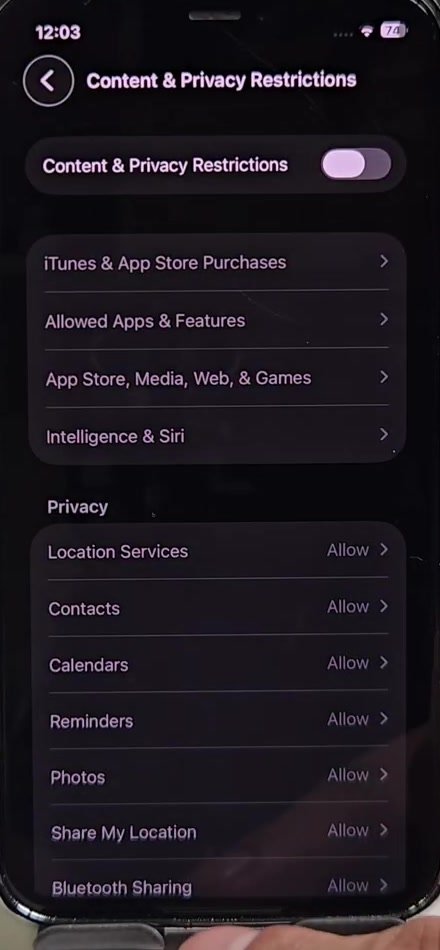
5. The toggle turns grey and the rows beneath it stop responding. That is the confirmation — content and privacy restrictions are off, and blocked apps, websites and purchases are available again straight away.
Faster routes and other versions
Rather than scrolling, pull down on the home screen and type Screen Time into search — that jumps straight to the right pane. From there, Content & Privacy Restrictions is two taps away.
There is no longer one master switch that turns Screen Time off entirely. At the bottom of the Screen Time screen there is a button that removes the core tracking and limits in one go, but its label depends on your iOS version: on iOS 17 and later it reads Turn Off App & Website Activity, while on iOS 16 and earlier the equivalent button read Turn Off Screen Time. Published guides disagree on this because they were written against different releases, so trust the label on your own screen rather than the one in any walkthrough. Downtime and App Limits each have their own switch and are not covered by either button.
The Screen Time passcode itself is removed separately. Apple's current instructions are Settings > Screen Time > Manage Screen Time > Change Screen Time Passcode > Turn Off Screen Time Passcode. On the iOS build in the screenshots above, Change Screen Time Passcode appears directly on the Screen Time screen with no Manage Screen Time step in between — another version difference worth checking against your own phone.
For a child's iPhone in Family Sharing, the parent does this from their own device: Settings > Family > the child's name > Content & Privacy Restrictions. Apple notes that when Family Sharing manages a child's Apple Account, the Screen Time passcode has to be set on the parent's device rather than the child's.
What this does not do
Turning off Content & Privacy Restrictions does not switch off Downtime, App Limits or Communication Limits. If apps still lock at a set time or show an hourglass, those are the ones still running, and each needs turning off on its own.
It also leaves Screen Time reporting intact. Your usage history and weekly reports keep going, and nothing already recorded is deleted. Communication Safety and Screen Distance are separate settings too, with their own toggles on the Screen Time screen.
A restriction imposed by something other than Screen Time will not move either. A third-party parental control app, or a device management profile from a school or employer, is enforced outside Screen Time and is unaffected by this toggle.
Finally, some settings genuinely cannot be switched off. Apple states that Ask to Buy cannot be turned off for children under 18 depending on your state, country or region, that Limit Adult Websites is on by default for children under 18, and that where the law requires it a child's Apple Account must remain in a Family Sharing group. If a particular restriction refuses to budge on a child account, that is why.
Common questions
Do I really need the Screen Time passcode? Yes. There is no route through Settings that switches restrictions off without it, and on a managed child account it is a parent's code by design. The next section covers what Apple offers if you set the code yourself and have forgotten it.
Is it the same as my iPhone passcode? No — it is set separately when Screen Time restrictions are first enabled, and it is often a different four digits. If you are trying to sort out several codes at once, our guide on changing your password on iPhone covers the Apple Account side.
Will turning this off unblock websites? It will, because web filtering lives under Content & Privacy Restrictions. If you want the filtering back later without re-enabling everything else, blocking websites on iPhone walks through that pane on its own.
If the option isn't there
If your Apple Account looks greyed out in Settings, or you see a message that signing out is not available due to restrictions, a restriction is still in force. Apple's fix is to go to Settings > Screen Time > Content & Privacy Restrictions, then under Privacy Restrictions tap Allow Changes to Settings, tap Accounts and set it to Allow, entering the Screen Time passcode if asked. The other entries under Allow Changes to Settings are worth checking in the same pass.
If you have forgotten a passcode you set yourself, Apple's route is Settings > Screen Time > Manage Screen Time > Change Screen Time Passcode, tapping that option a second time, then entering the Apple Account email address and password that were used when the passcode was created — which may not be the account currently signed in on the phone. Apple's documentation does not describe a recovery route for a Screen Time passcode that was set up without an Apple Account attached, so we are not going to claim one exists.
If the device is issued by a school or an employer, the restriction is likely coming from a management profile rather than Screen Time, and only the administrator who issued it can lift it. Contacting them is the only route; Apple Support cannot remove a profile on their behalf.