AirDrop Turn On: Where the Setting Lives on iPhone
AirDrop has no simple on switch, just a receiving setting with three positions. Here is where it lives on iPhone and what each option changes.
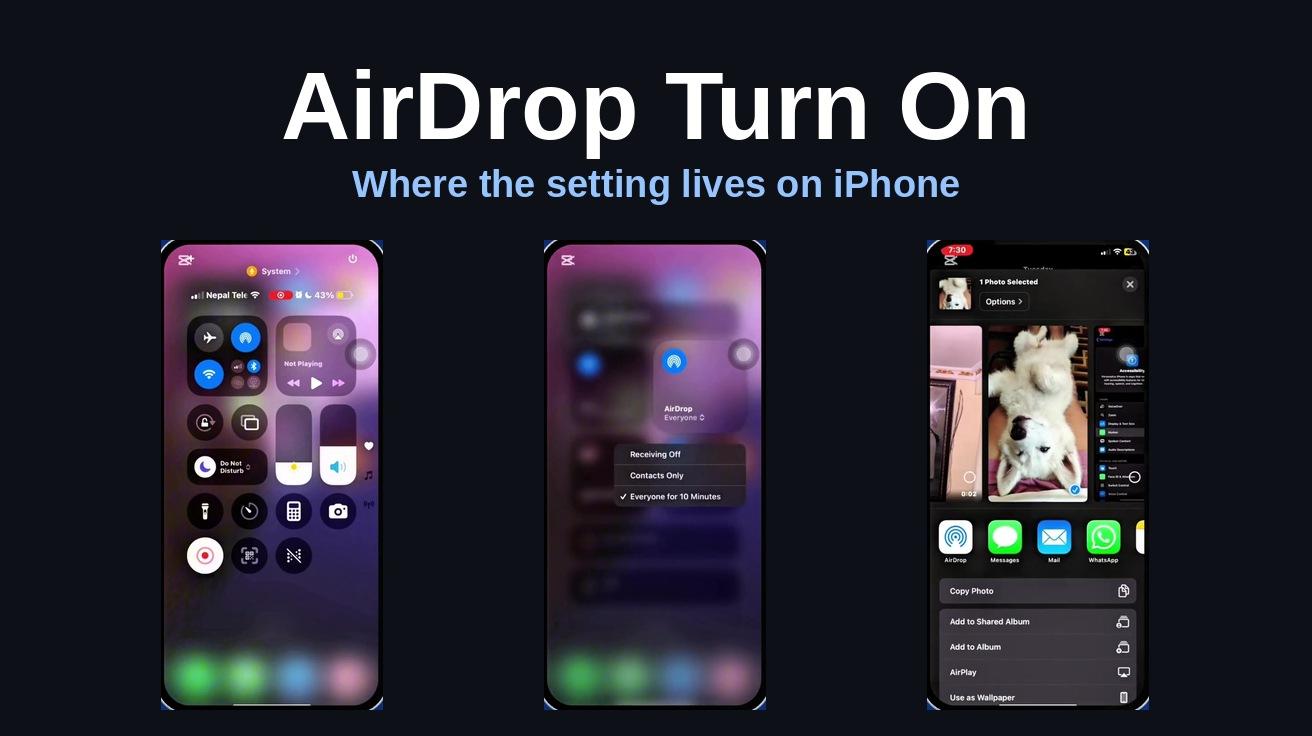
To turn on AirDrop on an iPhone, open Control Center, press and hold the box holding the Wi-Fi and Bluetooth buttons, tap AirDrop, then pick Contacts Only or Everyone for 10 Minutes. The same three options sit in Settings under General, then AirDrop.
The feature has no single on switch. It has a receiving setting with three positions, and “on” means anything other than Receiving Off. That is why people hunt for a toggle and do not find one.
Two routes lead to the same setting. Control Center is faster. Settings is easier to find if the gesture does not work on your phone. This guide covers both, what each option actually changes, and what to do when the entry is missing entirely.
Turn on AirDrop from Control Center
1. Swipe down from the top-right corner of the screen to open Control Center. On an iPhone with a Home button, swipe up from the bottom edge instead.
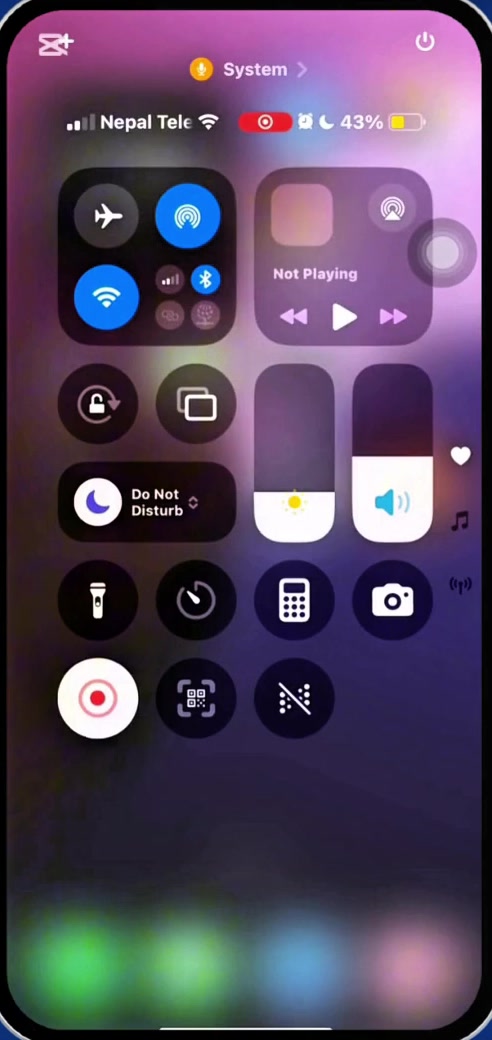
2. Press and hold that box of wireless buttons in the top-left corner. It expands into a full panel listing Airplane Mode, Wi-Fi, AirDrop, Cellular Data, Bluetooth, Personal Hotspot and VPN.
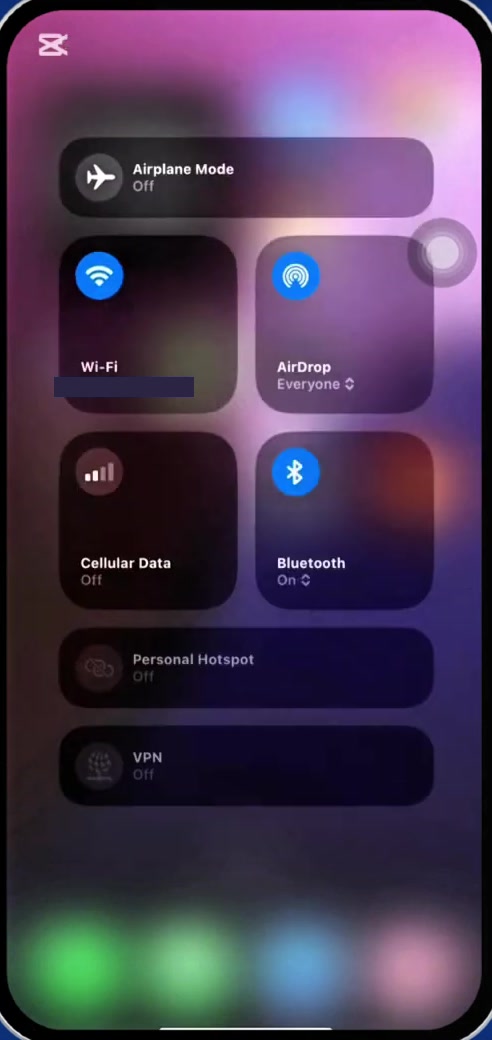
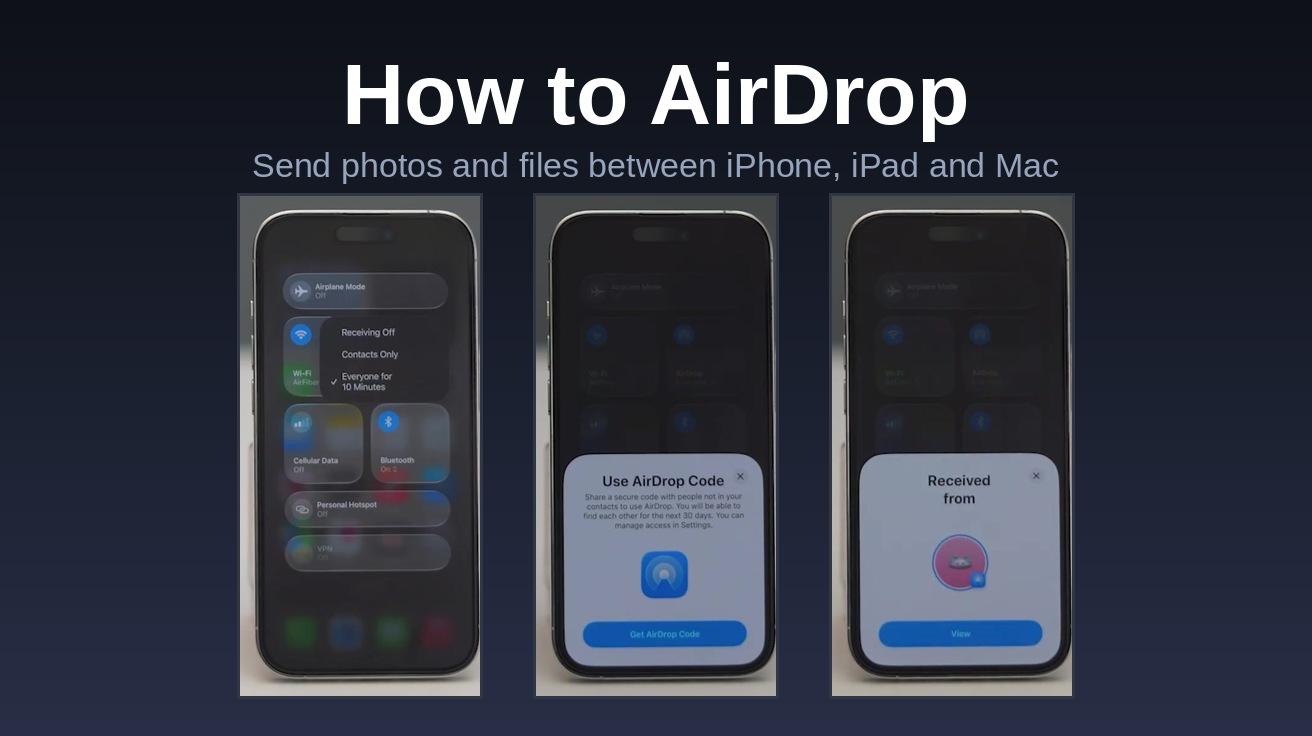
3. Tap the AirDrop tile. Three options appear: Receiving Off, Contacts Only, and Everyone for 10 Minutes. Tap the one you want.
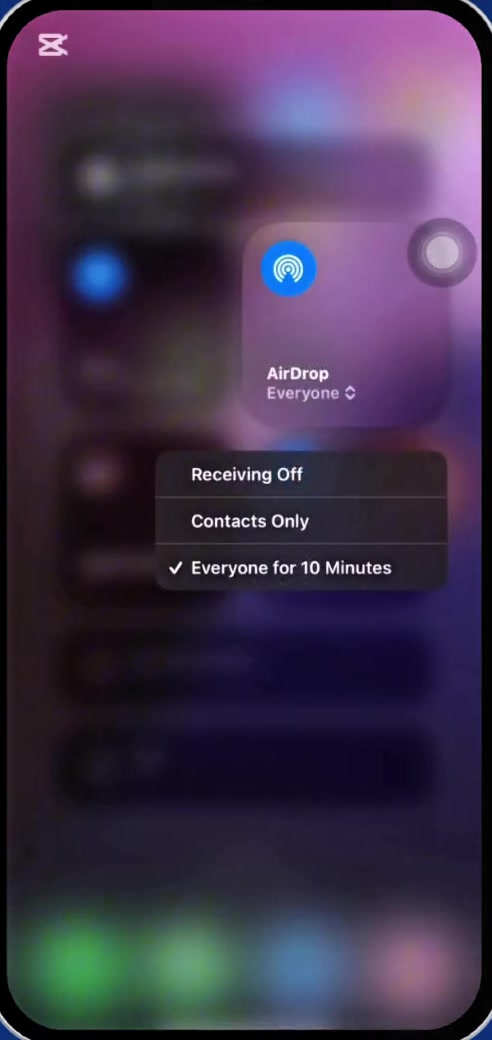
4. Swipe up or tap an empty area to close Control Center. The tile now shows your choice underneath its name, so you can check the setting at a glance next time.
The route through Settings
If the Control Center gesture is awkward on your phone, the same three options live in the Settings app. Open Settings, tap General, then tap AirDrop, and choose Receiving Off, Contacts Only, or Everyone for 10 Minutes.
Choosing anything other than Receiving Off also switches on Wi-Fi and Bluetooth, because both are required. You do not need to be joined to a Wi-Fi network — the two radios just have to be enabled.
What each option means
Receiving Off means nobody can send you anything. You can still send files to other people; only the inbound direction stops working.
Contacts Only limits incoming transfers to people in your contacts, and both devices need to be signed in to an Apple Account for the match to work.
Everyone for 10 Minutes opens you up to any nearby Apple device, then expires. Apple states that from iOS 16.2 onwards the setting reverts automatically after ten minutes: back to Contacts Only if you are signed in to an Apple Account, or to Receiving Off if you are not. That timeout is deliberate, so expect to set it again for a second transfer.
How to tell it worked
Open a photo, tap the share button, and look at the top row of the share sheet. If AirDrop appears there, the feature is enabled on your phone.
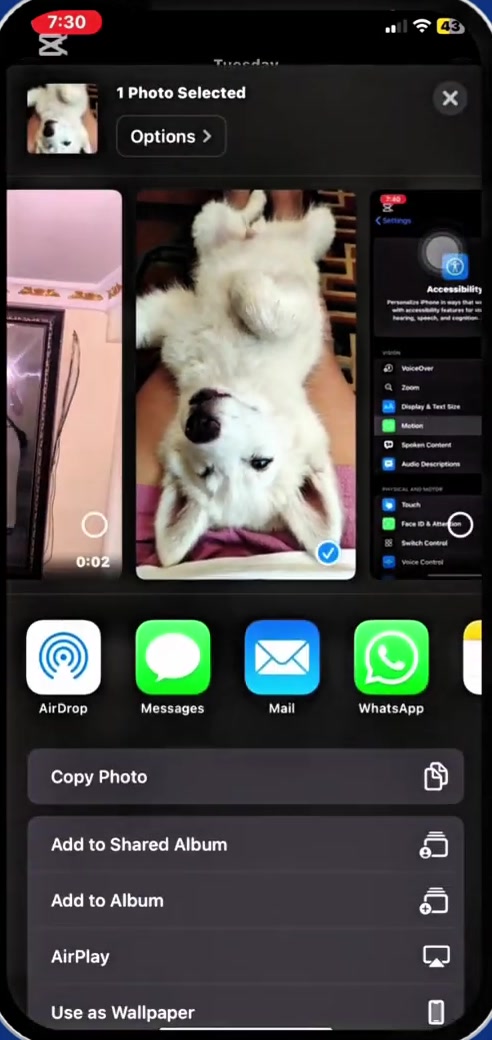
If the other device still does not appear, check Apple’s conditions for a transfer: both devices nearby, both with Wi-Fi and Bluetooth on, and Personal Hotspot disconnected on either device if it is running.
What turning on AirDrop does not do
It does not accept transfers automatically. Someone sending you a file still produces a prompt on your screen, and nothing lands until you tap Accept.
It does not work over the internet or over mobile data between distant phones. Bluetooth finds the nearby device and a direct Wi-Fi link moves the data, so both phones have to be physically close.
Apple also documents a newer step for unknown senders: on devices running iOS 26.2 or later, the recipient is shown an AirDrop code to read out to the sender, who types it in. If both phones are on that software, expect the code prompt rather than a plain Accept button.
Common questions
Does it drain the battery? Leaving it enabled keeps Bluetooth and Wi-Fi active, and both use power. Apple does not publish a figure for the feature specifically, so treat the cost as the ordinary cost of leaving those two radios on.
Should I leave it on Everyone? You cannot, for long. The Everyone setting expires by design on iOS 16.2 and later. Contacts Only is the setting meant for everyday use.
Can I change this on someone else’s iPhone remotely? No. The setting is changed on the device itself, in front of you.
If the AirDrop option is not there
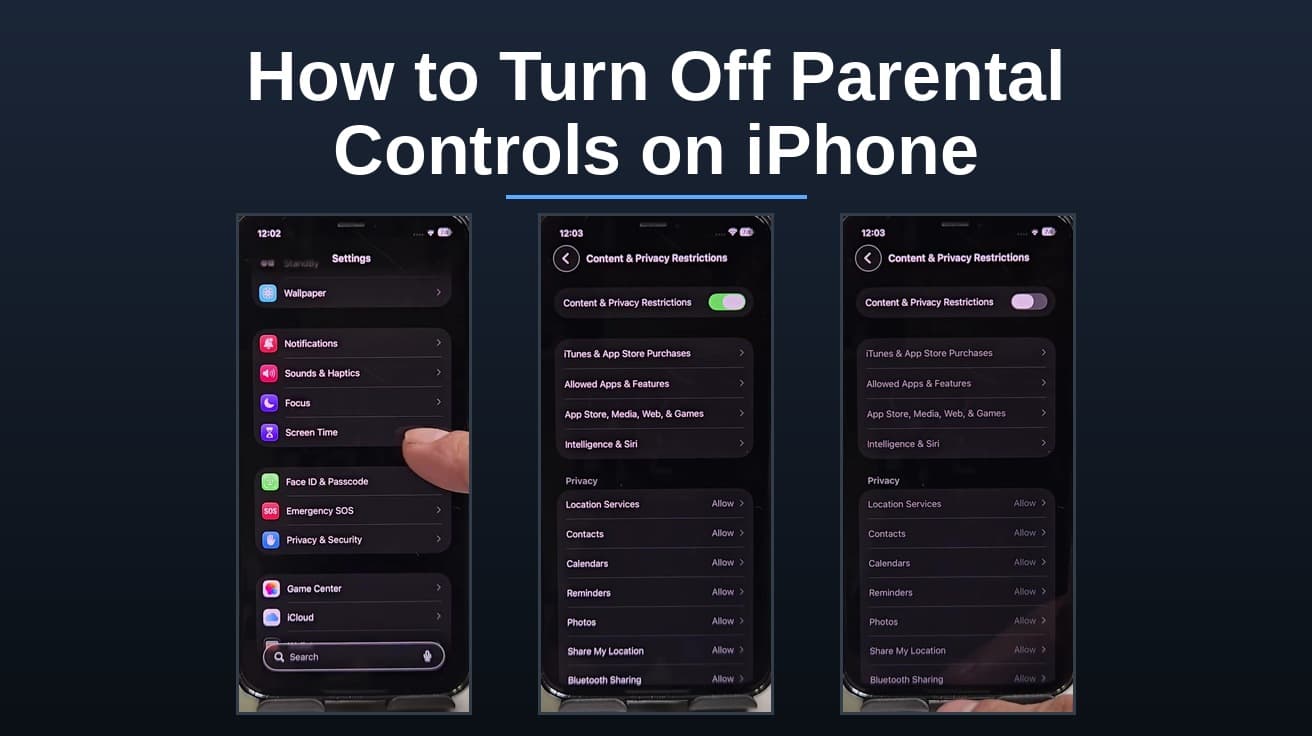
When the entry is missing from Settings under General and the Control Center tile does nothing, Screen Time is the usual cause. Open Settings, tap Screen Time, tap Content & Privacy Restrictions, open Allowed Apps & Features, and switch AirDrop back on. A Screen Time passcode, if one is set, has to be entered first.
This is also what a school or workplace device-management profile does, in which case the switch will be locked and the administrator has to lift it. If the setting is present but no devices ever show up, work through the restrictions on the phone first, then try a different sharing route such as a shared album while you narrow the problem down.