How to Sign a Document on iPhone
Your iPhone can sign a PDF without any extra app. Draw your signature once in Preview or Markup and it is saved for every document after that.
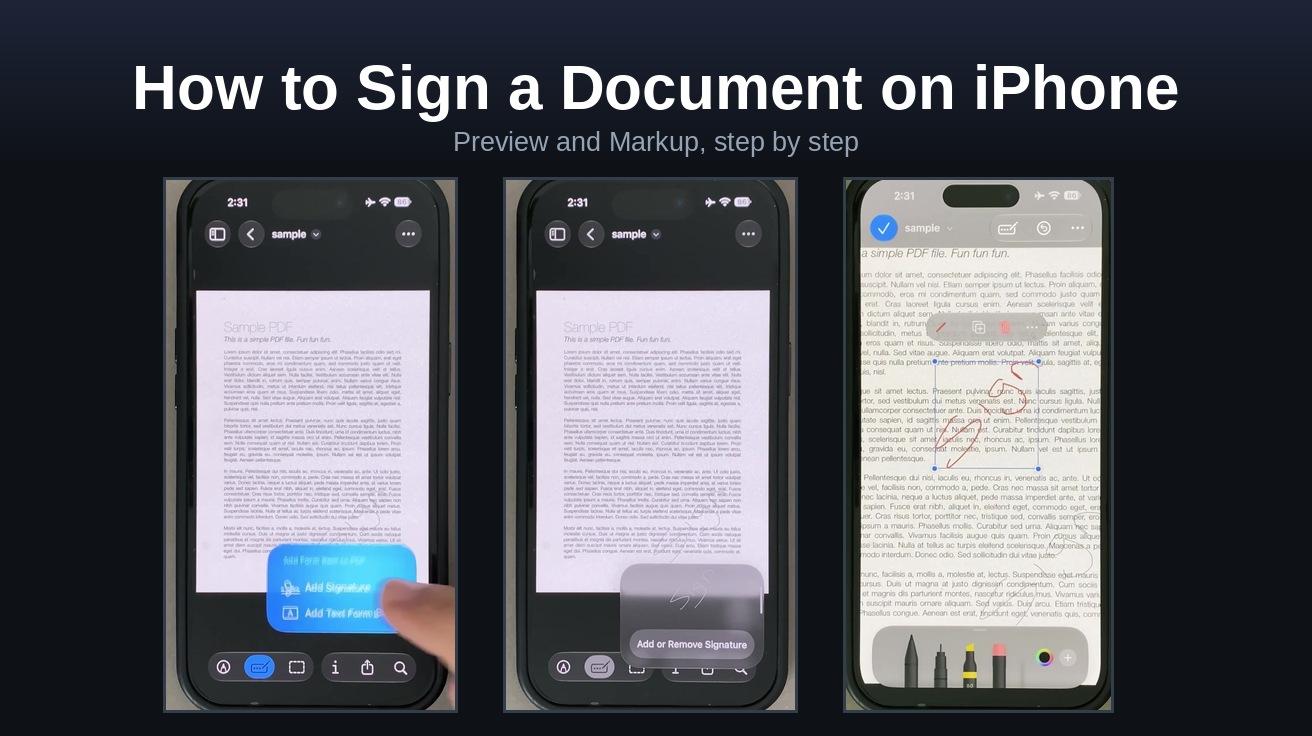
Open the PDF, tap the markup or form tool, tap the plus button, then choose Add Signature. Draw your signature once with a fingertip and iPhone saves it, so every document after that takes about ten seconds.
Signing used to mean printing a page, scrawling on it and scanning it back. Since iOS 26 your iPhone has carried a dedicated Preview app for PDFs and images, and the older Markup tools are still there in Mail, Messages and Photos. Either route gets you a signed file without installing anything, so here is how to sign a document on iphone using only what Apple ships.
The two routes overlap. Preview gives you proper form fields and a signature that behaves like part of the document. Markup is quicker when a PDF is already on screen. Both use the same saved signature.
How to sign a document on iPhone in Preview
Preview arrived with iOS 26 and iPadOS 26 and is still there in iOS 27. If a PDF opens in a quick preview window first, look for the Preview button at the bottom of the screen and tap it.
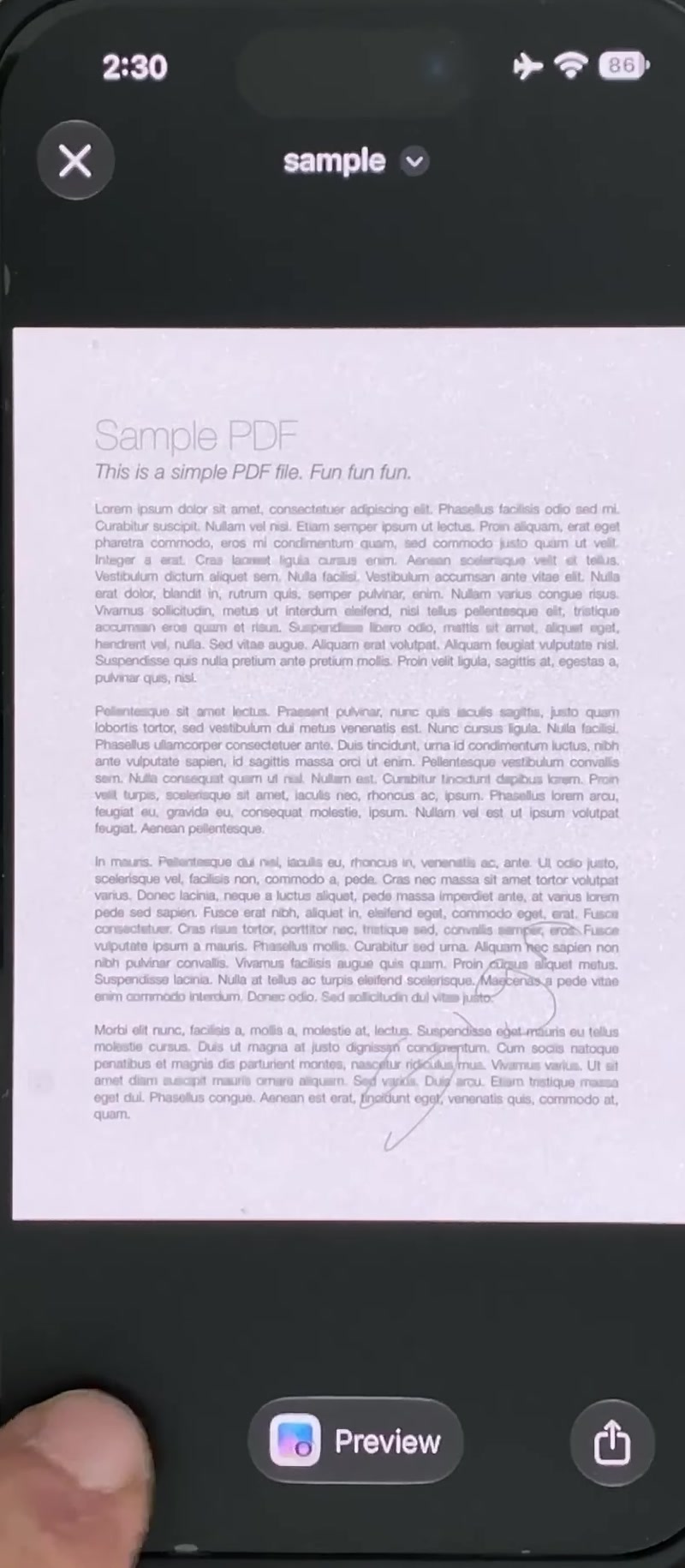
1. Open the PDF in Preview. You can get there from Files, or from an attachment in Mail or Messages.
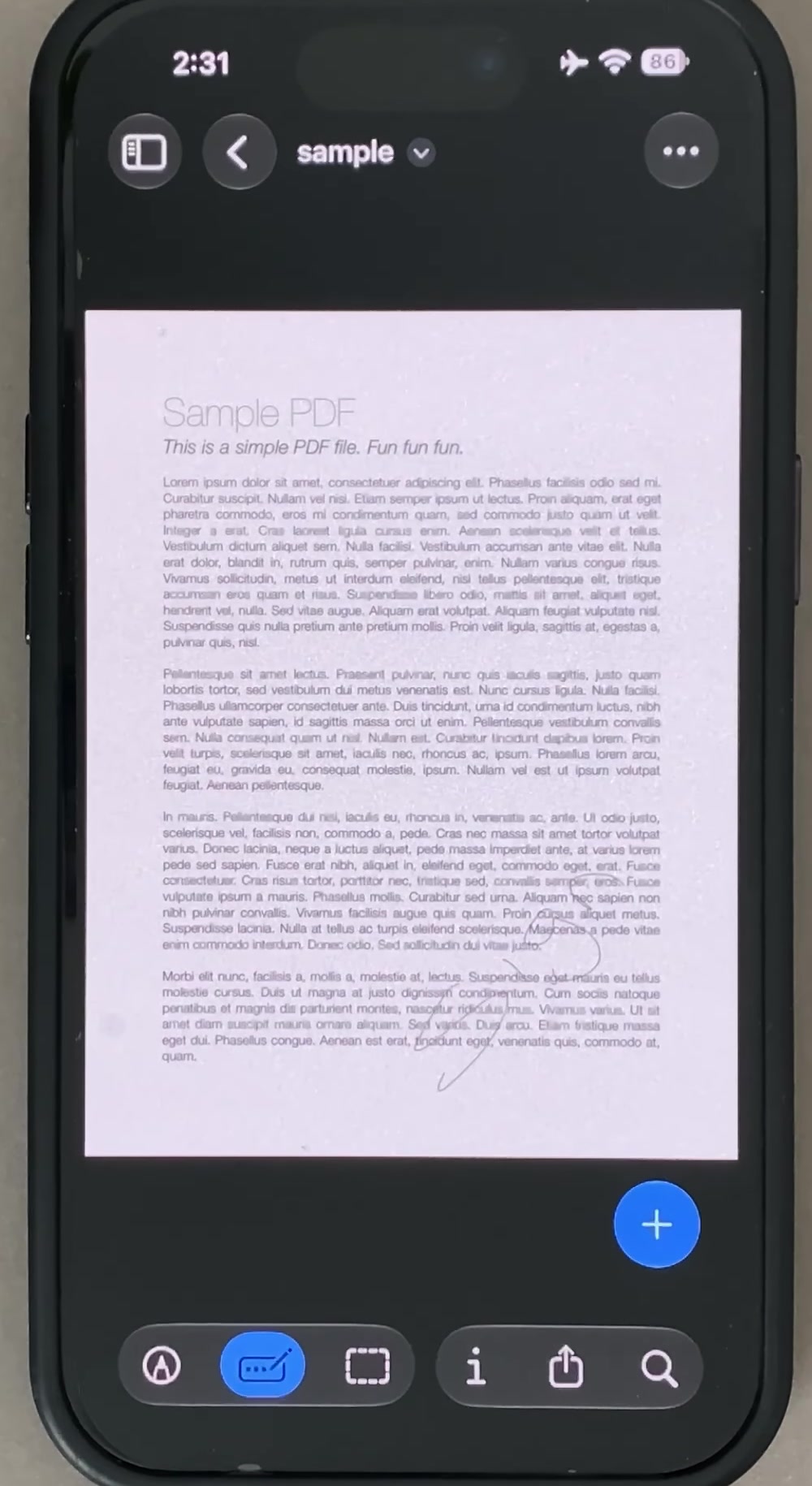
2. Tap the form tool in the toolbar at the bottom of the screen. A blue plus button appears just above the toolbar.
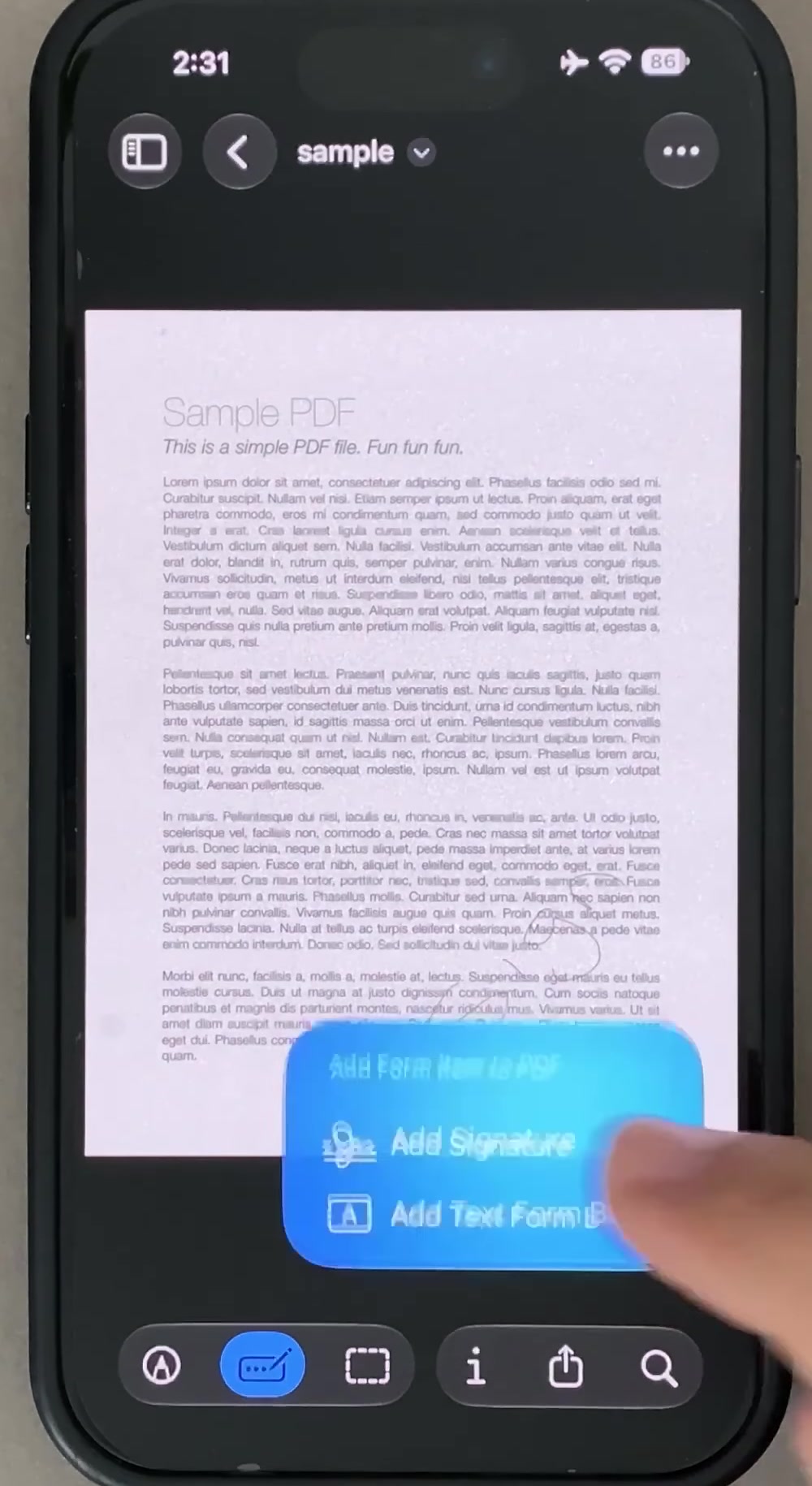
3. Tap the plus button. A menu headed Add Form Item to PDF opens, with Add Signature and Add Text Form Box.
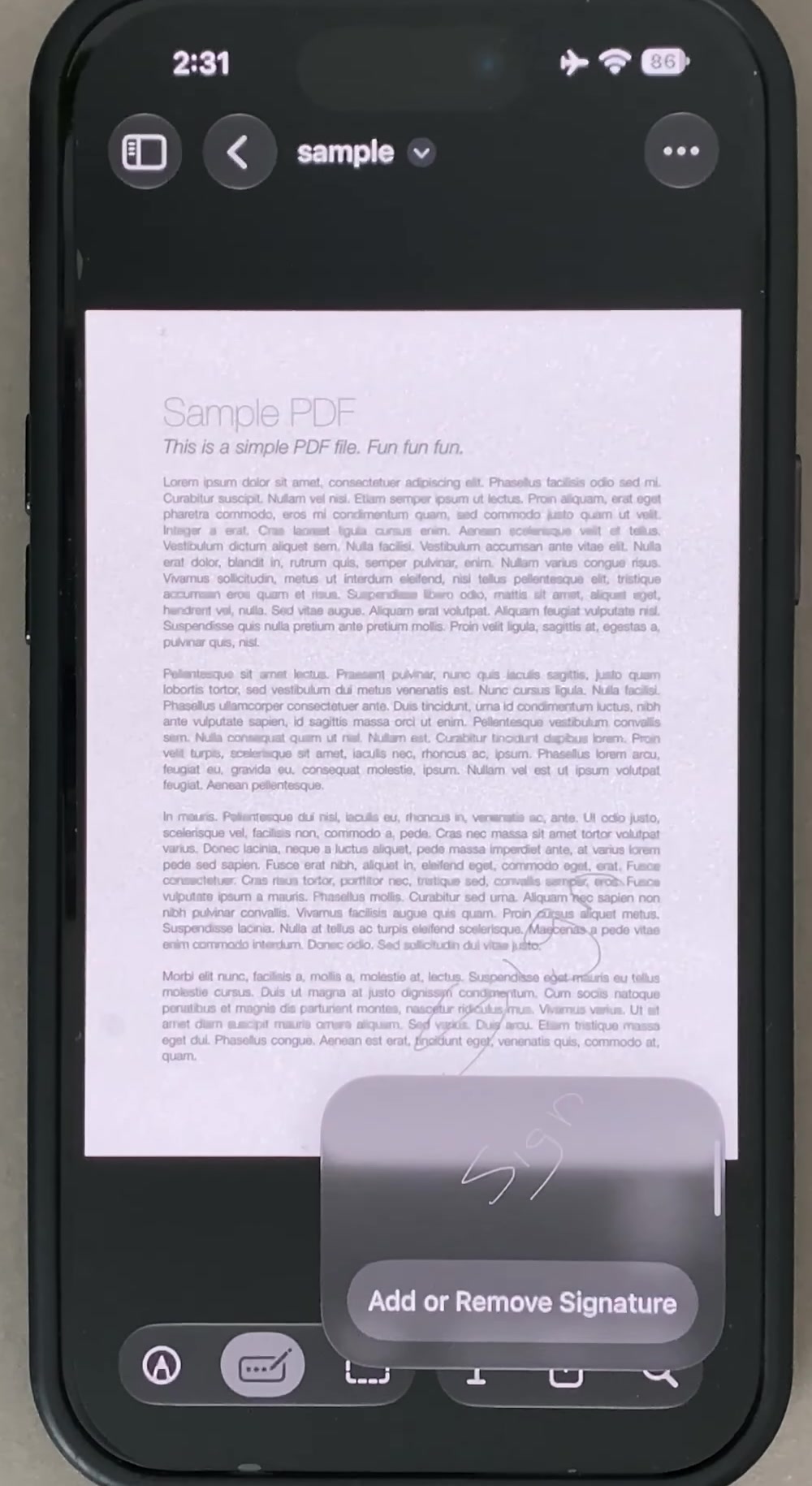
4. Tap Add Signature. Any signature you have already saved appears here. The first time, tap Add or Remove Signature, tap the plus button, sign across the screen with a fingertip, then tap the checkmark to keep it.
5. Tap the signature to drop it onto the page, then drag it into the right place. The handles at its corners resize it.
Your changes stay with the file. Share it from Preview when you are done.
The faster route: Markup
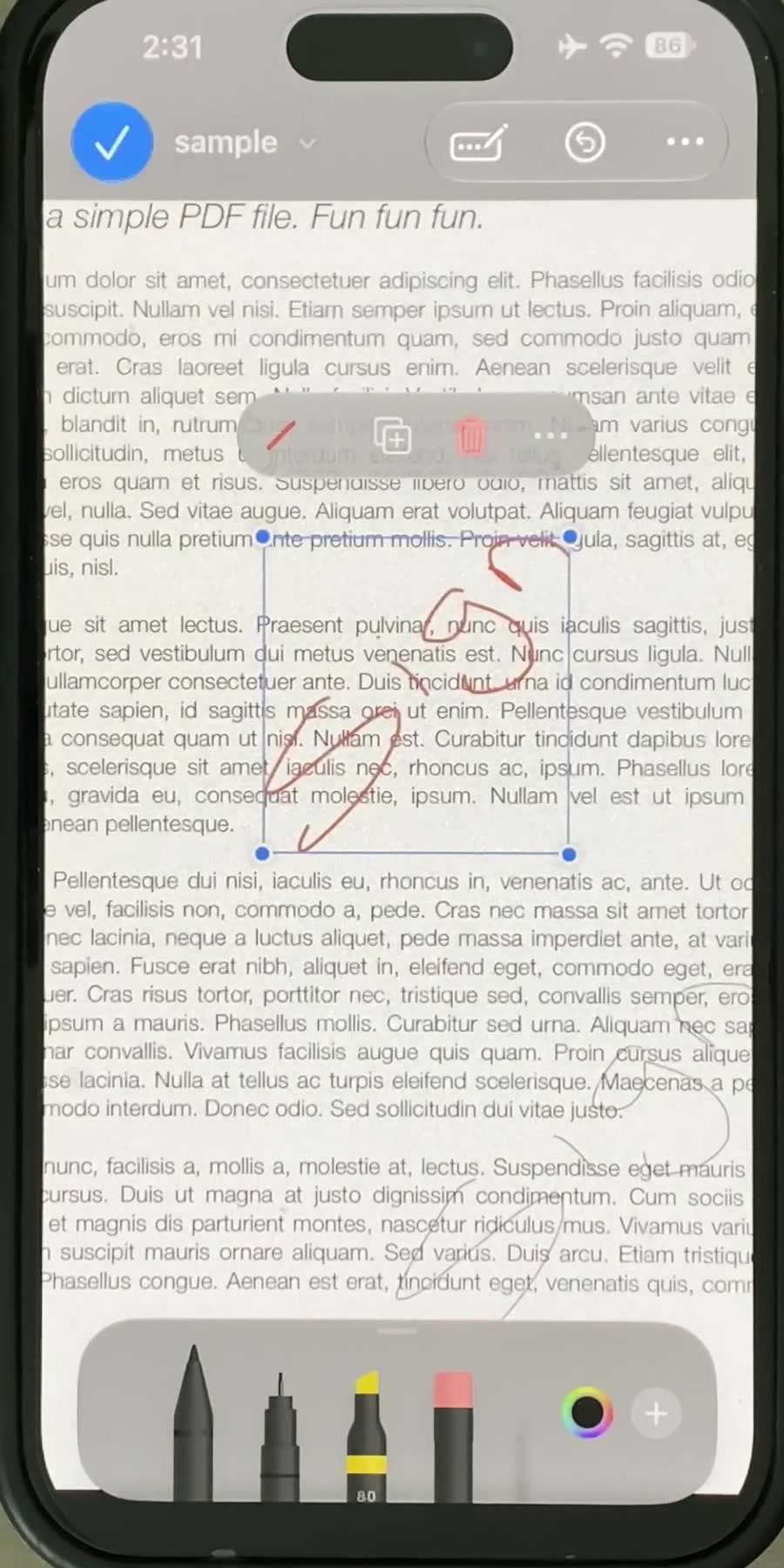
When a PDF is already open in a preview window, you do not need to switch apps. Tap the markup icon at the top of the screen and a tray of pens appears along the bottom, with a plus button at its right end.
Apple lists Markup as available in Mail, Messages and Photos, and the same toolbar appears over a PDF opened from Files. Tap the plus and you get Add Sticker, Add Text, Add Signature, Add Shape and Add Loupe.
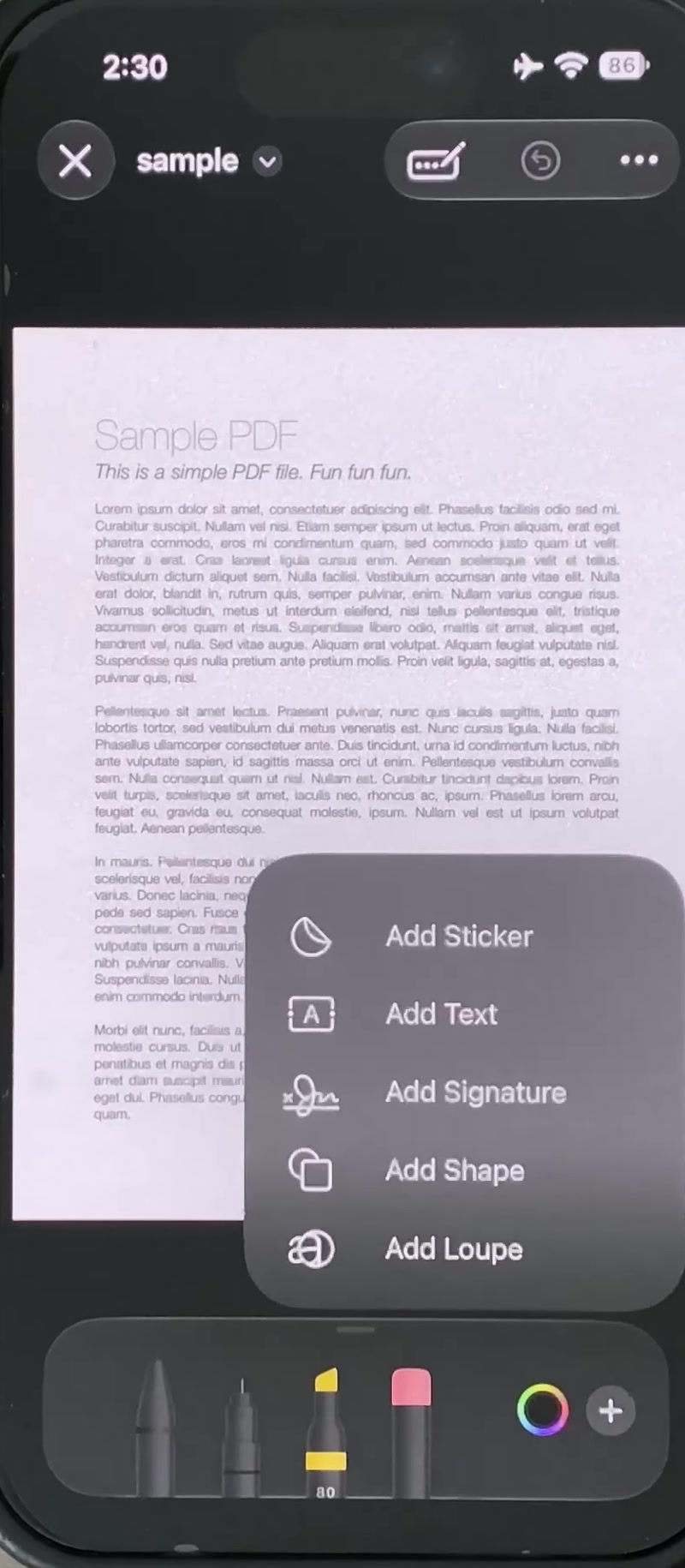
Pick Add Signature and the same saved signatures appear. Once placed, the signature carries its own small toolbar for colour, duplication and deletion.
Filling in the rest of the form
A signature rarely travels alone. In Preview, tapping a form field lets you type into it, and suggestions drawn from your contact card appear above the keyboard, the same mechanism behind the address iPhone offers when it autofills a form. Check what it proposes before you send the file on.
If the PDF has no fillable fields at all, add a text box instead. In Preview that is Add Text Form Box from the same plus menu; in Markup it is Add Text.
What this does not do
A signature added this way is a drawing placed on the page. Apple describes these tools as filling out forms and adding a signature, and its documentation does not describe them as producing a certificate-based digital signature. If a bank, court or employer has asked for a certified or verified e-signature, check what they will accept before sending a marked-up PDF.
It also will not sign on someone else's behalf. The signature you save is yours, drawn on your device.
Common questions
Does my signature stay saved? Yes. The signature picker keeps the ones you have drawn, and Add or Remove Signature is where you add more or clear out old ones.
Can I use more than one signature? Apple's own guidance says you can create multiple signatures to use in different images and documents, which is useful if you sign with initials in some places and a full name in others.
What about a password-protected PDF? You will need to open it before you can mark it up, which is a separate job from signing; our guide to taking a password off a PDF covers that.
If the option isn't there
Check your iOS version first. Preview came with iOS 26, so on an older release you will only have the Markup route. If you are on iOS 26 or later and cannot see Preview on the Home Screen, search for it by name before reaching for a third-party PDF app.
If the plus button shows no signature option, you are probably in a view that only offers drawing. Back out, reopen the file in Preview, and the form tools come with it.