How to Make Font Bigger on iPhone
The Text Size slider in Display & Brightness covers most cases, and Accessibility holds a second slider that goes much further. Here is every route, including a per-app option.
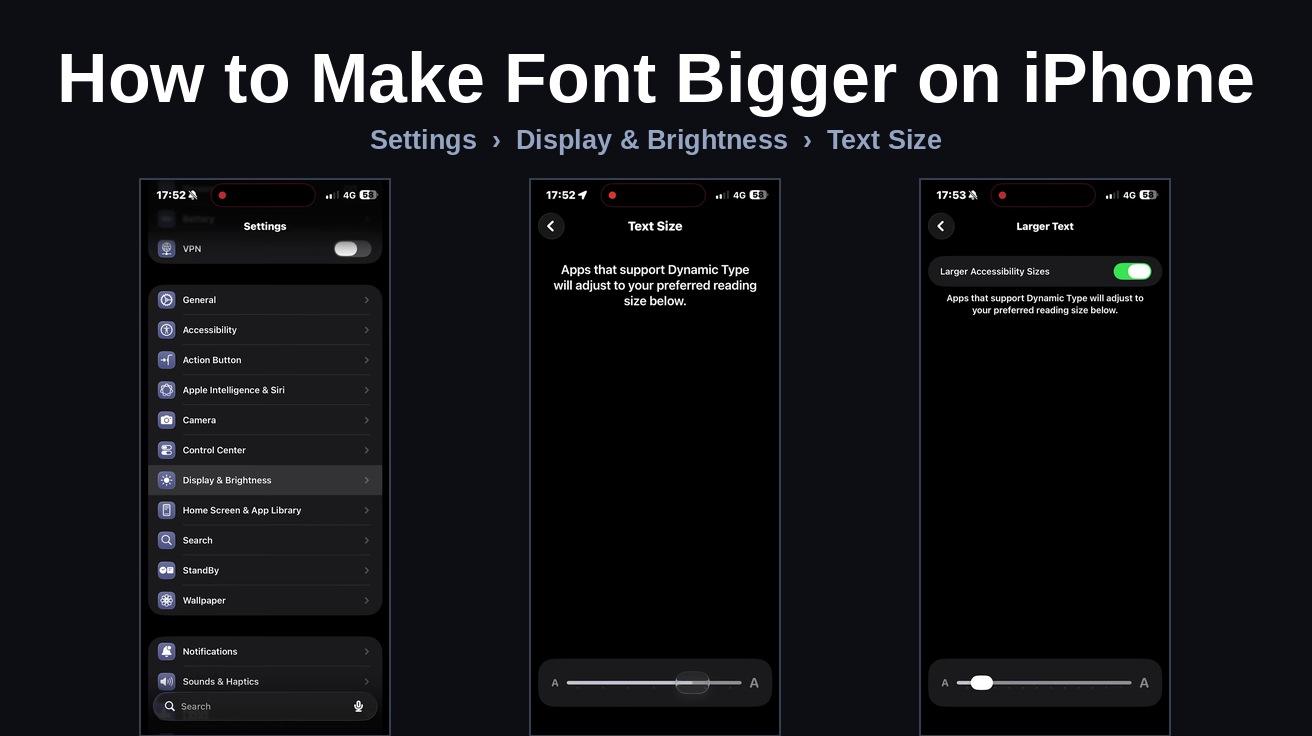
Open Settings, tap Display & Brightness, then tap Text Size and drag the slider to the right. If the biggest size there still isn't enough, go to Settings > Accessibility > Display & Text Size > Larger Text and turn on Larger Accessibility Sizes, which unlocks a much longer slider.
This guide covers how to make font bigger on iPhone in four separate places: the standard Text Size slider, the extended accessibility sizes, a Control Center shortcut, and a per-app setting that leaves the rest of the phone alone.
Which one you want depends on how much bigger you need things to get. The slider in Display & Brightness is the one most people are looking for, and it takes about ten seconds.
How to make font bigger on iPhone in Settings
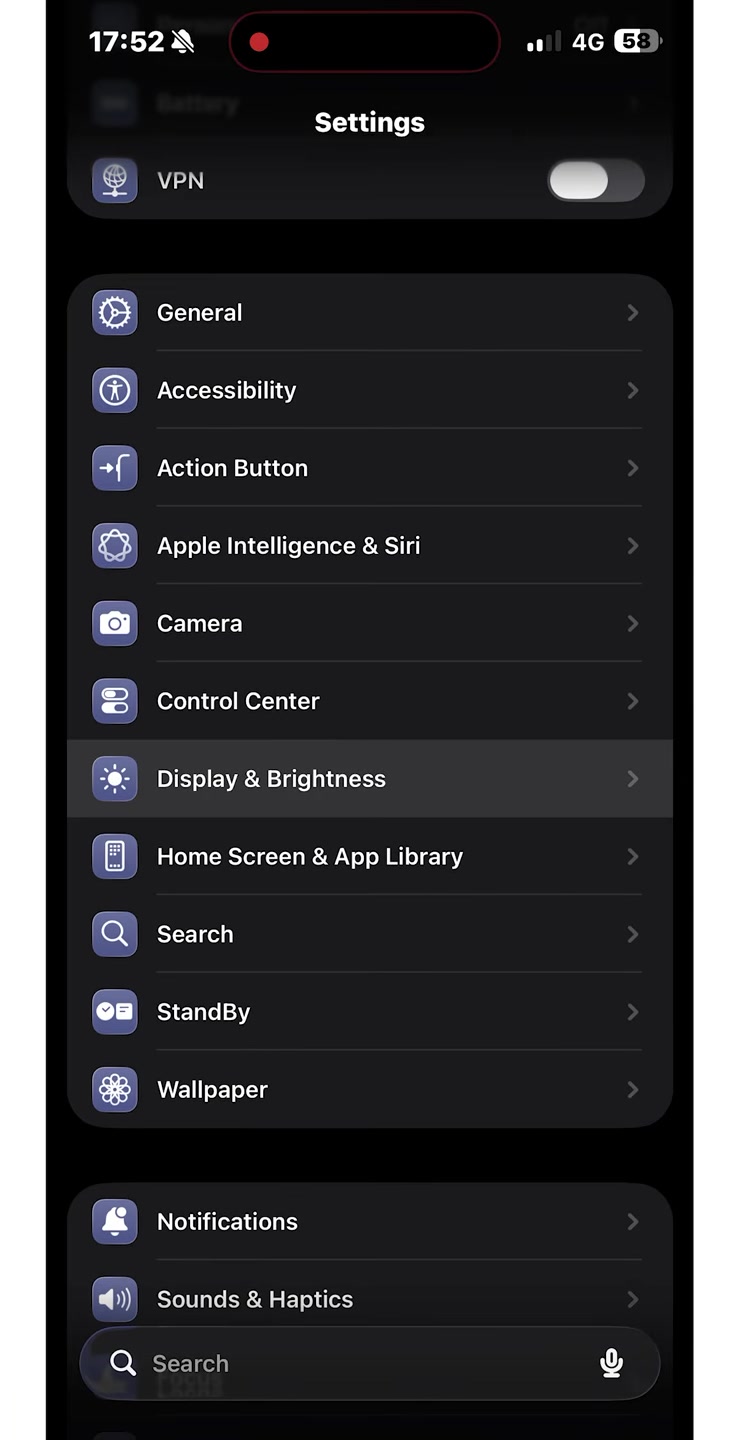
1. Open the Settings app and tap Display & Brightness.
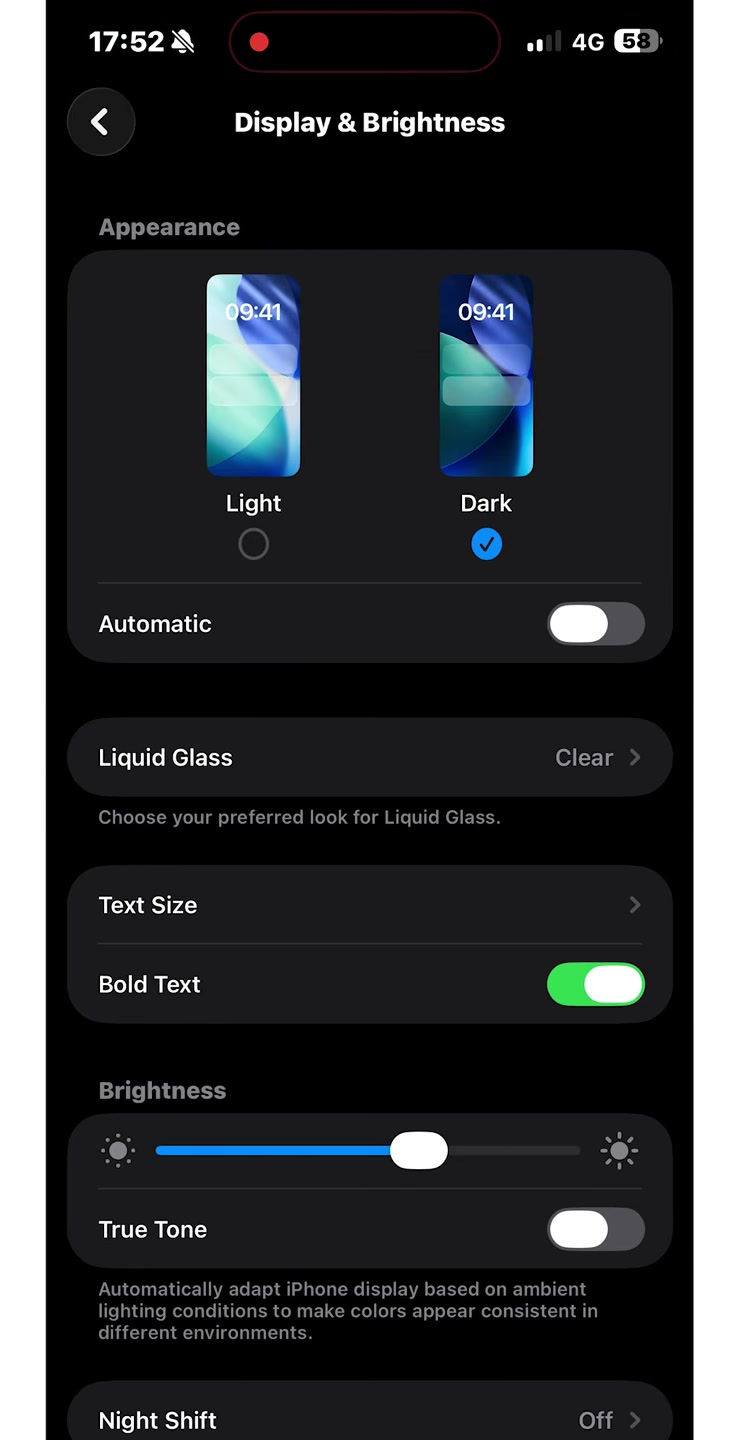
2. Tap Text Size. On this screen you will also see a Bold Text switch, which thickens letters without changing their size.
3. Drag the slider at the bottom to the right. The sample text above it resizes as you drag, so you can judge the result before you leave the screen.
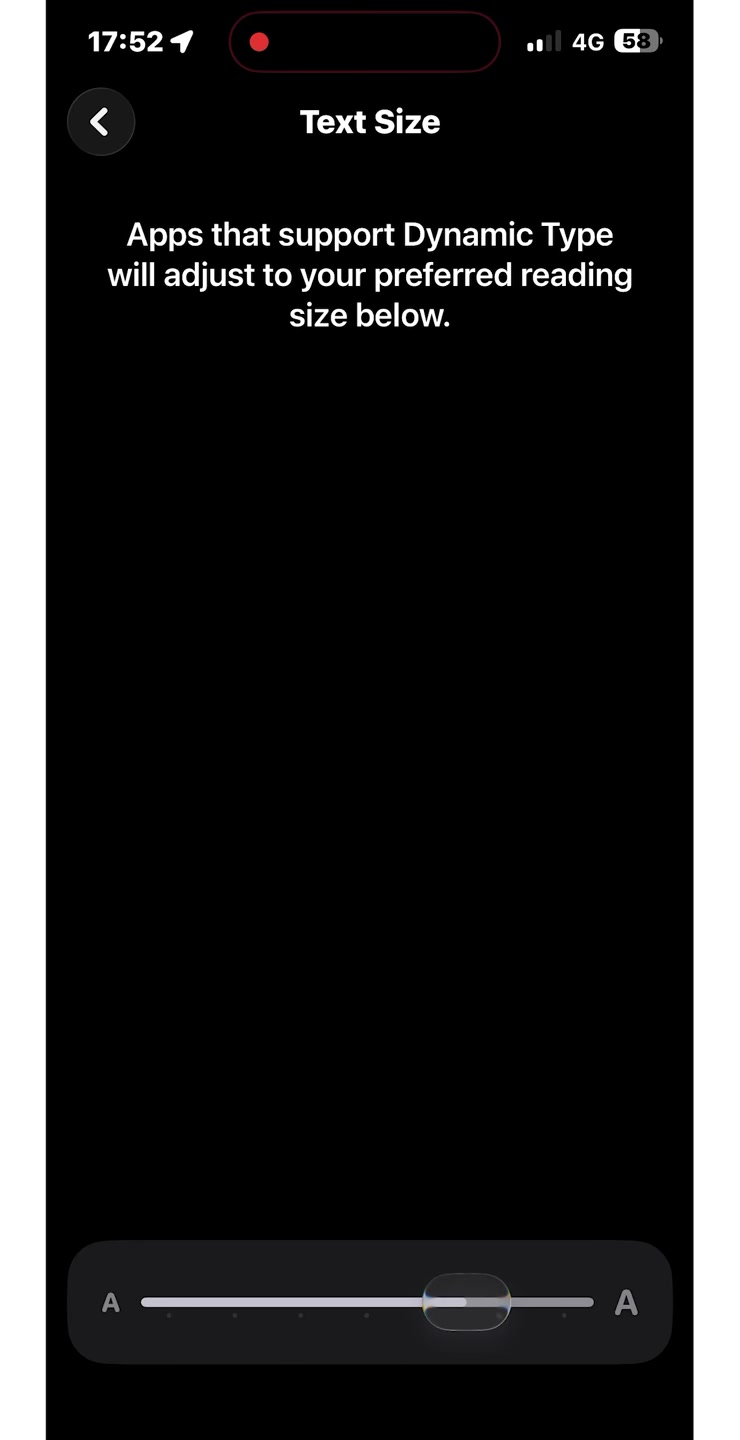
The change takes effect immediately. There is nothing to save and no restart.
Go bigger with Larger Accessibility Sizes
The Display & Brightness slider stops at a fairly modest size. A second slider, buried in Accessibility, goes considerably further.
1. Open Settings and tap Accessibility.
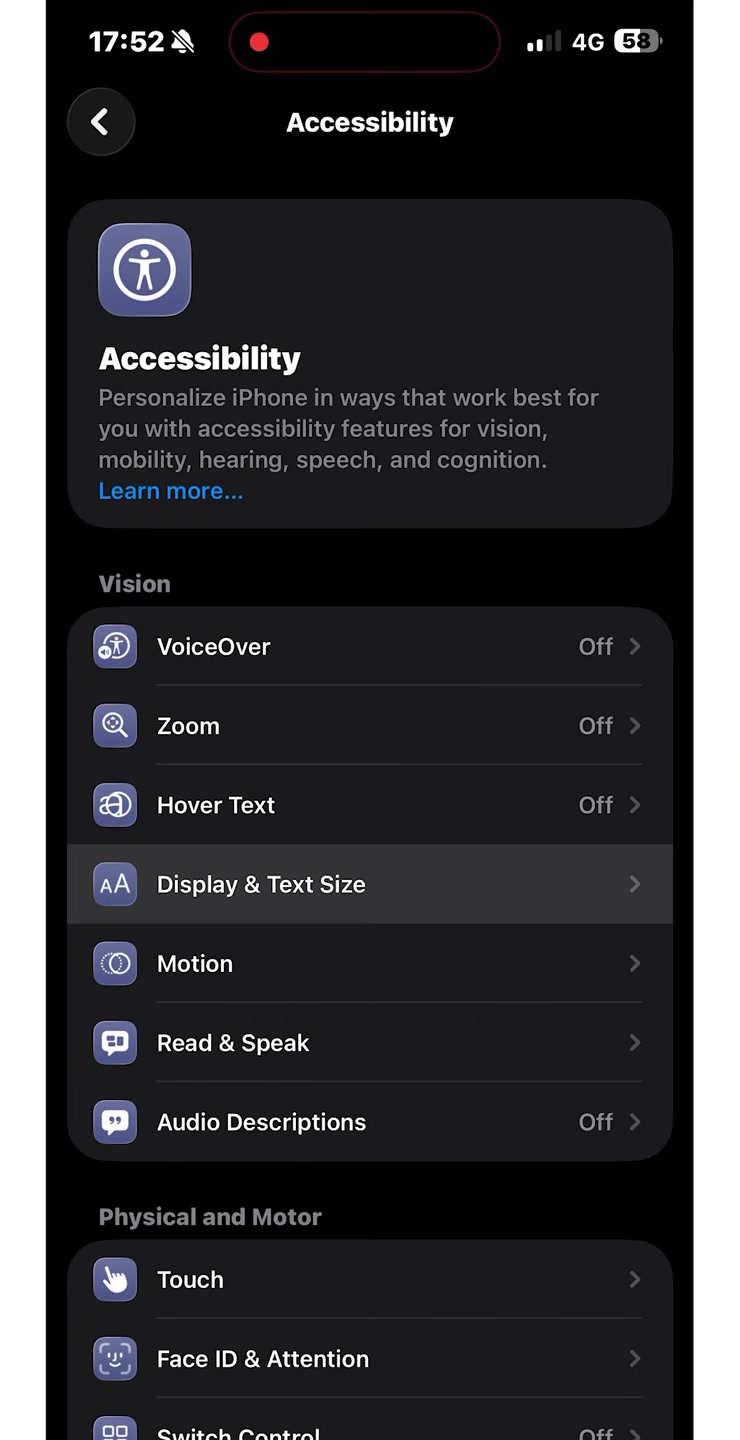
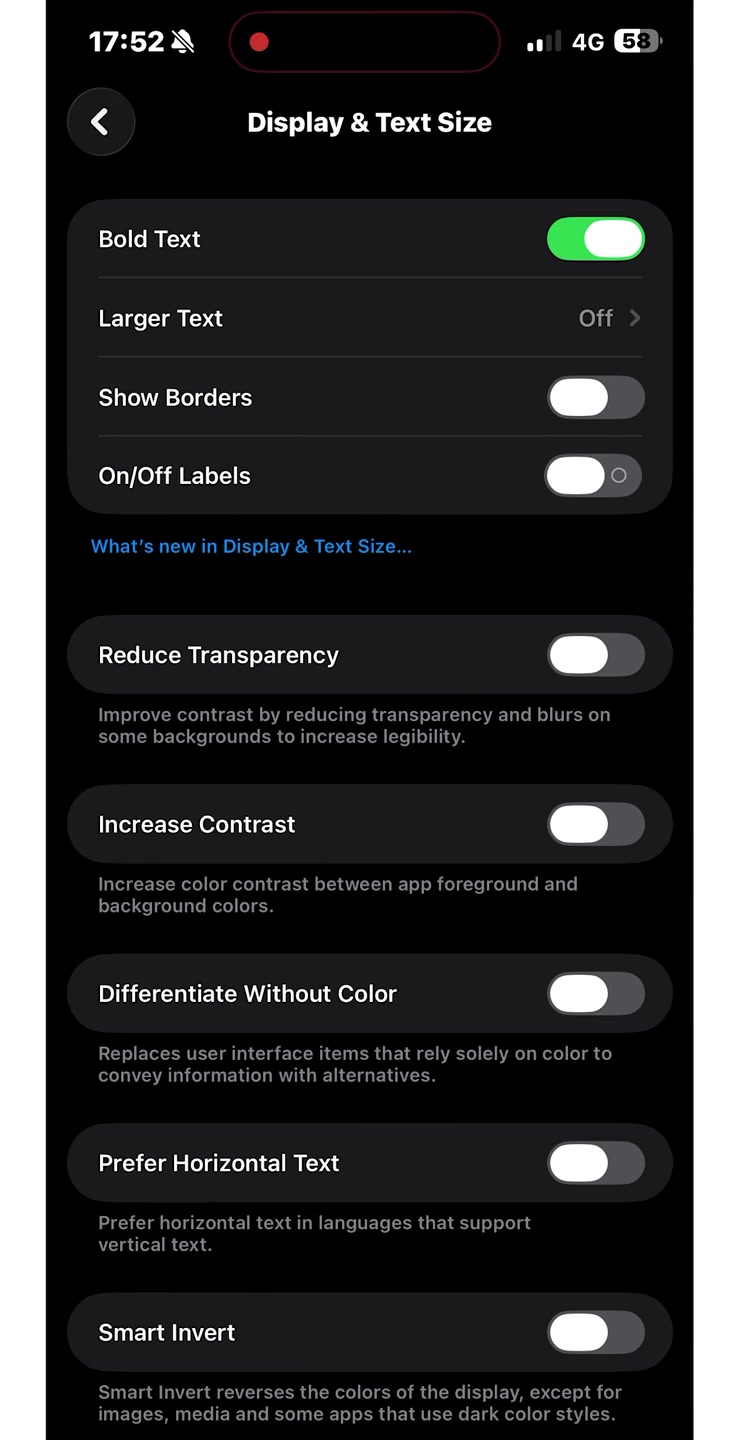
2. Tap Display & Text Size, under the Vision heading.
3. Tap Larger Text. This screen also holds Bold Text and several contrast settings.
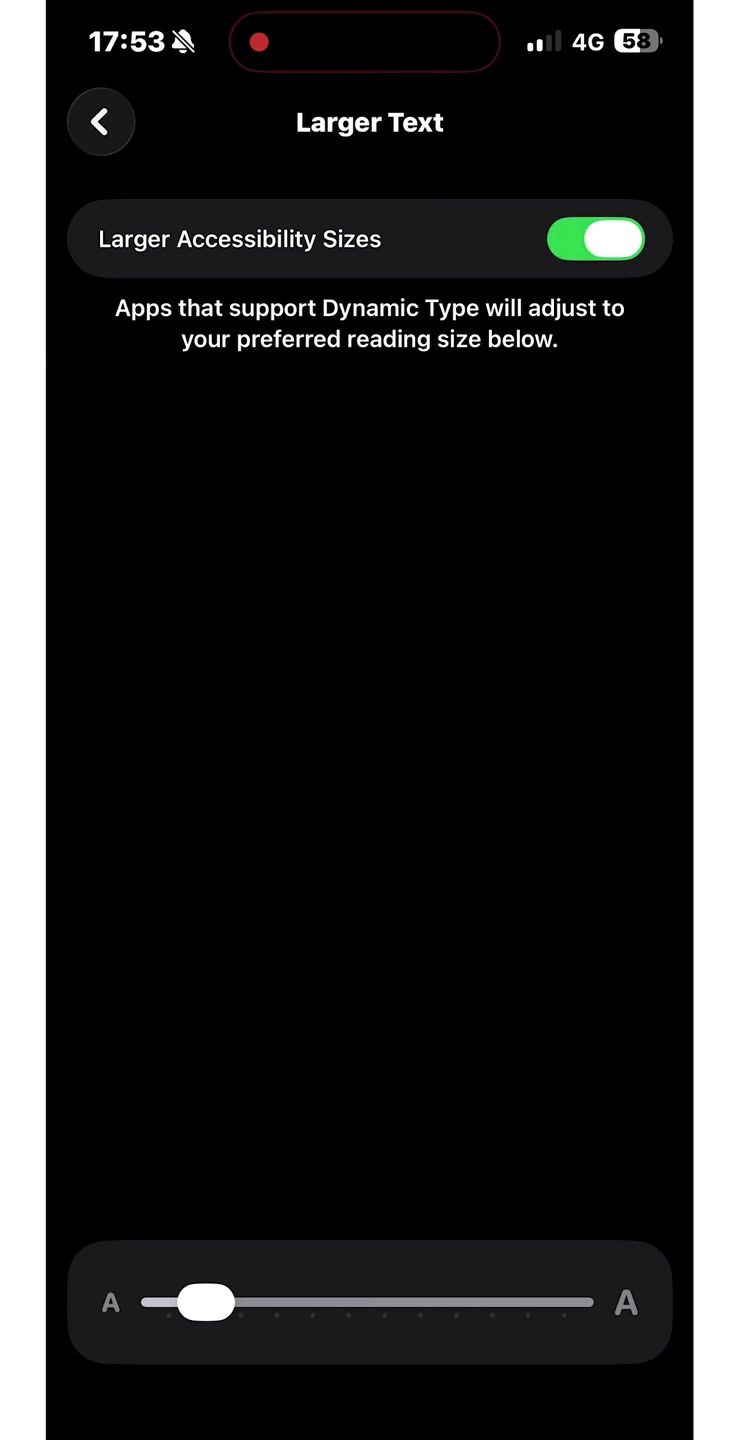
4. Turn on Larger Accessibility Sizes, then drag the slider. The slider gains extra stops once the switch is on.
Apple notes that very large text can push buttons and labels off screen or make them harder to tap, so it is worth stepping back one notch if controls start disappearing.
The faster route: Text Size in Control Center
If you change text size often, there is a control you can keep in Control Center. It is labelled with a small and large letter A.
1. Open Control Center, then touch and hold an empty part of the screen to enter edit mode.
2. Tap Add a Control and choose Text Size.
3. Tap an empty area to leave edit mode.
From then on, opening Control Center and dragging that control changes the reading size without a trip through Settings.
Change the size in just one app
You can make text larger in a single app and leave everything else alone. There are two ways to do it.
The Control Center control is the quicker one. Open the app first, then open Control Center and touch and hold the Text Size control. A toggle at the bottom lets you choose between All Apps and an option named after the app you have open. Pick the app-specific option, then drag the slider.
The other route is in Settings. Go to Settings > Accessibility, scroll to the very bottom, tap Per-App Settings, tap Add App, choose the app, then set Larger Text for it. This is the better option if you want the setting to stay put and be easy to find again.
Make everything bigger, not just text
Text Size only moves text. If icons, buttons and rows also feel too small, Display Zoom scales the whole interface.
Go to Settings > Display & Brightness > Display Zoom and choose Larger Text instead of Default. Confirm the change and the iPhone restarts to apply it. Sources differ on the exact confirmation button, describing it as either Set or Done depending on the iOS version, followed by Use Zoomed.
Display Zoom and the Text Size slider stack, so you can use both if you need the maximum. The trade-off is that fewer items fit on screen at once.
What this does not do
Changing the text size does not change the typeface. iOS has no built-in setting for swapping the system font, so the letters get larger but keep the same shape.
It also does not reach every app. Apple's sizing system is called Dynamic Type, and apps have to support it. An app that hardcodes its own text sizes will ignore the slider entirely, which is why one or two apps can stay stubbornly small while everything else grows.
Finally, the standard slider does not affect the Home Screen app labels in the same way the accessibility sizes do.
Common questions
Does this change text in Safari web pages? Partly. Safari's own interface follows the setting, but a web page controls its own text. Use the page zoom button in the address bar for an individual site.
Will it make my battery drain faster? No. Text size is a display preference, not a processing load.
Can I undo it? Yes. Return to the same slider and drag it back, or turn Larger Accessibility Sizes off. Nothing is permanent and nothing needs a reset.
If the Text Size option isn't there
If Display & Brightness has no Text Size row, you are probably on an older version of iOS where the slider lived only under Accessibility. The Settings > Accessibility > Display & Text Size > Larger Text path works in that case.
If the setting changes but nothing on screen looks different, open a first-party app such as Notes or Mail to check. Those apps follow Dynamic Type reliably, so they are a fair test of whether the change took. If they look bigger and a third-party app does not, the problem is that app, not your iPhone.
While you are in Settings, two other adjustments are worth knowing: how to make the alarm louder on iPhone and how to change the ringtone on iPhone.