How to Make Alarm Louder on iPhone
iOS 27 gives iPhone alarms a volume slider of their own, separate from the ringer. Here is where to find it, and what to do on older versions of iOS.
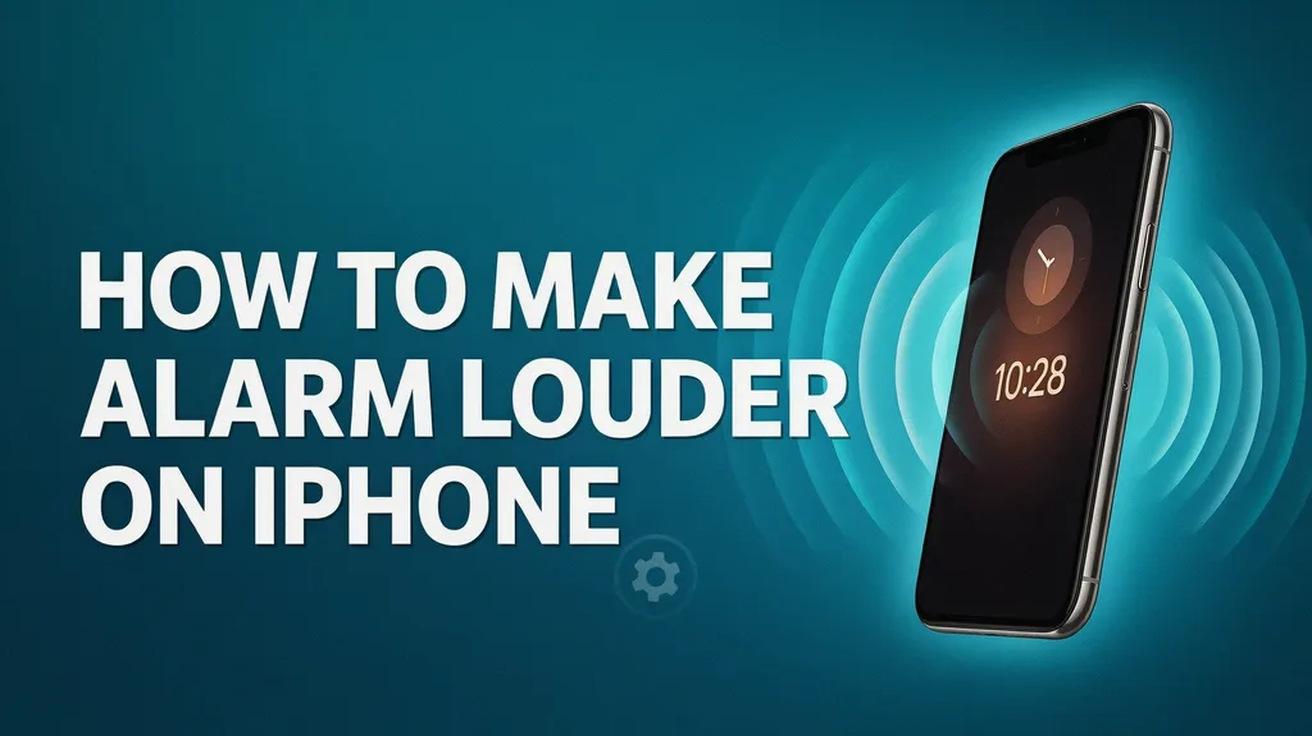
To make alarm louder on iPhone, open Settings, tap Sounds & Haptics, and find the Alarms and Timers section. Turn off Match Ringtone Volume, then drag the slider that appears up to the level you want. On iOS 26 and earlier, drag the Ringtone and Alerts slider instead.
For years the iPhone tied your alarm to the same volume as your ringer. Turn the ringer down for a quiet evening and you turned the morning alarm down with it. iOS 27, released in September 2026, finally split the two.
That change is why there are now two different answers to this question, depending on which version of iOS your phone is running. Both are below.
Where the alarm volume setting lives
On iOS 27, alarms and timers get their own volume slider, independent of the ringer and of the volume buttons on the side of the phone.
1. Open the Settings app.
2. Tap Sounds & Haptics.
3. Scroll to the Alarms and Timers section.
4. Turn off Match Ringtone Volume. A slider appears underneath it.
5. Drag that slider to the right. A sample sound plays as you drag, so you can judge the level without setting an alarm to test it.
With Match Ringtone Volume off, the side buttons no longer touch your alarm. You can silence the ringer completely and the alarm will still go off at the level you set here. Reports differ on whether the toggle starts on or off, so check its position rather than assuming.
The same screen has a second Match Ringtone Volume switch under Alerts and System Sounds. That one covers text tones and keyboard clicks, not alarms, and can be left alone.
Make alarm louder on iPhone in older iOS versions
On iOS 26 and earlier there is no separate alarm slider. Alarm volume is the ringer volume.
1. Open Settings and tap Sounds & Haptics.
2. Under Ringtone and Alerts, drag the slider all the way to the right.
3. Turn off Change with Buttons.
That third step matters more than it looks. With Change with Buttons on, pressing the volume keys while no media is playing moves the ringer slider, which moves your alarm with it. Turning it off locks the alarm at the level you just set and leaves the side buttons for media only.
Two other things that quietly turn the alarm down
If the slider is already at the top and the alarm still sounds faint, two settings are the usual culprits.
The first is Attention Aware Features. On Face ID iPhones, the phone lowers the volume of alarms and timers when the front camera detects that you are looking at the screen. If you sleep with the phone facing you on a nightstand, it can trigger. Turn it off in Settings > Face ID & Passcode, after entering your passcode. The same switch also appears under Settings > Accessibility > Face ID & Attention on some versions.
The second is the alarm's own tone. Open the Clock app, go to the Alarms tab, tap Edit, tap the alarm, then tap Sound. If the sound is set to None, the alarm only vibrates. A sharp tone such as Radar carries further than a soft ambient one at the same volume.
What this does not do
The alarm slider does not control media. Music, video, and podcast volume stay on the side buttons regardless of what you set here.
It also does not override your sleep schedule. Apple says the wake-up alarm created from a sleep schedule in the Health app is managed separately, so changing the alarm slider will not necessarily change how loudly that one sounds.
And it is not a fix for a blocked speaker. If every sound from the phone is muffled, not just the alarm, the speaker grille or the case is the more likely cause.
Common questions
Does Do Not Disturb silence my alarm? No. Apple states that neither Do Not Disturb nor the Ring/Silent switch silences alarms. A Focus mode will not stop one either.
Will this make timers louder too? Yes. The iOS 27 slider is labelled for alarms and timers together, so both move with it.
Can I make the alarm louder than maximum? Not through Settings. The slider at the top is the loudest the speaker goes. Beyond that, the practical options are a sharper alarm tone, moving the phone off soft surfaces, or adding a second alarm on another device.
If the Alarms and Timers section isn't there
Your iPhone is running iOS 26 or earlier. The split sliders arrived with iOS 27 and do not appear on older versions, even on recent hardware.
Check in Settings > General > Software Update. If iOS 27 is available for your model, installing it adds the section. If it isn't, use the Ringtone and Alerts route above, which works on every version that came before.
While you are in Sounds & Haptics, it is also worth checking how to change ringtone on iPhone if the tone you are waking up to is one you would rather not hear, and how Do Not Disturb works on iPhone if you want quiet evenings without touching the alarm.