How to Remove Password From PDF (Two Working Routes)
Two routes that actually work when you know the PDF's password: print it to a new PDF for free, or strip the protection from the original in Adobe Acrobat.
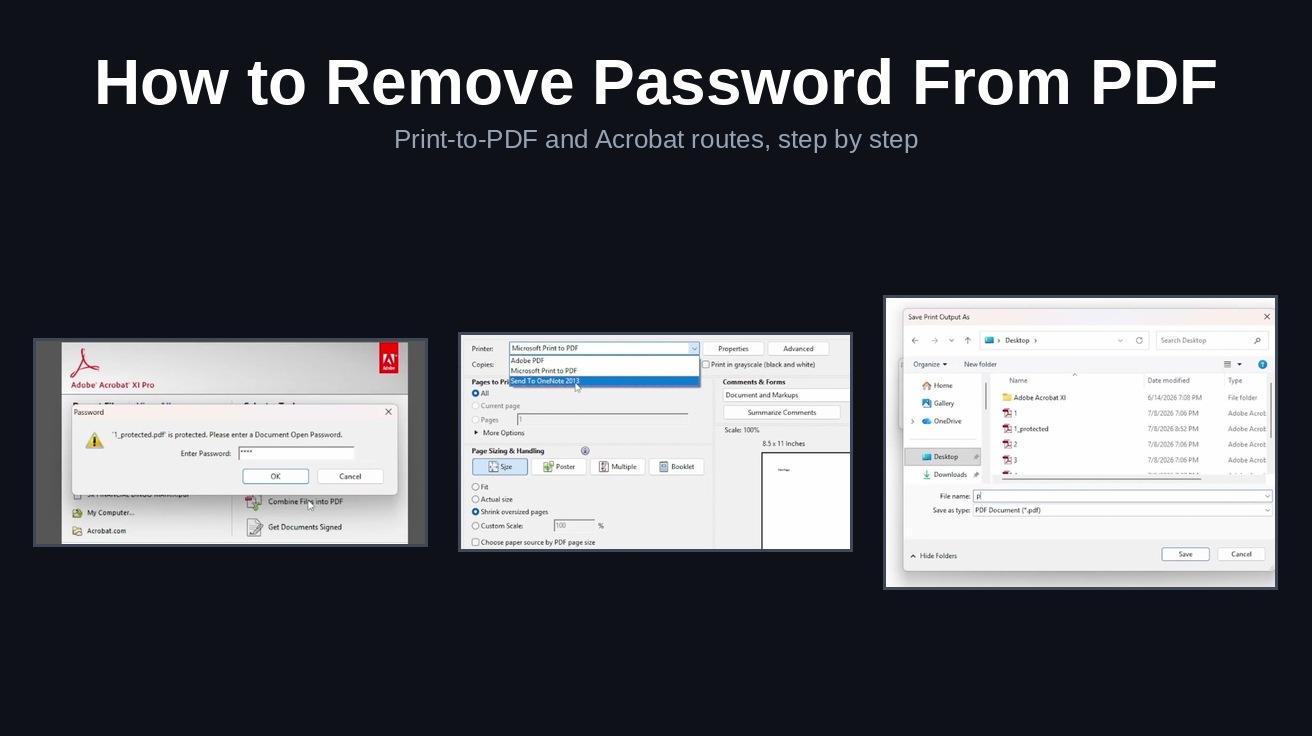
To remove a password from a PDF you can already open, you do not need to buy anything: enter the password, print the document to a new PDF, and save the copy. The copy opens with no password. Adobe Acrobat can also delete the password from the original file, but that route needs a paid subscription.
There are two kinds of PDF password, and they behave differently. A Document Open password stops the file opening at all. A permissions password (Adobe also calls it an owner password) lets anyone open the file but blocks printing, editing or copying.
Everything below assumes the document is yours, or that you have been given the password. None of it recovers a password you do not have.
How to remove password from PDF with print to PDF
This is the free route. It works on Windows 10 and 11 with the built-in Microsoft Print to PDF driver, and the same idea works on macOS and in a browser. The result is a new, unprotected file; the original keeps its password.
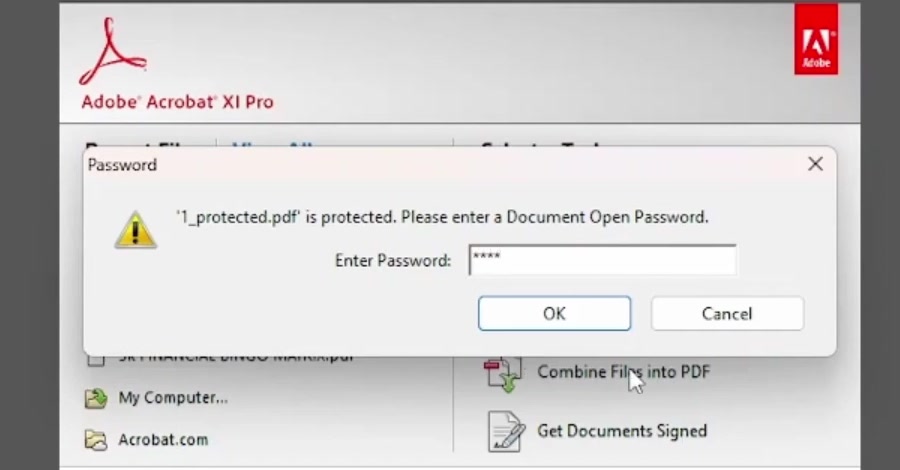
1. Open the PDF in whatever app you normally use — Acrobat Reader, Preview, Edge or Chrome — and type the password when you are asked for it.
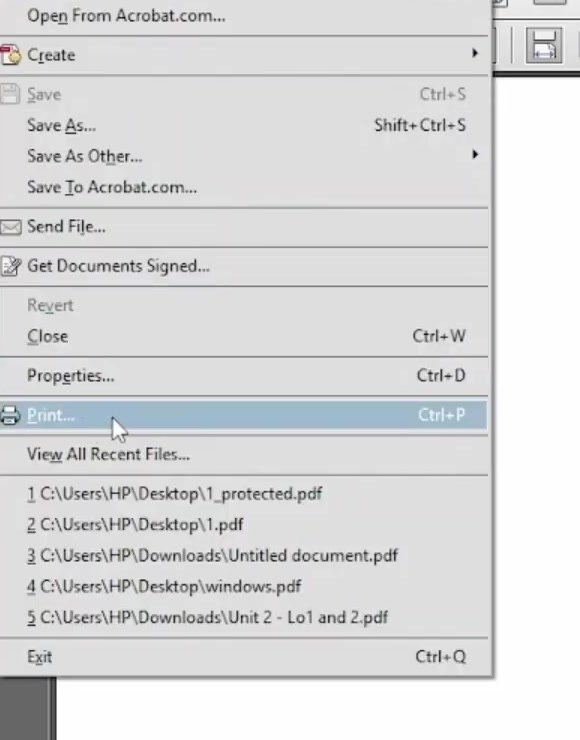
2. Open the File menu and choose Print. The keyboard shortcut is Ctrl+P on Windows and Cmd+P on a Mac.
3. Open the Printer dropdown at the top of the print dialog. You are looking for a virtual printer rather than a real one.
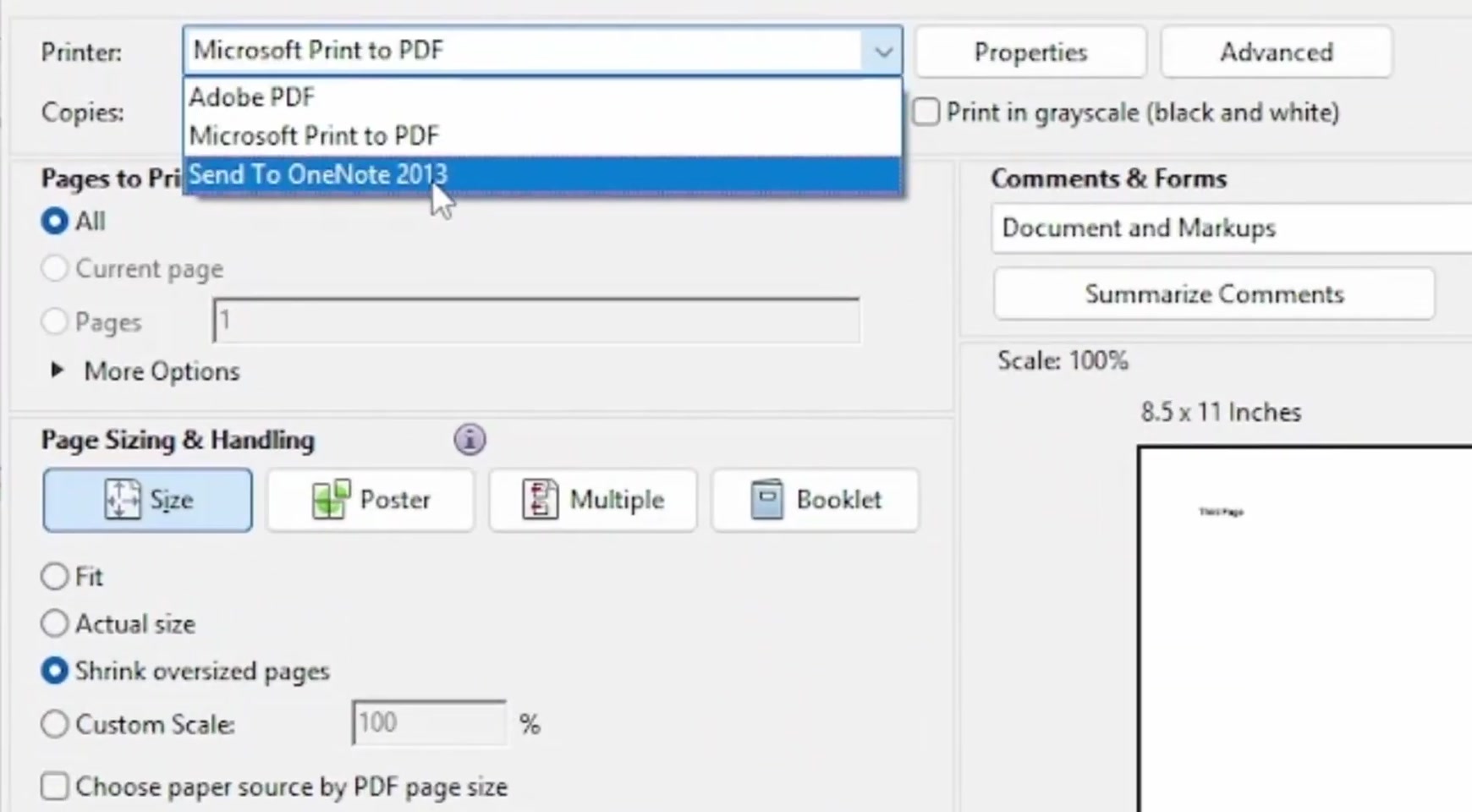
4. Choose Microsoft Print to PDF. On a Mac, use the PDF dropdown in the corner of the print sheet and pick Save as PDF instead. In Chrome, set Destination to Save as PDF.
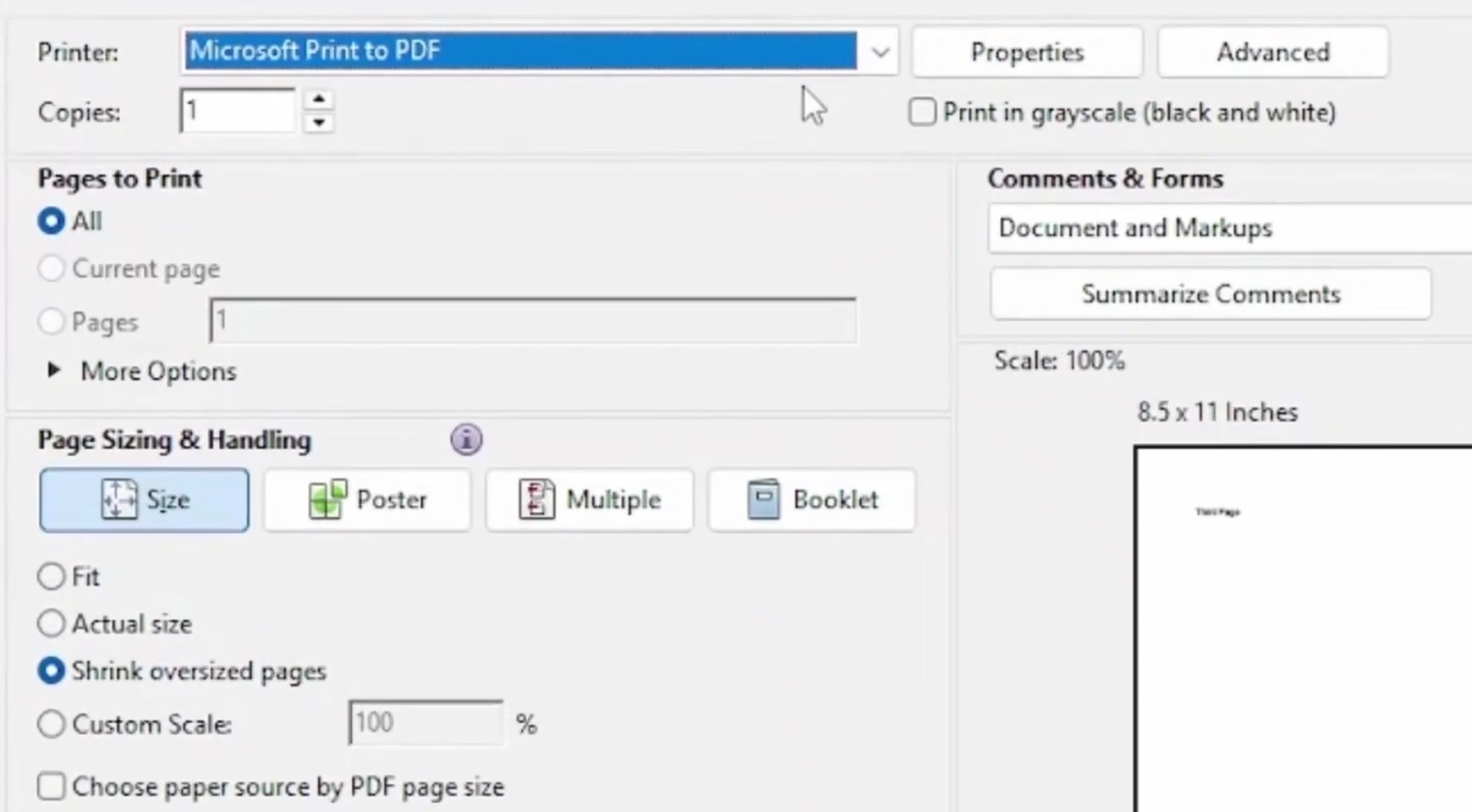
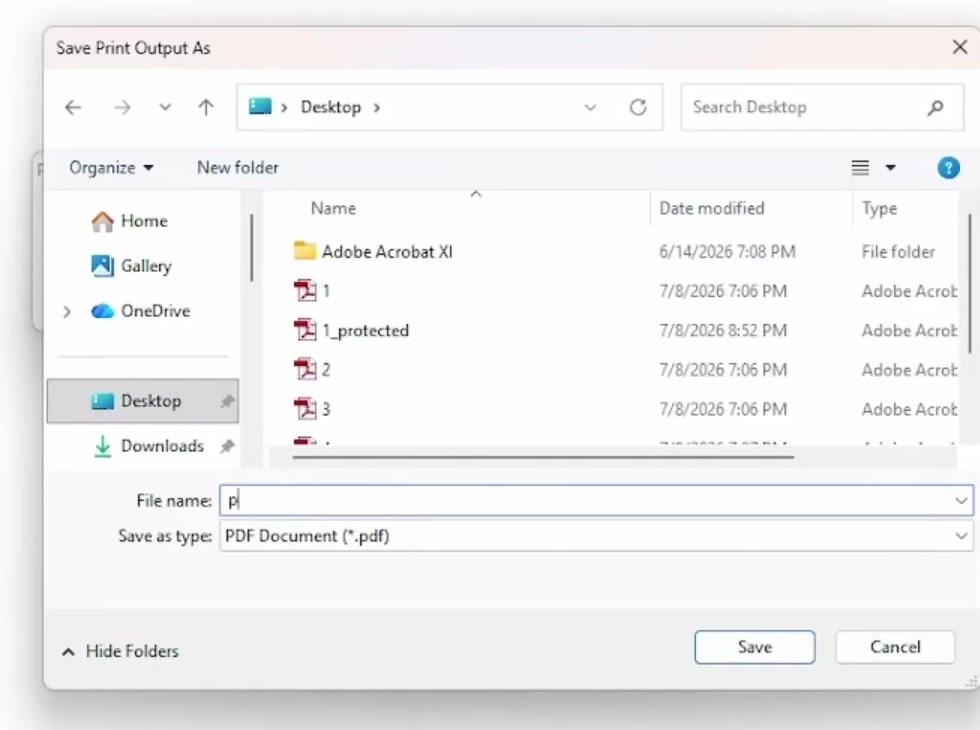
5. Click Print. Windows opens a Save Print Output As box. Give the file a new name, leave Save as type on PDF Document (*.pdf), and click Save.
Open the new file. It should go straight to page one with no prompt.
Faster routes on Mac, Chrome and Edge
On a Mac, Preview can do it without printing. Open the PDF, enter the password, then choose File and Export, name the copy and click Save. Be aware that Mac users have reported the export option greying out on some macOS releases, starting with Monterey; if that happens, fall back to Cmd+P and Save as PDF.
Chrome is the most reliable browser route. Drag the PDF into a Chrome tab, type the password, press Ctrl+P or Cmd+P, set Destination to Save as PDF and save. Safari and Edge print to PDF the same way. Firefox works too, though one user reported the output file ran roughly 3.7 times the size of the original.
Remove the password from the original file in Adobe Acrobat
Printing makes a copy. Acrobat can take the protection off the file itself, which matters if you need to keep the same document rather than a reprint. This needs an Acrobat subscription or trial — Acrobat Reader can open protected files but cannot strip the protection.
1. Open the PDF in Acrobat on the desktop and enter the password.
2. Go to Tools, then Protect, then Encrypt, then Remove Security. Adobe documents this path; recent Acrobat releases surface the same tools under All tools in the left-hand rail, so the first click may be labelled differently depending on your version.
3. For a Document Open password, click OK to confirm. For a permissions password, type it in the Enter Password box, click OK, then OK again.
There is a second path to the same place. Click the lock icon in the sidebar to open Security Settings, click Permission Details, and in the Document Properties box set the security method to No Security. Confirm the warning. The Security Method line should then read No Security. Save the file.
Word documents use a different protection system, and the steps do not carry over — that one is covered separately in our guide to unlocking a Word document.
What this does not do
None of this breaks a password you do not know. Both routes need you to open the document first, which means typing the real password.
Adobe is explicit that its tools cannot unlock files protected by server-based security policies, digital signatures or DRM. A corporate document that phones home to a rights server will not yield to either method.
Printing to PDF also regenerates the file. Adobe does not publish a list of what survives that trip, so if the original has form fields, bookmarks or internal links, open the new copy and check them before you delete anything. If a permissions password blocks printing, the print route is closed to you and Acrobat is the only way through.
Common questions
Does the original file change? Not with the print route. You end up with two files: the protected original and an unprotected copy. The Acrobat route edits the original, so save a backup first if you might want the protection back.
Is a free online unlocker safe? Uploading a document to a stranger's server means handing them the contents. If the PDF holds anything you would not email to a stranger, use the offline routes above instead.
What about the Acrobat mobile app? Adobe's own page says you can open and unlock a protected file in the mobile app, then save or share it, but the same page's FAQ says permanent removal needs a desktop subscription. Treat the desktop route as the reliable one.
If the Print to PDF option isn't there
On Windows, Microsoft Print to PDF is an optional feature that can be switched off. Press Windows+R, type OptionalFeatures.exe and press Enter. In the Turn Windows features on or off window, scroll to Microsoft Print to PDF, tick it and click OK. It should then appear under Settings, Bluetooth & devices, Printers & scanners.
If it is present but the file still saves with a password, the document almost certainly carries a permissions password that forbids printing. Ask whoever sent it for the owner password, or ask them to send an unprotected copy. That is the honest end of the road for a document you do not control.