Convert Excel to Google Sheets (Two Routes)
Two routes turn an Excel workbook into a Google Sheets file: Save as Google Sheets from Drive, or File then Import inside a spreadsheet. Here is where each lives and what each one loses.
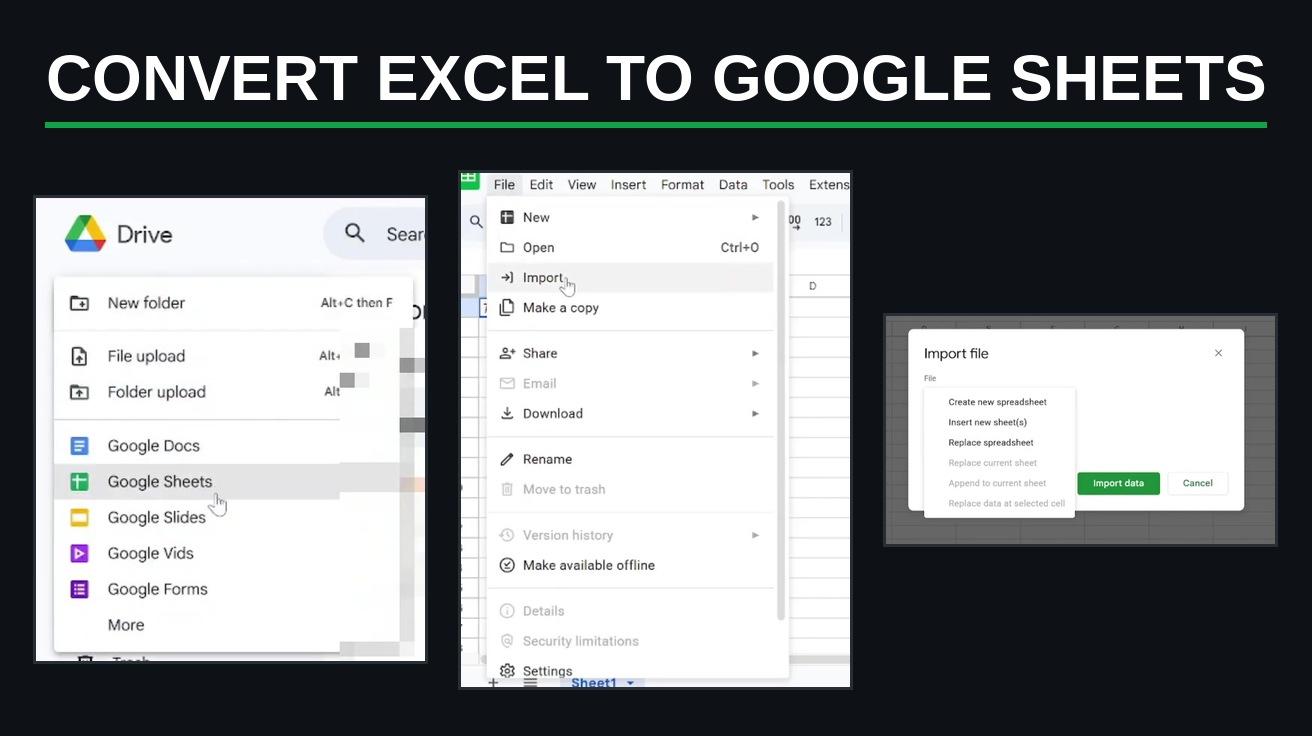
To convert Excel to Google Sheets, upload the .xlsx file to Google Drive, double-click it so it opens in Sheets, then choose File, then Save as Google Sheets. Google makes a separate Sheets copy and leaves the Excel file untouched. The other route is File, then Import from inside an open spreadsheet.
Drive will happily open an Excel workbook without converting anything. That is Office editing: you edit the file, and your changes save back in Excel format. It works, but the file is still a workbook, so a few Google features stay switched off.
Converting makes a real Google Sheets file instead. Here is where each route lives and what each one costs you.
Where Save as Google Sheets lives
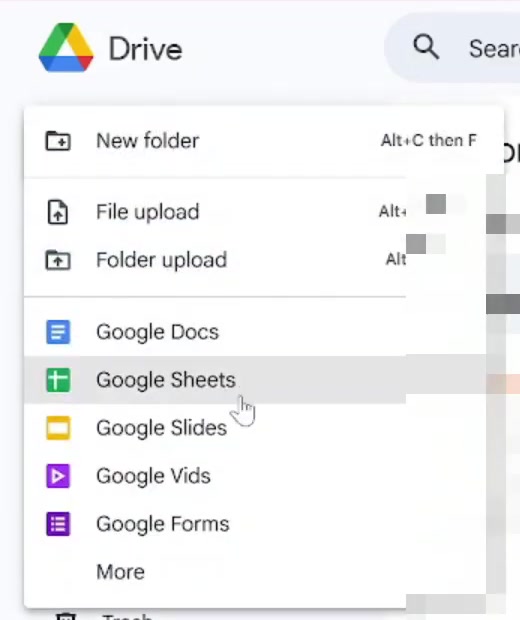
1. Open Google Drive and click New, then File upload. Pick the workbook from your computer and wait for the upload to finish.
2. Double-click the uploaded file. It opens in Google Sheets with the Excel file name and an .XLSX badge next to the title.
3. Click File, then Save as Google Sheets.
Google creates a second file in the same folder, in Sheets format, and opens it. The original workbook stays in Drive exactly as it was, which is useful if a formula lands badly and you want to compare.
If double-clicking only shows a preview, click Open with Google Sheets at the top of that preview. Google also notes that the Office Editing for Docs, Sheets, and Slides Chrome extension intercepts these files, so remove it from your extensions if Drive keeps handing the file to it.
Convert Excel to Google Sheets with File, then Import
This route starts inside a spreadsheet rather than in Drive, and it is the faster one when you only want the data.
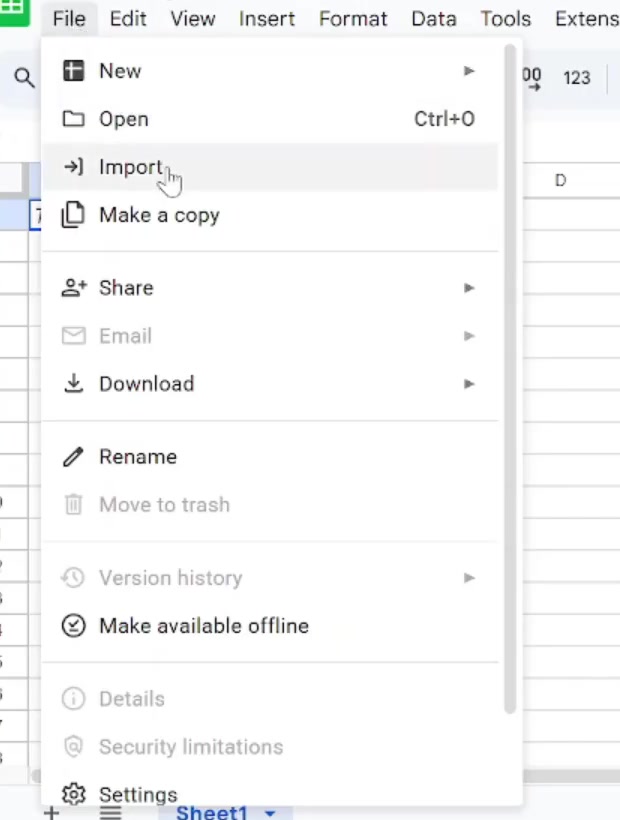
1. Open a Google Sheets file, or create a blank one, then click File, then Import.
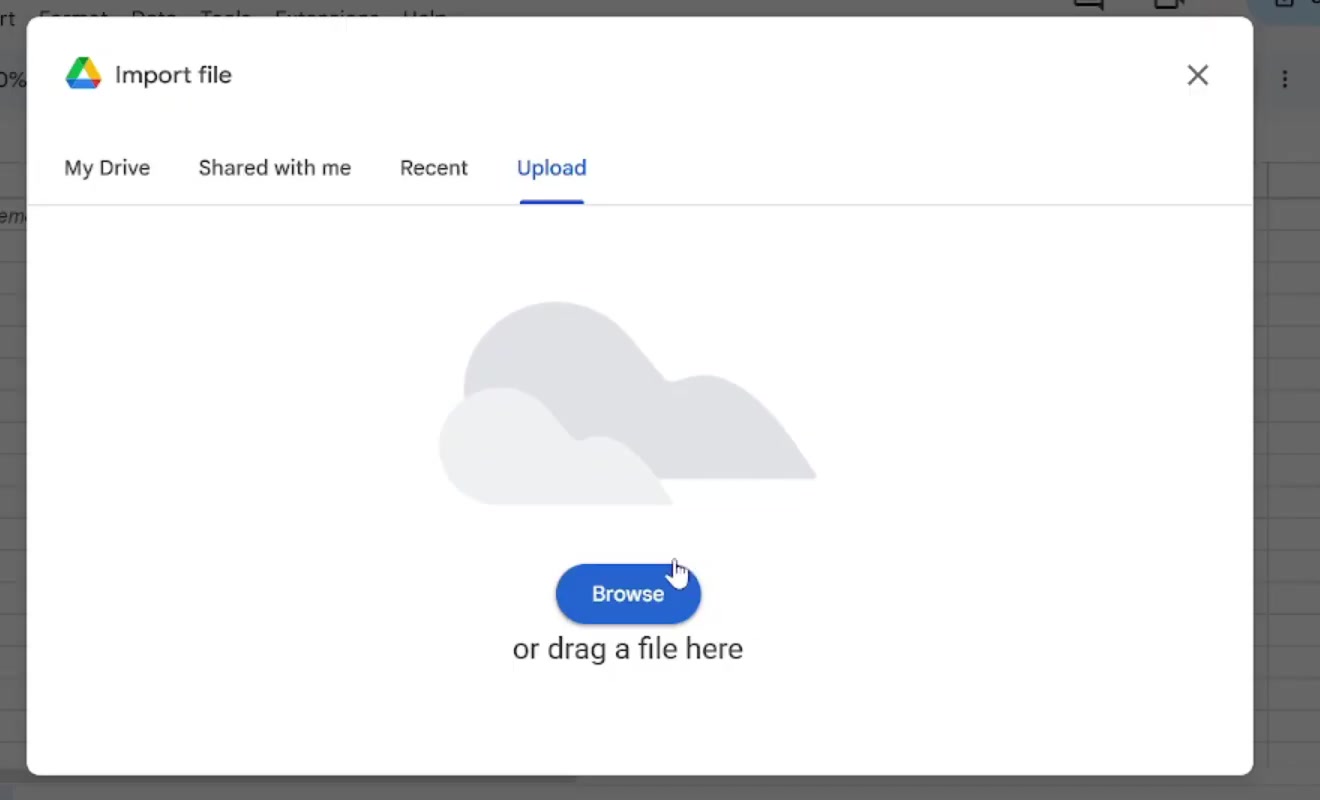
2. In the Import file box, switch to the Upload tab and click Browse, or drag the workbook onto the box. Files already in Drive are under My Drive, Shared with me, and Recent.
3. Choose an import location, then click Import data.
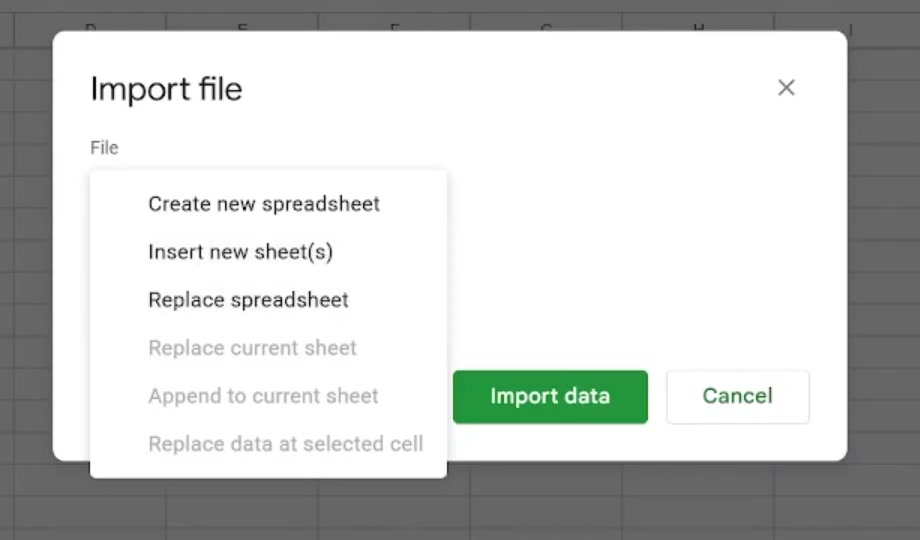
Google documents the same restriction: Replace current sheet, Append to current sheet, and Replace data at selected cell are not offered when the source is an Excel file. Importing also leaves the original workbook unchanged.
Convert every Excel upload automatically
If you are moving a whole folder across, turn conversion on once. In Drive, click the Settings gear, then Settings. Next to Convert uploads, switch on Convert uploaded files to Google Docs editor format.
From then on, uploaded workbooks arrive as Sheets files. Google is explicit that files uploaded before you changed the setting are not converted retroactively, so anything already sitting in Drive still needs one of the routes above.
What this does not do
Conversion is not lossless, and Google says so in the Sheets editor itself: it warns you when an Office feature will be lost or changed. Expect to re-check anything exotic, particularly charts, pivot tables, and conditional formatting rules.
There are hard limits too. A spreadsheet created in or converted to Google Sheets can hold up to 20 million cells or 100 MB. On an Excel-to-Sheets conversion, any cell holding more than 50,000 characters is removed.
Some Google features are unavailable while a file is still in Office format, which is one reason to convert: Google lists Apps Script, Workspace Add-ons, cell locking, document translation, and copying an old version out of Version History. Password-protected workbooks open in Viewer and cannot be edited at all.
Common questions
Does converting delete my Excel file? No. Save as Google Sheets writes a new file, and File, then Import reads the workbook without altering it.
Can I get it back to Excel afterwards? Yes. In the Sheets file, click File, then Download, and choose Microsoft Excel. There is also File, then Email as attachment, which can attach the sheet as an Excel file.
Which Excel file types does Drive accept for editing? Google lists .xls, .xlsx, .xlsm, and .xlt for Sheets.
If the option isn’t there
No Save as Google Sheets entry usually means the file is already a Google Sheet, so there is nothing to convert. A greyed-out Import data button means no file has been selected yet in the dialog.
If the file refuses to open in Sheets at all, check its size against the 100 MB ceiling and strip unused rows in Excel first. Once the data is in, Google Sheets conditional formatting and line charts work the same way they do on a sheet you built from scratch.