How to Merge Two Columns in Excel
Merge & Center deletes half your data. Here is how to combine two Excel columns properly, using the ampersand, CONCAT, TEXTJOIN or Flash Fill.
Put the cursor in an empty cell next to your data, type =A2&" "&B2 (swapping in your own cell references), and press Enter. Drag the fill handle down to apply it to every row. Do not use Merge & Center for this: Microsoft's own documentation says it keeps only the content of the top left cell and discards the rest.
Two columns of data that belong together are a common spreadsheet problem. First name in one column, last name in the next. Street in one, city in another. The short version of how to merge two columns in Excel is that you build a third column with a formula, then turn that formula into plain text if you want to delete the originals.
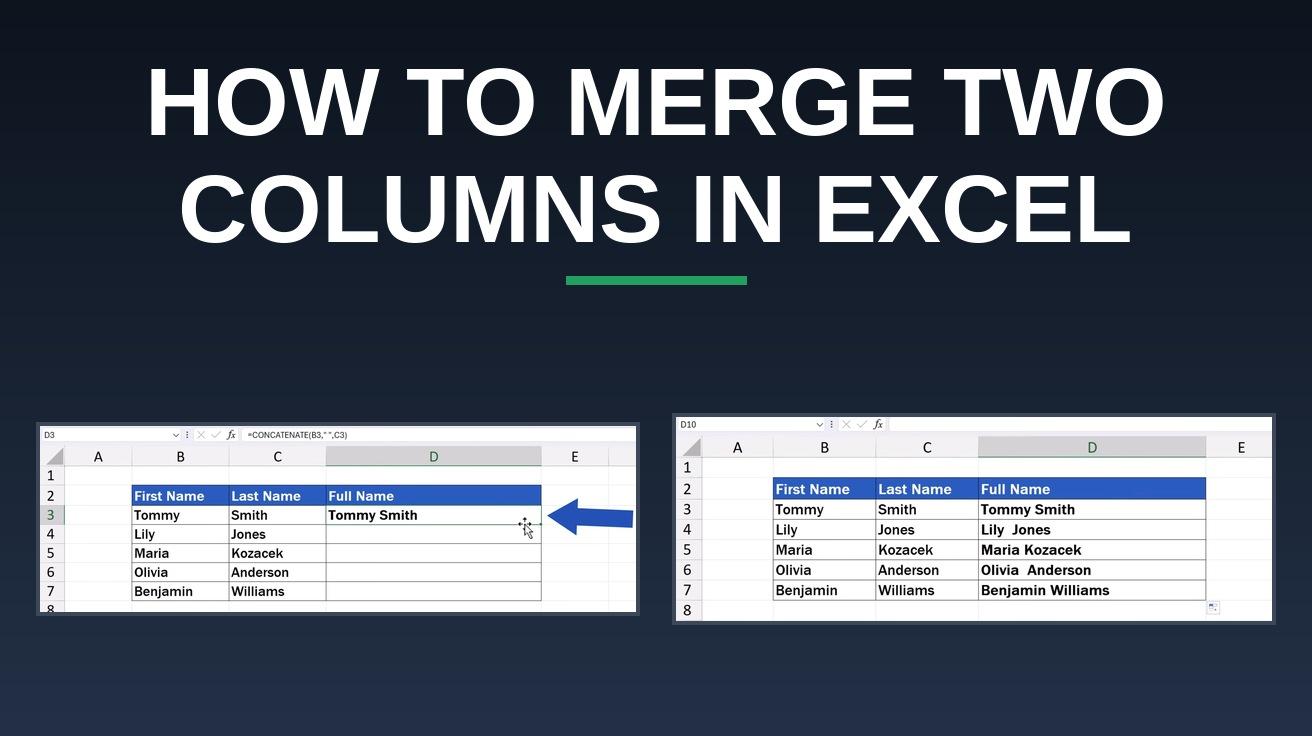
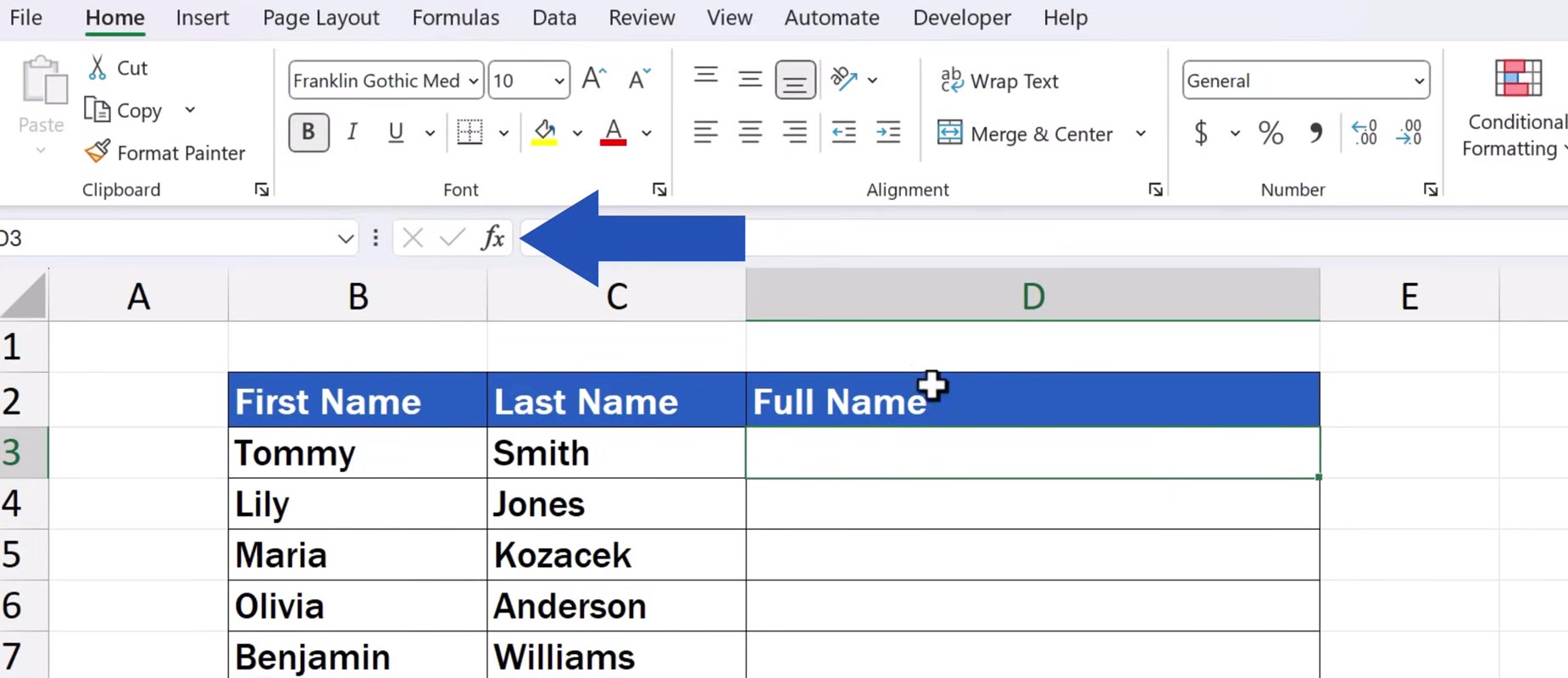
The screenshots below come from Excel on Windows, using a sheet with First Name in column B, Last Name in column C, and an empty Full Name column in D.
Why Merge & Center is the wrong button
Merge & Center sits on the Home tab, in the Alignment group, and it looks like it should be the answer. It is not. It merges the cells themselves into one bigger cell, and Microsoft's support page warns that "When you merge cells that contain data, only the content in the upper left or left most cell is preserved."
In other words, you would lose every last name in the sheet. The command is for layout, such as centring a title across several columns, not for combining values.
How to merge two columns in Excel with the ampersand
1. Add an empty column next to the two you want to combine, and give it a heading. In the example that is column D, headed Full Name.
2. Click the first empty cell in that column, on the same row as your first piece of data. Here that is D3.
3. Type an equals sign, click the first cell you want, then type &" "& and click the second cell. Microsoft words it as: type & and "use quotation marks with a space enclosed." The finished formula looks like =B3&" "&C3.
4. Press Enter. The cell now shows both values with a space between them, and the formula bar shows what produced it.
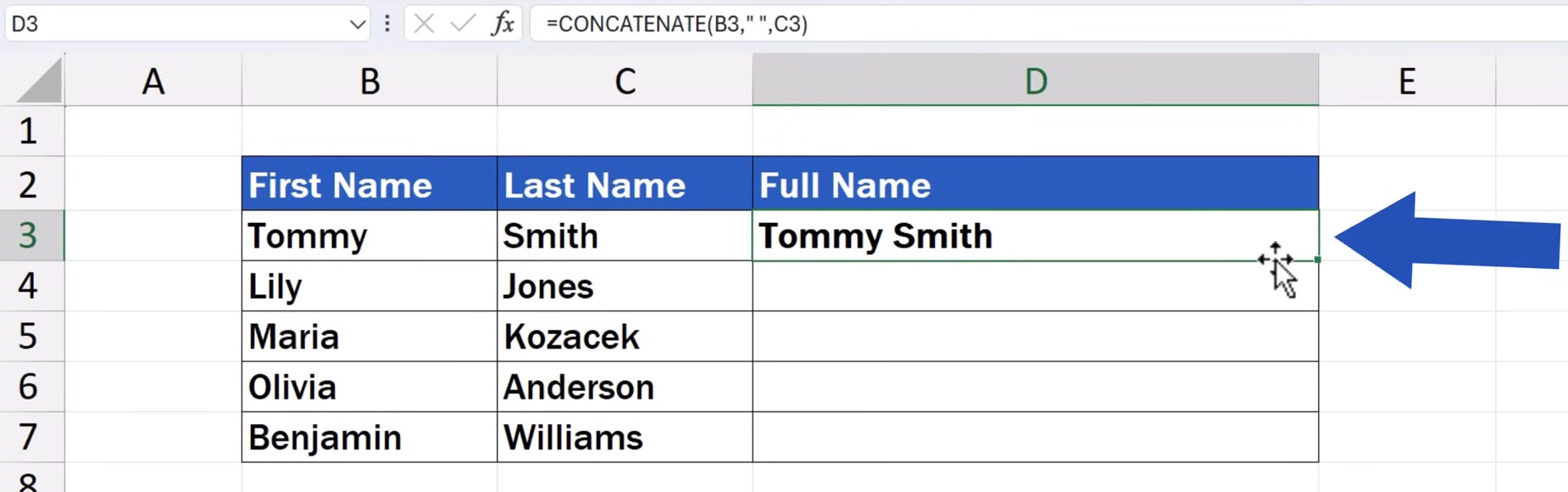
5. Select that cell again and double-click the small square at its bottom-right corner, or drag it down the column. Every row fills in with its own pair of values.
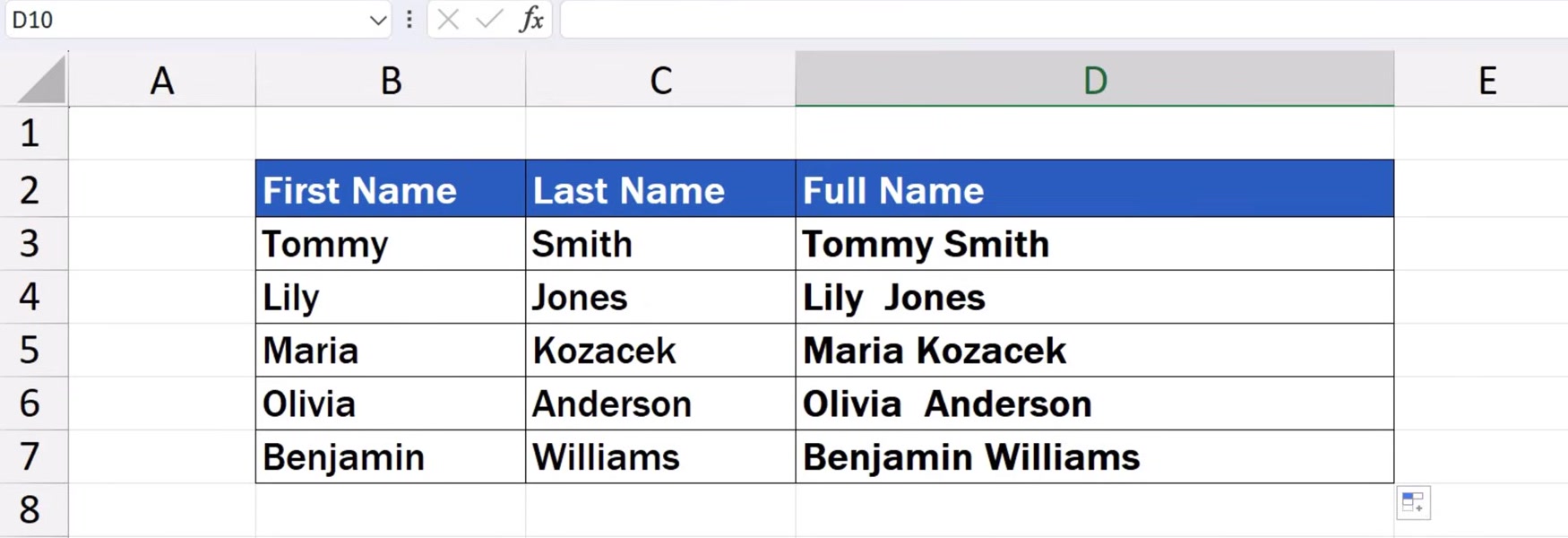
The space in quotation marks is the separator, and you can change it to anything. Use &", "& for a comma and a space, or &""& for no gap at all.
Use CONCAT or TEXTJOIN instead
The ampersand and the functions do the same job. Microsoft documents both on the same page, so pick whichever reads more clearly to you.
CONCAT takes the cells as arguments: =CONCAT(B3," ",C3). Microsoft states that CONCAT replaces the older CONCATENATE function, and that CONCATENATE stays available for compatibility with earlier versions of Excel. If you open an inherited workbook and find CONCATENATE in it, it still works.
TEXTJOIN is the better choice when you have more than two columns, because the separator is set once rather than typed between every pair. The syntax is TEXTJOIN(delimiter, ignore_empty, text1, …), so =TEXTJOIN(" ",TRUE,B3:C3) joins a whole range. Setting the second argument to TRUE tells it to skip empty cells, which is what you want when some rows are missing a middle name. Microsoft's documentation lists a limit of 252 text arguments, and a #VALUE! error if the result runs past the 32,767-character cell limit.
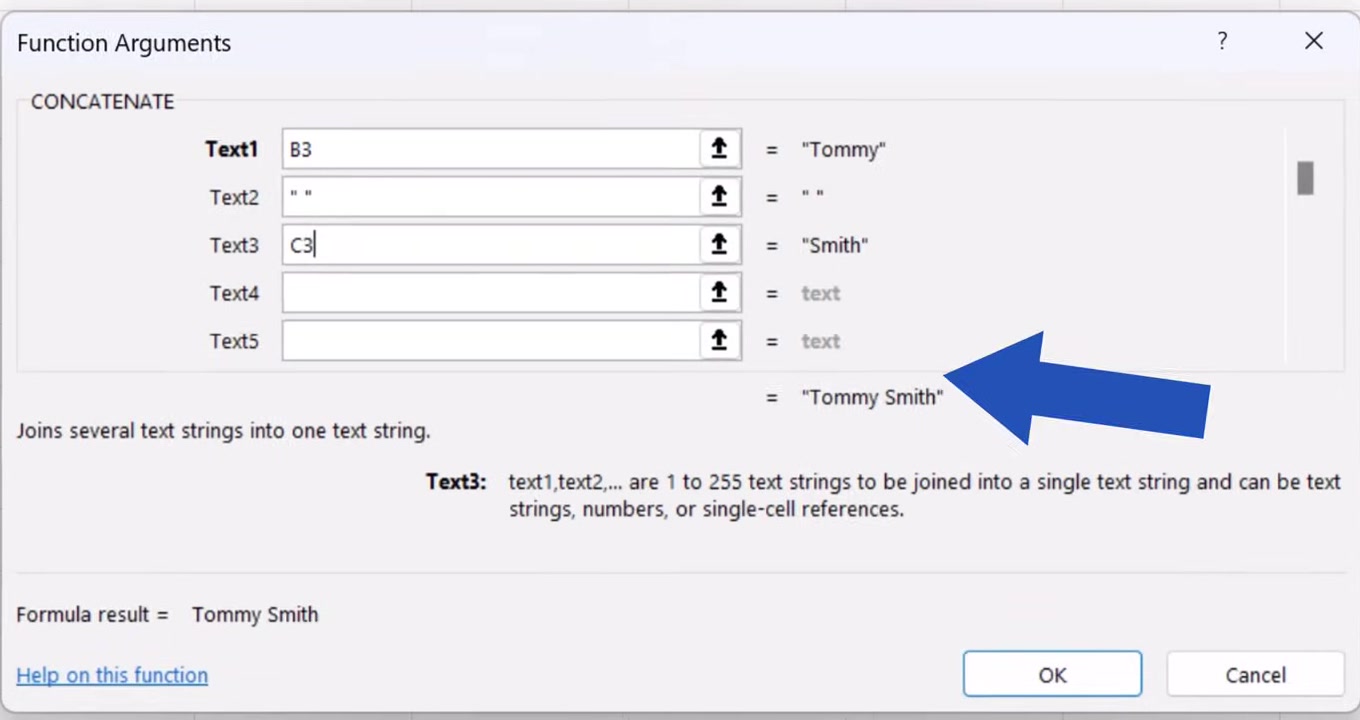
If you build the formula through the Insert Function dialog rather than typing it, Excel shows each argument in its own box and previews the result at the bottom.
Microsoft lists CONCAT for Excel for Microsoft 365, Excel for the web, Excel 2024, 2021, 2019 and 2016, and TEXTJOIN for Microsoft 365 and Excel 2019 and later. On much older versions, use CONCATENATE or the ampersand.
The faster route: Flash Fill
Flash Fill watches what you type and finishes the pattern, with no formula involved. Type the first combined value by hand in the new column and press Enter, then start typing the second one. Excel shows a greyed-out preview of the whole column; press Enter to accept it.
If no preview appears, run it yourself. Microsoft's instruction is to "go to Data > Flash Fill to run it manually, or press Ctrl+E." If it still does nothing, the feature may be switched off, under Tools > Options > Advanced > Editing Options, where the Automatically Flash Fill box lives.
Flash Fill produces static text rather than formulas, which is handy. The trade-off is that it does not update when the source columns change.
Turn the merged column into plain text
A formula column depends on the columns it points at. Delete the originals and the merged column breaks. To cut that link, select the merged column, copy it, then right-click the same selection and choose Paste Special with the Values option. The cells keep what they show and drop the formulas, and the original columns are then safe to delete.
What this does not do
None of these methods changes the two source columns. They stay where they are, and the combined result is a new, third column. If you need to go the other way and split one column into two, that is Text to Columns, which we cover in how to separate names in Excel.
Common questions
Why is there a double space in some rows? The source cells have a trailing space of their own, so the formula adds a second one. Wrapping the references in TRIM, as in =TRIM(B3)&" "&TRIM(C3), removes the extra spaces.
Can I merge columns that contain dates or numbers? Yes, but the result is text, and the date will join as the underlying serial number unless you wrap it in TEXT with a format, such as =TEXT(B3,"dd/mm/yyyy").
Does the same approach work in Google Sheets? The ampersand and TEXTJOIN work there as well. If you are moving a workbook across, see convert Excel to Google Sheets.
If the formula shows up as text
Seeing =B3&" "&C3 sitting in the cell instead of a result usually means the cell was formatted as Text before you typed. Set the cell back to General on the Home tab, then press F2 and Enter to re-enter the formula. If the whole sheet behaves that way, check the Formulas tab for Show Formulas, which displays every formula rather than its result.