How to Turn On Bluetooth on Windows 10 (Two Routes)
Windows 10 keeps its Bluetooth switch in Settings and in action center. Here is each route, what the on state actually looks like, and what to check when the option is missing entirely.
 By Daniel ShuttleworthSep 26, 2026
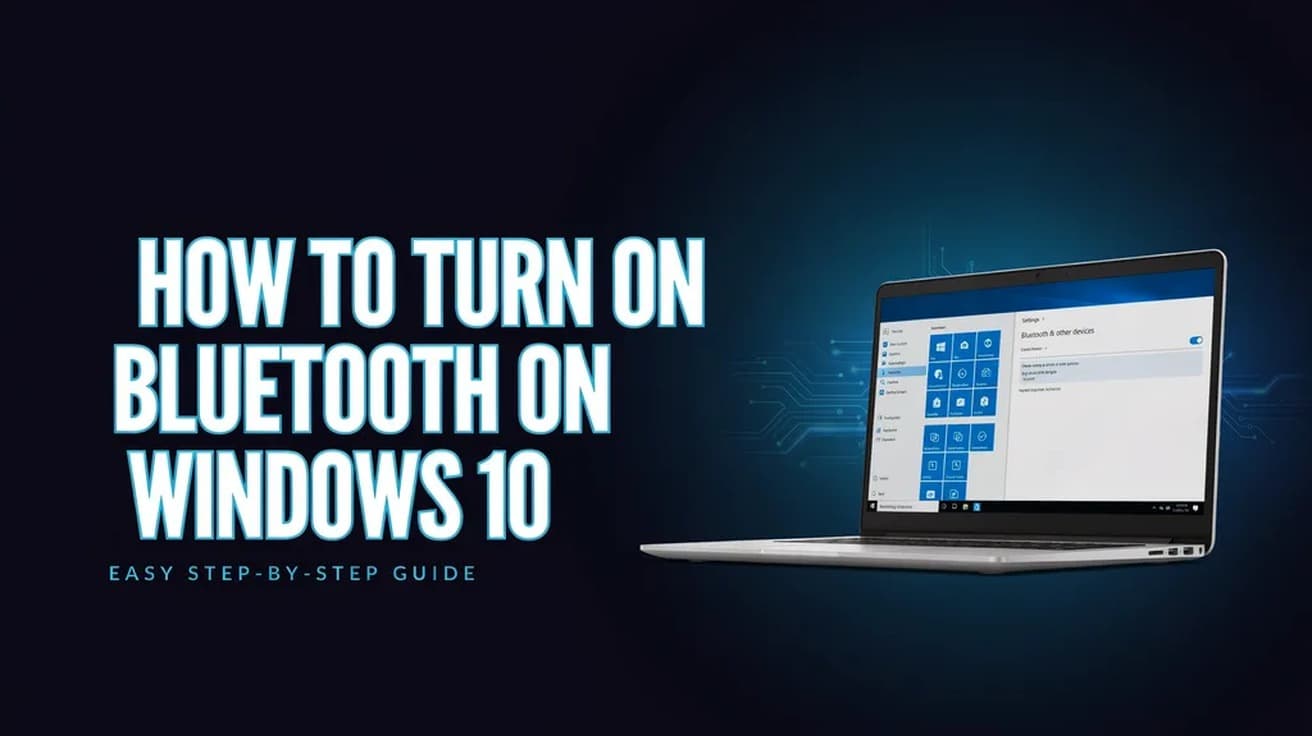
To turn on Bluetooth on Windows 10, select Start > Settings > Devices, then switch Bluetooth to On in the Bluetooth & other devices window. The quicker route is action center on the taskbar: select it, then select the Bluetooth tile. If the setting is missing in both places, the PC either has no Bluetooth adapter or has no driver installed for one.
Windows 10 puts the same switch in two different places, which is why two people can give you two different sets of directions and both be right. One route is the Settings app, the other is the tile panel that slides out from the taskbar.
One thing to know before you start: Microsoft ended support for Windows 10 on October 14, 2025, and no longer provides free software updates from Windows Update, technical assistance, or security fixes for it. The steps below are still the ones Microsoft documents on its own Windows 10 support pages. What changes is where you go when something needs fixing — the PC maker's support site, rather than Microsoft, is now the dependable source for a Bluetooth driver.
How to Turn On Bluetooth on Windows 10 From Settings
This is the route worth learning, because it is also where every paired accessory is listed.
1. Select Start, then select Settings, then select Devices.
2. In the Bluetooth & other devices window, under Bluetooth, switch Bluetooth to On.
You should see confirmation straight away. Microsoft notes that turning Bluetooth on in Settings immediately displays the message "Now discoverable as <computer_name>". If that line appears, the adapter is on and working.
The Faster Route: The Bluetooth Tile in Action Center
Action center is the panel next to the time and date on the taskbar. It is two clicks rather than four, and it is the better option if you switch Bluetooth on and off regularly to save battery.
1. On the taskbar, select the action center icon.
2. Select the Bluetooth tile to toggle it on. If you cannot see the tile, select Expand above the tiles first — Windows collapses the panel to four tiles by default.
Reading the tile takes a moment to learn. When Bluetooth is off, the tile is not highlighted and may say Off. When it is on, the tile is highlighted and says Connected, Not connected, or the name of whatever it is connected to. Not connected is a normal, healthy state — it means Bluetooth is running but nothing is paired to it yet.
If the Bluetooth tile is absent even after selecting Expand, you can add it. Go to Start > Settings > System > Notifications & actions, then under Quick actions select Edit your quick actions. In the pane that opens, select Add, then select Bluetooth.
What Turning On Bluetooth Does Not Do
The switch only makes the adapter active. It does not pair anything — each accessory still has to be added separately from the same Bluetooth & other devices page, and putting the accessory itself into pairing mode is a step Windows cannot do for you.
It also does not settle whether other people's devices can see your PC. That is a separate setting: on the Bluetooth & other devices page, select More Bluetooth options (on the right, or under Related Settings), go to the Options tab, and the box marked Allow Bluetooth devices to find this PC is what controls it.
And it does not override airplane mode. Microsoft's Windows 10 troubleshooting steps have you confirm airplane mode is off before anything else, at Start > Settings > Network & Internet > Airplane mode. If you have been on a flight recently, check there first.
Common Questions
My laptop has a physical Bluetooth switch. Does that matter? Yes, and it is worth checking before you go digging through menus. Microsoft's troubleshooting guidance says that if you are using a laptop with a physical Bluetooth switch on the body, make sure it is switched on. A hardware switch in the off position will make the software look broken.
Does "Now discoverable as…" mean strangers can see my PC? Microsoft documents that message as appearing the moment you turn Bluetooth on in Settings, and it documents Allow Bluetooth devices to find this PC as the setting that governs discovery. What it does not describe is how long that discoverable state lasts or how far it reaches, so we are not going to tell you. If it concerns you, the Options tab above is the control to look at.
Do these steps differ by laptop brand? The Settings and action center paths are part of Windows 10 itself, so they read the same on any PC running it. What varies by manufacturer is the physical switch and, more importantly, where the Bluetooth driver comes from.
If the Bluetooth Option Isn't There
If Bluetooth does not appear in Settings, and it is not available to add in quick actions either, Microsoft gives the same two explanations in both places: the Windows device might not have a Bluetooth adapter, or it has one and the drivers for it are not installed.
Take those in order. Check the PC's product specifications first — some machines genuinely do not have Bluetooth, and no amount of driver work adds it. If that is the answer, a USB Bluetooth adapter plugged into a spare port is the fix.
If the hardware is there, run the built-in troubleshooter: Start > Settings > Update & Security > Troubleshoot, then under Find and fix other problems select Bluetooth and select Run the troubleshooter.
If that comes up empty, go to the driver. Search the taskbar for Device Manager and open it, select Bluetooth, then select the Bluetooth adapter name — Microsoft notes it may include the word "radio". Right-click it and select Update driver > Search automatically for updated driver software. If Windows reports nothing newer, the PC manufacturer's support page is where to look next, and on a Windows 10 machine in 2026 that is usually where the working driver actually lives.