How to Block Spam Calls on iPhone (iOS 26 Settings)
Three iPhone settings between them stop most spam calls: call screening for unsaved numbers, the carrier spam filter, and blocking individual numbers.
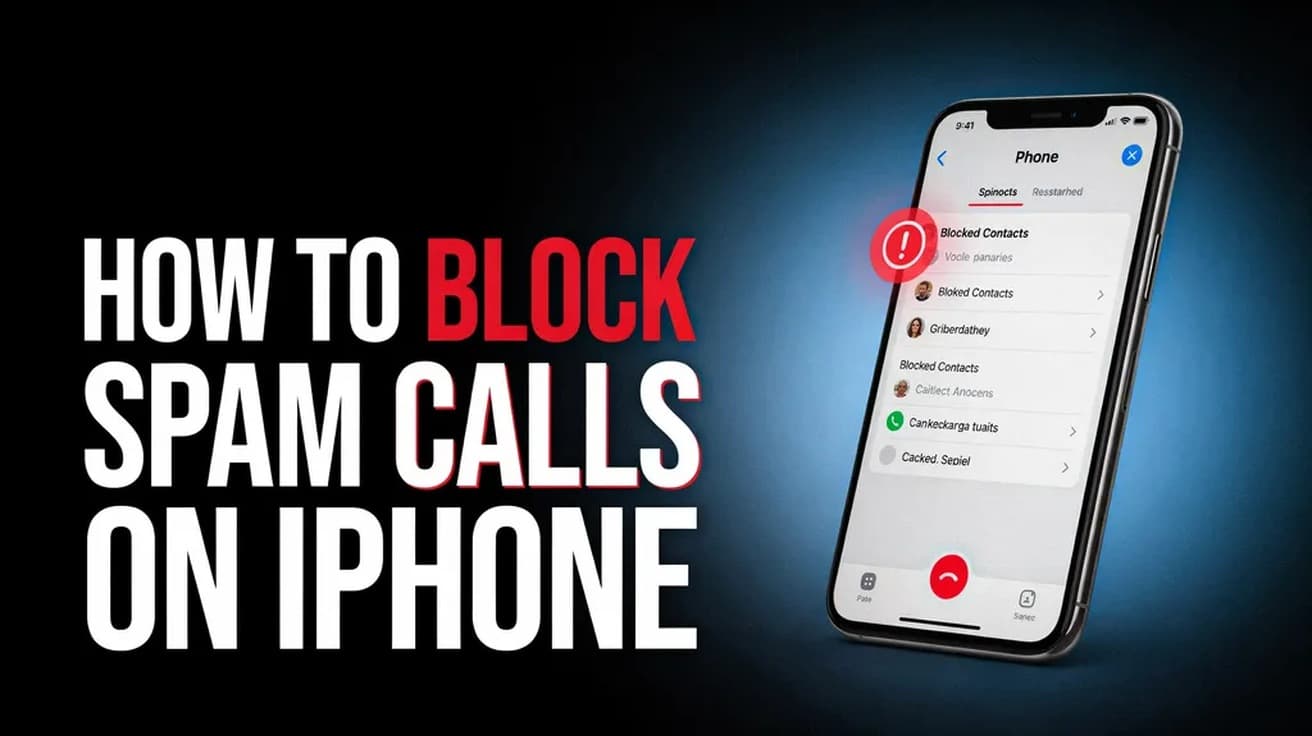
Open Settings, tap Apps, then Phone. Under Screen Unknown Callers choose Ask Reason for Calling or Silence, then scroll to Call Filtering and switch on Spam. To stop one number for good, open Recents, tap the info button beside the call, and tap Block Caller.
There is no single switch that will block spam calls on iPhone, but there are three settings that between them cover nearly all of it: screening for numbers you have never saved, a spam filter fed by your carrier, and blocking for individual numbers. They all live in the same screen, and turning them on takes about a minute.
One thing worth knowing before you change anything. The strictest option treats every unsaved number the same way, so the pharmacy, the delivery driver and the school office go quiet along with the robocalls. Add the numbers you genuinely need to your Contacts first, and the rest of this gets much less painful.
How to block spam calls on iPhone from Settings
1. Open Settings and tap Apps. In iOS 26 the per-app settings that used to sit loose in the main Settings list are gathered here, which is why the old Settings › Phone route no longer appears where you remember it.
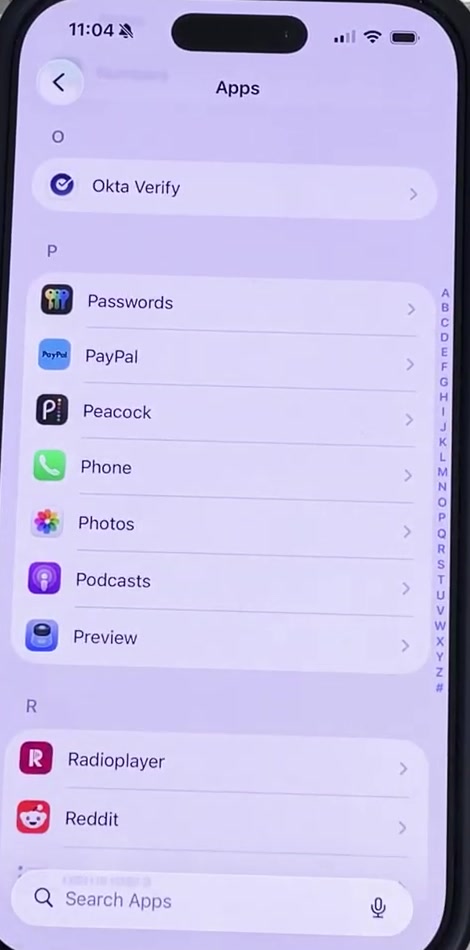
2. Tap Phone, then scroll to Screen Unknown Callers. There are three choices, and only one of them is the default. Never means calls from unsaved numbers ring like any other call.
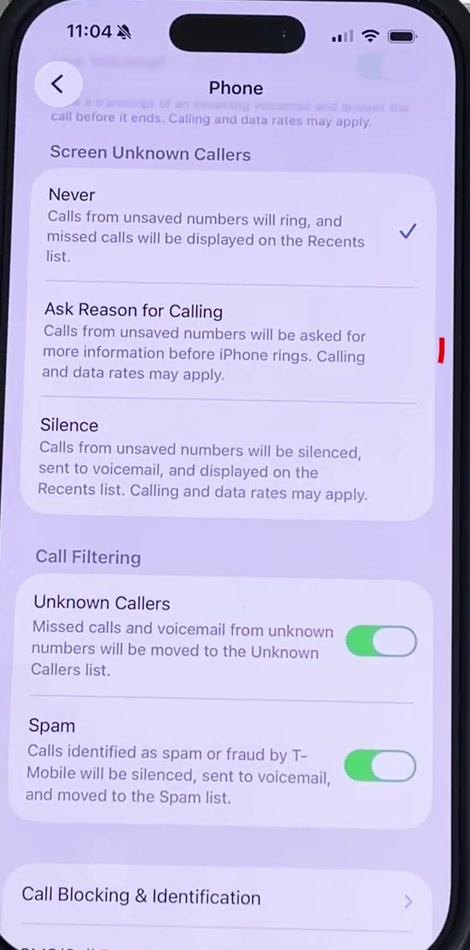
3. Tap Ask Reason for Calling if you would rather triage than block. Your iPhone answers the call itself, asks the caller who they are and why they are calling, and only rings once it has an answer to show you. Robocallers almost never get past it, and a real person usually does.
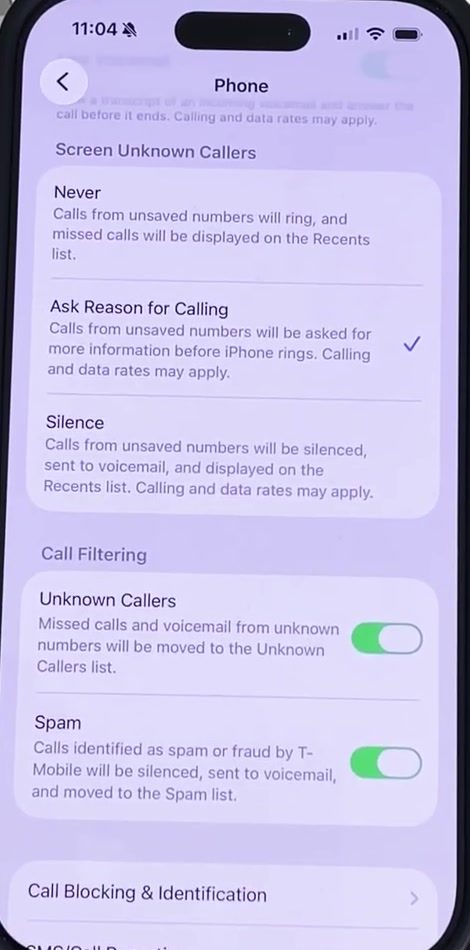
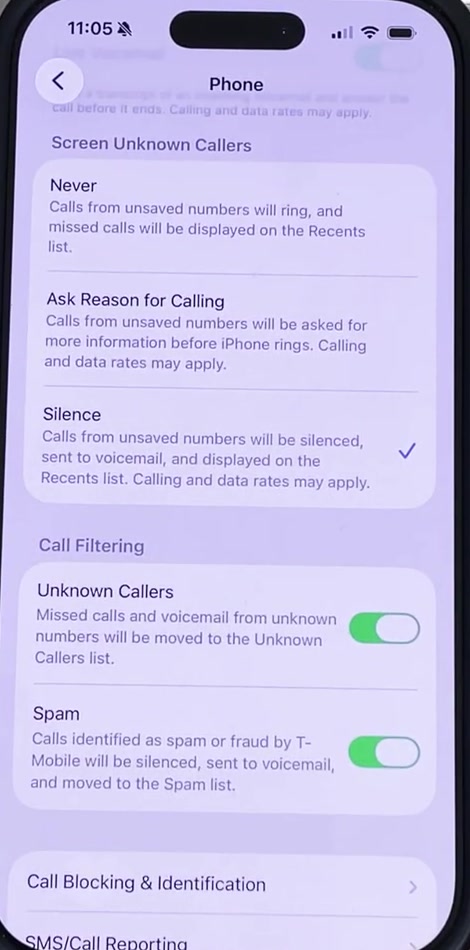
4. Tap Silence instead if you want nothing from unsaved numbers at all. These calls never ring. They go to voicemail and appear afterwards in your Recents list, so nothing is lost, but nothing interrupts you either.
Switch on the carrier spam filter
Screening handles numbers your iPhone does not recognise. The Call Filtering section below it handles numbers your carrier has already identified as spam or fraud, which is a different and often better signal for spam calls than anything your iPhone can work out alone.
5. Scroll down to Call Filtering and turn on Spam. Calls your carrier flags are silenced, sent to voicemail and collected in a separate Spam list. Turning on Unknown Callers in the same section moves missed calls and voicemail from unsaved numbers into their own list, which keeps your main Recents readable.
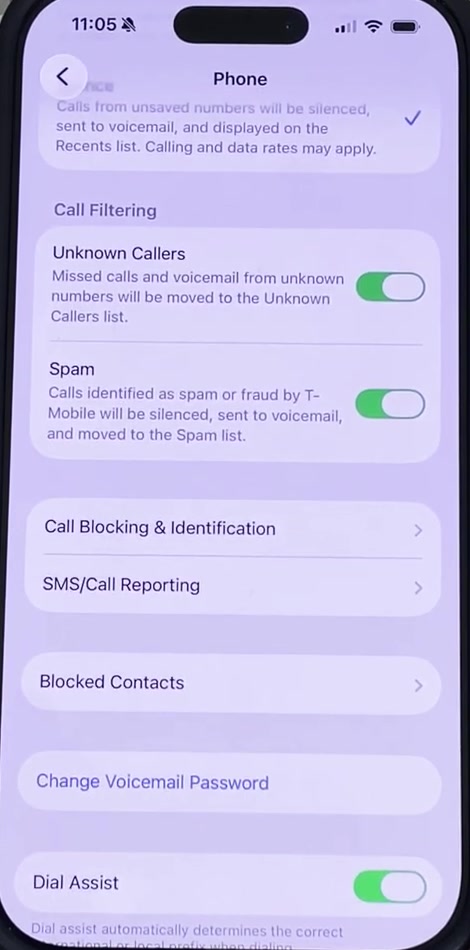
To see either list later, open the Phone app and tap the Filter button, then choose Spam or Unknown Callers.
Block one number for good
Screening and filtering are broad. For a number that keeps coming back, block it directly. Open the Phone app, tap Recents, tap the number or the info button beside it, scroll to the bottom and tap Block Caller. That number can no longer reach you by phone call, Messages or FaceTime.
Your list of blocked numbers now lives in one place. Apple documents it at Settings › Privacy & Security › Blocked Contacts in iOS 26, where you can also add a contact manually or tap Edit to unblock. Some builds still show a Blocked Contacts row inside Phone settings as well, and both open the same list.
What this does not do
Blocking is quieter than people expect. A blocked caller can still leave a voicemail — you simply get no notification about it. They are not told they have been blocked, and messages they send are never delivered to you.
Screening also has conditions. If you are roaming, calls are not screened at all, whatever your setting says. And if you call emergency services, screening switches itself off for the next 24 hours so a callback can reach you. On software older than iOS 17, Live Voicemail has to be on for screening to work.
None of this changes how calls from people already in your Contacts behave. If those are the ones ringing at the wrong time, that is a Focus or ringtone question rather than a spam one — our guide to changing the ringtone on iPhone covers the sound side of it.
Common questions
Will I miss a real call? With Silence, potentially yes, until the caller is in your Contacts. Ask Reason for Calling is the safer setting if you are waiting to hear from a clinic, a recruiter or a tradesperson, because a real caller can state their business and get through.
Do I need a third-party app? Usually not. Your carrier's own service — AT&T ActiveArmor, Verizon Call Filter, T-Mobile Scam Shield — identifies spam calls on the network and feeds the Spam filter above at no cost, and the free tiers are what most people need. Third-party blockers register themselves under Call Blocking & Identification in the same Phone settings screen if you do want one.
Does this stop spam texts too? No. Blocking an individual number stops its texts, but the Screen Unknown Callers and Call Filtering settings apply to calls. Message filtering is a separate setting in the Messages app.
If the option isn't there
If you cannot find Screen Unknown Callers, check which iOS version you are on under Settings › General › About. The Apps grouping and the three-way screening choice are iOS 26 arrangements; on iOS 18 and earlier the same feature sits at Settings › Phone and is a single Silence Unknown Callers switch. If the Spam toggle under Call Filtering is missing or greyed out, your carrier is not supplying spam data on your plan — their own app or account settings are the place to turn it on.