How to Block Spam Calls on Android (Samsung and Pixel)
Android hides its spam filter in the Phone app, and Samsung and Google label it differently. Here is where the setting lives on each, and what it stops.
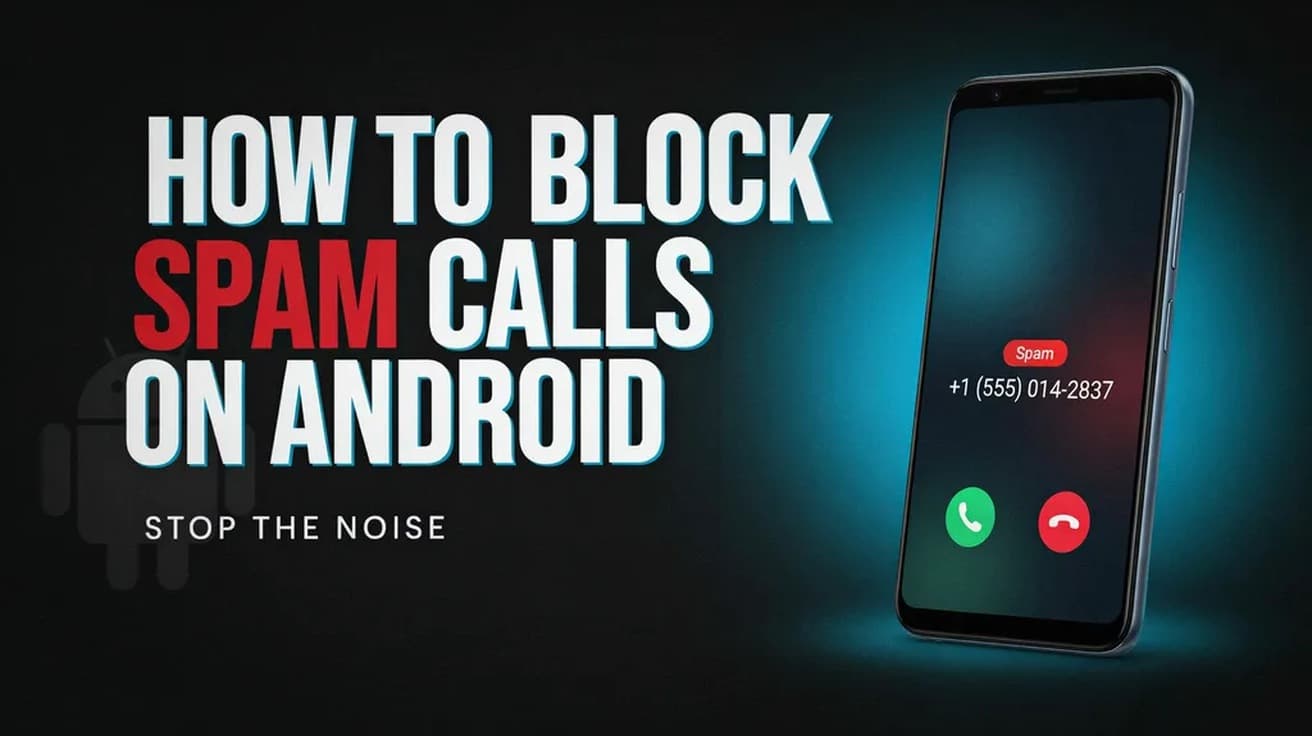
To block spam calls on Android, open the Phone app, tap More options (three dots), then Settings, then Caller ID and spam. Turn the feature on, then turn on the option that blocks or filters spam calls — Samsung calls it "Block spam and scam calls", Google's Phone app calls it "Filter spam calls". Blocked calls stop ringing your phone but still appear in your call history.
Android does not have one universal spam switch. The setting you need lives in whichever Phone app came with your handset, and Samsung and Google label it differently — which is why the same search turns up two sets of instructions that both look right.
Before you turn it on, know what it costs you. A blocked spam call does not ring, does not raise a missed-call notification, and on Google's Phone app does not raise a voicemail notification either. The call is still logged, and any voicemail is still there when you go looking. If you are expecting a call from a number you have never saved, that is worth knowing.
Where the spam setting lives on Samsung Galaxy phones
Samsung's version is called Caller ID and spam protection, and it is off until you agree to it. On most Galaxy models the identification data comes from Hiya, a third-party service, which is why Samsung asks you to accept terms before the switch will move.
1. Open the Phone app, tap More options (the three vertical dots), then tap Settings. On some models the menu item reads Call settings instead. Tap Caller ID and spam protection.
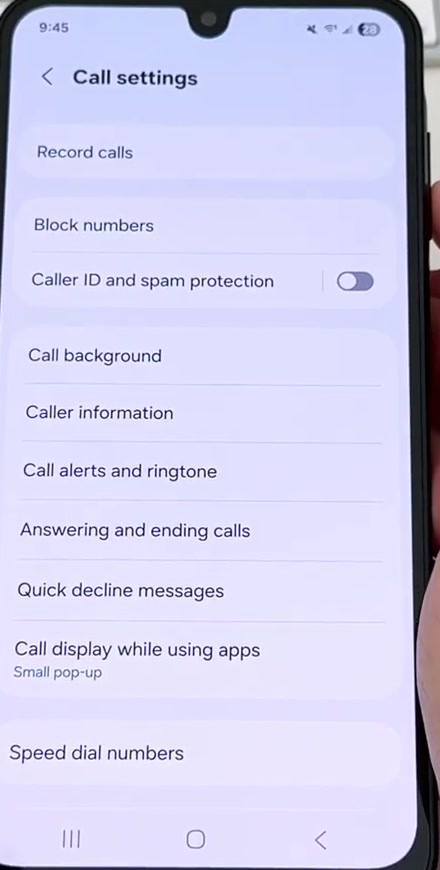
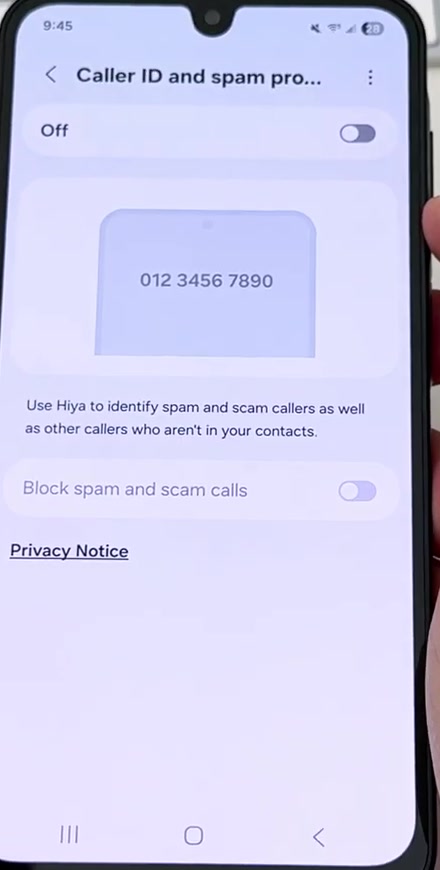
2. Tap the switch at the top of the screen to turn it on, then review the terms and tap Agree. Until you do, the "Block spam and scam calls" row below stays greyed out.
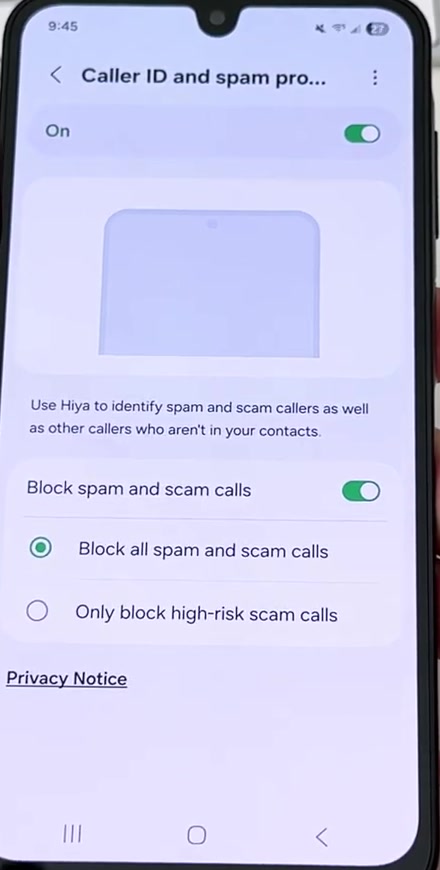
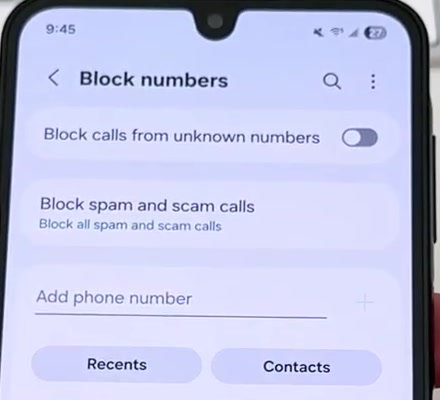
3. Turn on Block spam and scam calls, then pick Block all spam and scam calls. This is the aggressive setting: anything Samsung's service flags is blocked regardless of how confident the flag is.
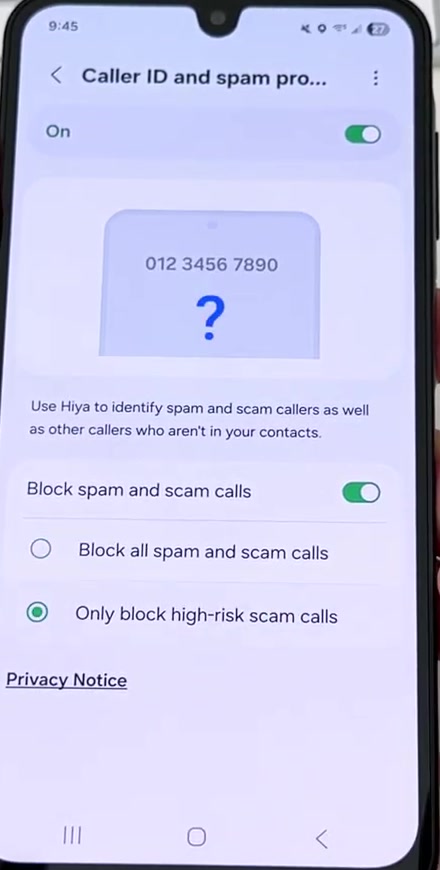
4. If that turns out to be too broad, come back and choose Only block high-risk scam calls instead. Samsung is explicit that this lets less severe spam through — it blocks only the calls the service is most confident about.
Where it lives in Google's Phone app
Pixels and most stock-Android handsets use Phone by Google. Open the Phone app, tap More options, then Settings, then Caller ID and spam. Turn on See caller ID & spam — it is on by default, so it may already be. Then turn on Filter spam calls.
Google is clear about the trade-off: with filtering on you get no missed-call and no voicemail notification for filtered calls. They are in your call history, and your voicemail is unaffected, but nothing on screen will tell you they happened.
On phones that have automatic Call Screen, there is no "Filter spam calls" option at all. Spam autoblocking is one of the Call Screen settings instead, under Settings then Spam and Call Screen. On a Pixel 6 or newer, turning on caller ID and spam is equivalent to the Basic Protection level.
Call Screen, if you have a Pixel
Call Screen goes further than filtering. Google's assistant answers unknown calls, asks who is calling and why, and hangs up on anything it decides is spam — you see a transcript rather than a ringing phone. Automatic screening is available on Pixel phones in Australia, Canada, Ireland, the UK and the US. Manual screening covers more countries and, in the US and Canada, some non-Pixel Android devices.
Under Settings then Spam and Call Screen then Call Screen, Pixel 7 and newer offer Maximum, Medium and Basic protection levels, and let you choose which categories get screened automatically: spam, possibly faked numbers, and first-time callers.
Two limits worth knowing. Call Screen does not work alongside third-party call recording or screen recording apps, and it will not screen automatically while you are roaming. If you use call forwarding, do not turn on automatic screening — screened calls are not forwarded.
Blocking one specific number
Spam filtering is a net. Blocking is a single name on a list, and the two are separate settings. On a Galaxy phone, go to Phone, More options, Settings, Block numbers. Type a number and tap the plus sign, or pull one in from the Recents, Message or Contacts tabs. The same screen has a Block calls from unknown numbers switch, which rejects anything not in your contacts and not identified by Smart Call.
In Google's Phone app, open the Home tab, tap the call in your history, and tap Block or Report spam. Touching and holding the entry gets you there too. If a real call is wrongly flagged, tap it under Recent calls and tap Not spam. The reverse process is straightforward on both platforms — see how to unblock a number on Android if you need to undo one.
What this does not do
It does not stop the calls being placed. Spam filtering works at your handset, after the call has already reached your carrier. The number still dials you; your phone just declines to make a noise about it.
It does not cover text messages. Message spam is handled separately, in Google Messages or Samsung Messages, under their own spam and blocked settings.
It does not block voicemail. A blocked or filtered caller can still leave one, and Samsung says you need to contact your carrier directly to block voicemails from specific numbers. Verizon, T-Mobile and AT&T all offer their own network-level filtering that runs before the call reaches your phone at all — worth stacking on top rather than instead.
Common questions
Does the caller know they have been blocked? Google and Samsung's documentation does not describe any notification to the caller, and neither vendor states what a blocked caller hears. We are not going to claim a specific behaviour that neither company documents.
Will I lose legitimate calls? Possibly. Neither vendor claims perfect detection — Google says plainly that not all spam calls and robocalls can be detected, which cuts both ways. If a caller you know gets flagged, report the mistake so future calls from that number come through.
Does it work without a data connection? Caller ID and spam protection sends numbers outside your contacts to Google or Samsung's service to be checked, so it needs connectivity. Call Screen is the exception — Google says it runs on the device and uses no Wi-Fi or mobile data.
My Galaxy mentions scam detection — is that the same thing? No. Samsung's AI Scam detection analyses calls in real time and is a separate, newer feature, available only on Galaxy phones running Android 16 with One UI 8.5 or higher.
If the option isn't there
Samsung notes that Smart Call is not available on every carrier or model, so the Caller ID and spam protection row may simply be absent on yours. If it is missing but should be there, check for a software update under Settings, Software update, and if that does not help, clear the Phone app's data from Settings, Apps, Phone, Storage.
In Google's Phone app, if there are no Call Screen settings at all, your device does not support the feature. Install Phone by Google from the Play Store if your handset shipped with a different dialler, or fall back to blocking numbers one at a time and to whatever filtering your carrier offers. The equivalent settings on Apple's side are laid out in how to block spam calls on iPhone.