How to Unlock Android Phone Without Password (3 Routes)
Samsung can clear a forgotten lock remotely if Remote unlock was switched on first. Every other supported route erases the phone, and you will need the Google account that was already on it.
 By Daniel ShuttleworthOct 10, 2026
On a Samsung you can clear the lock remotely at findmymobile.samsung.com, but only if Remote unlock was switched on beforehand. On every other Android phone, the supported routes all erase the phone: a remote factory reset from Google's Find Hub, or a reset using the hardware buttons. Either way you will need the Google account that was already on the device to set it up again.
It is worth being clear about what you are buying into. Searching for a way to unlock an Android phone without a password turns up a great deal of software that promises to lift the lock screen and leave your photos alone. The documentation from Google and Samsung describes nothing of the sort.
What the vendors actually support is narrow: one genuine remote unlock, on Samsung hardware, that has to be armed in advance — and otherwise a wipe. The rest of this is about picking the least destructive of those and getting through the sign-in check on the other side.
What locks you out in the first place
Usually it is simply a forgotten PIN or pattern, often on a phone that has been unlocking by fingerprint or face for months. The code gets used so rarely that it fades, and the first time the phone asks for it — after a restart, a software update, or a few days untouched — there is nothing to recall.
The second common case is a changed password. If you reset a Google or Samsung account password on another device, the phone can start asking for credentials you have not caught up with yet.
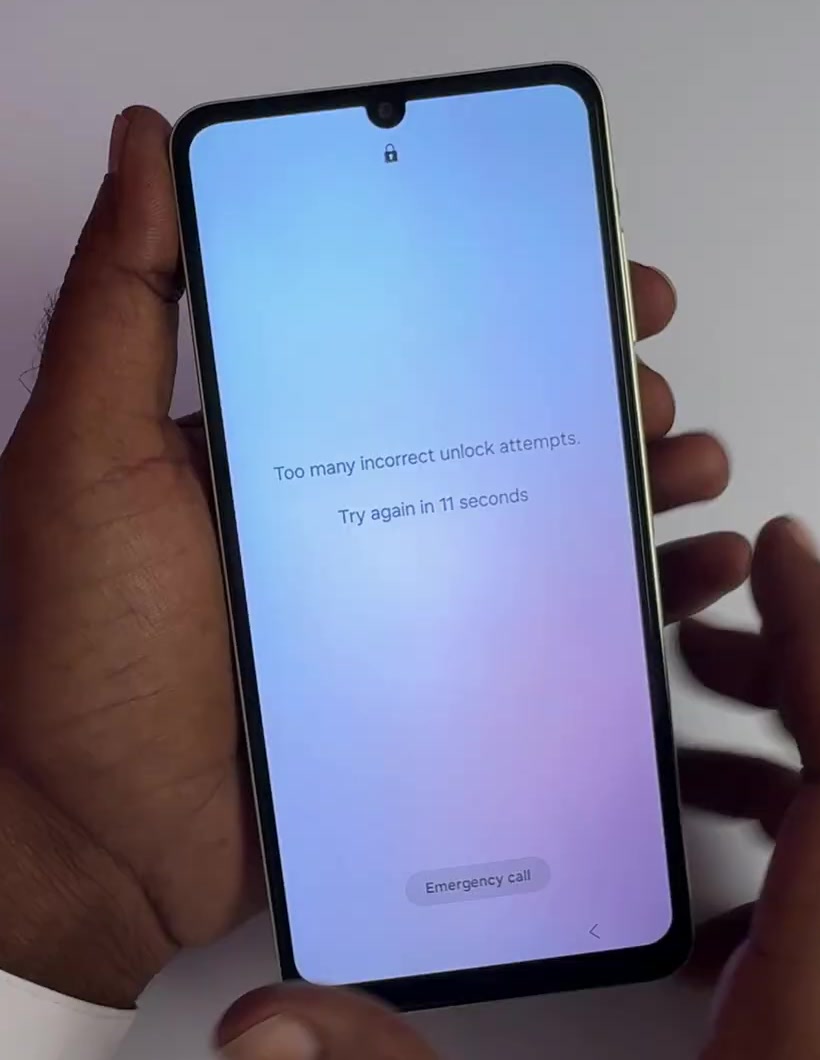
The third is the lockout timer rather than the lock itself. Enough wrong attempts and Android stops accepting input for a stretch, which looks like a harder failure than it is. If the screen says to try again in a number of seconds, wait it out — the code you have not thought of yet still works.
Fix 1: Unlock an Android Phone Without a Password (Samsung Only)
This is the only route in any vendor documentation that clears the lock and leaves your data in place, and it is Samsung-only. It also will not work unless the groundwork was done before you got locked out. Samsung's requirement is that your Samsung account is registered on the phone and the Remote unlock option is enabled, under Settings, then Biometrics and security, then Find My Mobile. The phone also has to be switched on and connected to Wi-Fi or mobile data.
If that is all true, open findmymobile.samsung.com on a computer and sign in with your Samsung account. Your registered devices appear on the right. Pick the locked one and click the Unlock icon. Samsung asks you to confirm your account password, and a result message tells you whether the unlock went through.
One variation is worth knowing: Samsung's UK support notes that if your fingerprint or face still gets you in and it is only the PIN you have forgotten, you can use Find My Mobile to reset the unlock methods instead. That clears all of them, biometrics included, so you set them up fresh.
Fix 2: Erase it remotely from Find Hub
If it is not a Samsung, or Remote unlock was never turned on, Google's Find Hub is the next stop — but understand that this erases the phone rather than opening it. Open the Find Hub app on another Android device, or the web version, and tap Continue as yourself. Select the locked phone, then Settings, then Factory reset.
Google's conditions are the same shape as Samsung's: the phone has to have power, mobile data or Wi-Fi, be signed in to a Google account, have Find Hub turned on, and be visible on Google Play. Google also notes that the erase may not clear an SD card, and that the device disappears from Find Hub afterwards.
The reason to prefer this over the button route is convenience rather than outcome. Both end with an empty phone; this one does not require you to hold anything down at the right moment.
Fix 3: Factory reset with the hardware buttons
This is the fallback that always exists, because it does not need the phone to be online or reachable. Android's own documentation gives these steps, using a Pixel as the example — menu names vary between manufacturers.
1. If the phone is on, hold the power button until it switches off.
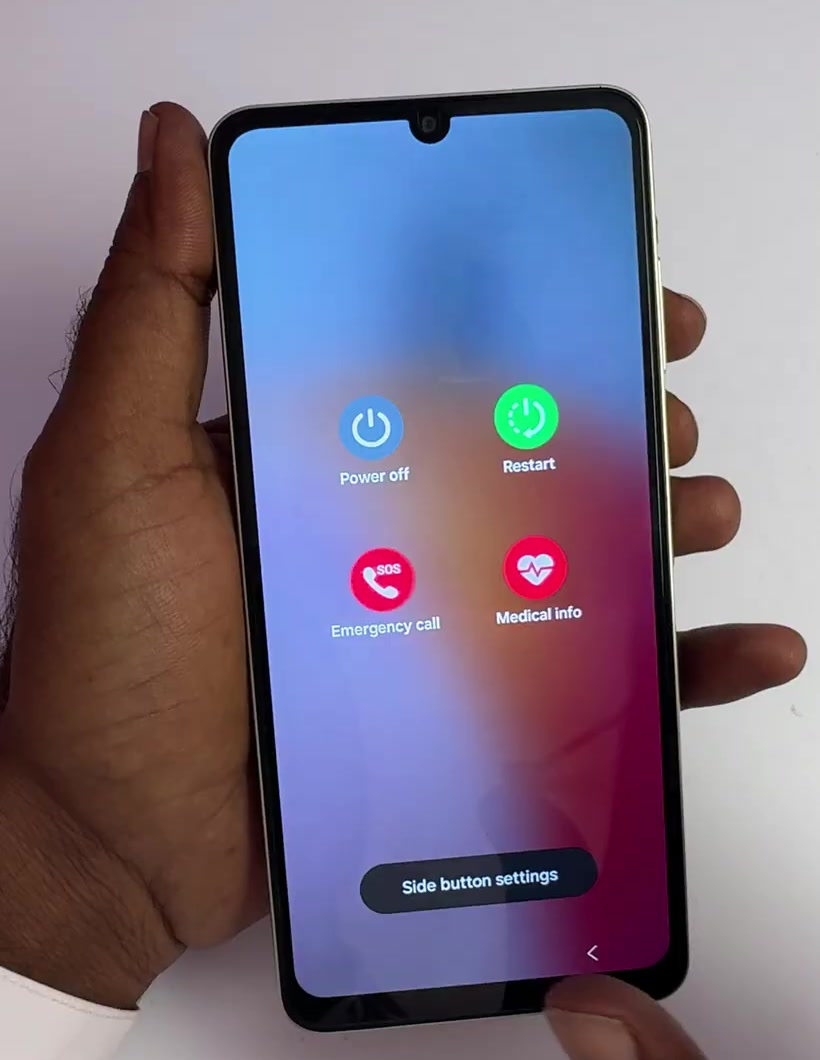
2. Hold volume down and power together for 10 to 15 seconds. If the phone simply restarts normally, switch it off and try again.
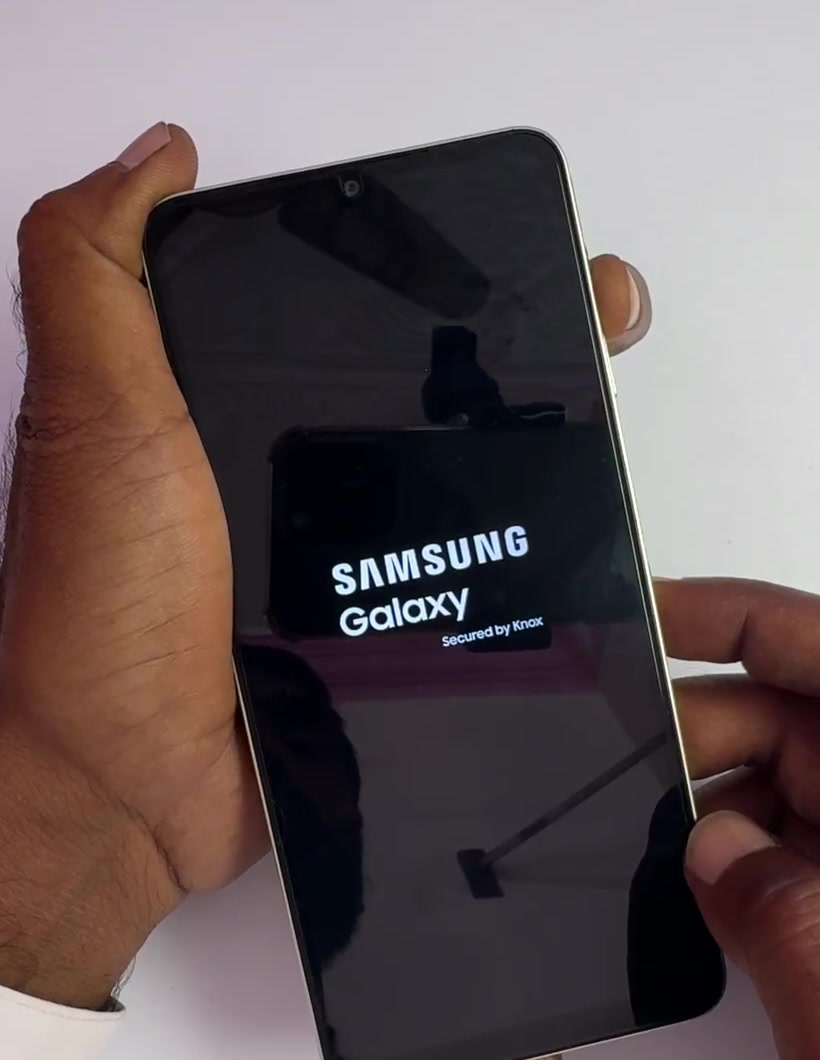
3. Use the volume buttons to move to Recovery Mode, then press power to select it.
4. At the "No command" screen, hold power, press volume up, then release both quickly.
5. Scroll to "Wipe data / factory reset" and press power.
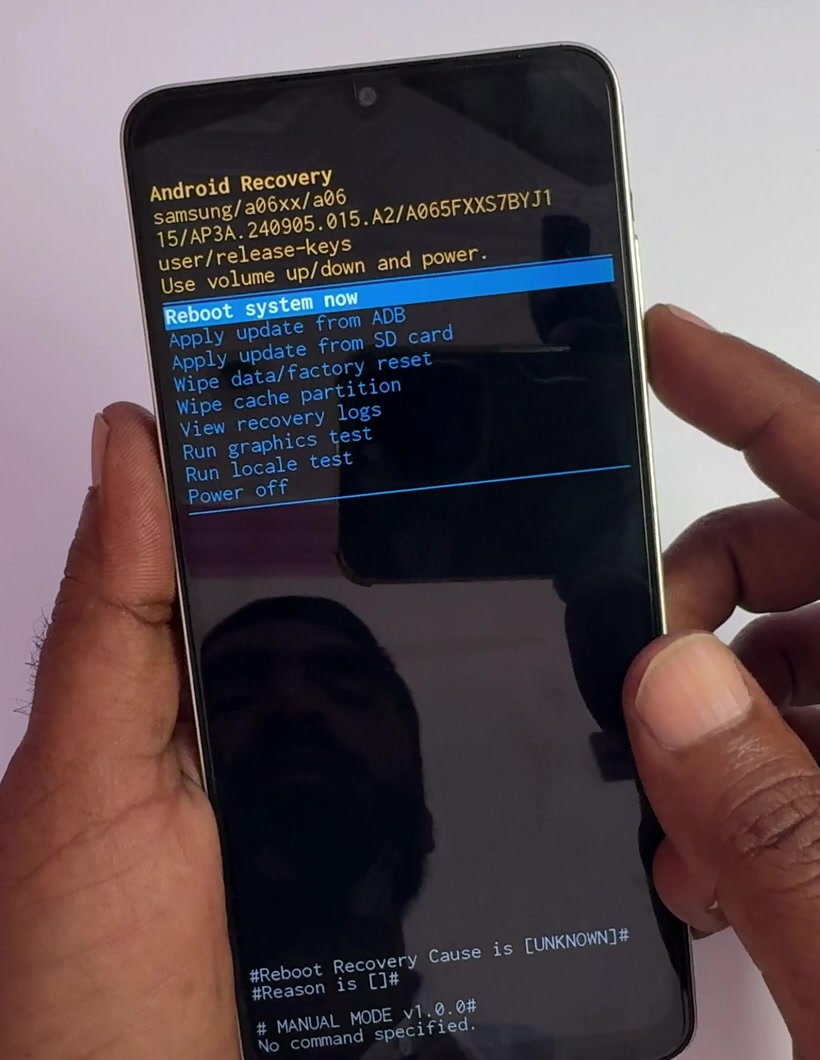
6. Scroll to "Factory data reset" and press power.
7. Wait for "Data wipe complete", then scroll to "Reboot system now" and press power.
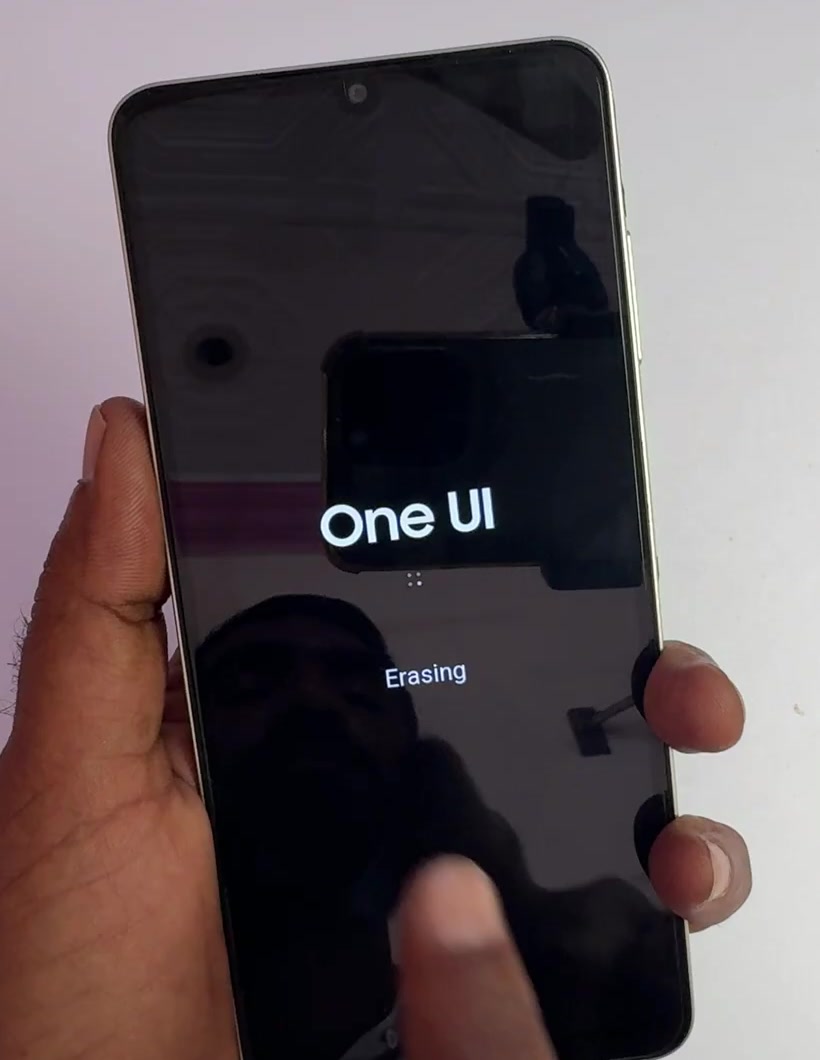
Android warns that a reset can take up to an hour and advises keeping the battery above 70 percent before you start. If the key combination lands you somewhere unexpected instead — a phone that boots up with a Safe mode badge in the corner, for instance — that is a separate and much smaller problem, and turning Safe mode off on Android is usually a restart away.
What happens when it restarts
This is the part that catches people out, and it is worth reading before you erase anything. Android's device protection means a reset phone asks you to prove it was yours.
Google sets out what each route asks for. After a reset done with the buttons, you can verify with the PIN, password or pattern — or with the Google account that was on the device before the reset. After a remote reset through Find Hub, you enter the Google username and password associated with the device.
There is a catch in the small print. The account has to be one that was previously added and synced to the device as an account or a user, not as a guest. Google is blunt about the consequence of not having it: if you cannot provide that information during setup, you will not be able to use the device at all.
So before you reset, confirm you can sign in to the Google account that was on the phone. Do it on another device first. A reset you cannot get past leaves you worse off than a locked phone.
If that didn't work
If the Samsung unlock fails, the usual cause is that Remote unlock was never enabled — there is no way to switch it on from the web after the fact, so that route closes. If Find Hub cannot see the phone, it is offline, and the buttons are your remaining option.
Where sources genuinely diverge is on third-party unlock software. Plenty of it advertises a bypass; neither Google's nor Samsung's documentation acknowledges any such method, and we are not in a position to say what those tools actually do to a phone. Treat the gap between the marketing and the vendor documentation as the warning it is.
Still not working
If you cannot get into the Google or Samsung account the phone is tied to, account recovery is the real task, not the phone — work through the provider's recovery flow on a computer first, then come back to the handset.
If the phone is carrier-locked, under warranty, or you bought it secondhand and it is tied to someone else's account, the reset will not help and a shop cannot remove the protection for you either. Proof of purchase and the manufacturer's support line are the route from there.