How to Set Up Google Home on Android or iPhone
Setting up a Google Home speaker is a handful of taps in the Google Home app, once the phone, the Wi-Fi and the permissions line up. Here is the full path.
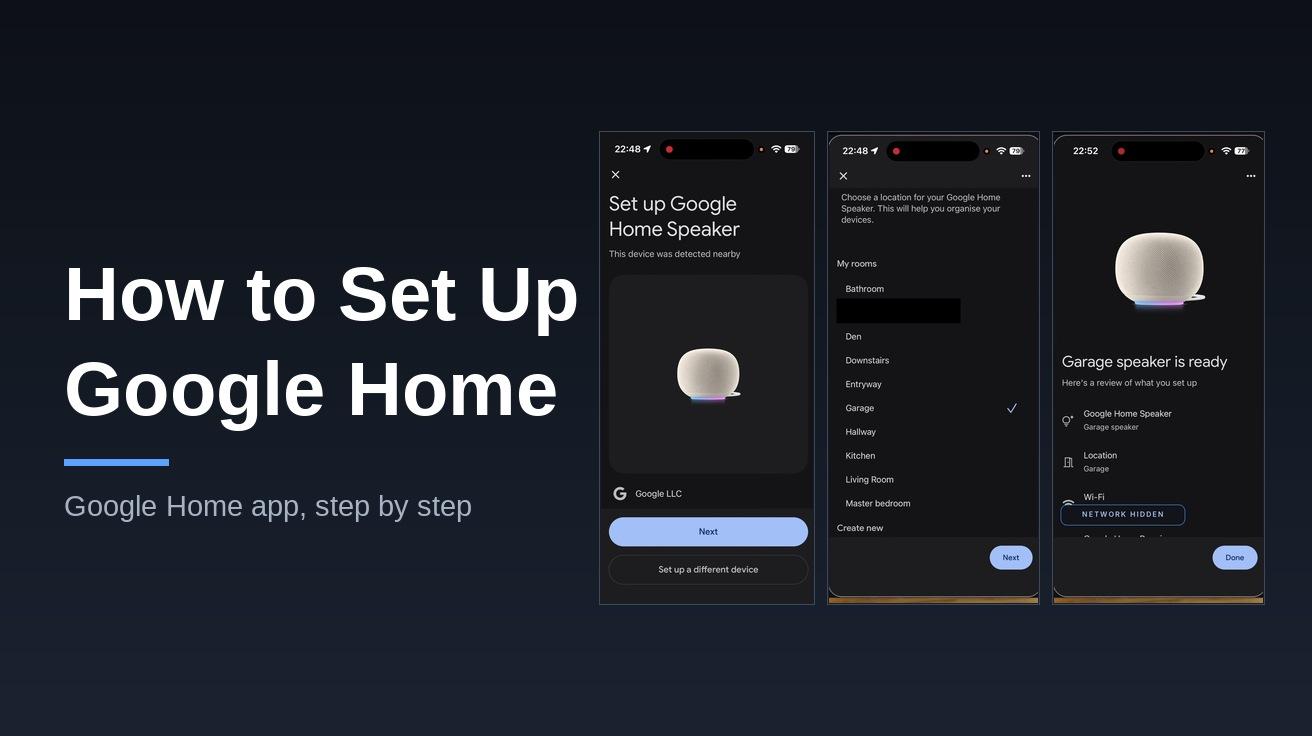
Here is how to set up Google Home: plug the speaker in, open the Google Home app on your phone and tap Add in the top right, then Device. The app either spots the speaker nearby or asks you to scan the QR code on it, then walks you through Wi-Fi, a room and a few optional extras.
Google Home is two things at once: a line of speakers and displays, and the app that sets them up and runs them. Everything below happens in that app, on an Android phone or an iPhone. The speaker itself has no screen and no buttons to press during setup.
Most of what you do to set up Google Home is confirming choices the app suggests. The parts worth slowing down for are the Wi-Fi network and the room name, because both are awkward to change later.
What you need before you start
Google lists a short set of requirements, and setup stalls if any of them is missing.
- The speaker or display plugged into a wall outlet, not a power strip you switch off.
- The latest version of the Google Home app and a Google Account.
- An Android phone or tablet on Android 9.0 or later, or an iPhone or iPad on iOS 17.0 or later.
- Bluetooth turned on.
- A 2.4 GHz or 5 GHz Wi-Fi network. WPA-2 Enterprise networks, the kind used by offices and universities, will not work.
- Your Wi-Fi password. If you are not sure which network is yours, our guide to finding the SSID of your Wi-Fi covers where the name is stored.
If the speaker has been set up before, by you or by whoever gave it to you, factory reset it first. The app will otherwise keep trying to join a home it already belongs to.
How to set up Google Home, step by step
1. Plug the speaker in and give it a minute. It will play a chime or a welcome message when it is ready to be found.
2. Open the Google Home app. The Home tab is what you land on, with Activity and Automations along the bottom.
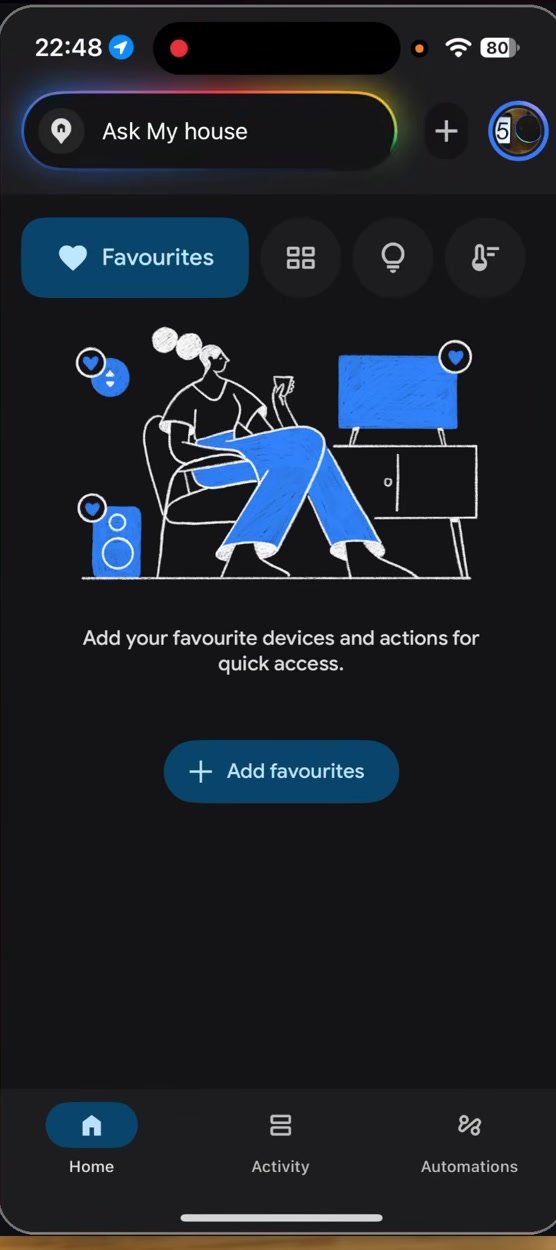
3. Tap Add in the top right, then tap Device. If a setup card for your speaker appears on its own instead, tap Set up or Next. If the card is for the wrong device, tap Not now or Set up a different device.
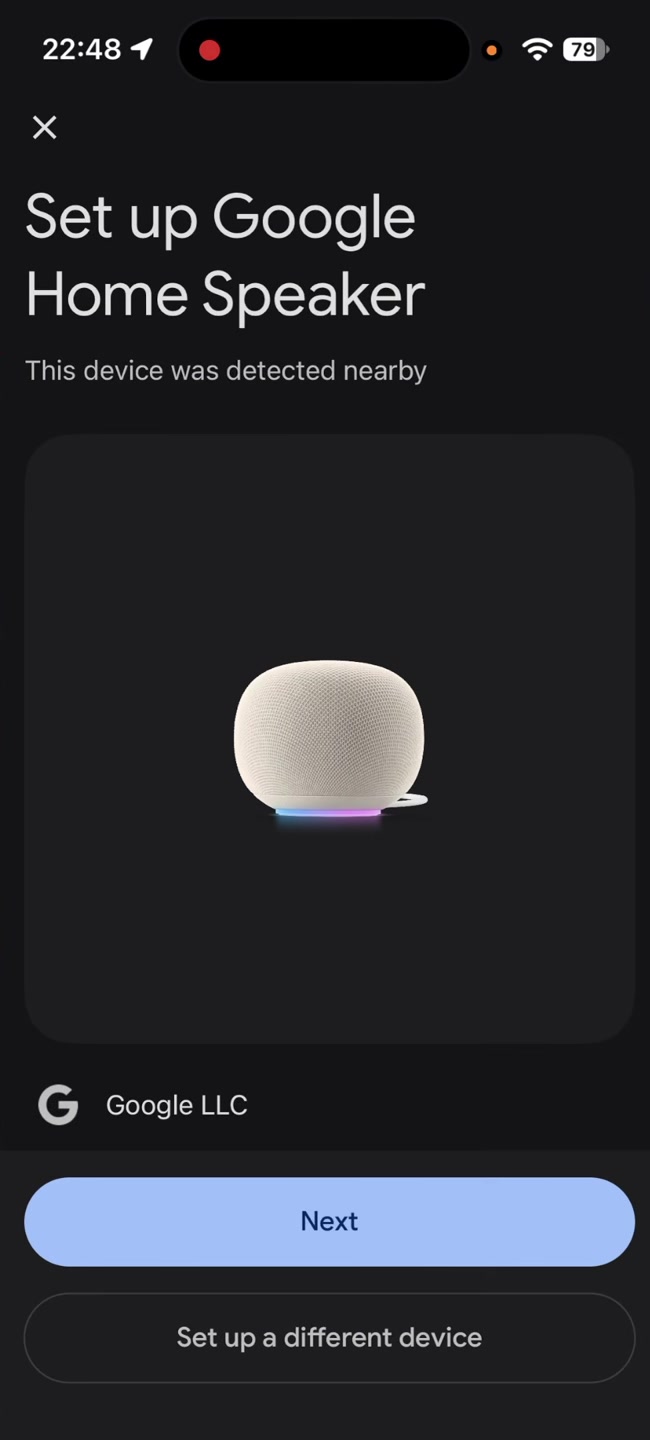
4. Scan the QR code on the speaker when the camera opens. A check mark appears once the scan lands. If the code will not scan, tap Use setup code and type the code instead, or tap Add a different way and search for your model by name.
5. Wait for the app to connect. You will see a screen that says Connected when the phone and the speaker have paired.
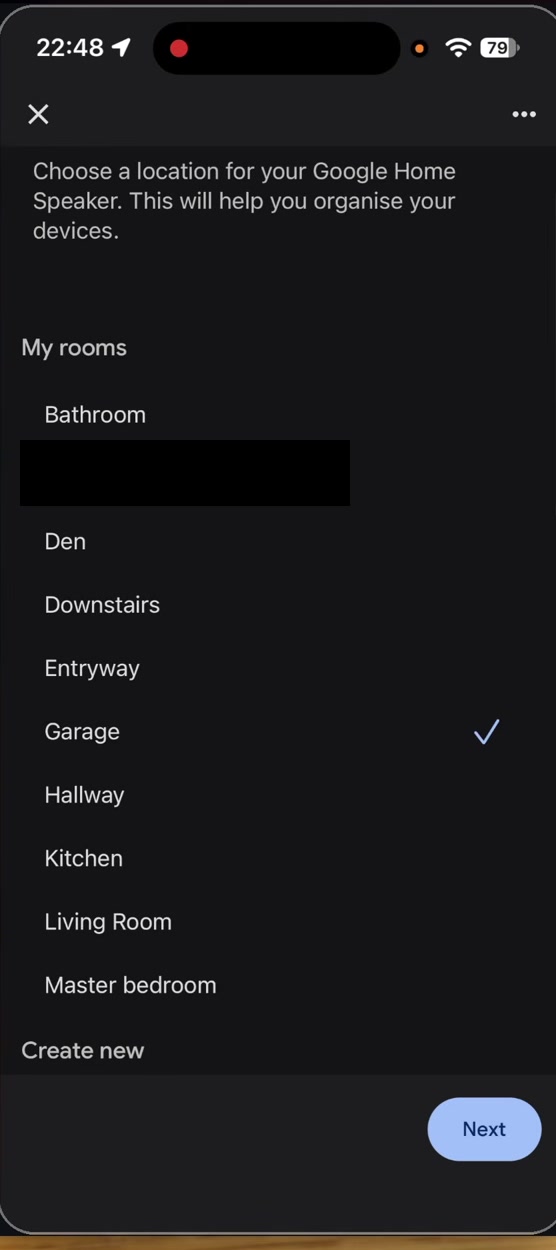
6. Choose a room. The list offers the rooms already in your home, plus Create new for anything that is not there. The name you pick becomes part of how you address the speaker later, so Kitchen is more useful than Speaker 2.
7. Pick your Wi-Fi network and enter the password. If the phone you are holding is already on that network, the app usually fills the password in for you.
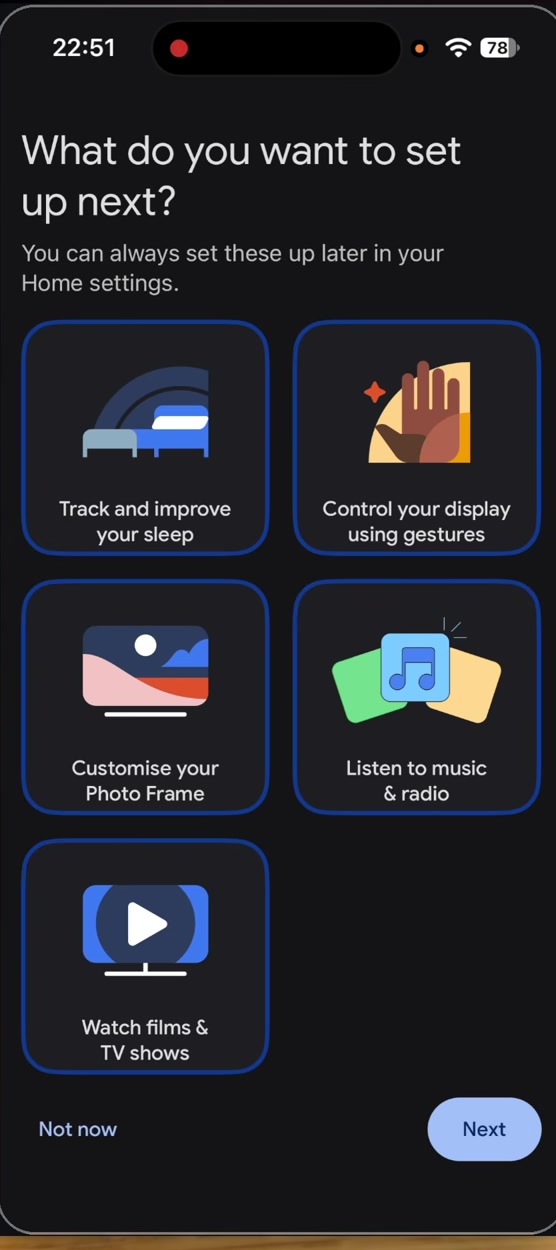
8. Work through the optional extras. Depending on the device, the app offers Voice Match, Face Match, personal results, a photo frame, music and video services, and Gemini for Home. Every one of these can be skipped now and switched on later from Home settings.
9. Read the summary and tap Done. It lists the device, the room and the Wi-Fi network it joined, which is the quickest way to catch a speaker that landed on the wrong network.
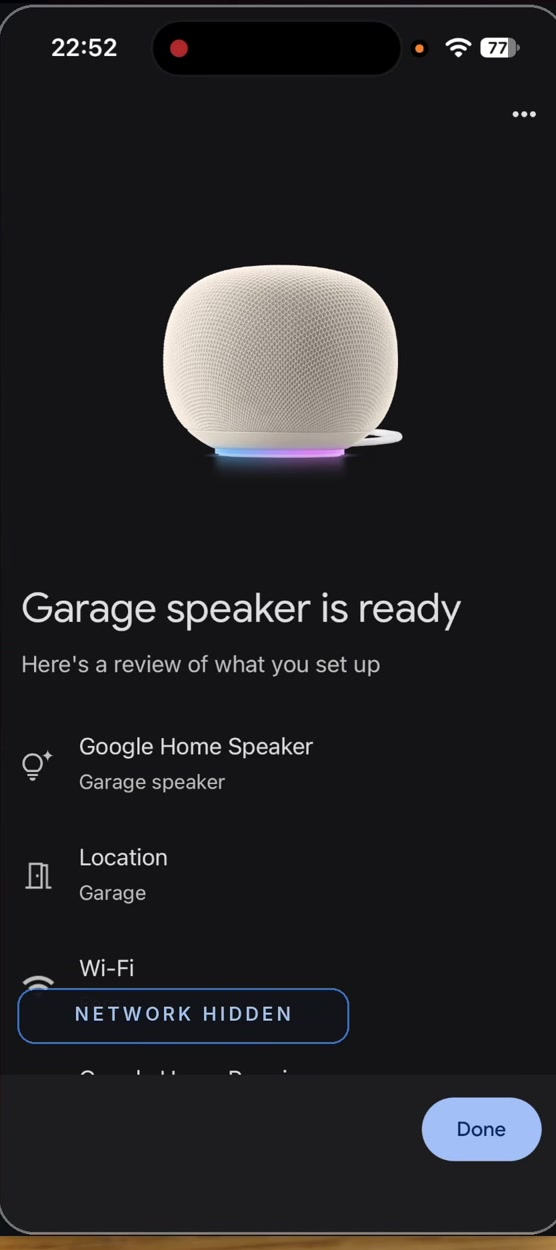
Setting up on iPhone versus Android
The taps are the same on both. The difference is in the permissions iOS asks for: the Google Home app needs both Location Access and Local Network turned on, or it will not see the speaker at all. Android needs location services on as well, and Google's own troubleshooting page asks for the Home app's location permission to be set to Allow all the time.
The screenshots above come from an Android phone in dark theme and on UK English, which is why Favourites and organise are spelled the way they are. The buttons sit in the same places on iOS.
What setup does not do
Finishing setup connects the speaker to your Wi-Fi and your Google Account. It does not connect your smart lights, plugs or thermostats; those are added separately through the same Add button. It does not move an existing speaker between homes either, which is the usual reason a second-hand unit refuses to appear.
It also does not decide your voice assistant for you. Gemini for Home is offered during setup, but it is an opt-in that you have to join early access for first. Google is explicit that once a home switches to Gemini for Home, every compatible device in it switches too, and the home cannot be switched back to Google Assistant.
Common questions
Do I need a subscription? No. Google lists smart home controls, media playback, alarms and timers, calendars, notes, lists, reminders and general questions as available without one. Gemini Live and camera history sit behind the paid Google Home Premium tiers.
Can I set up a speaker on a hotel or dorm Wi-Fi? Not reliably. Networks that make you accept terms on a web page, and WPA-2 Enterprise networks, are not supported.
Does the old speaker need to be nearby? Only the speaker you are setting up. Stand in the same room as it while you work through the app.
If the app can't find your speaker
When you cannot set up Google Home because the app never sees the speaker, Google's troubleshooting steps go in this order: update the app, check that the speaker's light is blinking or pulsing white, stand in the same room, and confirm location services are on. Then unplug the speaker for a minute and plug it back in, turn your phone's Wi-Fi off and on, and force close and reopen the app.
If none of that works, Google suggests moving the speaker to within about 15 to 20 feet of the router, trying a different phone or tablet, or connecting your phone directly to the network the speaker broadcasts, which is named GoogleHome followed by a string of characters. A flaky router is worth ruling out too; rebooting the modem takes a minute and clears a surprising number of these.
A factory reset is the last step, not the first. Google warns that it erases the device's data and cannot be undone.