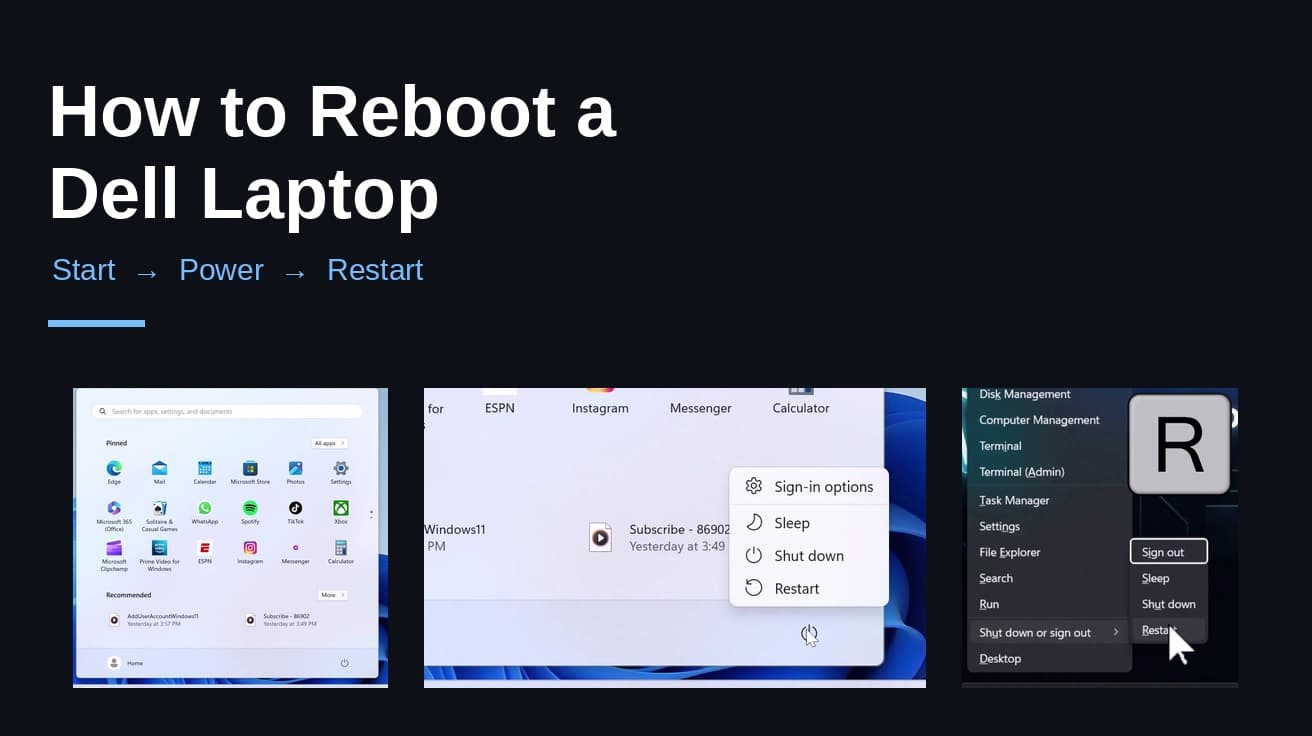
How to Reboot Modem (Correct Order and Wait Times)
Rebooting a modem fixes more connection problems than it should, but only if you get the wait and the order right. Here is the sequence, the timings vendors actually publish, and why the reset button is a different thing entirely.
To reboot your modem, unplug its power cable, wait a full minute, then plug it back in and leave it alone. If you have a separate router, unplug that as well and only power it back on once the modem's online light is steady. Expect anywhere from three to twelve minutes before the connection returns.
Nobody looks this up while things are working. The connection has dropped or slowed to a crawl, and rebooting the modem is the fix everyone recommends. It deserves the reputation — it clears more faults than it has any right to — but the order and the waiting are what make it work, and most people cut both short.
One thing to settle before you touch anything: a reboot is not the same as pressing the recessed reset button. A reboot keeps every setting you have. The reset button erases them. That distinction is covered further down.
Why your modem needs rebooting
A modem is a small computer that runs for months without a break, and three things tend to drift.
The first is a stale link to your provider. Your modem holds an address issued by the ISP, and if that lease goes bad or something changes upstream, the modem can keep trying to use a route that no longer works. Cutting the power forces it to ask for a fresh one. CenturyLink describes a reboot as clearing the modem's memory and refreshing the network connection, which is exactly this.
The second is accumulated state. Weeks of uptime leave a modem holding tables and buffers it no longer needs. On a combined modem-router unit that usually shows up as slow or unreliable Wi-Fi rather than a dead connection, which is why a reboot can help even when the internet light looks fine.
The third applies only to those combined units. Restarting makes the device scan again for the least congested Wi-Fi channel. If the networks around you have shifted since you last restarted, that alone can be the whole difference.
How to reboot modem hardware, step by step
1. Unplug the power cable from the back of the modem, or from the wall socket. Use the cable rather than a wall switch, and do not use the reset button.
2. Check that every light on the front has gone out. If the modem has a backup battery, take it out now — AT&T specifically calls for this, because a battery will keep the unit running and nothing will have been reset.
3. Wait. Vendors disagree here: AT&T says 20 seconds, CenturyLink and Northwestel say at least 30, Xfinity says a full minute, and Netgear asks for two minutes when you are cycling an entire home network. A minute clears all but the strictest of those, and there is no penalty for waiting longer. CenturyLink's reasoning is the useful one — the pause is there to let the modem's memory fully clear.
4. Plug it back in and leave it alone. The temptation is to pull the cable again when nothing has happened after 40 seconds. Do not. A modem that is interrupted mid-handshake takes longer to come back, not less.
5. Watch the front panel rather than your phone. You are waiting for the online or internet light to go steady. Blinking means it is still negotiating; AT&T's wording is to wait for the broadband light to turn solid green, and most makes follow the same convention.
If your router is a separate box, the order matters
Plenty of homes have one unit that does everything. If yours is two boxes — a modem from the ISP and a router plugged into it — powering them up in the wrong order is the most common reason a reboot appears to fail.
Netgear's sequence is the one to follow. Power everything down. Wait two minutes. Bring the modem up first and give it roughly five minutes to reach your provider. Only once that is settled do you power the router back on, then your computers, phones and everything else. The router needs a working connection to hand out; start it first and it comes up with nothing behind it.
If you have a single combined gateway, there is no second step — the one restart covers both halves.
How long before the internet comes back
Longer than feels reasonable. CenturyLink quotes three to five minutes for a full boot. AT&T says up to ten. Xfinity says the process takes up to twelve minutes, and that is for a device restarting itself rather than one that has been unplugged. None of these are a sign something has gone wrong.
Worth knowing if your phone service runs through the same box: Xfinity notes that while the gateway is restarting, calls will not work, and that includes calls to 911. If you have any reason to think you might need the phone, do this at a time when you have a mobile to hand.
A reboot is not the reset button
The small recessed hole on the back is a factory reset, and it does something else entirely. CenturyLink's description is clear enough: a reset returns the modem to its out-of-the-box state, erasing your personalised password, your Wi-Fi settings, and the routing and DHCP configuration with it. Afterwards you need the original credentials printed on the sticker to get back in, and every device in the house has to rejoin the network.
Hold times vary by model and are easy to get wrong — on CenturyLink's own equipment, ten seconds triggers the reset while fifteen seconds merely reboots the thing. Treat the reset as a last resort that support asks you for, not as a harder version of unplugging.
If that didn't work
Check whether the fault is yours at all. Every major provider publishes an outage page and most apps will tell you about a known problem in your area before you spend an afternoon on it. A reboot cannot fix a cut line down the street.
Then check the cable that carries the signal in — coaxial on cable service, the phone line on DSL. It should be finger-tight at both ends. A connector that has been nudged loose behind furniture produces exactly the intermittent dropouts people reboot for.
Finally, separate the two possible faults. Plug a laptop straight into the router with an ethernet cable. If that works and Wi-Fi does not, your internet is fine and the problem is wireless. Smart home gear is worth a look here too, since devices that were connected before a reboot occasionally need walking back onto the network — a Ring doorbell is a common one, and the same goes for a printer that has stopped appearing.
Still not working
A modem you have to reboot every few days is telling you something another reboot will not fix. The useful call at that point is to your provider: they can read the signal levels on your line from their end, re-provision the modem remotely, and say whether the hardware is still supported on their network. Rented equipment that is failing gets swapped at no cost, and a modem several standards behind your plan speed is worth replacing either way.