How to Reboot Dell Laptop (Windows 11 and 10 Steps)
Rebooting a Dell laptop is a three-click job from the Start menu, with two keyboard shortcuts that are quicker and a power-button route for when the screen has stopped responding.
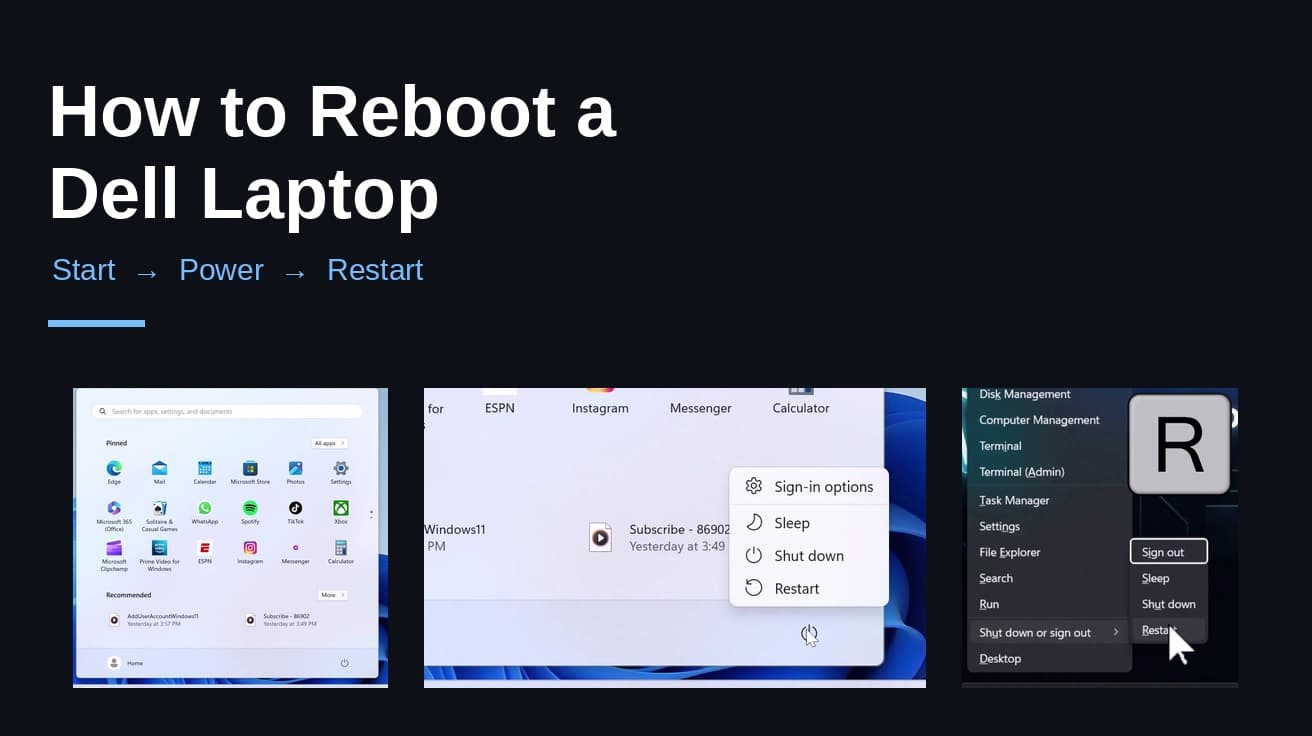
To reboot a Dell laptop, open the Start menu, click the power icon at the bottom of the menu, then choose Restart. Windows closes your apps and the laptop boots straight back up. If the screen has stopped responding, hold the physical power button until the laptop switches off, then press it again.
Nothing about this is Dell-specific. A Dell laptop reboots the way any Windows laptop does, because the restart command belongs to Windows rather than to the hardware. What is Dell-specific is the power button on the chassis, which behaves differently depending on how new the machine is, and that matters when Windows has stopped listening.
One thing to know before you click: a reboot closes every open app. Windows will usually prompt you if a document has unsaved changes, but it does not always wait, so save your work first.
How to reboot a Dell laptop from the Start menu
1. Press the Windows key, or click the Windows logo on the taskbar, to open the Start menu.
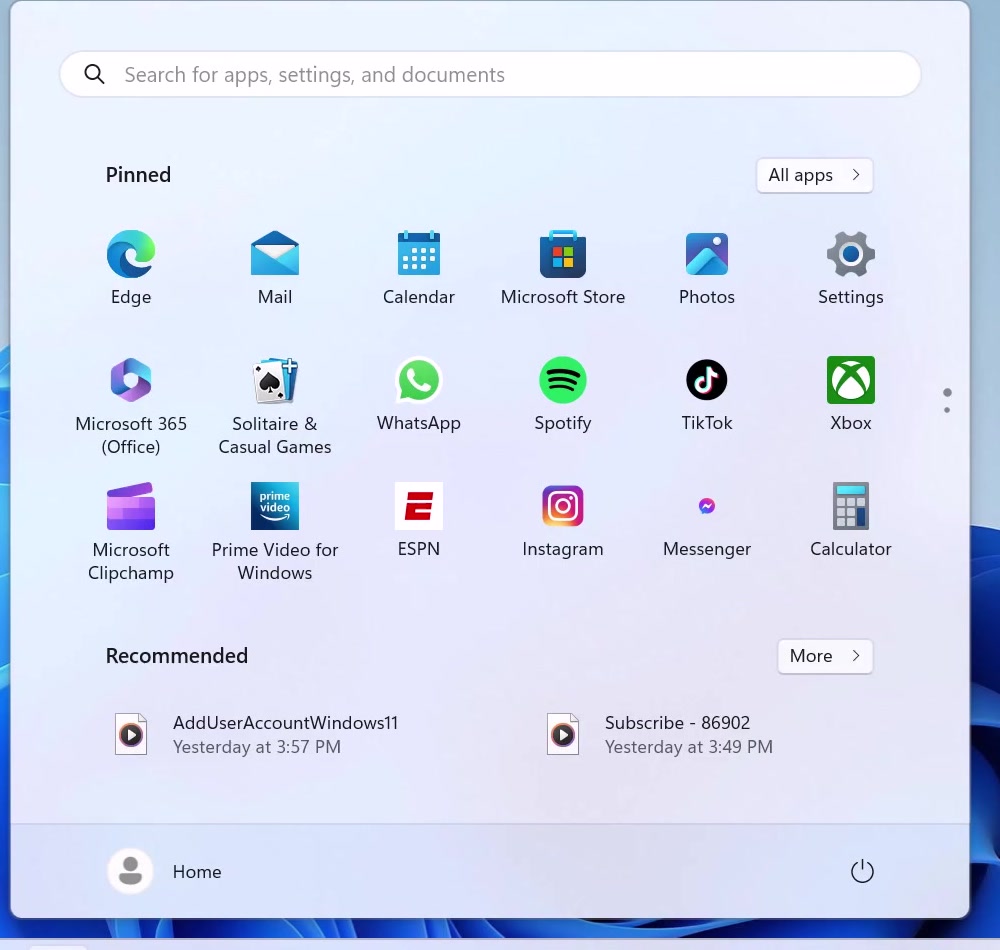
2. Click the power icon in the bottom-right corner of the Start menu. A small menu opens with Sign-in options, Sleep, Shut down and Restart.
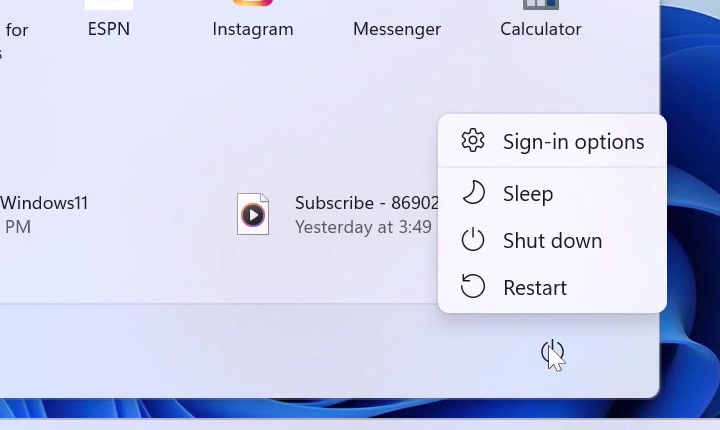
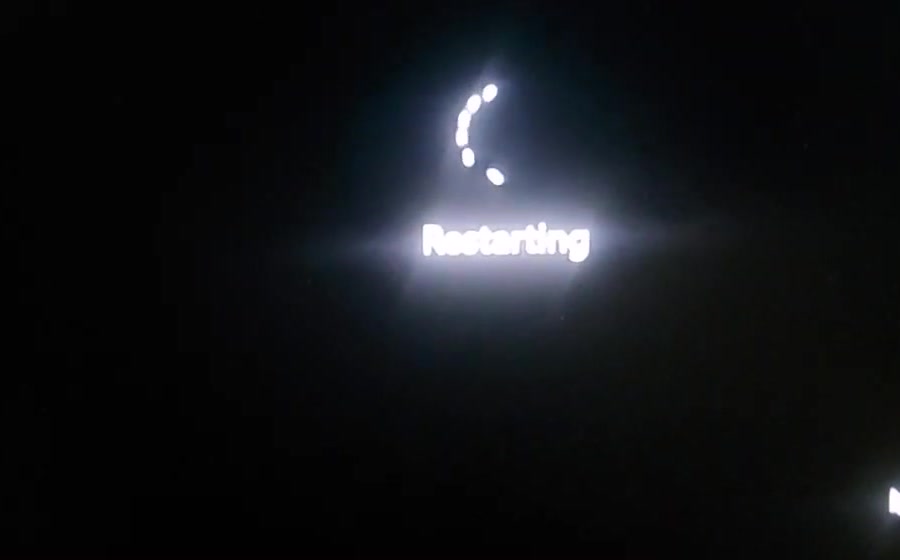
3. Click Restart. The screen goes dark and a spinner appears while Windows shuts down and boots again. On most laptops this takes under a minute; a pending Windows update can stretch it to several.
When the sign-in screen appears, the reboot is done. You will need to enter your PIN or password again, because a restart signs you out.
Faster routes, and the Windows 10 version
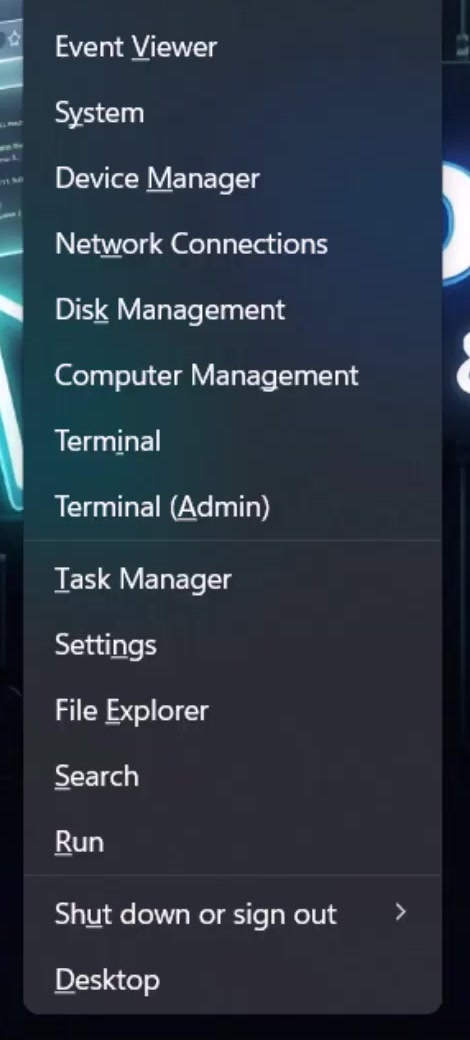
If you would rather not reach for the mouse, Windows has a shortcut that gets there in three keystrokes. Press Windows key + X to open the Quick Link menu, then press U, then R.
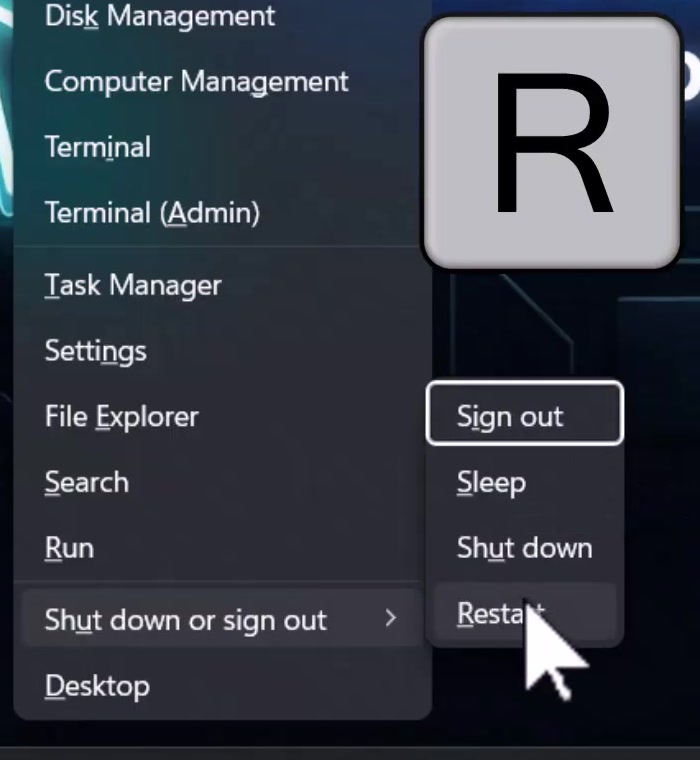
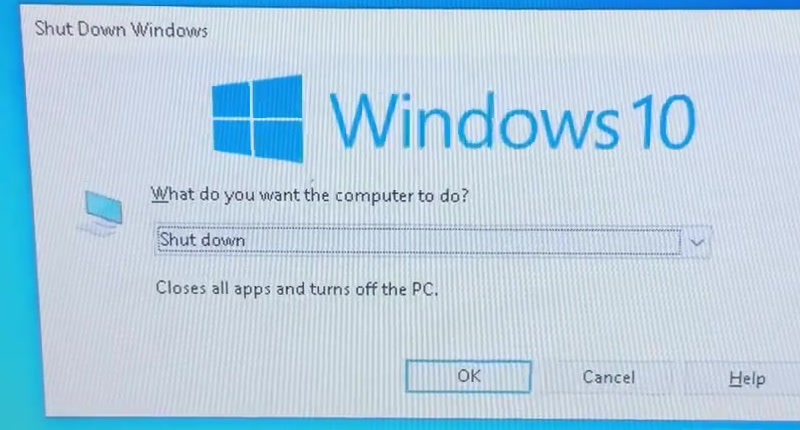
The other keyboard route is Alt + F4 pressed on the desktop, with no app window in focus. That opens the Shut Down Windows dialog, where you pick Restart from the drop-down and click OK. It is the one place the Windows 10 wording differs noticeably from Windows 11, and it is still present on both.
Ctrl + Alt + Delete is worth knowing too. It brings up the blue security screen, which has a power icon in the bottom-right corner with Restart under it. That screen often responds when the desktop itself has gone sluggish, which makes it the step to try before you reach for the power button.
What a reboot does not do
It is not a factory reset. Restarting changes nothing about your files, apps or settings — it only stops Windows and starts it again. The Dell recovery tools that genuinely erase a machine live elsewhere, in Settings and in Dell SupportAssist, and they announce themselves clearly.
It is also not the same as shutting down and pressing the power button, which surprises most people. Microsoft's Fast Startup feature saves the Windows kernel session to disk at shutdown and restores it at power-on rather than loading it fresh, and Microsoft describes the kernel session as hibernated rather than closed during Fast Startup. A restart skips that entirely and performs a full boot. That is why "have you restarted it?" fixes problems that shutting down overnight does not.
And it is not a hard reset. A hard reset drains residual power from the board, which is a different operation with different steps, covered at the end of this article.
Common questions
Will a reboot lose my open tabs or documents? Windows prompts to save unsaved documents in most apps, and browsers normally restore their tabs on relaunch. Neither is guaranteed, so save anything you care about first.
My Dell is installing updates — can I interrupt the restart? No. If the screen says it is working on updates, leave it. Cutting power mid-update is one of the few ways to turn a slow boot into a machine that will not start.
How often should I restart? There is no schedule worth following, but a reboot is the cheapest first move for a laptop that has become slow, lost its Wi-Fi, or stopped recognising a peripheral. If you want to record an error message before it disappears, capturing the screen on a Dell laptop takes a couple of seconds.
If the option isn't there
When the screen is frozen and nothing responds, the power button is the fallback. Dell's own guidance distinguishes two behaviours. On older Dell laptops and those without modern standby, holding the power button for five seconds forces a shutdown — Dell calls this a dirty or forced shutdown and warns it can leave data inaccessible. On modern standby models, including Latitude machines such as the 5300 and 7400, a five-second hold instead brings up a "slide to shut down" screen, and holding for ten seconds overrides that and forces the shutdown. Once the laptop is off, press the power button normally to reboot it.
If the laptop will not power on at all, Dell's documented hard reset is the next step: shut it down, unplug the AC adapter, remove the battery if it is removable, disconnect every peripheral, then press and hold the power button for 15 to 20 seconds to drain the residual charge Dell calls flea power. Reconnect the adapter and switch it on. Dell says the procedure does not affect personal files. Laptops with a non-removable battery follow a different procedure, which Dell documents separately.
If a reboot has become a daily ritual just to keep the machine usable, the reboot is not the problem. A peripheral that drops out after every wake, or a laptop that slows over hours, usually points at a driver or a background app — worth chasing before you assume the hardware is tired. Bluetooth devices are a common culprit; if yours is a headset that stopped reconnecting, pairing AirPods with a Dell laptop walks through the Windows side of that.