
iPhone Won't Charge? Work Through These Fixes in Order
A phone that refuses to charge is usually a power source, a cable or a plug of lint rather than a dead battery. Here is the order to check them in.
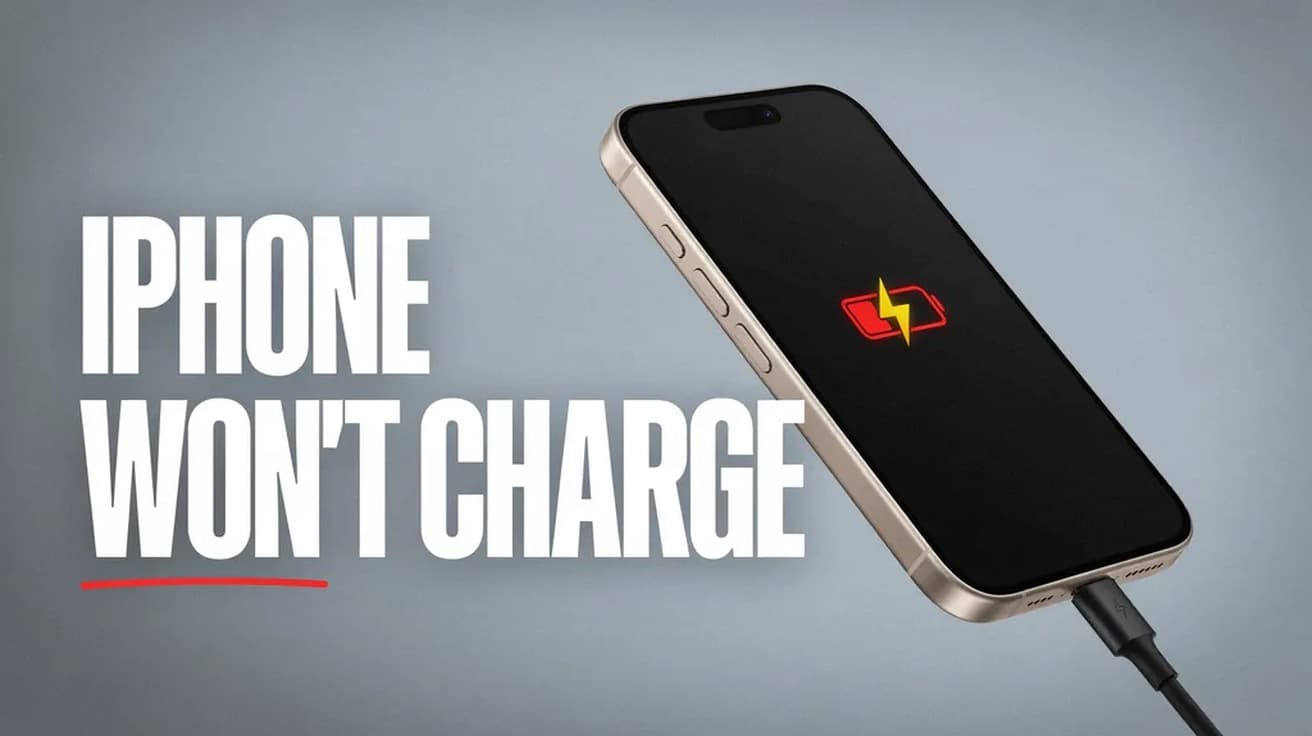
If your iPhone won’t charge, plug it into a wall outlet rather than a computer or a car, swap in a cable and adapter you know are good, and look inside the charging port for lint. If the screen stays black, force restart it — volume up, volume down, then hold the side button — and leave it plugged in for half an hour before you conclude anything is broken.
An iPhone that won’t charge is usually not a dead iPhone. Far more often the power is simply not reaching the battery: a cable that has frayed inside its jacket, a USB port that supplies too little current, or a pocket-sized wad of lint packed into the connector.
Work through the checks below in the order they appear. They run from the cheapest and most likely to the ones that end in a service appointment, and each one rules something out, so it is worth not skipping ahead.
Why your iPhone won’t charge
The most common cause is the accessory rather than the phone. Apple’s own troubleshooting begins by having you inspect the cable and the USB wall adapter for breakage or bent prongs, and it tells you not to keep using a damaged one. Cables fail invisibly at the point where they bend most, near either connector.
The second cause is the charging port itself. Lint compacts at the bottom of the connector over months in a pocket, and once it does, the cable seats visibly but never makes full contact. Apple lists removing debris from the port as a step in its own sequence.
A third, less obvious cause is that the phone is charging exactly as designed and you have read the behaviour as a fault. On iOS 13 and later, Optimized Battery Charging deliberately holds the battery at 80 percent until shortly before you normally unplug, and on iPhone 15 models and later a Charge Limit can stop it there permanently. Heat does the same thing: Apple says software might limit charging above 80 percent if the battery gets too warm.
Finally, the phone can simply be hung. A drained iPhone that has crashed while off will sit with a black screen and take no charge until it is force restarted.
Start with the power source and the cable
1. Move to a wall outlet. Apple lists a computer, a power accessory and a wall outlet as valid sources, but a wall outlet with a proper USB adapter is the one that delivers the most current, and it removes a sleeping laptop or an unpowered hub from the picture.
2. Check that every connection is firm — cable into adapter, adapter into outlet, cable into phone. Then try a different outlet entirely, in case the first one is dead.
3. Look the cable and adapter over. Bent prongs, a split jacket, discoloured contacts or a connector that wobbles in the port all mean the accessory should be retired rather than nursed along.
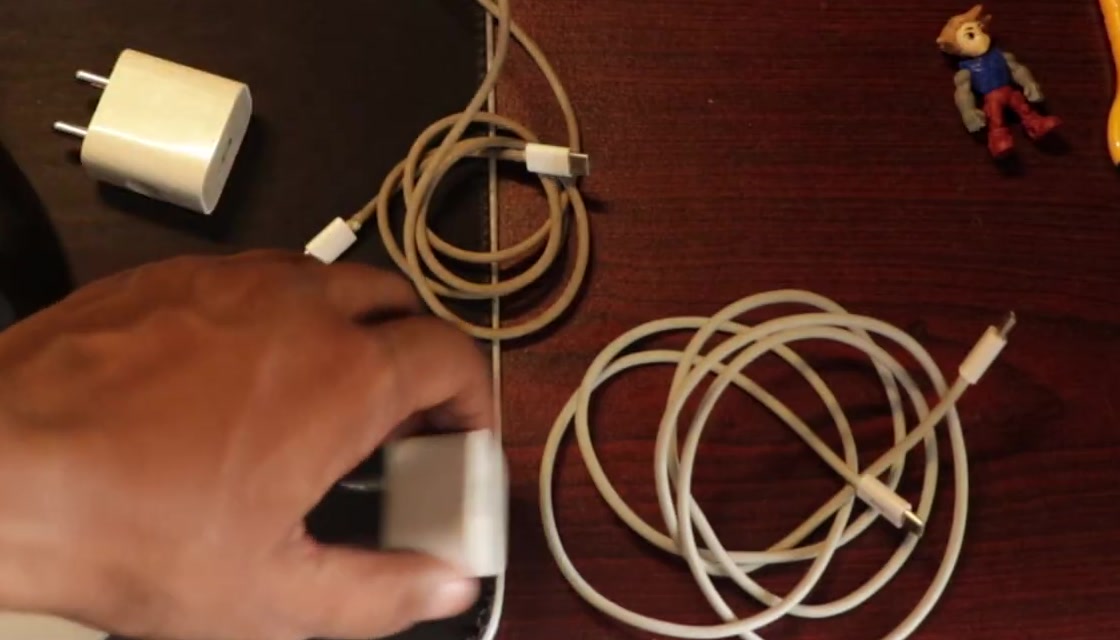
4. Swap both, not one. A known-good cable plugged into a failing adapter tells you nothing, and the same is true the other way around.
Look inside the charging port
Hold the phone under a bright light with the connector facing you. A clean port shows its contacts clearly and has a visible depth to it. A blocked one looks shallow, grey and matted.
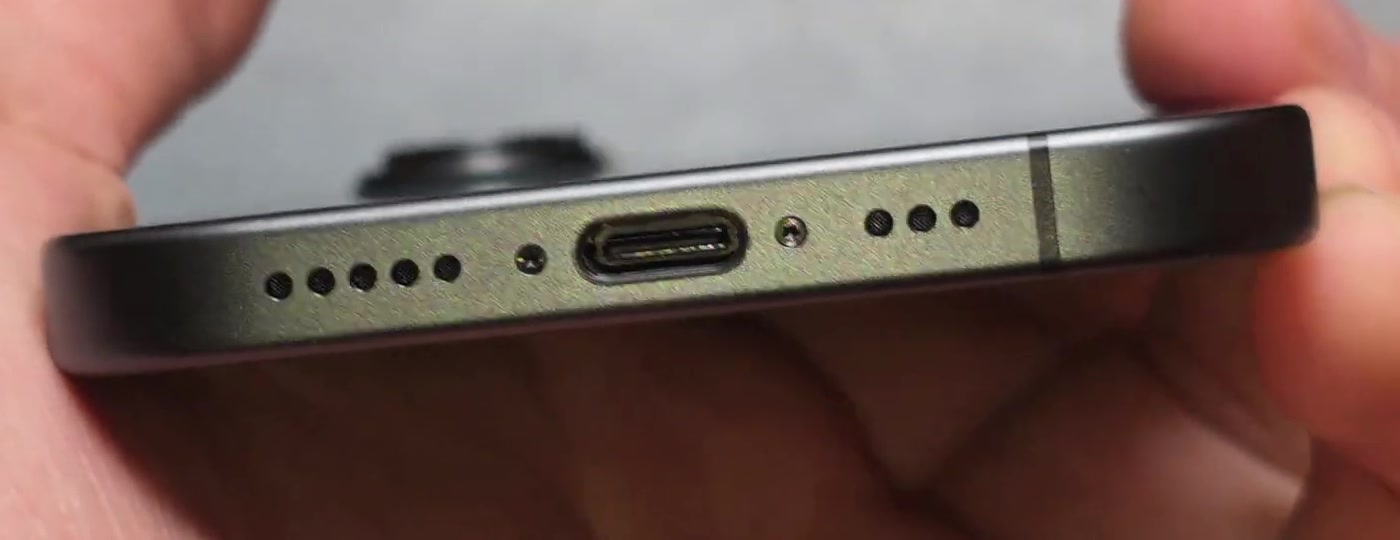
1. Power the phone off first if it will respond.
2. Use something non-conductive and blunt. A wooden toothpick is the usual choice. Work it along the bottom of the port and drag the debris out towards you rather than pressing it further in.
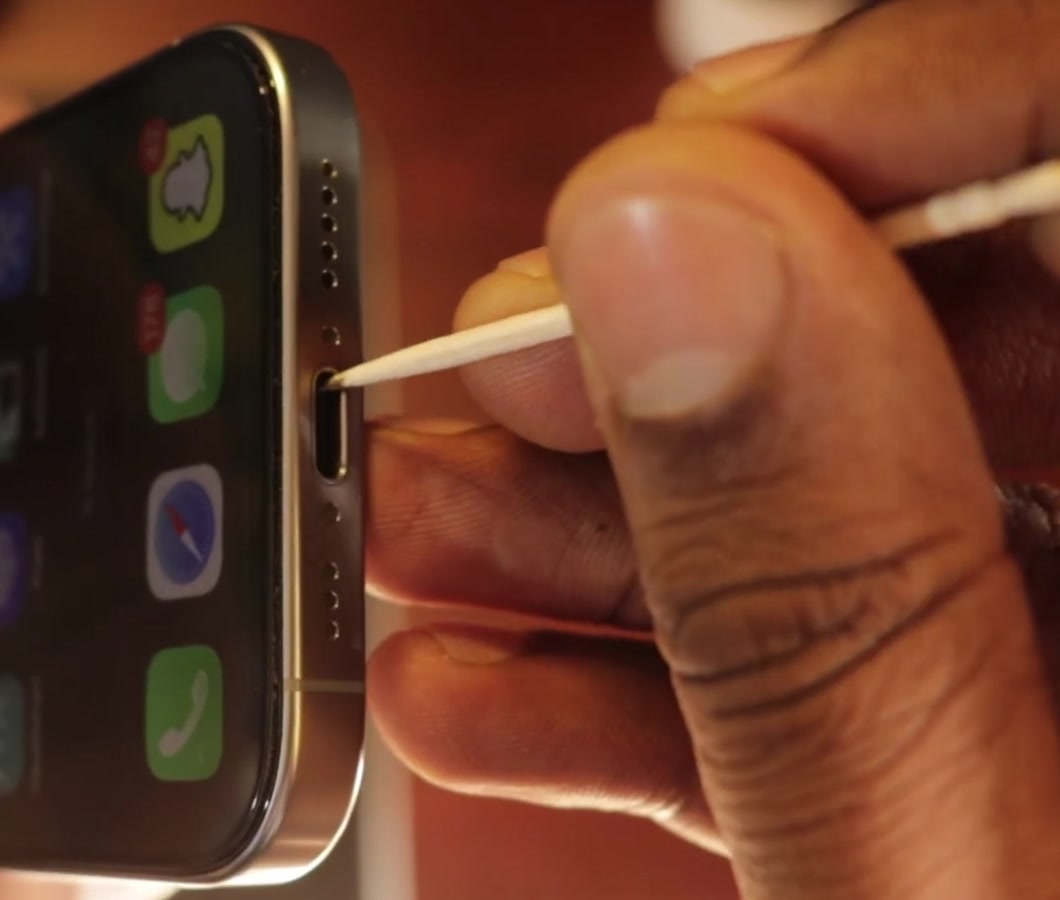
3. Finish with a dry, soft brush to sweep out what you have loosened. Do not use compressed air, liquid or anything metal.
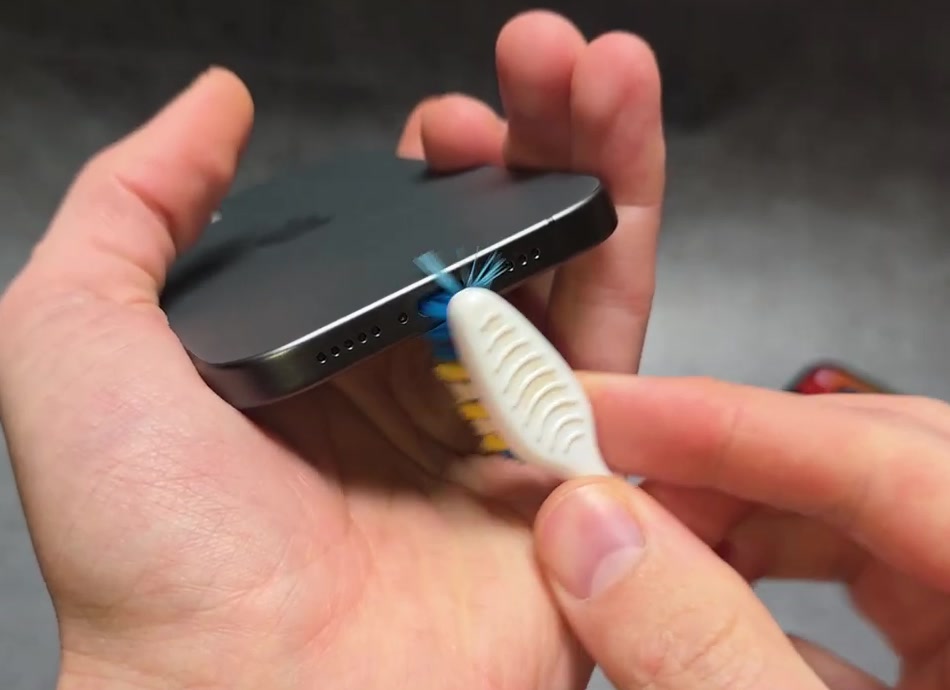
4. Plug the cable back in firmly. It should seat with a small amount of resistance and sit flush.
If the port is badly packed, or you would rather see the technique in detail before you start, our guide to cleaning an iPhone charging port safely covers what to use and what to keep away from it.
Force restart if the screen stays black
If the phone shows nothing at all, or only a battery icon, it may be hung rather than empty. A force restart does not erase anything.
1. On iPhone 8 or later and iPhone SE (2nd generation and later): press and quickly release volume up, press and quickly release volume down, then press and hold the side button until the Apple logo appears.
2. On iPhone 7 and 7 Plus: hold the side button and volume down together until the logo appears.
3. On iPhone 6s or earlier and iPhone SE (1st generation): hold the side or top button and the Home button together.
Then leave it plugged in. Apple’s sequence asks for half an hour on the charger before the force restart and another half hour after it — a deeply drained battery can take that long before the screen shows anything at all.
If it charges but stops at 80 percent
This is a setting, not a fault. Open Settings, tap Battery, then tap Charging. On iPhone 15 models and later you can set a charge limit anywhere between 80 and 100 percent in 5 percent steps, and Optimized Battery Charging is only available when that limit is at 100 percent.
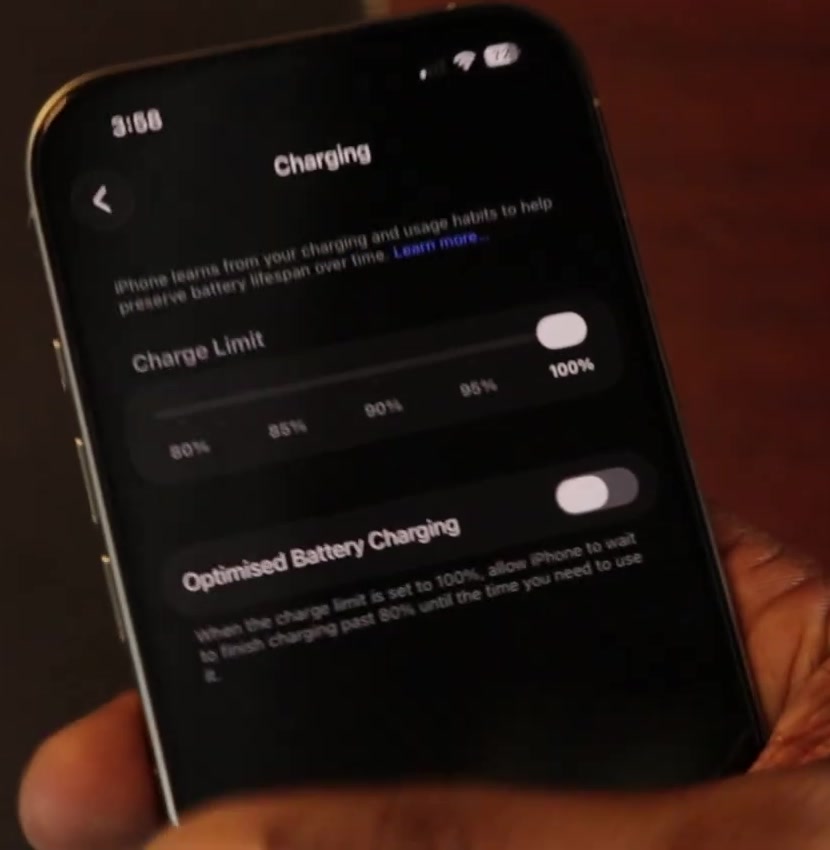
On iPhone 14 models and earlier the path is Settings › Battery › Battery Health & Charging, where Optimized Battery Charging is a single switch.
If a lock screen notification says when the phone will be fully charged, that is Optimized Battery Charging working. Touch and hold the notification and tap Charge Now to override it once.
Heat produces the same symptom with no setting behind it. If the phone is warm, move it and the charger somewhere cooler and take the case off. Apple says charging resumes on its own once the temperature drops.
If that didn’t work
A liquid-detection alert. If the phone warns that liquid has been detected in the connector, charging over the cable is blocked deliberately. Apple’s instruction is to unplug both ends, tap the phone gently against your hand with the connector pointing down, leave it somewhere dry with airflow, and wait at least 30 minutes before trying again. A Qi wireless charger still works in the meantime provided the back of the phone is dry.
An “accessory not supported” alert. Connect the phone straight to the charger with no adapters or hubs in between, clear the port, restart, and try a different cable. Apple attributes these alerts to a dirty or damaged port, a defective accessory, or a USB charger that was never designed to charge devices.
An old version of iOS. Check Settings › General › Software Update and install anything pending. It is cheap to rule out.
Still not charging
If a known-good cable and adapter in a known-good wall outlet, a clean port and a force restart have all failed, an iPhone won’t charge for one of two remaining reasons: the port hardware or the battery. Neither is a home repair.
Before you book anything, check Settings › Battery for the battery health reading, and note what the phone actually does when you plug it in — nothing at all, a brief flash, or a charge that starts and drops. That detail is the first thing a technician will ask for. Apple’s own article ends the same way: if the device still will not power on or charge, it needs service.