How to Unblock a Number on Android (Pixel and Samsung)
Unblocking a number on Android takes four taps in the Phone app, but the menu is named differently on Pixel and Samsung phones. Here is the path on both, and the second block list people usually forget to check.
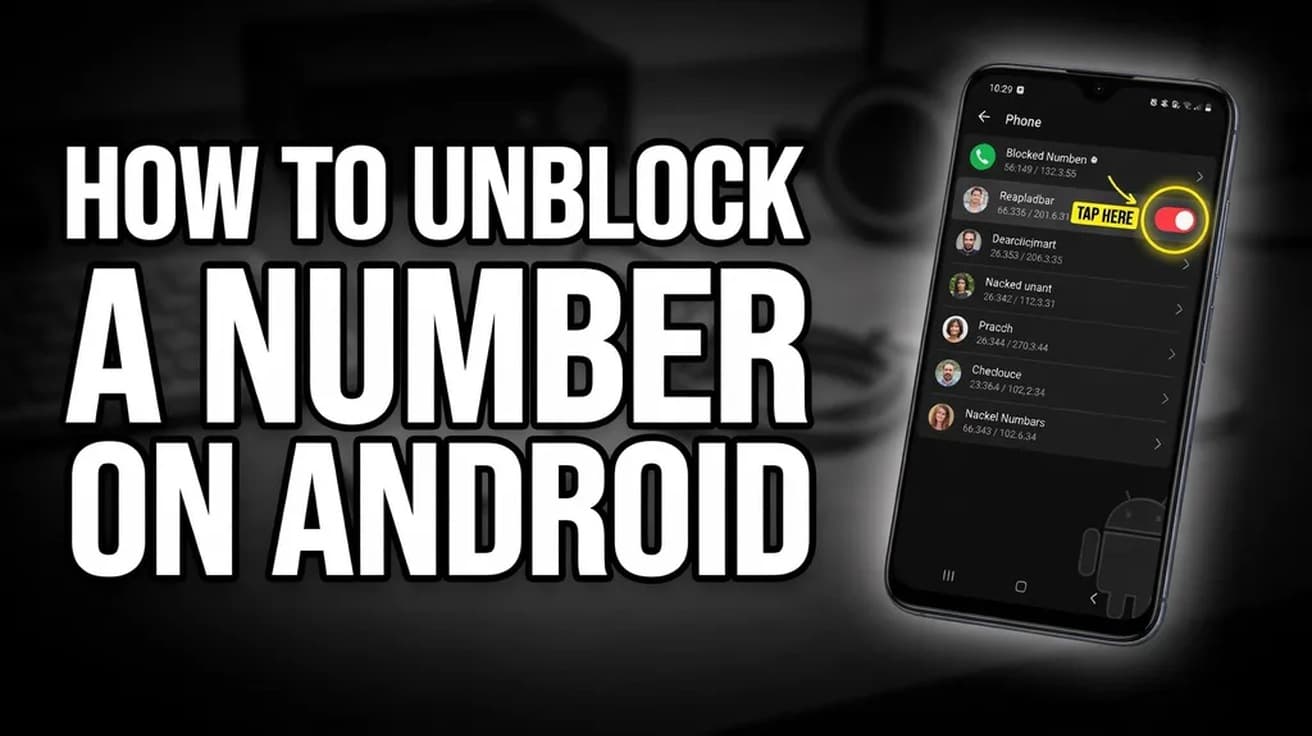
Open the Phone app, tap More (the three dots), then Settings, then Blocked numbers. Tap the X beside the number you want back and confirm with Unblock. On a Samsung Galaxy the menu is called Block numbers and you tap the red minus instead. Calls and texts start coming through again straight away.
If you are working out how to unblock a number on android, the good news is that it takes four taps. The catch is that the setting sits one level deeper than most people go looking, and the label changes depending on who made your phone.
One thing to know before you go looking: unblocking only opens the door from now on. It does not retrieve anything that was turned away while the block was active. Google's Phone app documentation is explicit that calls received from a number while it was blocked never appear in your call history at all.
How to unblock a number on Android in the Phone app
This is the path on a Pixel and on most phones running the Google Phone app, which is the default dialler on stock Android.
1. Open the Phone app. You will land on the recents and favourites screen with a search bar at the top.
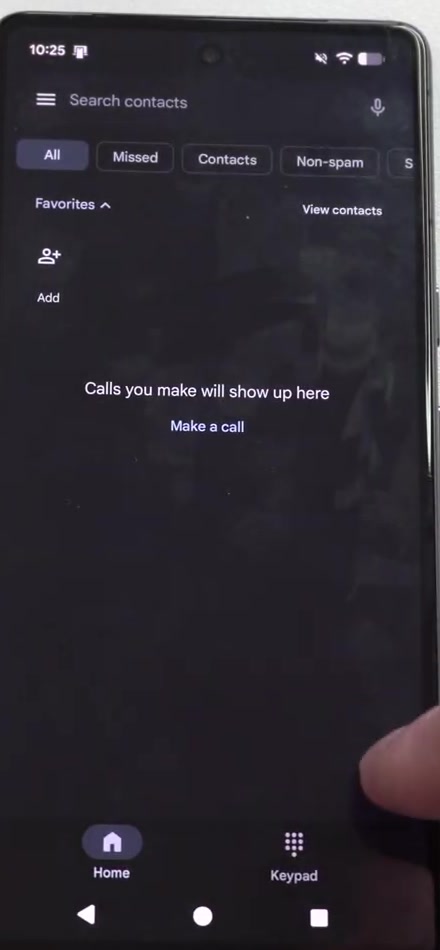
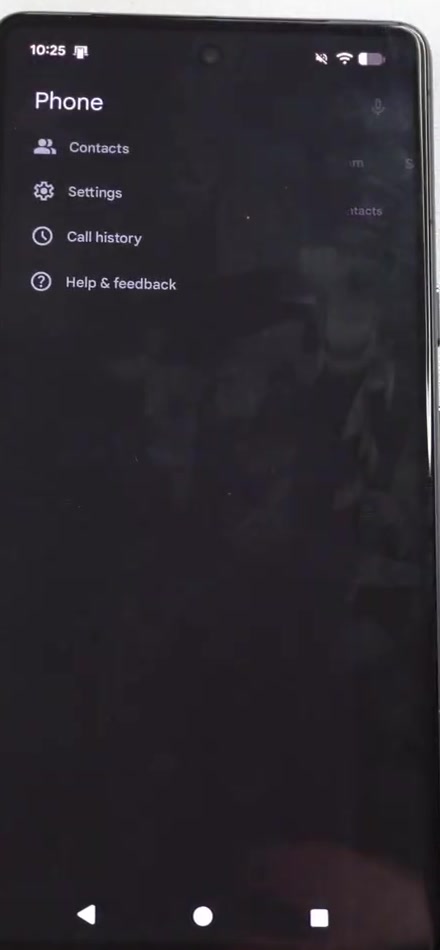
2. Tap More — the three dots in the corner — and choose Settings. The menu also offers Contacts, Call history and Help & feedback.
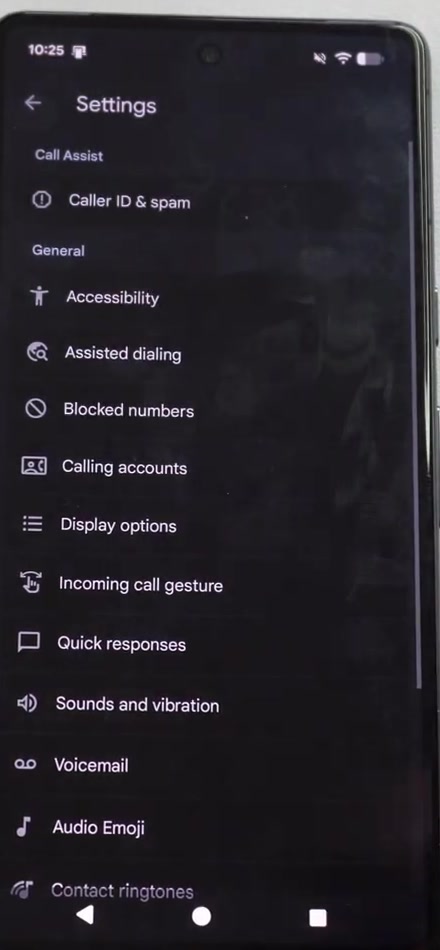
3. Scroll to the General group and tap Blocked numbers. It sits between Assisted dialing and Calling accounts.
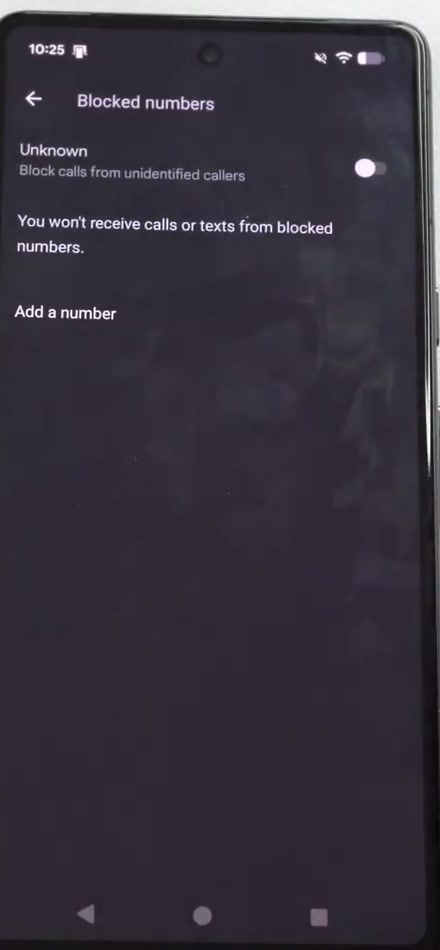
4. Find the number in the list and tap the X next to it, then tap Unblock to confirm. That is the whole job.
On a Samsung Galaxy, look for Block numbers
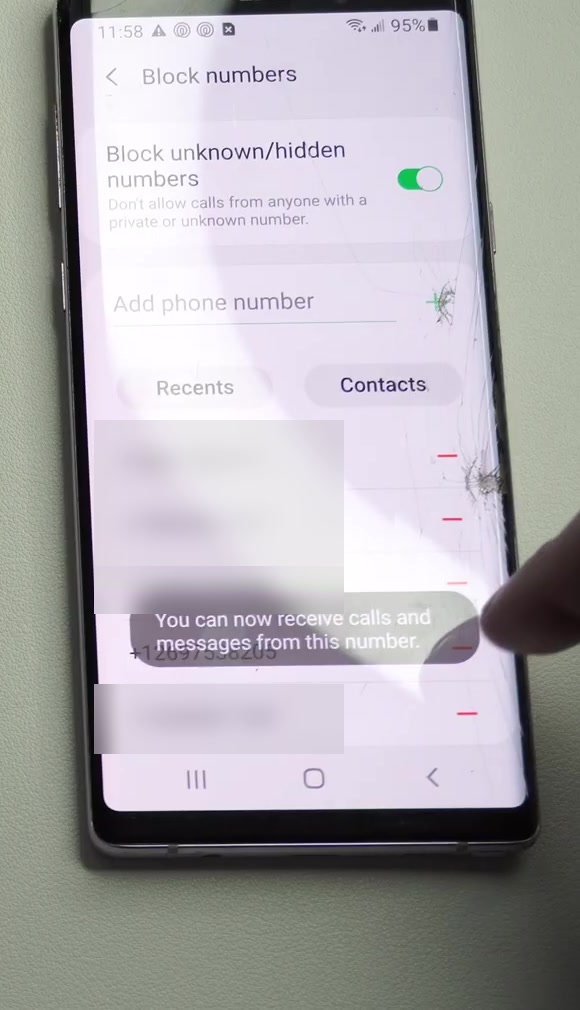
Samsung uses One UI rather than stock Android, and it drops the "-ed". The route is otherwise identical: Phone → More options (three dots) → Settings → Block numbers.
Instead of an X, each blocked entry has a red minus icon on the right. Tap it and the number leaves the list immediately — there is no second confirmation dialog.
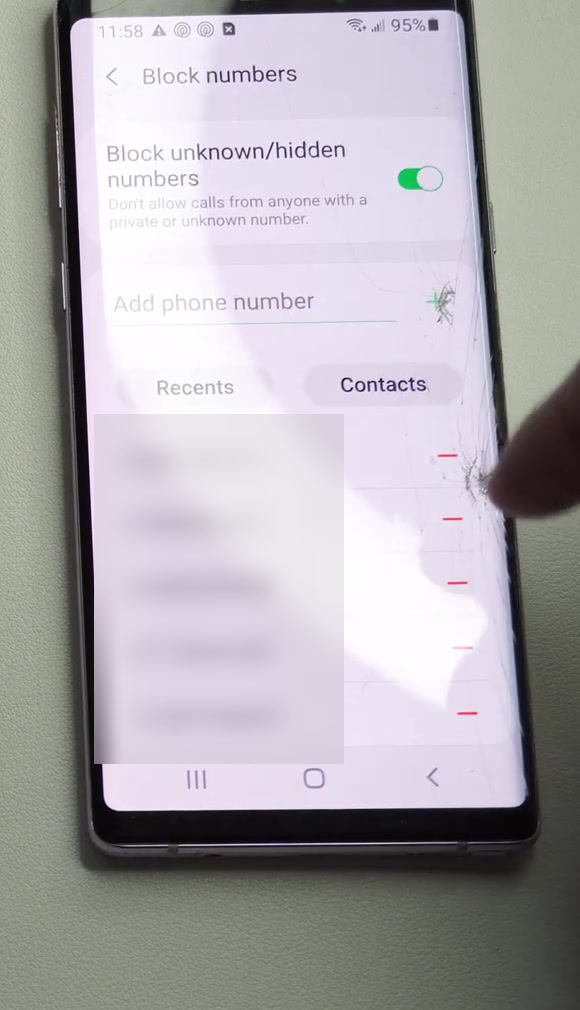
Samsung confirms the change with a message along the bottom of the screen reading "You can now receive calls and messages from this number." That sentence is a useful reminder that on both platforms this one list governs texts as well as calls.
Three faster routes
If you would rather not dig through menus, any of these work:
- From the call log. Open the Phone app, go to Recents, tap the number, open its details, then tap the three dots and choose Unblock contact. Samsung documents this path directly.
- From Contacts. Open the Contacts app, tap the person, tap More options, then Unblock contact.
- From search. Open Android Settings and type "blocked" into the search bar at the top. On most builds this jumps you straight to the same screen.
What unblocking does not do
It does not deliver anything you missed. Calls that came in during the block are gone from your history, and blocked callers cannot leave a voicemail at all when visual voicemail is switched on, according to Google's documentation. Unblocking does not bring any of it back.
It may not be the only block. Android can hold more than one list. A number blocked inside Google Messages is handled separately from the system list the Phone app uses. If calls now ring through but texts still do not arrive, open Google Messages, tap your profile icon, choose Spam & blocked, select the conversation and tap Unblock.
It does not touch the unknown-caller filter. The toggle at the top of that screen — Unknown on the Google Phone app, Block unknown/hidden numbers on Samsung — is a separate blanket rule for private and unidentified numbers. Removing one person from the list below leaves that switch exactly as it was.
Common questions
Will they know I unblocked them? Neither Google's nor Samsung's support documentation describes any notification being sent in either direction, when a number is blocked or when it is unblocked. What the person sees on their end is not something the documentation covers, so treat any confident claim about it with suspicion.
Will old texts arrive now? No. Messages sent while the block was in place were rejected at the time. Only new messages will come through.
What if my carrier blocked the number? Blocks set up through your mobile operator's own app or website are entirely separate from the phone's list and have to be removed there.
If Blocked numbers isn't in the menu
Google notes that these steps need Android 6.0 or later. If you are on something older, or you have replaced the dialler with a third-party app, the list will live inside whichever app is handling your calls rather than in the Phone app.
Work profiles and some manufacturer skins also move call blocking into their own security or caller-ID section. If nothing above matches your screen, searching Settings for "block" is the quickest way to find where your manufacturer put it.