How to Restart iPhone 12 (Buttons, Settings, Siri)
The iPhone 12 has no Home button, so a restart means a button combination, a menu or a voice command. Here are all four routes, plus the force restart for a frozen screen.
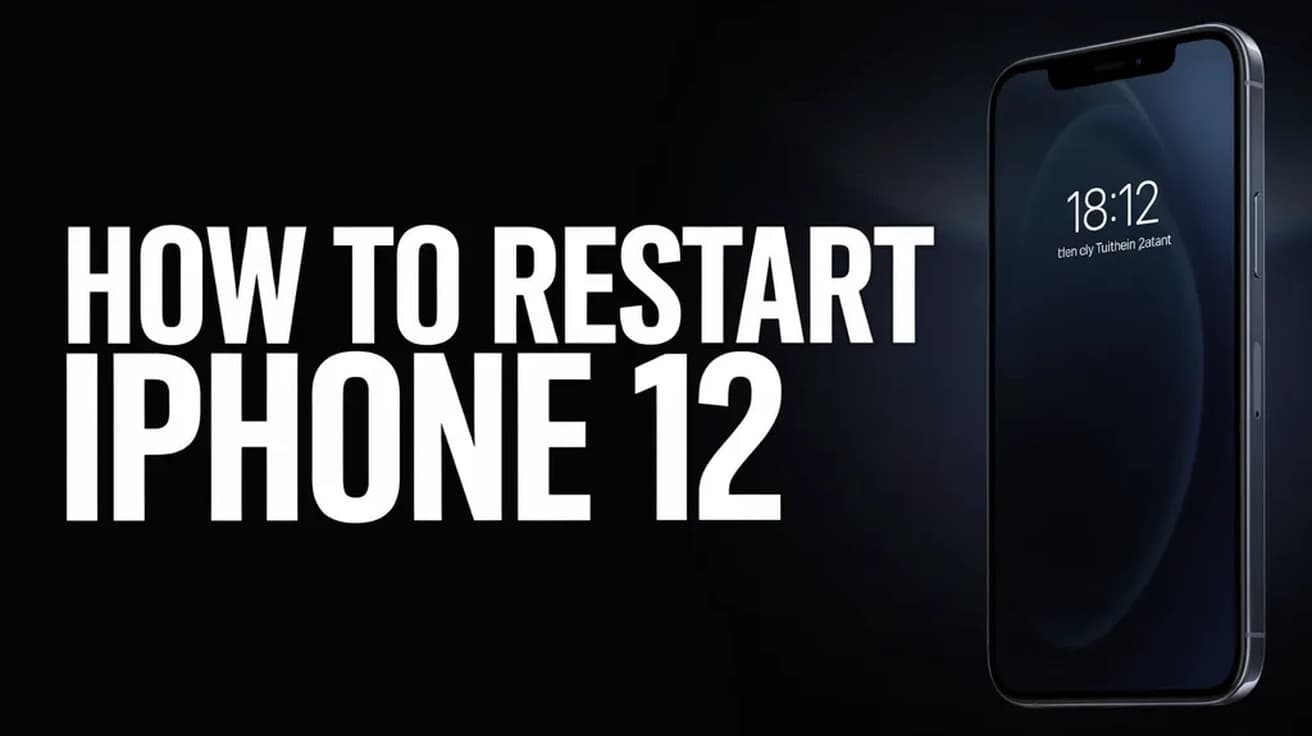
To restart an iPhone 12, press and hold the side button together with either volume button until the power-off slider appears, drag the slider right, and wait about 30 seconds. Then press and hold the side button on its own until the Apple logo appears. If the screen is frozen, force restart instead: press volume up, press volume down, then hold the side button.
The iPhone 12 was the first full line Apple shipped without a Home button at that price, and that is why how to restart iPhone 12 trips people up. Holding the side button on its own summons Siri. The restart needs a button combination, a buried menu, or a voice command.
Nothing below erases anything. A restart closes every app, clears temporary memory and loads iOS fresh. Your photos, messages, apps and settings are untouched. That is a factory reset, and it is a different procedure entirely.
The button route: how to restart iPhone 12
1. Press and hold the side button on the right edge at the same time as either volume button on the left edge.
2. Hold both for two or three seconds, until slide to power off appears across the top of the screen.
3. Let go of both buttons, then drag the slider all the way to the right.
4. Wait about 30 seconds. The screen goes black and the phone is properly off.
5. Press and hold the side button on its own until the Apple logo appears, then let go.
Release the buttons as soon as the sliders show. The same screen carries an Emergency SOS slider underneath, and holding on past that point can start an emergency countdown — with Auto Call switched on in Settings, it places the call for you.
Expect the Apple logo to sit there for 15 to 30 seconds. When the lock screen returns it will ask for your passcode rather than your face: Apple requires a passcode whenever a device has just been turned on or restarted, so Face ID only comes back after that first manual unlock.
Faster routes: Settings, Control Center and Siri
Three alternatives do the same job, and one of them is the answer when a button is stiff or broken.
Settings. Open Settings, tap General, scroll to the very bottom and tap Shut Down. The familiar slider appears. No buttons needed to switch off — though you still need the side button, or a charging cable, to switch back on.
Control Center. On iOS 18 and later there is a power icon in the top-right of Control Center. Swipe down from the top-right corner of the screen, press and hold that icon, and the slider appears. The iPhone 12 runs iOS 26 and sits on Apple's compatibility list for iOS 27, so this route is available unless you have deliberately stayed on an older release.
Siri. From iOS 16 onwards, say "Restart my iPhone". Siri asks you to confirm; say yes or tap Restart. This is the only method that brings the phone back up on its own, with no second button press.
Force restart: when the screen is frozen
If the display is black, stuck on an image, or ignoring every tap, the slider will never appear. A force restart cuts power below the level of the interface, so a frozen screen does not stop it.
1. Press and release the volume up button.
2. Press and release the volume down button.
3. Press and hold the side button, and keep holding through the black screen until the Apple logo appears. That can take 10 to 20 seconds.
The first two are quick taps, not holds, and the usual reason this fails is pausing between them. Run all three briskly, one straight after the other. A force restart does not wipe anything either — it skips the orderly shutdown, nothing more, which is why it is worth saving for a phone that is genuinely stuck.
What a restart does not do
Restart, reset and erase get used as if they were the same word. They are not, and the difference matters before you start tapping.
A restart does not sign you out of anything, delete apps or photos, clear your browsing history, or remove saved passwords. It does not install an iOS update. It does not free up storage — clearing temporary memory is not the same as deleting files, and the space you get back is negligible.
It also will not fix hardware. A swollen battery, a damaged charging port or a cracked display are unaffected by a reboot. If the phone will not power on at all, or dies the moment you unplug it, the problem is more likely power than software, and an iPhone that won't charge needs a different set of checks.
Common questions
Is the iPhone 12 mini or 12 Pro different? No. How to restart iPhone 12 mini, 12 Pro and 12 Pro Max is the same procedure throughout the line: the same side-plus-volume combination, the same force restart sequence. Later Face ID iPhones use it too, so restarting an iPhone 14 is an identical set of presses.
How often should I restart my iPhone? There is no schedule to keep. A restart is a troubleshooting step, not maintenance — reach for it when an app keeps crashing, Wi-Fi or Bluetooth stops behaving, or the phone feels sluggish for no obvious reason.
Does the same method work on an iPad? Close, but the buttons sit differently and some iPads still have a Home button, so the combination is not identical. Powering off an iPad is worth reading separately.
If the buttons don't work
When a volume button or the side button has failed, AssistiveTouch puts the same commands on screen. Go to Settings > Accessibility > Touch > AssistiveTouch and switch it on. A small on-screen button appears; tap it, then tap Device, More, and Restart. You can also assign Restart directly to a single tap, double tap or long press from the same settings screen.
If the phone will not respond to a force restart at all, or loops on the Apple logo rather than reaching the lock screen, that is past the point a restart can help. A Mac or PC can put the phone into recovery mode and reinstall iOS without erasing it, and an Apple Store or authorised repair centre can test the hardware. Back up first if the phone is responsive enough to allow it.