Apple Watch Stuck on Apple Logo? Force Restart First
An Apple Watch stuck on the Apple logo is usually a software hang, not a dead watch. Here is the force restart, the unpair-and-restore that follows, and when it becomes a service job.
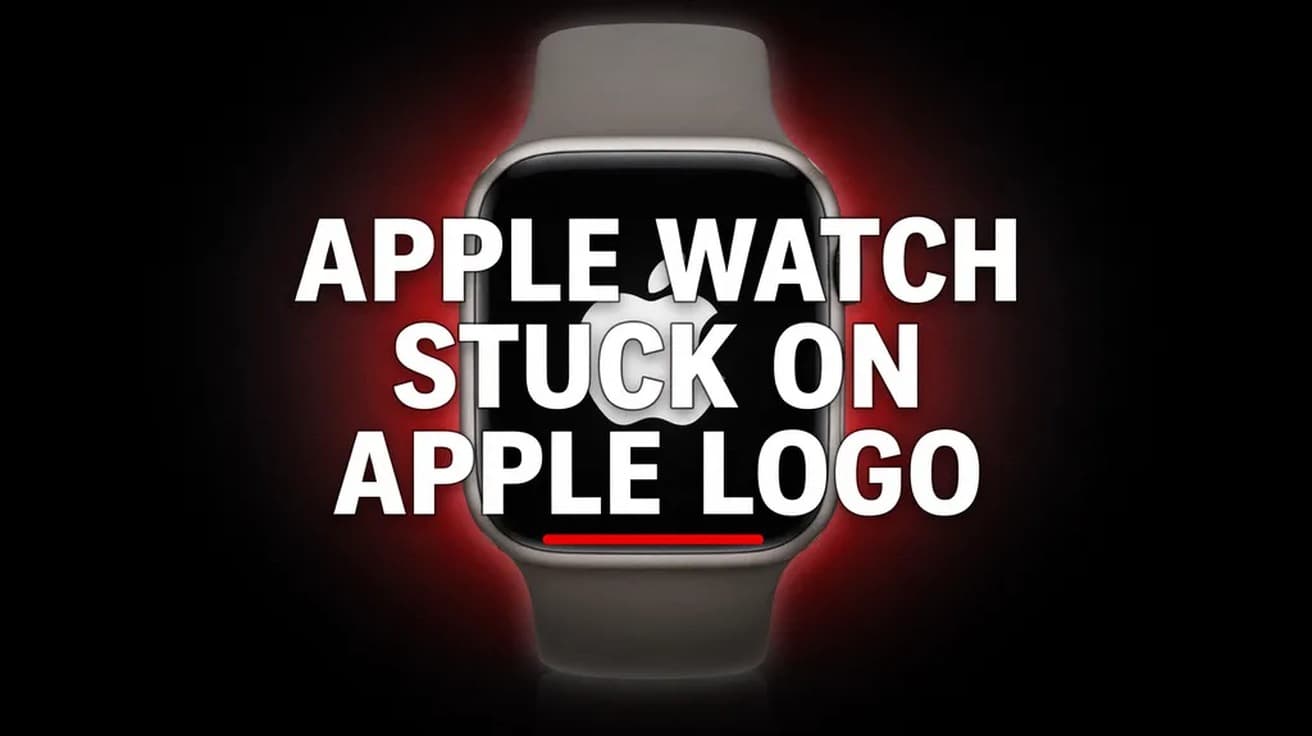
An Apple Watch stuck on the Apple logo is almost always fixed by a force restart: hold the side button and the Digital Crown together for at least 10 seconds, until the logo reappears. If it hangs again, unpair the watch from the Apple Watch app on your iPhone and set it up from the backup that unpairing creates.
The logo on its own tells you very little. The watch has started booting and stopped somewhere in the process, and the screen gives you no error to work from.
Before you do anything, check whether the watch is on its charger and whether a progress wheel is turning. A watchOS update can take anywhere from several minutes to an hour, and Apple's advice during one is to leave the watch alone. Interrupting an update is a good way to turn a slow boot into a real problem.
Apple Watch stuck on Apple logo: what the screen means
Apple does not publish a list of causes for this screen, so the honest answer is read from the fixes it does publish: restart, re-pair, update, then service. That ladder points at software first and hardware last.
The most common trigger is an interrupted or failed watchOS install. The watch restarts itself at the end of an update, and if that reboot does not complete cleanly you get a logo that never goes away.
The second is an ordinary software hang — the same class of fault that makes a phone freeze, cleared the same way. The third, and least likely, is a hardware or storage fault, which is why Apple's own page ends with a link to service rather than another setting.
Force restart the Apple Watch
This is the fix for the large majority of cases, and it does not erase anything. Take the watch off the charger first — it cannot be restarted normally while charging.
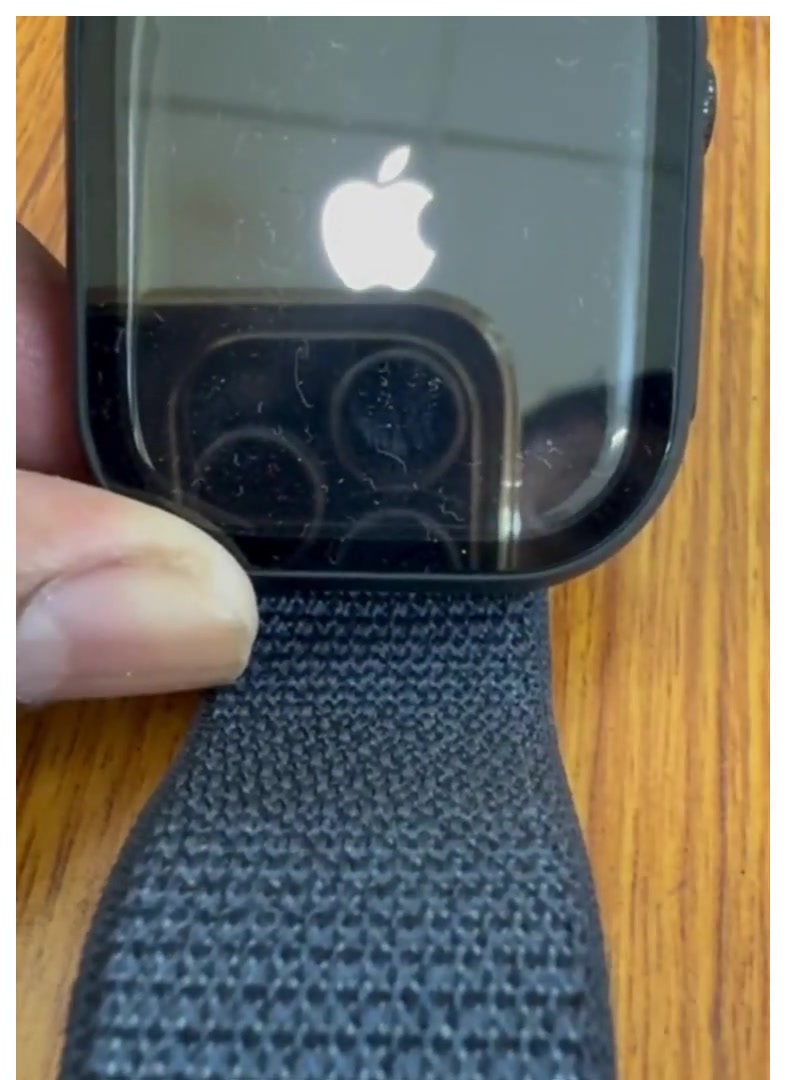
1. Press and hold the side button and the Digital Crown at the same time. Both sit on the same edge of the case.
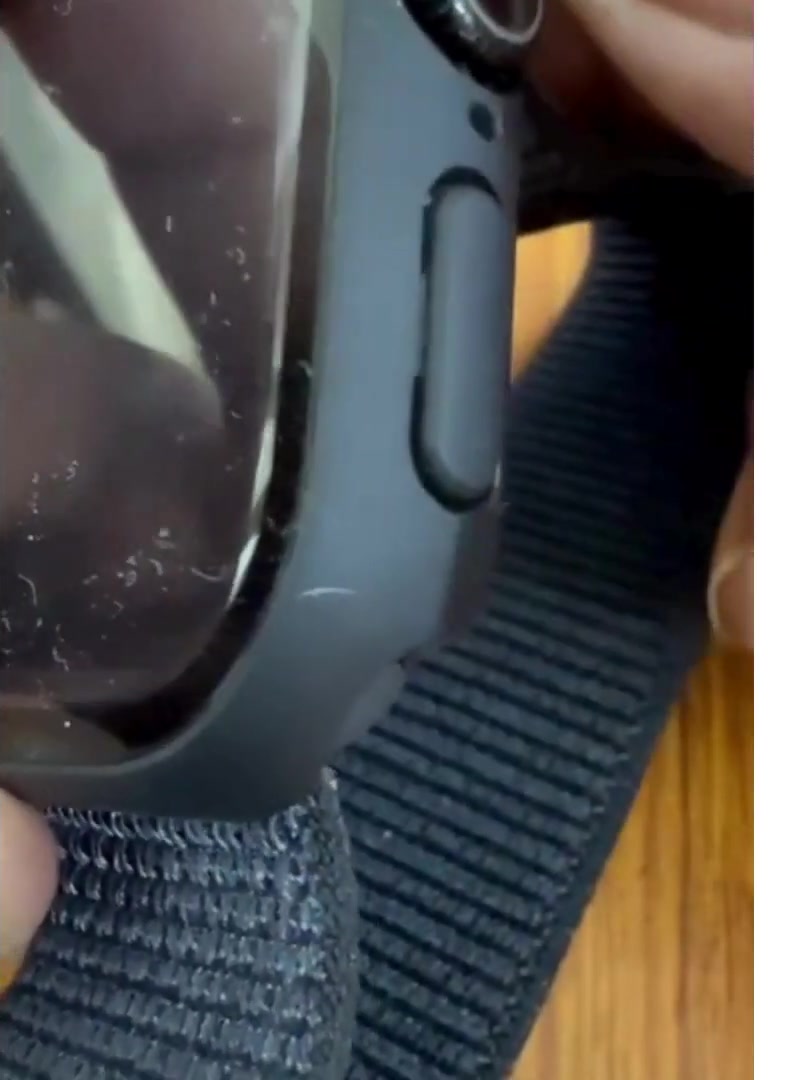
2. Keep holding for at least 10 seconds. The screen goes black, then the Apple logo comes back. That is your cue to release.
3. Give it a few minutes. A watch that has just been forced off can sit on the logo for a while before it reaches the watch face. If it gets there, you are done.
If the watch turns off normally rather than hanging, you have a different problem — turning an Apple Watch off and back on is the gentler first step, and force restarting is only for when that is not possible.
Unpair and re-pair it with your iPhone
If the logo survives a force restart, Apple's next step is to unpair. Keep the watch and the iPhone close together, because unpairing makes a fresh backup of the watch before it wipes it — that backup is what you restore from afterwards.
Open the Apple Watch app on your iPhone and stay on the My Watch tab. Tap All Watches at the top of the screen, then the info button beside your watch, then Unpair Apple Watch. Confirm with the watch's name, and on a GPS + Cellular model choose whether to keep your plan. You will be asked for your Apple Account password.
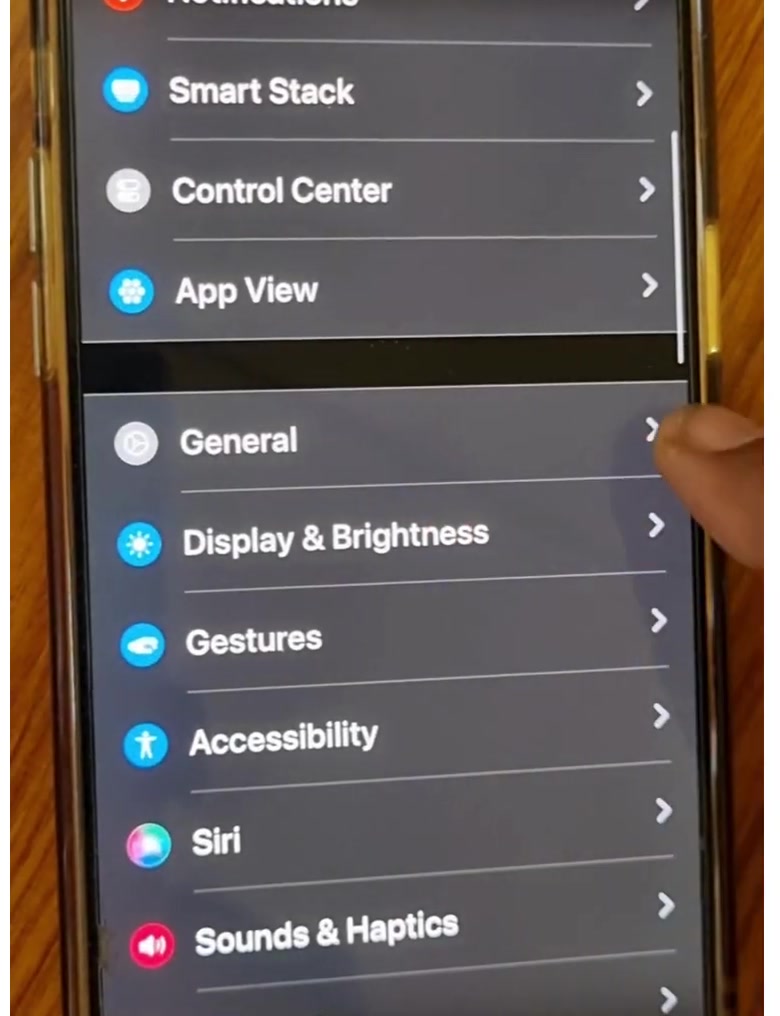
When it finishes, tap Start Pairing — or Add Watch if you had more than one paired — and choose Restore from Backup during setup. The full unpair and re-pair sequence is the same one used when a watch moves between phones.
If you see a watch and iPhone image, or a red exclamation mark
These are a different screen with a different fix, and they are easy to confuse with the Apple logo. Both mean the watch needs to be updated or restored from a nearby device.
Charge the watch to at least 50 percent and leave it on the charger. Bring an iPhone or iPad near it — Apple says it does not have to be the paired one, and no watch data goes to that device. Then double-click the side button on the watch and follow what appears on the iPhone. With a red exclamation mark, Apple has you double-click once before bringing the device over and again afterwards.
If that stalls, Apple points at the network: try a 2.4GHz Wi-Fi band rather than 5GHz, and avoid networks with a sign-in page.
If that didn't work
Once the watch is booting again, install anything waiting for it. In the Apple Watch app, go to General, then Software Update. A pending update is both a likely cause of the original hang and the fix for it.
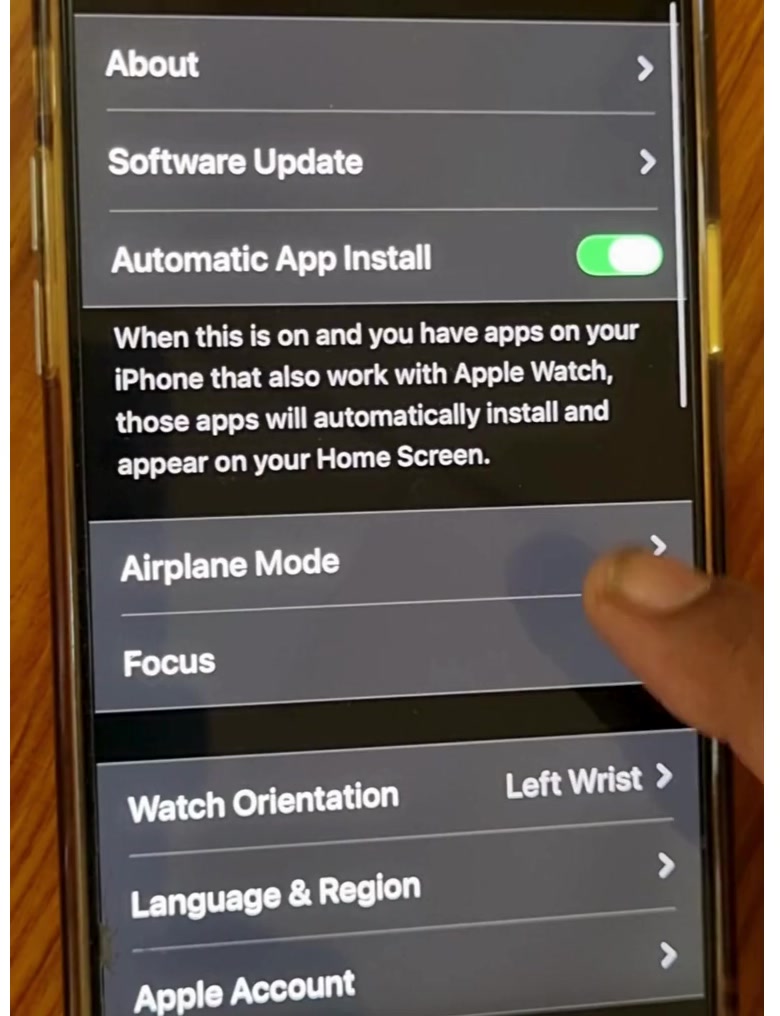
If an update will not start at all, the Watch app can clear the downloaded file: General, then Storage, then delete the update and try again.
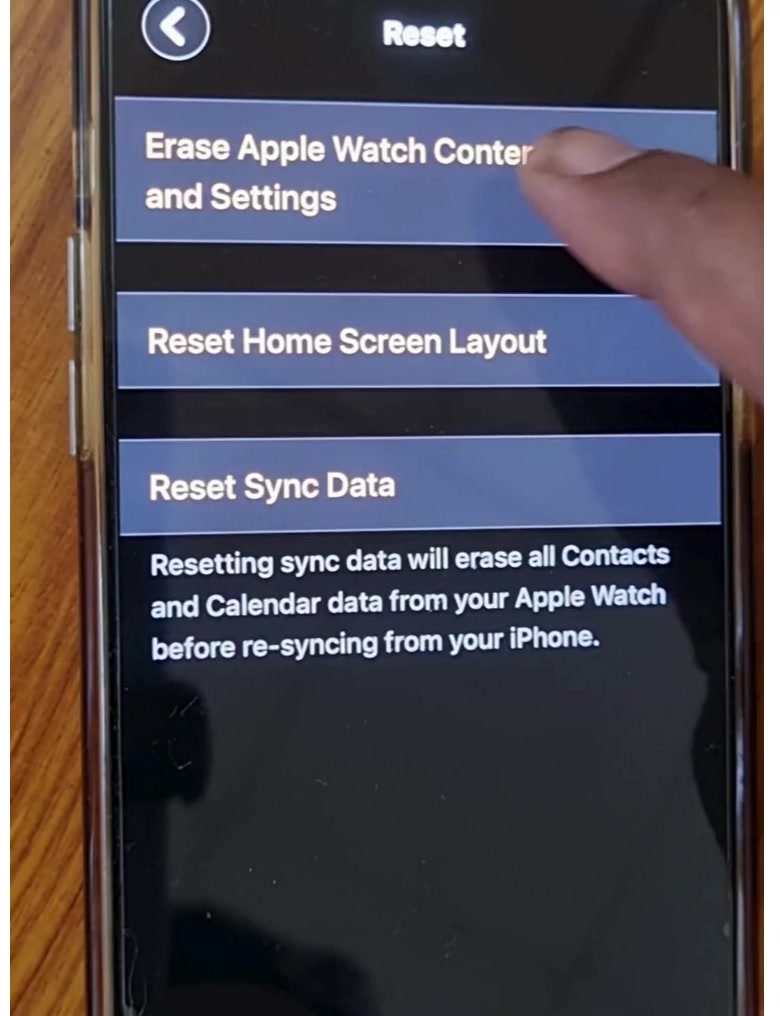
There is also a full erase that does not involve unpairing, though it only works on a watch you can actually reach. On the watch itself it lives under Settings, General, Reset. From the iPhone, the same option sits at the bottom of the Watch app's General screen as Erase Apple Watch Content and Settings.
Still not working
A watch that still will not get past the logo after a force restart, a re-pair and a restore has exhausted what the software can do, and Apple's own page for this screen ends at the same place: get it serviced.
Book through Apple Support or an Apple Authorised Service Provider, and mention what you have already tried — a force restart and an unpair-and-restore are the two things they will ask about first. Check your charging setup on the way out, too: a watch that was never reaching a full charge may have been failing to complete updates for the same reason.