
How to Hide Likes on Instagram (Yours and Everyone’s)
Instagram has two separate like-hiding controls: one removes the count from your own post, the other clears counts from everyone else's posts in your feed.
 By Daniel ShuttleworthSep 12, 2026
There are two ways to hide likes on Instagram. To hide the count on one of your own posts, open it, tap the three-dot menu and choose Hide like count. To hide it before you publish, open Advanced settings on the caption screen and turn on the hide like and view counts option. To stop seeing like counts on everyone else's posts, go to Settings and activity, then Like and share counts, and turn on Hide like and share counts.
There are two different things people mean by hiding likes on Instagram, and they live in two different places. One hides the number on your post so other people can't see it. The other hides the numbers on everyone else's posts so you don't have to look at them while you scroll.
Neither one stops anyone from liking anything. Both are display settings, and both are reversible in a couple of taps.
How to hide likes on Instagram posts you already published
This is the one most people want. It removes the number from the post for everyone else, who then see "Liked by someone and others" instead of a count.
1. Open your profile and tap the post or reel you want to change.
2. Tap the three-dot menu in the top right corner of the post.
3. Choose Hide like count.
The number disappears from the post immediately. To bring it back, open the same menu and choose the unhide option. This is a per-post setting, so changing it on one post does nothing to the others — there is no documented way to apply it to your whole back catalogue at once.
How to hide the like count before you publish
If you would rather the number never appear at all, set it while you are still writing the caption.
1. Create the post or reel as normal and continue to the final screen, where you add your caption.
2. Scroll to the bottom and open Advanced settings. Some app versions label this More options.
3. Turn on Hide like and view counts on this post, then go back and share.
Read the toggle label before you tap it. On a reel the wording can refer to plays or views as well as likes, so the same switch may hide more than you intended. You can still change your mind later using the three-dot menu described above.
How to hide like counts on other people's posts
This is a separate, account-wide setting that changes only your own feed. It does not affect what anyone else sees.
1. Open your profile, tap the menu in the top right corner, and open Settings and activity.
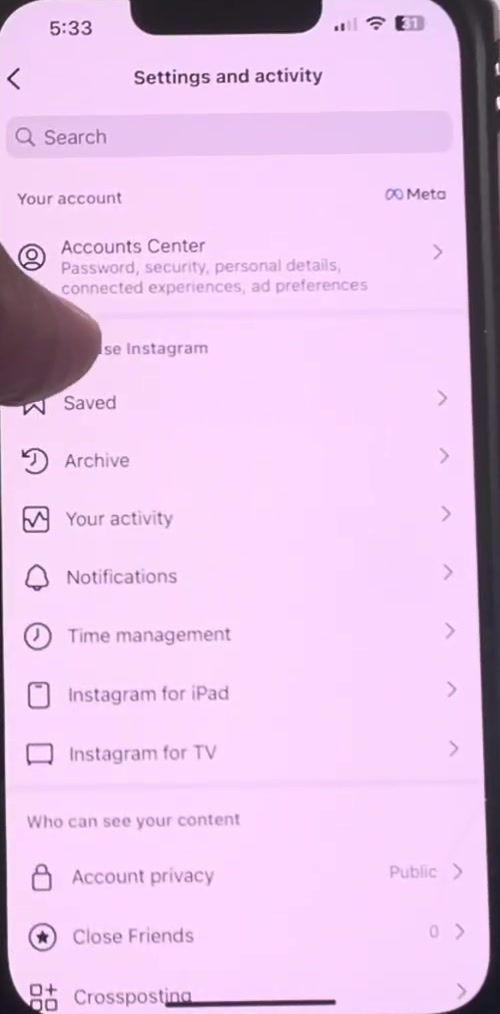
2. Scroll down to the What you see section and tap Like and share counts.
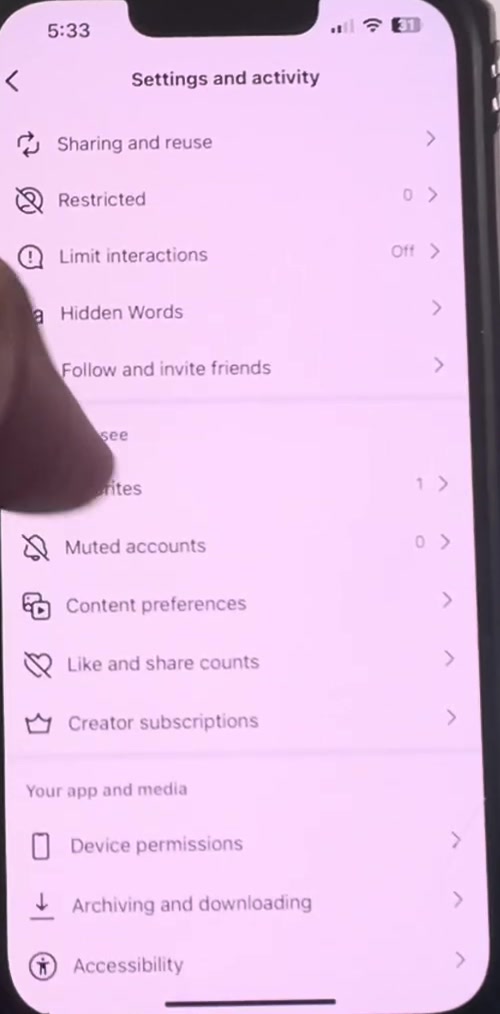
3. The setting opens with the toggle off by default.
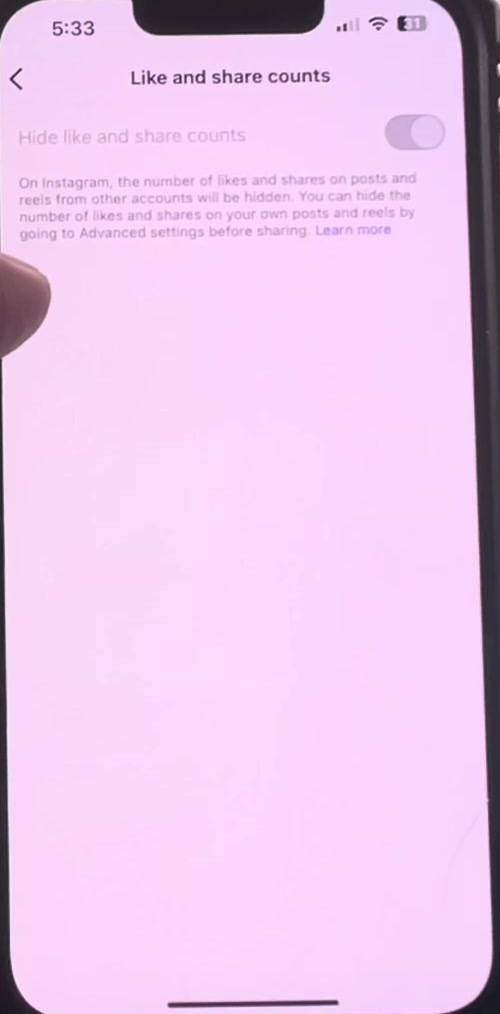
4. Turn on Hide like and share counts.
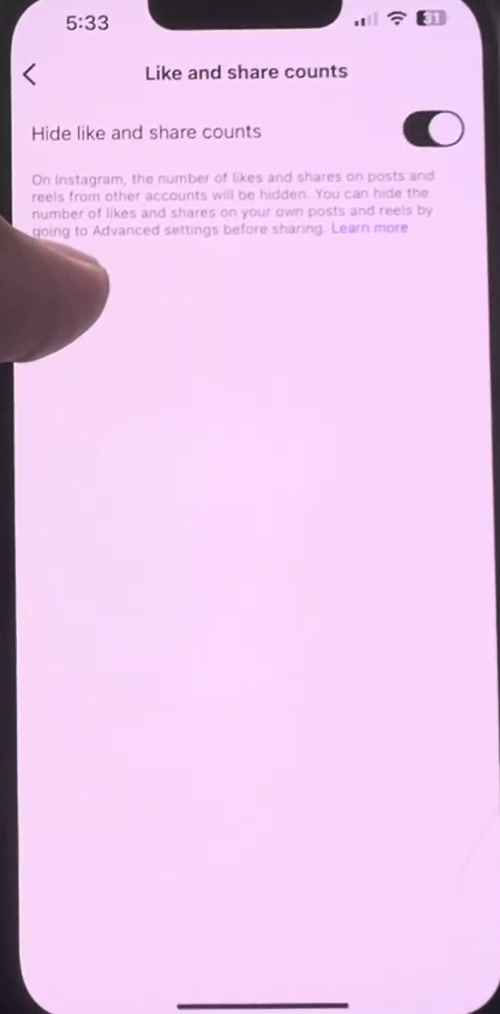
From this point the numbers are gone from other people's posts in your feed and on Explore. The screenshots above are from an iPhone; the Android path uses the same names in the same order.
What hiding likes does not do
It does not turn likes off. People can still like, comment, share and save your post, and Instagram still records all of it. Hiding the count changes what is printed on the screen, nothing else.
It does not hide the number from you. On your own post you can still open the list of accounts that liked it, and a professional account can still see the figure in Insights.
It is not the same as going quiet, either. If what you actually want is for people to stop seeing when you are online, that is a different switch — see turning off active status.
It is also not a reach setting. Instagram describes likes, comments, shares and saves as signals its ranking systems use, and hiding the displayed number does not remove those signals. Anyone promising that hiding likes will lift or sink your reach is guessing.
Finally, the feed-wide setting is yours alone. You cannot hide the count on someone else's post for everyone, and turning the setting on does not tell them anything — much like muting an account, which the other person is never told about.
Common questions
Can I hide likes on reels as well as photos? Yes. Both the per-post menu and the pre-publish toggle cover reels, though the wording differs — a reel's toggle may mention views or plays alongside likes.
Does anyone get told that I hid my like count? No notification is sent. Someone who looks closely will notice the number has been replaced by "and others", but Instagram does not announce the change.
Can I hide likes on all my old posts in one go? Not through any control Instagram documents. The setting is per post, so an old post keeps its visible count until you change that post.
If the option isn't there
Update Instagram from the App Store or Play Store first. These controls have moved between menus more than once, which is why older instructions for how to hide likes on Instagram often no longer match what is on screen.
If it is still missing after updating, use the search box at the top of Settings and activity and type "like" — that finds the setting wherever Instagram has currently filed it. Features also roll out at different times by country and account type, so a control can genuinely be absent for a while. Do not switch your account type just to chase it; check Instagram's help page on hiding like counts and the in-app support options instead.