How to Update Instagram (iPhone and Android Steps)
Instagram usually updates itself, so the button is often missing. Here is where it lives on iPhone and Android, and what to do when no update shows up.
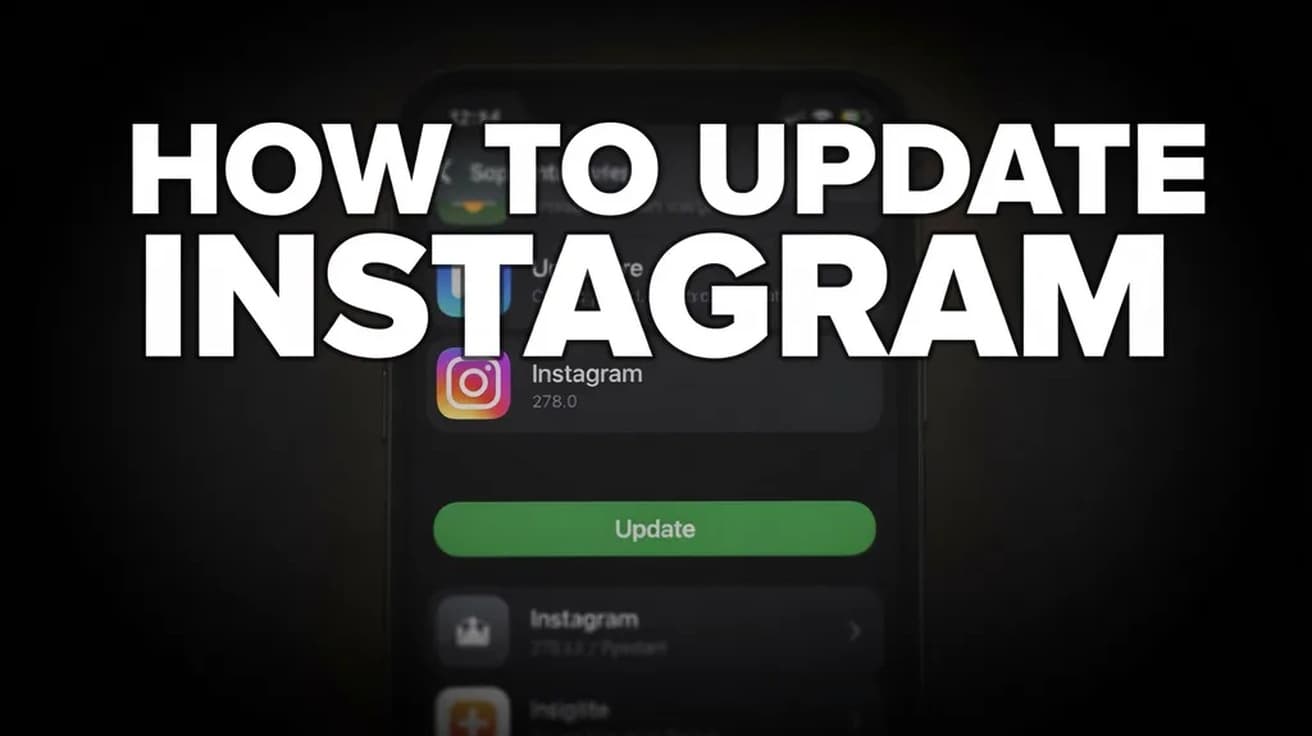
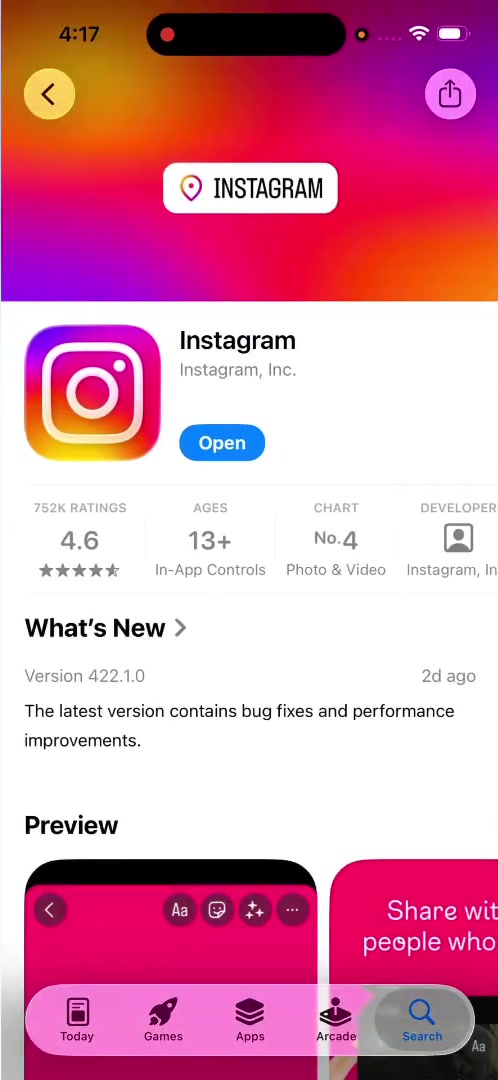
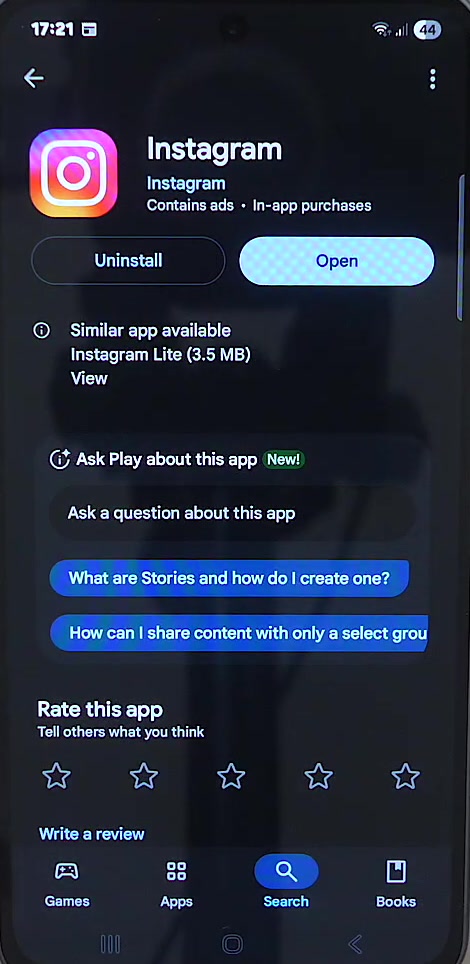
Open the App Store on iPhone or the Play Store on Android, search for Instagram, and tap Update on the app's listing. If the button says Open instead, you already have the newest version. Both phones update apps automatically by default, so most of the time there is nothing to do.
Most people looking up how to update Instagram find there is nothing to update. Automatic app updates are on by default on iPhone and Android, so the app usually refreshes itself overnight and the Update button is simply absent when you go looking for it.
There are two reasons to check by hand. The app is misbehaving and you want the newest build, or you have read about a feature you cannot find. The first is worth doing. The second often will not help, for reasons further down.
How to Update Instagram on iPhone
This is the route that works whether or not Instagram is sitting in your updates list, because you are going straight to the app's own page in the store.
1. Open the App Store on your Home Screen.
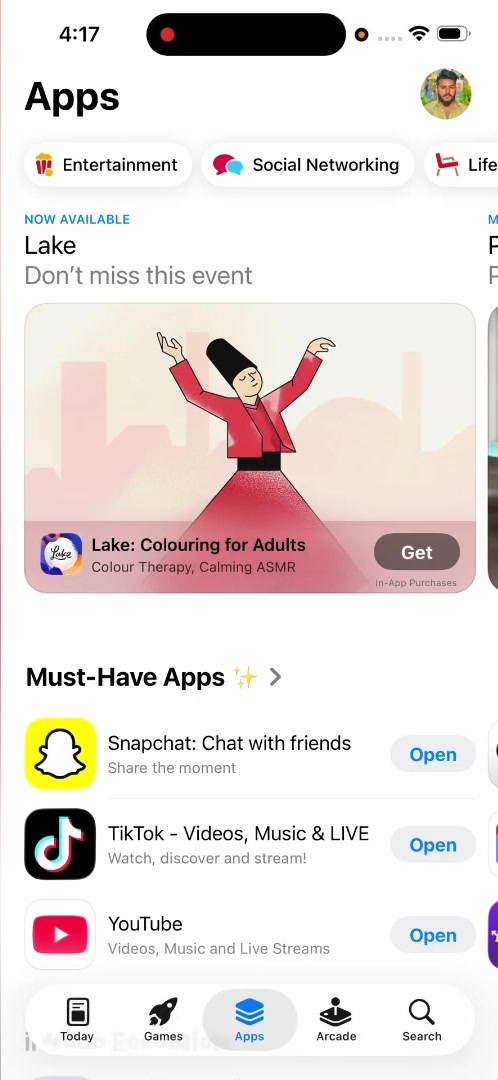
2. Tap Search in the bottom right, type Instagram, and search.
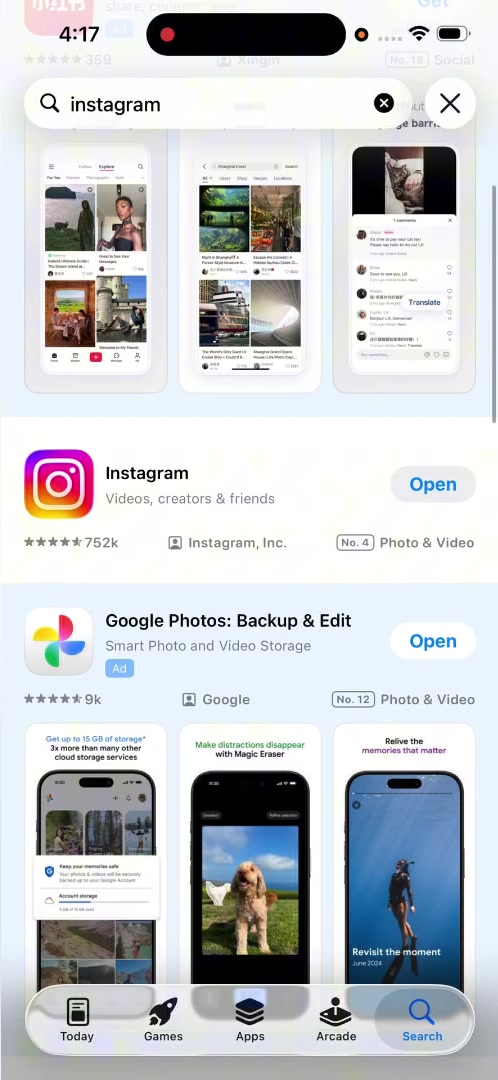
3. Tap the listing by Instagram, Inc. If an update is waiting, the blue button reads Update rather than Open.
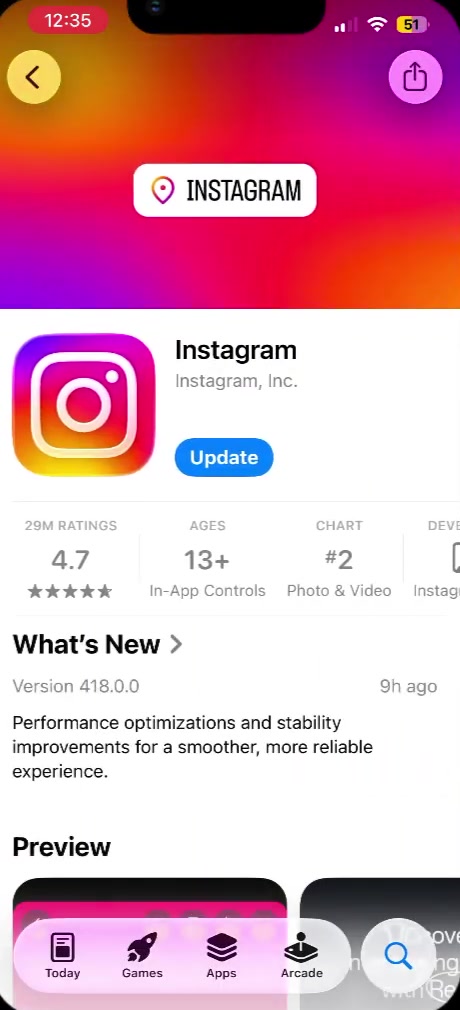
4. Tap Update. The button becomes a progress ring while the download runs. On a normal connection it takes a few seconds.
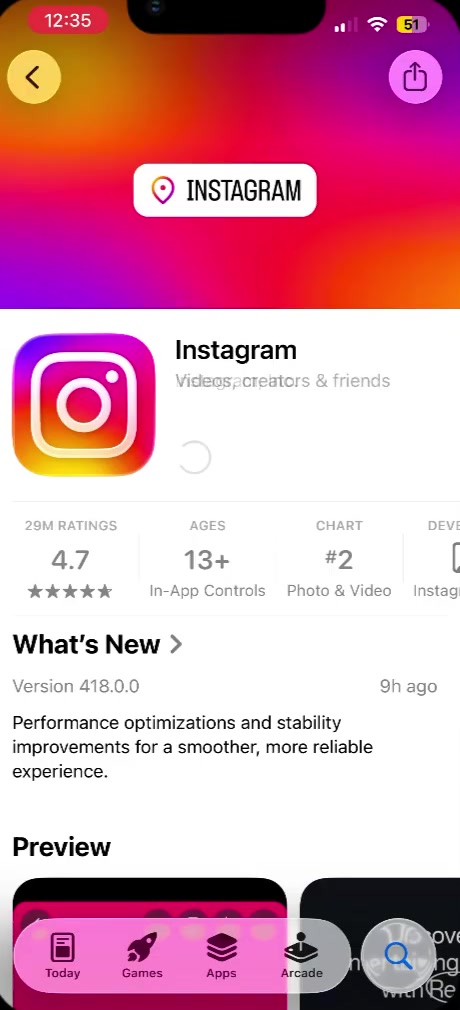
5. When it finishes, the button reads Open. That is the confirmation that you are on the current version.
The Faster Route, and How Android Differs
If you want to see everything waiting at once rather than one app at a time, iPhone keeps a list: open the App Store, tap the My Account button or your photo at the top of the screen, tap App Updates, then tap Update beside an app or Update All. Apple moved this behind an extra tap in iOS 26.4, which is why older guides send you straight to a list that no longer appears there.
There is a shortcut worth learning if you check often. Press and hold the App Store icon on the Home Screen and choose Updates from the menu that appears. That drops you on the updates screen directly.
On Android the equivalent list is in the Play Store: tap your profile icon in the top right, tap Manage apps & device, then under Updates available tap See details and tap Update beside Instagram, or Update all. The search route works the same as on iPhone, and the button on the app's page tells you the same thing.
What Updating Instagram Does Not Do
It does not log you out or touch your content. Your posts, archive, drafts, saved collections and messages are stored on Instagram's side, not in the app file. Your settings survive too, so if you have hidden like counts on your posts, they stay hidden.
It also does not guarantee the feature you came for. Instagram releases features in stages rather than switching them on for everyone at once, and much of that happens on its servers rather than in the app you install. Running the newest version is necessary for a new feature to reach you, but it is not sufficient, and reinstalling will not move you up the queue. Instagram does not publish a rollout schedule, so there is no reliable way to tell how long a given feature will take to arrive.
And it only updates the phone in your hand. A tablet or second phone signed in to the same account has its own copy of the app to update.
Common Questions
How do I know which version I am on? The store listing is the dependable answer rather than a number you have to interpret. Open in the store means current; Update means you are behind. Instagram's own What's New notes sit just under the button on both platforms.
Should I download an APK to get the newest version early? No. Instagram is distributed through the App Store and the Play Store, and files offered elsewhere are outside both stores' review and signing. Installing one to jump a queue is a poor trade for an app holding your account credentials.
Can I stop it updating on its own? Yes. On iPhone, open Settings, tap Apps, tap App Store, and turn off App Updates. On Android, open the Play Store, tap your profile icon, then Settings, Network preferences, Auto-update apps, and choose Don't auto-update apps. Turning it off means you will be doing the steps above by hand from then on.
If There's No Update Button
The ordinary explanation is that you are already current. Before assuming something is broken, check the listing rather than the app.
If the button is there but the download stalls, storage is the usual culprit, and a phone close to full will fail quietly rather than tell you. Clearing space on an iPhone is often the whole fix. After that, the standard moves are a restart, switching between Wi-Fi and mobile data, and checking that no payment or account prompt is sitting unanswered in the store.
One case looks like a bug but is not. If your phone is running an older version of iOS or Android than Instagram now requires, the store offers you the newest version your system can run and then stops. Updating the operating system first, through Settings, is what unblocks it.