How to Unlink Facebook and Instagram (Accounts Center)
Separating the two apps happens in Meta's Accounts Center, and the button is now labelled Move out of this Accounts Center. Here is the full route, plus what unlinking leaves untouched.
To unlink Facebook and Instagram, open Accounts Center in either app, tap Manage accounts, pick the account you want to separate, and choose Move out of this Accounts Center. Meta asks you to set a password for that account and emails you a confirmation code before the move goes through.
The thing that actually joins the two apps is Accounts Center, Meta's shared hub for logins, cross-posting and ad personalisation. Unlinking is a setting change, not a deletion: both accounts survive, keep their followers and keep every post they have already published.
One consequence is worth knowing before you start. If you have been signing in to Instagram with your Facebook account, that shortcut disappears the moment the accounts separate. Meta handles this by forcing you through a password step mid-flow, so set aside a couple of minutes and have access to your email.
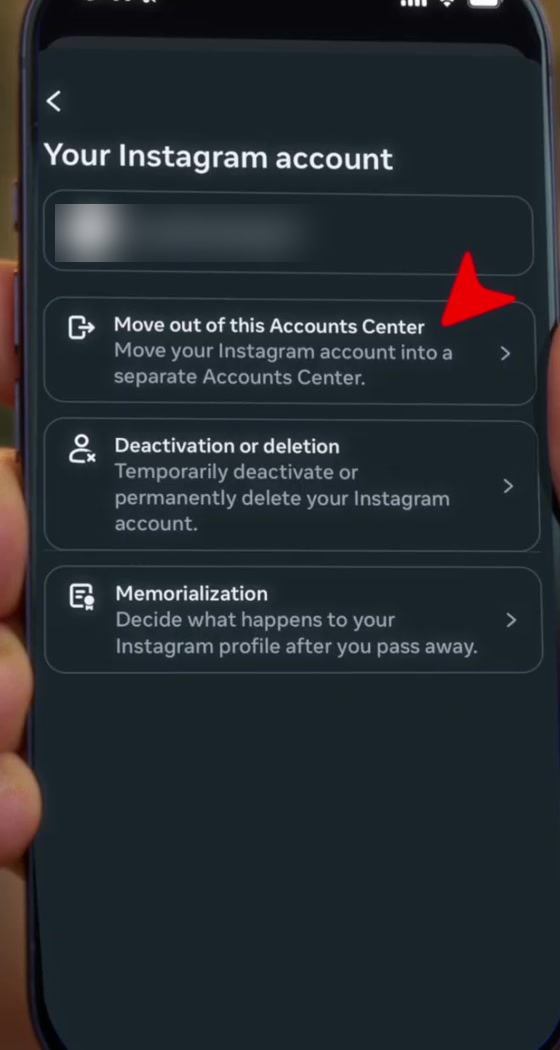
Sources disagree on the wording of the final button. Meta's own help pages and most guides written earlier in 2026 say Remove from Accounts Center. Current app builds say Move out of this Accounts Center. It is the same action, and the screenshots below show the newer wording.
Where the setting to unlink Facebook and Instagram lives
1. Open Instagram, tap your profile picture, then the menu at the top right and go to Settings and activity. Accounts Center sits at the top, under "Your account".
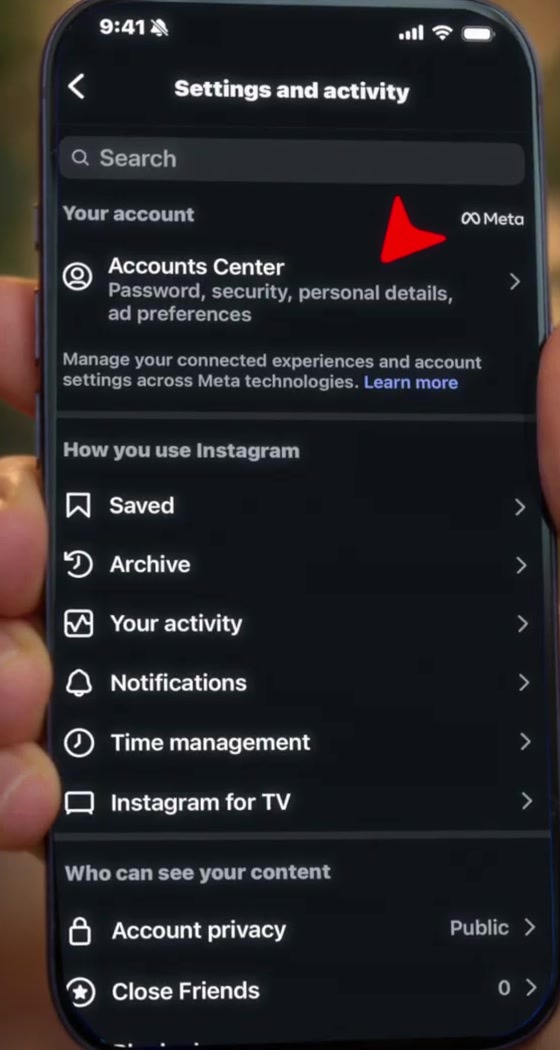
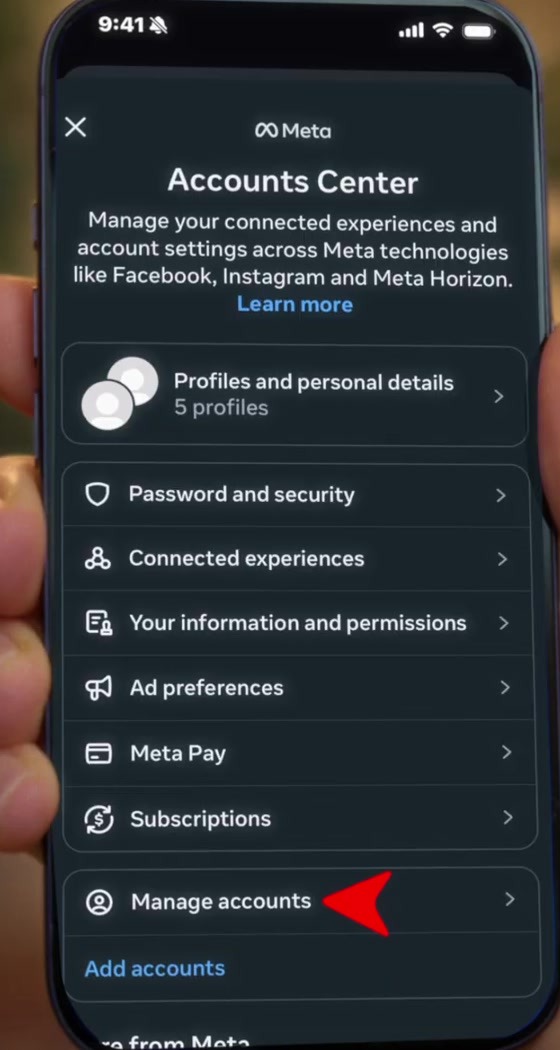
2. On the Accounts Center screen, scroll past Password and security, Ad preferences and the rest, and tap Manage accounts.
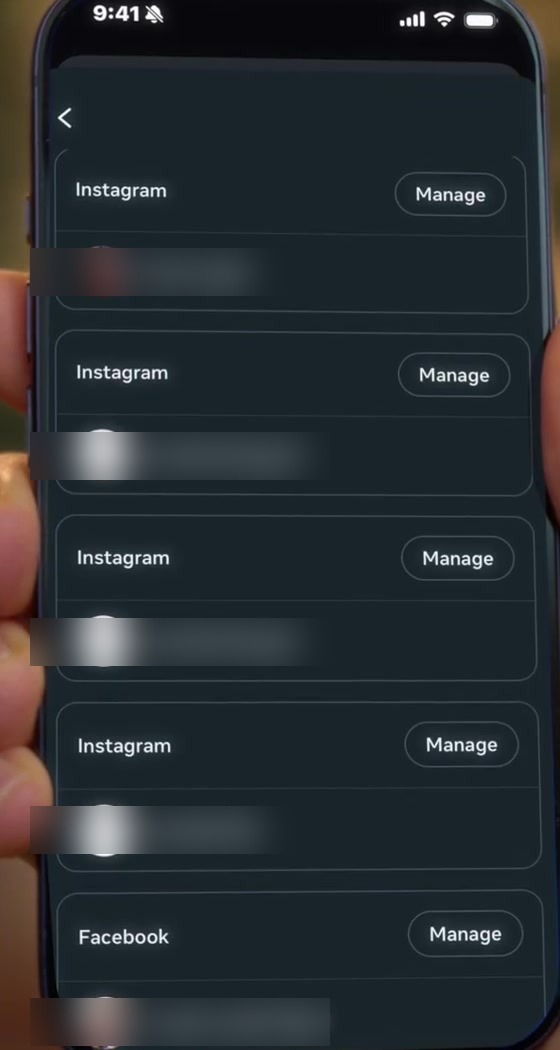
3. You now see every account tied together in this Accounts Center, each labelled Instagram or Facebook. Tap Manage next to the one you want to separate.
4. Choose Move out of this Accounts Center. Ignore the two options beneath it — "Deactivation or deletion" and "Memorialization" do very different things.
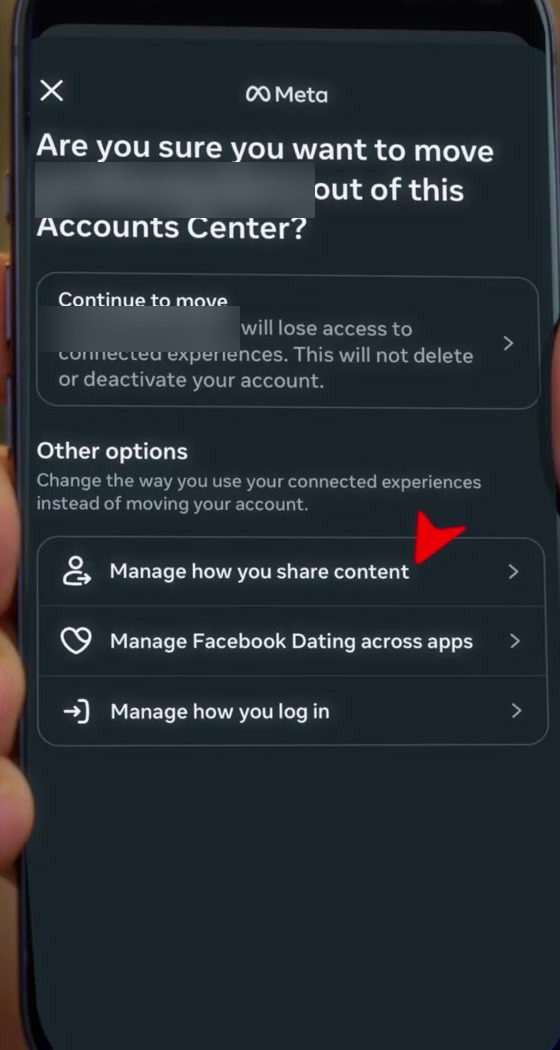
5. A confirmation screen spells out what you lose: access to connected experiences, and nothing else. Tap Continue to move.
6. Meta now walks you through creating a password for the account you are moving out, sends a confirmation code to the email on file, and shows a final summary of the data it will stop combining. Tap Yes, finish moving, and you land on a confirmation.
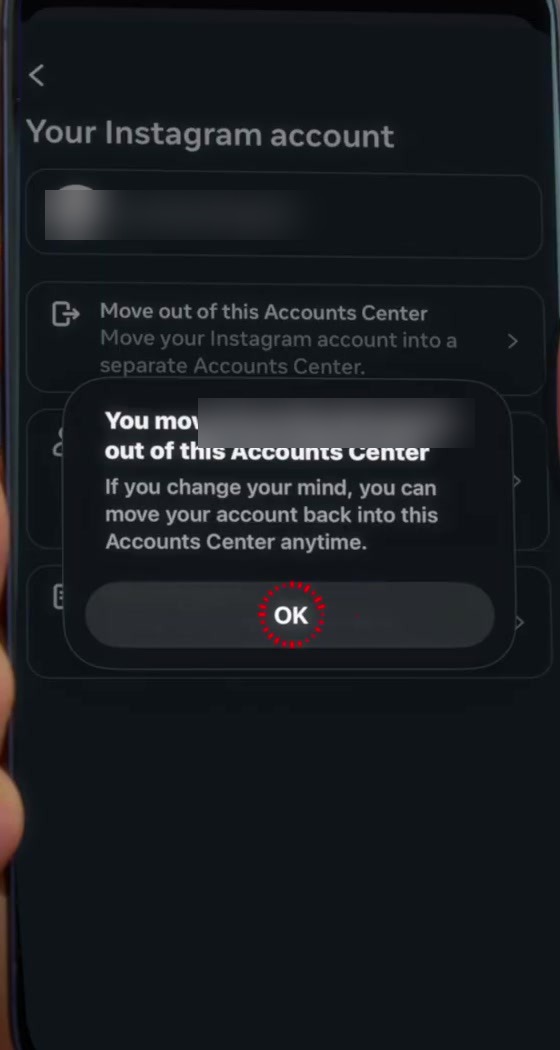
Doing it from Facebook, or on a desktop
You can unlink Facebook and Instagram from either app; both open the same Accounts Center. From the Facebook app, tap the menu, then Settings & privacy > Settings > Accounts Center, and follow the same route through Manage accounts.
On a computer, go to accountscenter.facebook.com directly, or reach it from Settings & privacy in either site. The desktop layout puts Accounts Center in the left-hand menu, and the account list behaves the same way.
Facebook Lite and Instagram Lite move some of these entries around. If a menu item described here is missing, the full app is the reliable place to do this.
Turn off cross-posting without unlinking
If your only complaint is that Instagram posts keep appearing on Facebook, you do not need to separate the accounts at all. On that same confirmation screen, under "Other options", is Manage how you share content. It opens a Sharing across profiles page with individual toggles for your Instagram posts, your stories and your notes.
That is the lighter tool, and it leaves cross-app login intact. Other connected behaviours have their own switches too — turning off active status on Instagram is a separate setting from any of this.
What this does not do
Unlinking does not delete or deactivate either account, and it does not retract anything you already cross-posted. Posts that went to Facebook stay on Facebook.
It also does not change who can see your account. If separating the two was really about privacy, the audience setting is a different control — making your Instagram private is what limits who sees your posts.
And if you run a professional Instagram account attached to a Facebook Page, note that this is a second, separate connection. Meta's business documentation treats the Page link as its own thing, governing cross-posting in Meta Business Suite, the shared inbox, shopping tags and ads. Leaving Accounts Center does not undo it; that has to be disconnected from the Page or from Business settings.
Common questions
Will I lose followers? No. Followers, friends and content belong to each account individually, and separating the accounts does not touch them.
Can I link them again later? Yes — the closing screen says as much, and you can add the account back through Accounts Center. Meta's documentation does not describe a waiting period, though some guides report re-linking being unavailable for a short time.
Does it affect ads I am running? Possibly, if those ads rely on the Page-to-Instagram business connection rather than Accounts Center. Check Meta Business Suite before you change anything on a commercial account.
If the option isn't there
Accounts Center needs at least two accounts to exist at all, so if you only have the pair you are trying to separate, expect the interface to steer you rather than offer a plain Remove. Business and creator accounts sometimes stall here as well, usually because of the Page connection described above.
If Manage accounts is missing entirely, check you are looking at the right Accounts Center — people who have collected several Meta accounts over the years can end up with more than one. If it still will not budge, Meta's Help Centre is the escalation path from here.