How to Make a Instagram Private Account (Full Steps)
Making your Instagram account private takes one toggle in Settings. Here is where it lives on phone and desktop, and exactly what changes once you switch.
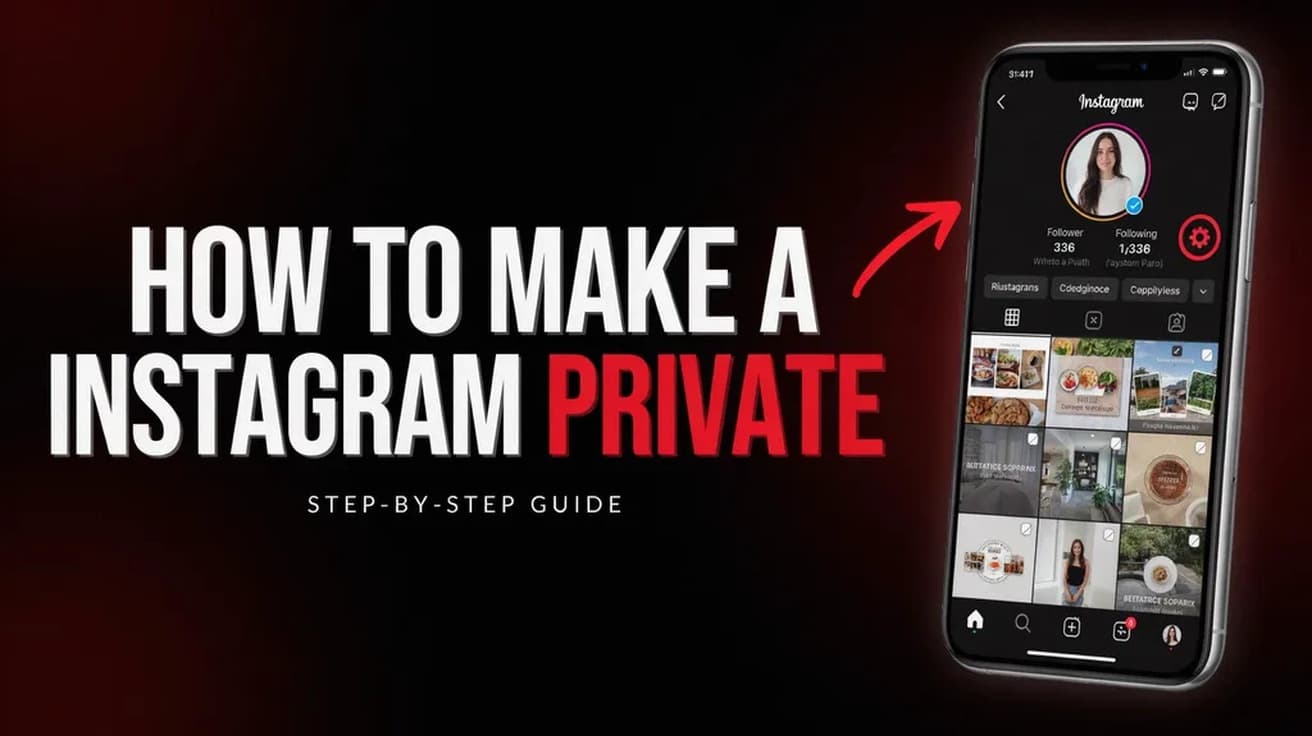
Open Instagram, tap your profile picture in the bottom right, then the three lines in the top right. Choose Settings and activity, tap Account privacy under "Who can see your content", and turn on Private account. Confirm with Switch to private.
The short version of how to make a Instagram private: it is one toggle in Settings, and it takes under a minute. The longer version matters more, because the switch does less than most people expect.
Going private controls who can see your posts, Reels and Stories from now on. It does not undo anything already public, and it does not remove the followers you already have. Read the last two sections before you decide.
How to Make a Instagram Private on Your Phone
The path is the same on iPhone and Android.
1. Open Instagram and tap your profile picture in the bottom right corner, then tap the three horizontal lines in the top right.
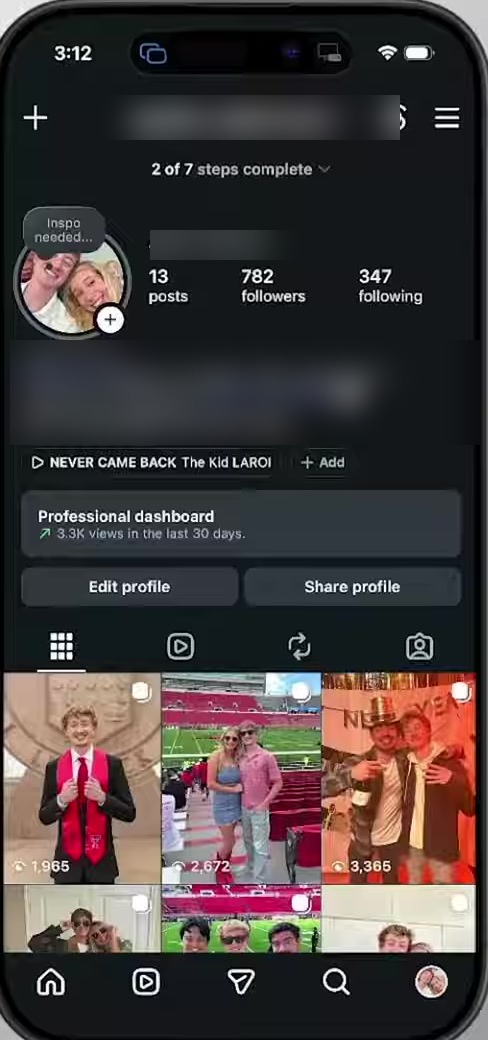
2. Tap Settings and activity at the top of the menu that slides up.
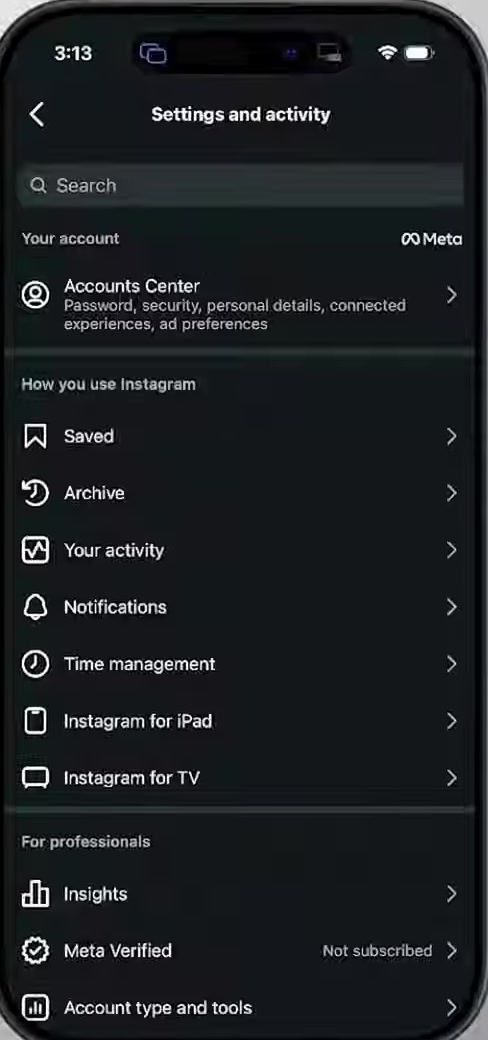
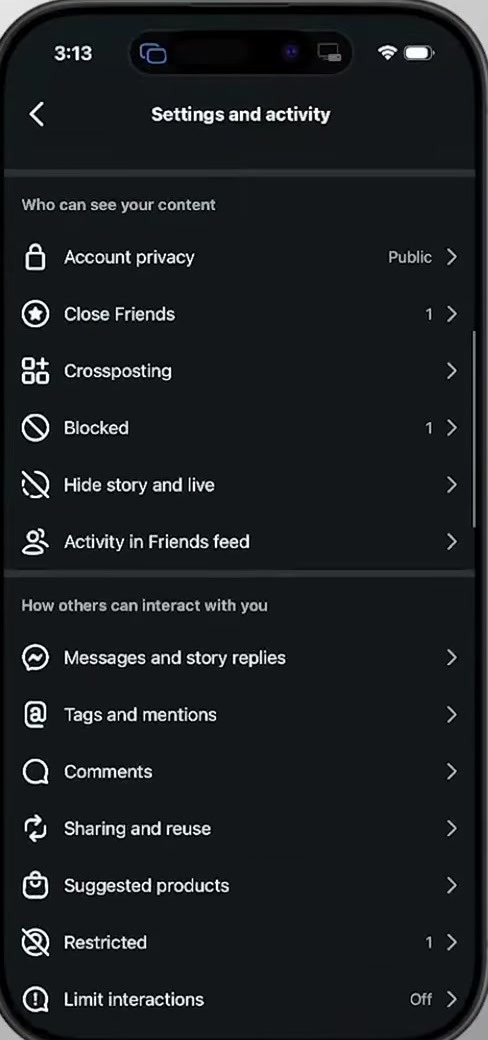
3. Scroll to the Who can see your content heading and tap Account privacy. The row shows your current state on the right, so a public account reads "Public" here.
4. Turn on the Private account toggle, then tap Switch to private when Instagram asks you to confirm.
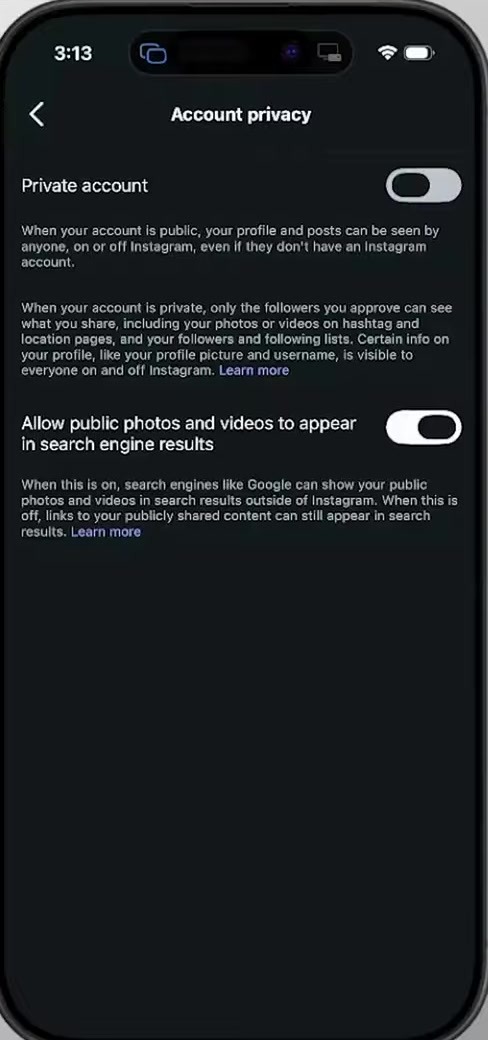
That is the whole procedure. The change takes effect immediately, and Instagram does not announce it to your followers.
The Faster Route, and the Desktop Version
Settings and activity has a search box at the top. Typing "privacy" into it jumps straight to Account privacy and skips the scrolling entirely. This is the route worth learning, because Instagram moves rows around between app versions but the search box keeps working.
On a computer, open Instagram in a browser, click More at the bottom of the left sidebar, then Settings. Account privacy is in the same group, with the same toggle and the same confirmation.
The setting is account-level, not device-level. Switch it anywhere and it applies everywhere you are signed in.
What Going Private Does Not Do
This is where the expectation gap usually sits, and it is worth being precise about.
It does not remove your existing followers. Everyone already following you keeps full access to your posts and Stories. If you went private to get specific people out, you have to remove or block them yourself from your followers list. Only new people are affected, and they now have to send a request you approve or decline.
It does not hide your whole profile. Instagram's own note on the Account privacy screen says certain information stays visible to everyone on and off Instagram, including your profile picture and username. Your bio and your follower and following counts stay visible too. What gets locked is the content: posts, Reels, Stories and tagged photos.
It does not pull back anything already out there. Screenshots, reshares and reposts made while you were public are not affected by a setting change today.
It is not the same as hiding individual signals. Going private is a wall around your content, not a way to control the smaller things people notice. Those have their own switches — see how to hide likes on Instagram and how to turn off active status.
Common Questions
Will people know I switched? No notification goes out. Someone who was not following you will simply find a follow button where your grid used to be, and anyone who had your profile open may notice the content disappear.
Can I switch back? Yes, the same toggle turns it off again, and there is no cooling-off period documented for switching between the two.
What happens to pending follow requests? Requests that arrive after you go private queue up under your notifications for you to approve or decline. If you would rather not deal with someone at all, muting them is the quieter option.
If the Option Is Not There
Two situations account for most missing toggles.
The first is account type. Instagram documents private accounts as a personal-account feature, and guidance for Business and Creator accounts consistently says you have to switch back to a personal account first — the switch lives under Settings and activity, in Account type and tools. Expect to lose Insights, promotions and the contact buttons when you do. Sources describe this as a hard limit rather than a bug, though the wording varies between them, so check your own Account privacy screen before assuming it applies to you.
The second is age. Instagram sets accounts for users under 16 — under 18 in some countries — to private by default, and those accounts cannot be switched to public without a parent or guardian's approval through Instagram's supervision tools. A greyed-out toggle on a teen account is the setting working as designed.
If neither fits and the row simply is not there, update the app. Instagram ships settings changes gradually, and an old build is the usual reason a documented row does not appear.