How to Unblock a Number on Android (Pixel and Samsung)
Unblocking a number on Android takes four taps in the Phone app, but the menu is named differently on Pixel and Samsung phones. Here is the path on both, and the second block list people usually forget to check.
By Daniel ShuttleworthAug 21, 2026
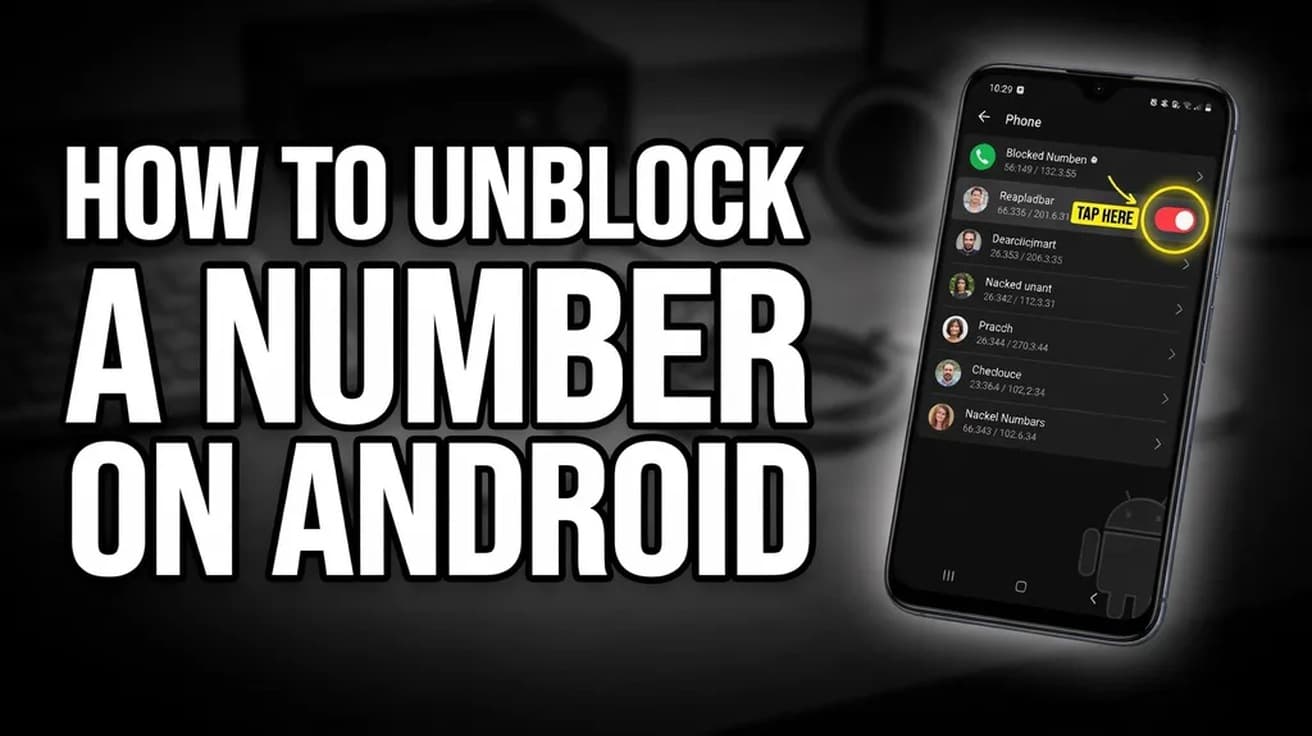
Open the Phone app, tap More (the three dots), then Settings, then Blocked numbers. Tap the X beside the number you want back and confirm with Unblock. On a Samsung Galaxy the menu is called Block numbers and you tap the red minus instead. Calls and texts start coming through again straight away.
Written by
Daniel Shuttleworth
Editor · Sylvan Lake, Alberta
Daniel Shuttleworth studied Advanced Information Communication Technology and has spent more than 20 years working out why consumer tech misbehaves — from an Amiga 600 and a VHS deck through to whatever Xbox and Samsung shipped this year. He writes The Tech Cell from Sylvan Lake, Alberta, and checks every step against the vendor's current documentation before it goes out, because the menu that worked last spring has usually moved.
Android hides its spam filter in the Phone app, and Samsung and Google label it differently. Here is where the setting lives on each, and what it stops.
An iPhone's built-in capacity is fixed, but most full phones have several gigabytes sitting in offloadable apps, cached files and deleted photos. Here is where to look, in order.
An iPhone can only be restored from a backup during setup, which means erasing it first. Here is the full path for an iCloud backup and for one saved on a computer.
6 min read
How we work
Every step checked before it reaches you.
Menus move, settings get renamed and features quietly disappear. So each guide is written against the vendor's current documentation rather than from memory, and says plainly when a fix depends on your version.