How to Turn Off Quick Resume on Xbox
Xbox Series X|S lets you switch Quick Resume off for a single game from that game's own management screen. The setting arrived in the April 2026 console update, and there is still no console-wide off switch.
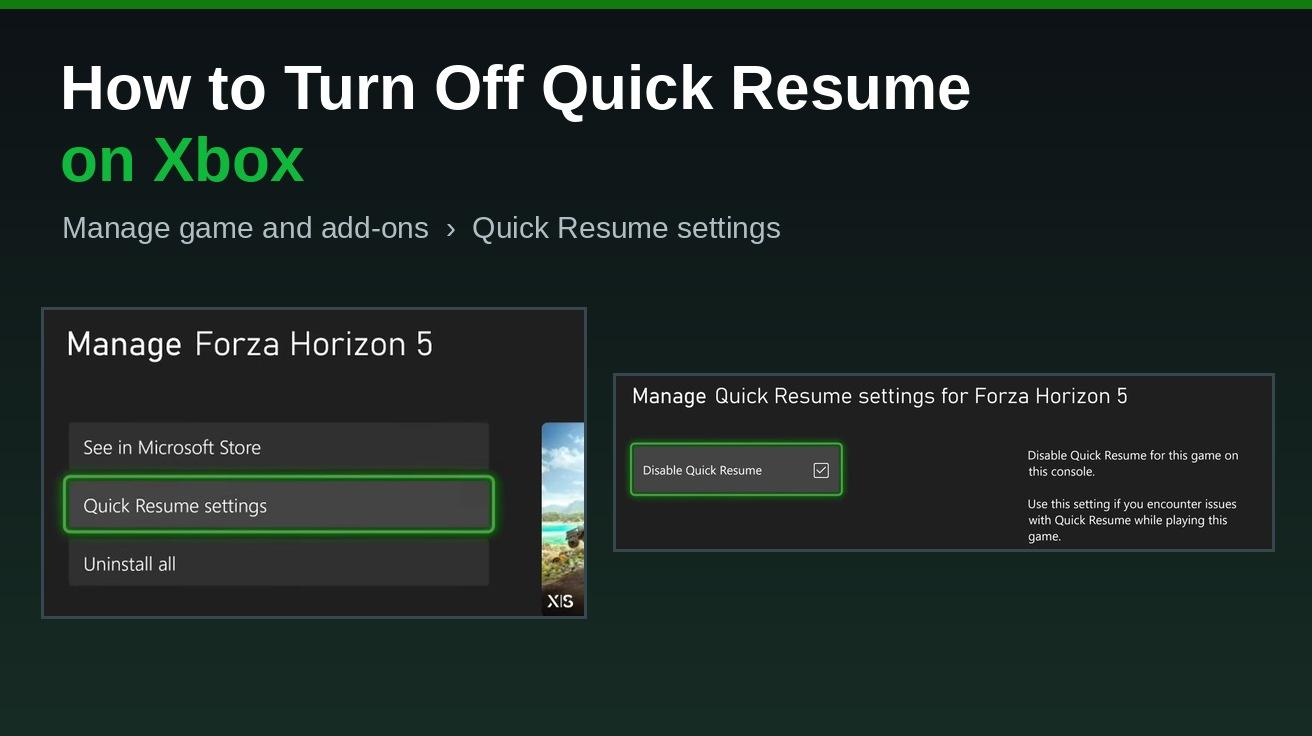
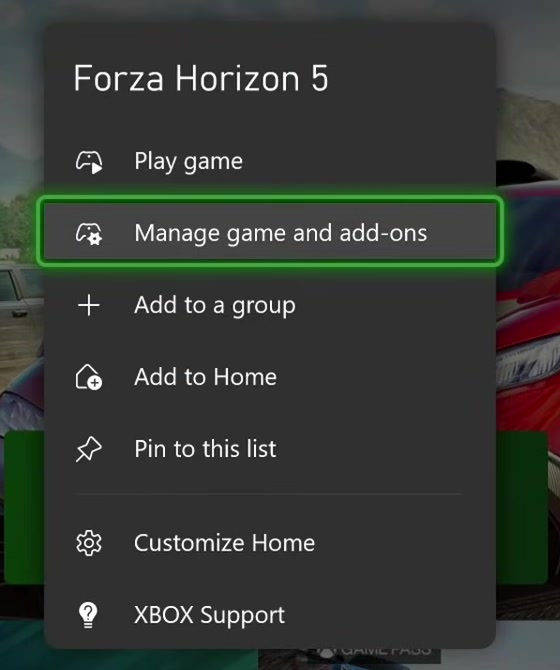
Here is how to turn off Quick Resume on Xbox: highlight the game on your Home screen, press the Menu button, and choose Manage game and add-ons. Open Quick Resume settings and tick Disable Quick Resume. The change applies to that one game on that one console, and it takes effect straight away.
Quick Resume keeps several games suspended at once so they come back where you left them. That is useful until it is not: a resumed session can land you in an online game that has already moved on, or hand you a state the game itself no longer recognises. Microsoft's own wording on the setting screen is plain about when to reach for it — "Use this setting if you encounter issues with Quick Resume while playing this game."
Until April 2026 there was no supported way to say no. The console update that shipped that month added a per-game switch, and that is the route below. It is worth knowing up front that the switch is deliberately narrow: it covers one title, on one console, and nothing else.
How to turn off Quick Resume on Xbox, step by step
1. On the Home screen, move the highlight onto the game you want to change. You can also find it under My games & apps. Press the Menu button on your controller — the one with three horizontal lines, to the right of the Xbox button.
2. In the list that opens, select Manage game and add-ons.
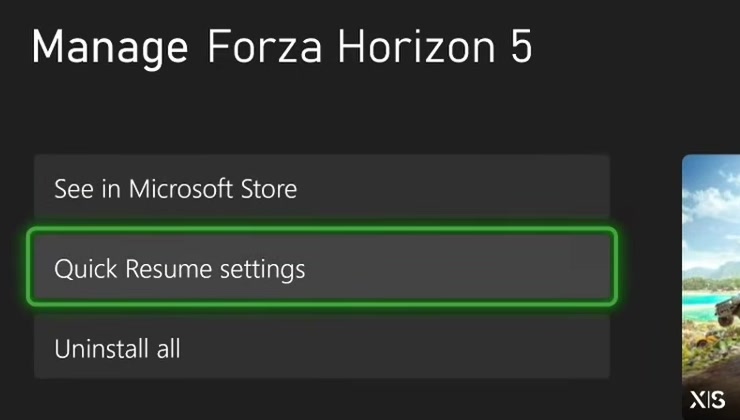
3. The management screen opens with a column of options on the left. Choose Quick Resume settings, the second entry down.
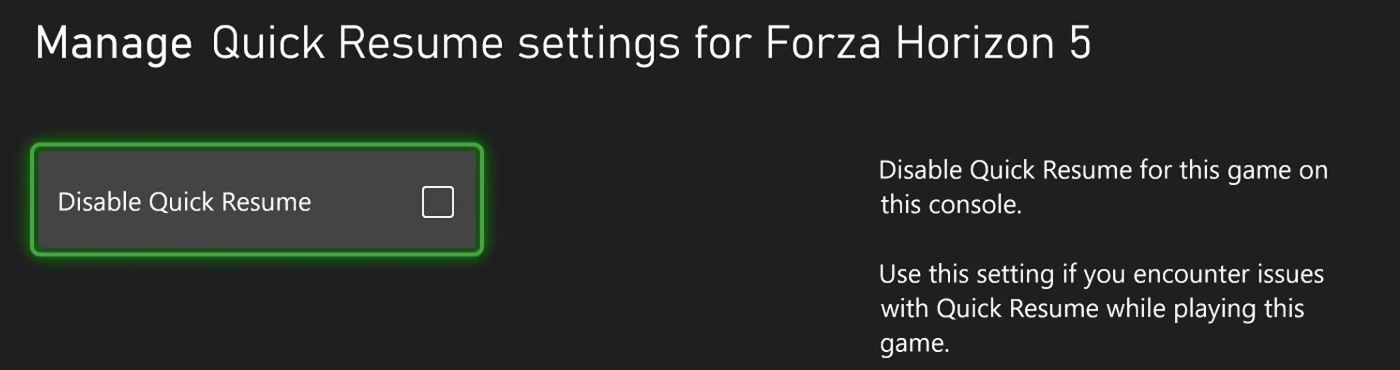
4. You land on a screen headed Quick Resume settings for that game, with a single checkbox labelled Disable Quick Resume. The text beside it explains the scope: the setting covers this game on this console.
5. Select the checkbox and press A. A tick appears in the box. There is no save or confirm button — the setting is already applied, so press B to back out.
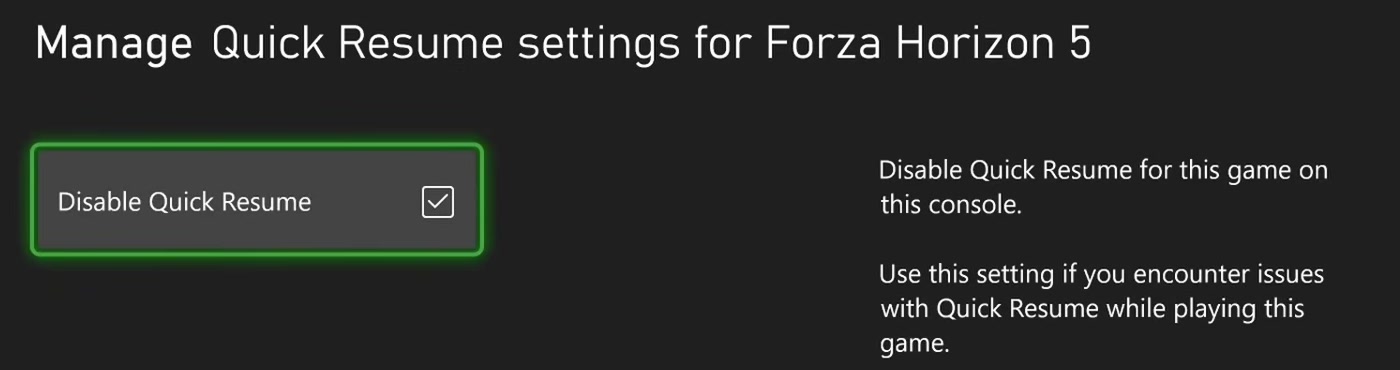
From here on, that game shuts down properly when you switch away from it or power the console off, and it launches from its own start screen next time.
If your console shows a different menu name
Reporting on the feature does not agree on the entry point. Several outlets describe the path used above, through Manage game and add-ons to Quick Resume settings. Others describe reaching the same checkbox from the game tile's More options or Advanced options list, under an entry called Manage Quick Resume. Both descriptions lead to the same per-game screen, so if the first wording is not on your console, look for the second on the tile menu.
What this setting does not do
It does not clear a game that is already suspended. Turning the switch on changes what happens from now on. A snapshot the console has already taken is reported to survive reboots, system updates and even unplugging the console, so restarting is not the way to shift it. Open the guide, go to My games & apps, find the game in the Quick Resume group, press Menu and choose Remove from Quick Resume. Choosing Quit on the game's tile in the guide does the same job for a game you are in.
It does not switch Quick Resume off everywhere. There is no console-level toggle. Each game you want excluded needs its own trip through the steps above, which also means you can leave the feature on for the single-player games where it behaves.
It does not follow your account to another console. The on-screen text says "for this game on this console", so a second Xbox keeps its own setting.
Changing power mode is not a substitute. Picking the lower-power shutdown option rather than sleep does not stop Quick Resume working, so it is not a back-door way to disable the feature.
Common questions
Will I lose progress by turning it off? Not progress the game has saved. Quick Resume holds a suspended session, not a save file, so anything you had not reached a save point for is what goes. Saving manually before you leave a game is the way to avoid that either way.
Can I turn it back on? Yes. Go back to the same screen and untick the box.
Does this work on Xbox One? No. Quick Resume is a Series X and Series S feature, so there is nothing to switch off on an Xbox One.
If the option is not there
The checkbox arrived with the April 2026 console update, so a console that has not taken that update will not show it. Make sure the system software is current and look again. If the game is streamed rather than installed, the management screen it lives on will not have the same entries, because that screen deals with the local installation.