How to Turn Off Caps Lock on Any Keyboard
Caps Lock is a toggle, so the same key switches it off. If it refuses, a Windows setting may have handed the job to Shift, and a Mac can ignore the key entirely.
To turn off Caps Lock, press the Caps Lock key once and the light goes out. If pressing it does nothing, Windows has a setting that can hand that job to the Shift key instead, and a Mac can be told to ignore the key altogether.
Caps Lock is a toggle, so the same key that switched it on switches it off. That covers almost every case. The rest of this guide is for the two situations that send people searching: the key stops responding, or you want it to stop existing.
Which route you take depends on your machine. Windows keeps the relevant option in a dialog that has not been redesigned in twenty years. macOS puts it in plain sight. Phones and Chromebooks handle it differently again.
How to turn off caps lock when the key stops working
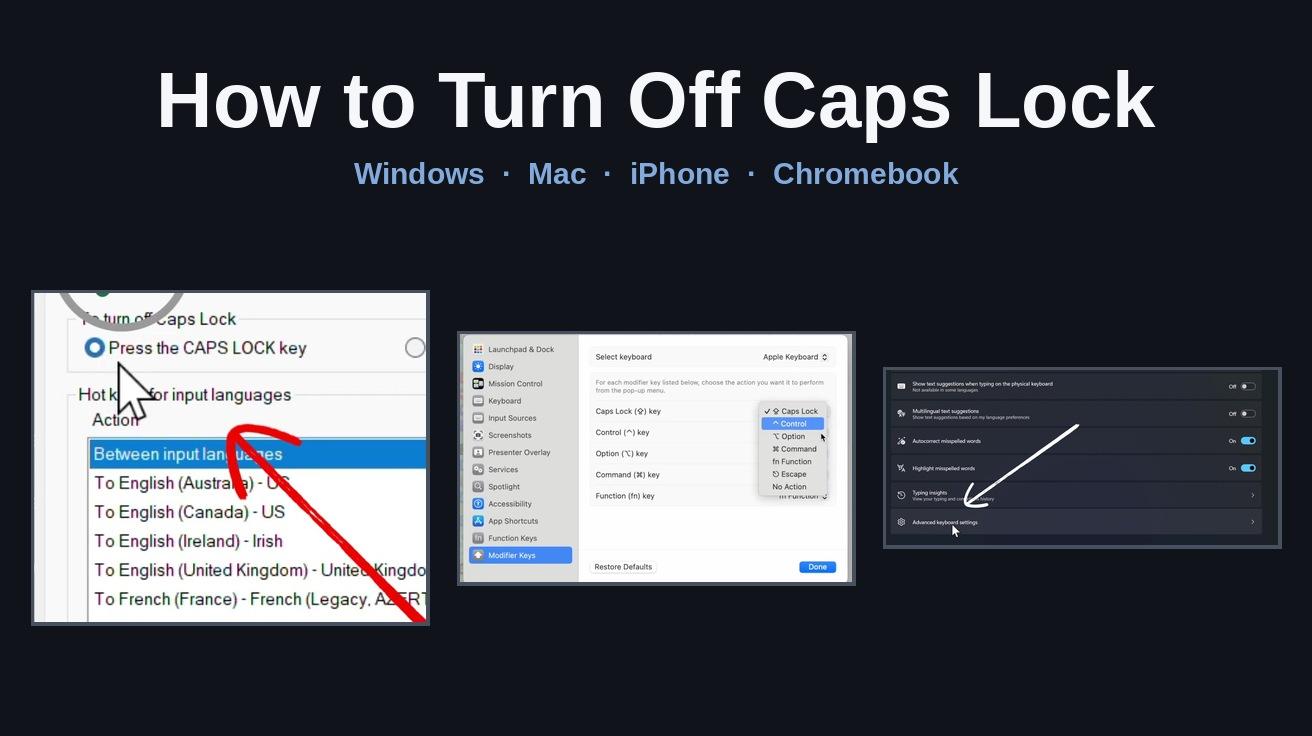
On Windows, there is a setting that decides which key releases Caps Lock. If it has been switched to Shift, tapping Caps Lock will keep doing nothing no matter how hard you press it. Check it before you assume the keyboard is broken.
1. Open Settings and select Time & language, then Typing.
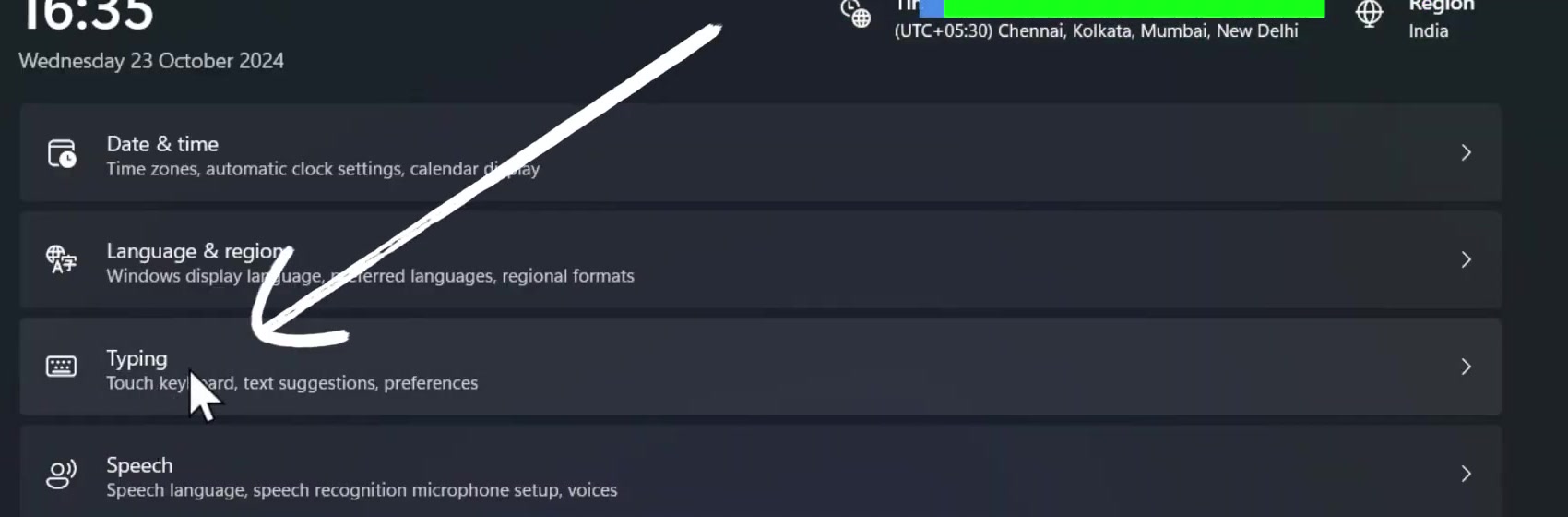
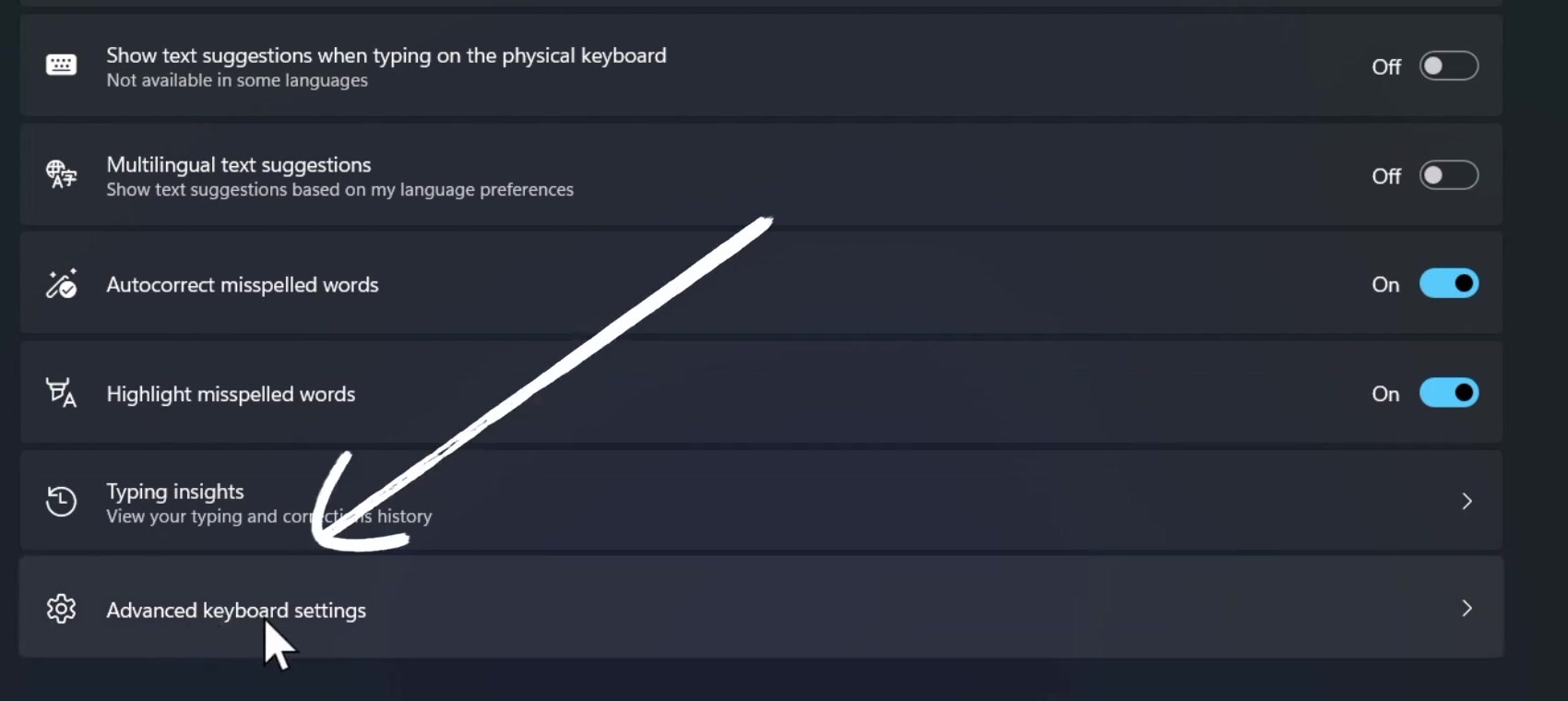
2. Scroll to the bottom of the Typing page and open Advanced keyboard settings.
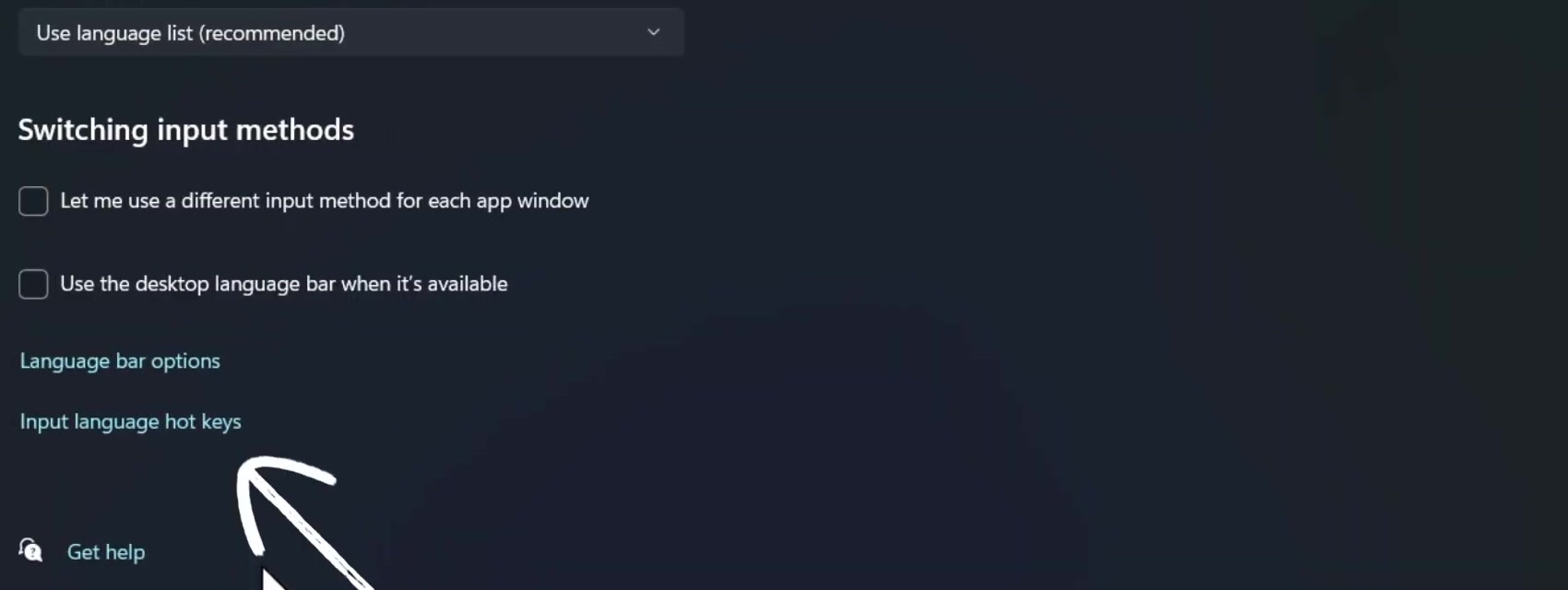
3. Select Input language hot keys. The Text Services and Input Languages dialog opens.
4. On the Advanced Key Settings tab, look at To turn off Caps Lock. Choose Press the CAPS LOCK key, then select Apply and OK.
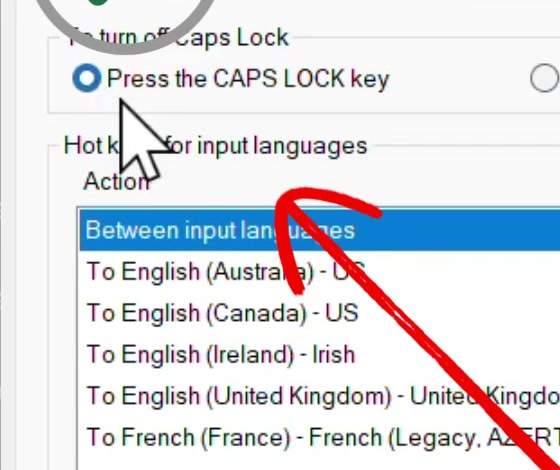
The other option, Press the SHIFT key, is worth knowing about even if you did not set it. Some people prefer it, because Shift is the key your hand reaches for anyway when you realise half a sentence has come out in capitals.
On Windows 10 the same dialog sits under Settings, then Devices, then Typing. The Text Services window itself is identical. If you cannot find the path, typing advanced keyboard settings into the Start menu search box opens it directly on both versions.
Stop the Caps Lock key doing anything on a Mac
macOS lets you reassign the key, which is the closest thing to switching it off. Open the Apple menu, choose System Settings, then Keyboard in the sidebar. Select Keyboard Shortcuts, then Modifier Keys.
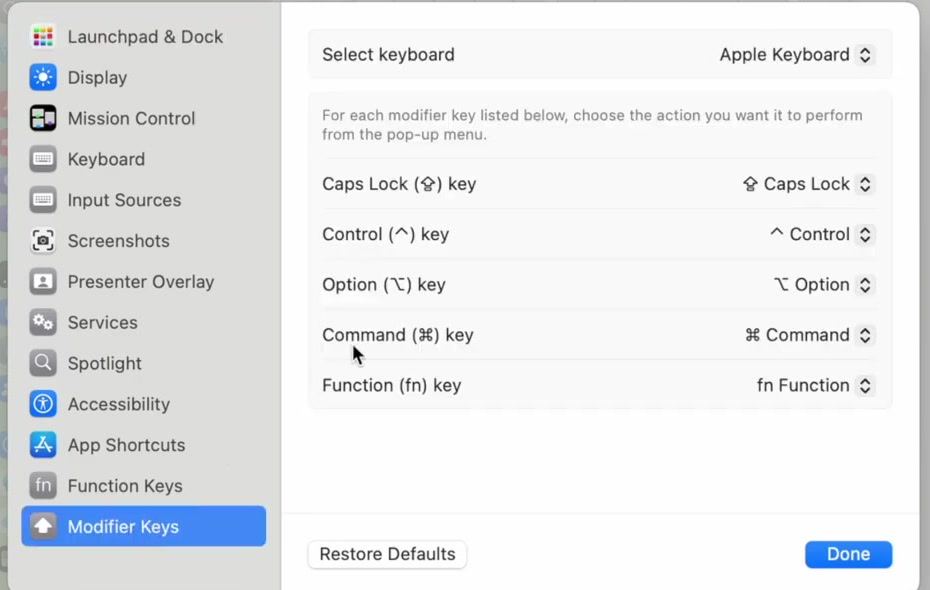
Click the pop-up menu next to Caps Lock (⇪) key and choose No Action. Apple documents this as the way to disable a modifier key's default behaviour. The same menu offers Control, Option, Command, Function and Escape if you would rather give the key a useful job than retire it.
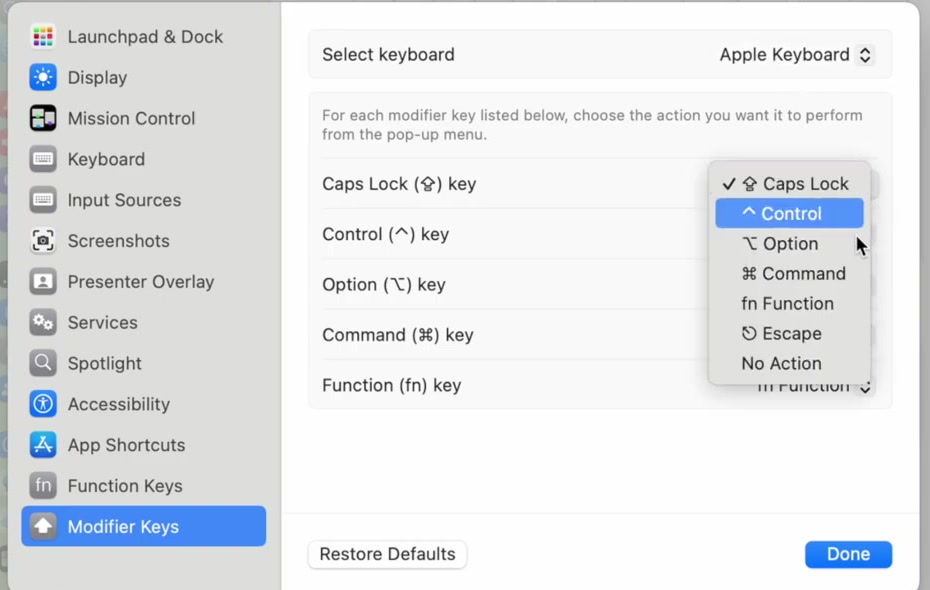
Select Done to save. Restore Defaults in the same panel puts every modifier key back if you change your mind. The setting applies to the keyboard named in the Select keyboard menu at the top, so an external keyboard is configured separately from the built-in one.
Phones, tablets and Chromebooks
On an iPhone or iPad there is no physical key to blame. Caps Lock is engaged by double-tapping the shift arrow on the onscreen keyboard, and a single tap on shift releases it. If you keep triggering it by accident, Settings, then General, then Keyboard has an Enable Caps Lock switch that stops the double-tap working at all.
On a Chromebook there is no dedicated Caps Lock key by default. Google documents the toggle as Alt + Search, which on newer hardware may be labelled Alt + Launcher or Fn + Quick Insert. The same combination turns it on and off.
Removing the key on Windows
Windows has no built-in switch that disables Caps Lock outright. Microsoft's own PowerToys includes Keyboard Manager, which remaps keys: open PowerToys Settings, select Keyboard Manager, then Remap a key, then Add key remapping, set Select to Caps Lock and choose what it should send instead.
Microsoft's documentation is explicit about the limits. PowerToys has to be running for a remap to hold, the remap does not apply on the sign-in screen, and it will not work inside a window running as administrator unless PowerToys is running as administrator too. Third-party tools and registry edits can make a change that survives a reboot without PowerToys running, but those are outside what Microsoft documents and a mistyped registry value affects every key on the keyboard.
What this does not do
Changing the Windows setting to Shift does not disable Caps Lock. The key still switches capitals on; only the key that releases them changes.
Choosing No Action on a Mac does not repair a key that is physically stuck. If the key feels different from its neighbours, or the indicator light stays on with the Mac asleep, that is hardware. The same applies to a wireless keyboard that has lost its connection and is reporting nothing at all.
None of these settings change what Shift does, and none of them affect autocorrect or the automatic capital at the start of a sentence.
Common questions
Why is my text still in capitals after I turned Caps Lock off? Check the document rather than the keyboard. Word processors can apply an all-caps character format that looks identical and is unaffected by the key.
Can I make Windows warn me when I hit the key? Yes. Press Windows + U to open Accessibility settings, select Keyboard, and switch on Toggle keys. Windows then plays a tone whenever Caps Lock, Num Lock or Scroll Lock changes state.
Is there a shortcut that works on every computer? No. Pressing the key is the only universal method, which is why the Chromebook combination and the Mac reassignment are worth knowing if you move between machines.
If the option isn't there
If the Advanced Key Settings tab is missing on Windows, you are probably looking at the Language Bar tab of the same dialog; the tabs sit along the top. If the dialog will not open from Settings at all, search for it from the Start menu instead.
On a Mac running macOS Monterey or earlier, the panel lives in System Preferences rather than System Settings: open Keyboard, then the Keyboard tab, then Modifier Keys. The Caps Lock row and the No Action option are the same.
If the key is unresponsive in every application and in the settings dialogs themselves, the problem is the keyboard, not the configuration. A second keyboard plugged in will tell you which it is in about ten seconds. If you cannot type at all to get that far, restarting the PC without a working keyboard is the next thing to try.